
File Transfer
VISULOX File Transfer guarantees that security zones are not connected and remain separate. Multiple transfer policies to different endpoints can be defined. (direction, content, size). Also, the transferred files are provided to the users through their home directory |
Overview
The File Transit Console is an interface to interact between the Transit Zone and an SFTP/FTP endpoint.
This allows to connect to a server using SFTP, FTP passive or FTP active protocol.
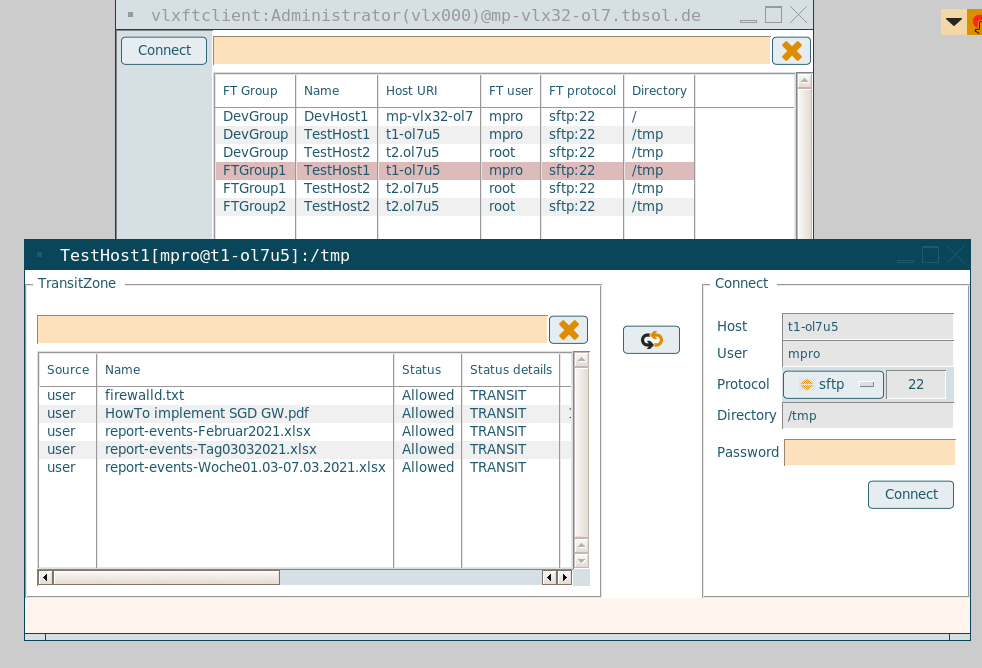
Depending on the underlying policies, the user can transfer files between the Transit Zone and the available application servers.
Configuration options
Changing the name of the files in Transit Zone
transit.naming
./visulox config list -name transit.naming
    ---------------------------------------------------
    | changed | key            | value                |
    ---------------------------------------------------
    |         | transit.naming | %NAME%-%HOST%-%USER% |
---------------------------------------------------./visulox config list -name transit.filename
-----------------------------------------------------------
| changed | key | value |
-----------------------------------------------------------
| | transit.filename | [0-9a-zA-Z \.\-_@=#:+~%()] |
-----------------------------------------------------------Regexpression with ^and +$ is possible.
Adjusting retention times for the Transit Zone
Retension times
visulox config -name retentiontime -info
    ----------------------------------------------------------------------------------------------------------------------------------------------------
    | changed | key                                    | value |                                                              shortinfo | defaultvalue |
    ----------------------------------------------------------------------------------------------------------------------------------------------------
    |         | transit.retentiontime                  | 3600  |                retention time of files in the transit zone in seconds  |         3600 |
    |         | transit.retentiontime.approved         | 7200  | retention time of files in the transit zone after approved in seconds  |         7200 |
    |         | transit.retentiontime.pending          | 7200  |   retention time of files in pending state in transit zone in seconds  |         7200 |
    |         | transit.retentiontime.warningthreshold | 300   |               warning befor file is removed from transizone in seconds |          300 |
    ----------------------------------------------------------------------------------------------------------------------------------------------------
Adjusting maxuploadsize and Transit quota
transit.maxuploadsize & transit.quota
visulox config edit -name transit.maxuploadsize=1Gbyte (Default: 20Gbyte)
visulox config edit -name transit.quota=30Gbyte (Default: 50Gbyte)
Possible units: k(kbyte, m (mbyte) g (gbyte).

Modifing maxuploadsize needs to register VISULOX at the VISULOX Access Node.
visulox portal attach -jspconfSee also: Attaching VISULOX Service to VISULOX PORTAL Service
Default temporary Transit directory
The default temporary Transit directory (general.filearea) is /opt/visulox/var/filearea/. All temporary files during transit, ftclient and fileexchange are stored temporarily in this directory.
Integrity Check displays a warning, if general.filearea is smaller than four times of the transit.maxuploadsize.
Depending on the usage, general.filearea has to be configured.
The path of the filearea folder can be changed with:
visulox config -name general.filearea
    --------------------------------------
    | changed | key              | value |
    --------------------------------------
    |         | general.filearea |       |
    --------------------------------------
With an NFS Share the %NODE% variable has to be used for the nodes.
transit.retentiontime
visulox config edit -name transit.retentiontime=1800 (Default: 3600)The Transit Zone has to be used by the user to transfer files from A to B. It should not be abused as a "store". This is not the service of the Transit Zone.
Checkout of rejected File Transfer files
With the following configuration parameter rejected File Transfer files will be stored in the filestore and are available for checkout:
visulox config -name transit.storerejectedfiles=true Enable File Exchange service
visulox config -name layout.<logical server name>.fileexchange=true
visulox restart -service monitor
File Exchange certificate configuration
    ---------------------------------------------------------------------
    | changed | key                     | value                         |
    ---------------------------------------------------------------------
    |         | fileexchange.banner     | %LICENSE%                     |
    |         | fileexchange.cafile     |                               |
    |         | fileexchange.certfile   | visulox.self.pem              |
    |         | fileexchange.connection | From %RIP% on %NODE% (%HOST%) |
    |         | fileexchange.keyfile    | visulox.self.key              |
    |         | fileexchange.port       |                               |
    |         | fileexchange.sslport    | 1443                          |
    ---------------------------------------------------------------------
Files need to be placed in /opt/visulox/etc/ssl/.
Isolated transit user
The vlxMode parameter IU starts a visulox.exp application with its own transit user and Transit Zone.
The IU application must be started after the original application.
Transit Zone in VISULOX Cockpit
The current files in Transit Zone are displayed in the Cockpit.
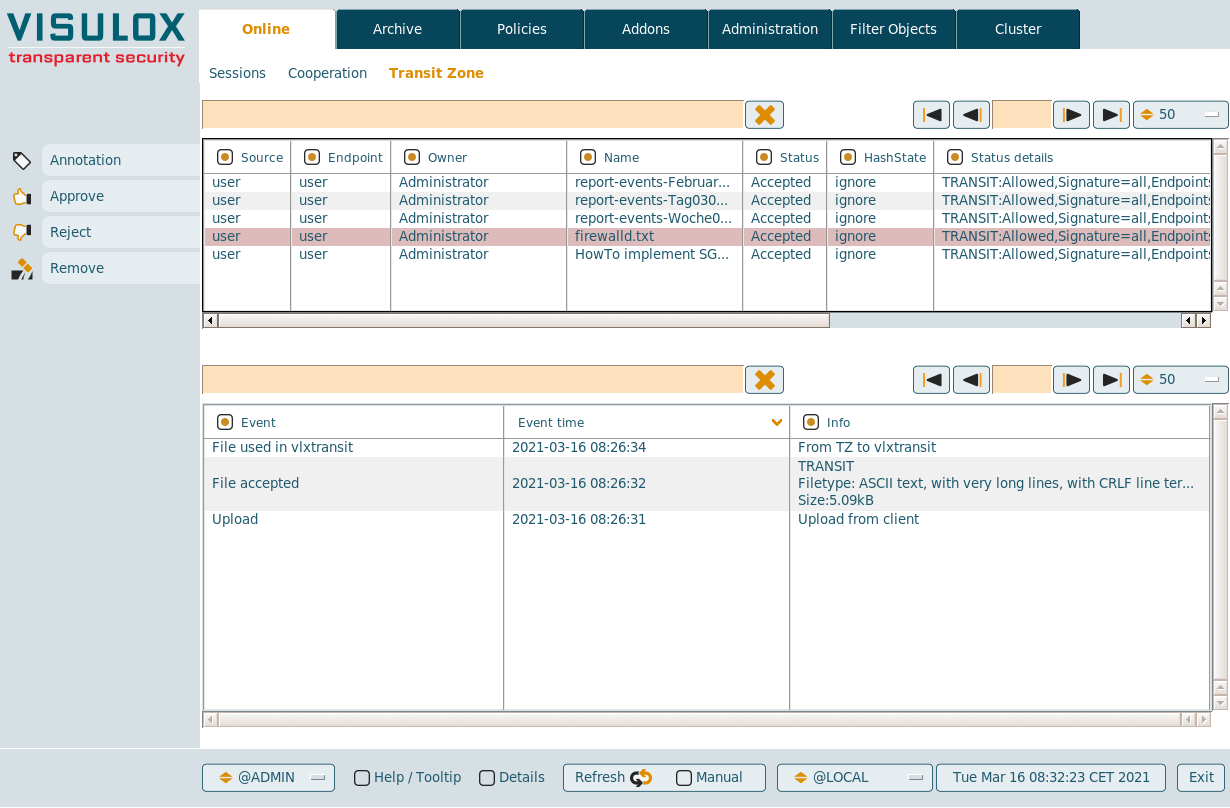
- Annotation: A remark for the selected record can be added
- Approve: The selected file will be approved. (
 A user can not approve his own files!)
 - Reject: The selected file will be rejected
- Remove: Selected files are removed from the Transit Zone
With a right-click on an entry, it is possible to jump to the file entry in Cockpit / Archive.
FT Client application
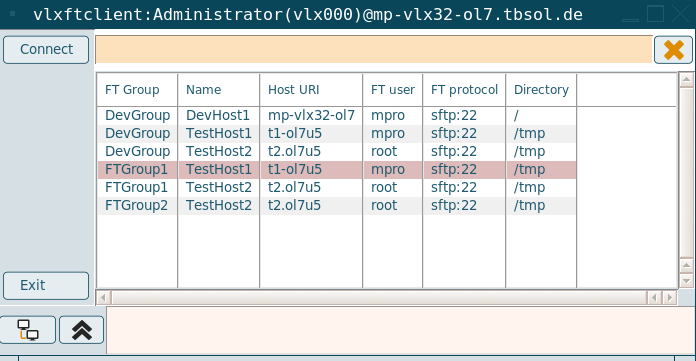
- Connect: Opens FT Client to all selected hosts
- Exit: FT Client application and all open sessions are closed
- Arrange: FT Client connections will be rearranged
- Collapse: Collapse Console
FT Client connection
Depending on the configuration, the user has to enter the credentials for the selected connection.
An FT Client Group has endpoints assigned. No user in the endpoint allows to enter a free user.
Transfer
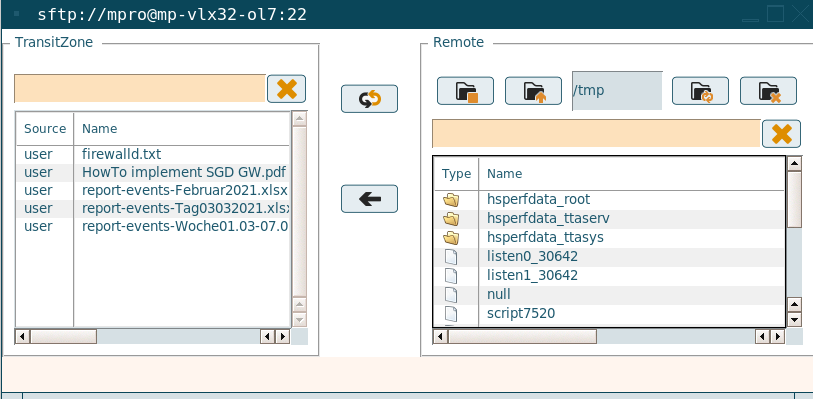
Depending on the underlying policies, the user can transfer files between the Transit Zone and the available application servers.
Configuration parameters
| Application | Application command | Login script |
|---|---|---|
| FT Client | vlxftclient | visulox.exp |
The following parameters can be used with the FT Client:
| Parameter | Description |
|---|---|
| -title <value> | Application title <> |
| -groups <value> | Comma seperated list of groups <> |
| -lang <value> | Language <> |
| -hosts <value> | Comma separated list of hosts (sftp://user@host) <> |
| -sshkey <value> | SSH-key: path to SSH-keyfiles <> |
| -sshkeymask <value> | SSH-key: mask to select SSH-keyfiles %HOST%, %USER%, %LOGINUSER%,%OWNERID%,%GROUP% |
| -files <value> | Comma seperated list of definition files <> |
| -autoconnect | Auto connect, if there is only one host |
| -resource <value> | Name of passcache resource |
-sshpassprompt <value> | Override default sshpass password prompt. See: "man sshpass -P" |
FT Client supports -hosts / -files / -groups. Each parameter is a comma separated list.
If one is set, the groups are not taken from the database.
-hosts allows to specify a list of hosts. A single group is generated named CLI
-files allows to read groups and hosts from a file. The file must be readable by vlxgroup on all VISULOX Access Nodes.
If the files are not found, they will be searched in the directory assigned via general.hostfileslookuppath.
File example:CODE[GRP1] sftp://root@GW1//tmp sftp://root@GW2 [GRP2] sftp://root@portal1:22//tmp sftp://root@portal2:23Custom ports can be declared with ":" and directories can be added with "/".
- -groups requests the group and assigned hosts from the database.
With -autoconnect always the first group will be activated. If there is only one group with one host and -autoconnect is set, it wil be opened directly (in fullscreen).
This allows to have ftclient with ANY/ANY or a single host in an independent window w/out windowmanager.
Connect to Bitvise SFTP server
Connection to a Bitvise SFTP server on Windows servers is supported with all FT modules.
In this case, there are two possible options:
- command shell mode full access
- bvshell with full access and limit to root directory
Related information
- Accessing the File Exchange web page
- Allowing File Transfer from internal to internal
- Automated transfer of files into Transit Zone (Passon)
- Command Connect / Guard and FT Client with empty filters
- Configuration of File Transfer in the VISULOX Cockpit
- Custom vlxuser ID for transit users
- Extended Transit Policy with hash check by provided hash file
- File Transfer
- File Transfer features
- File Transfer modules
- File Transfer recommendations
- File Transfer via command line
- File Transit with approval
- How to attach Chrome/Chromium download directory to vlxtransit
- How to configure File Transfer content check
- How to control File Transit Policy from the command line
- How to control FT Client from the command line
- How to discard filetypes from the Transit Zone synchronisation
- How to setup File Exchange on a VISULOX Node without VISULOX PORTAL Service
- How to use SSH-Keys within Command Connect / Guard and FT Client
- Object ID
- Transit Policy
- Transit script variables
- VISULOX addon command line interface (CMD Connect / Guard, etc)
- VISULOX File Transit and Sophos Endpoint Security and Control
- VISULOX FTP Service
- VISULOX Transit mapping
- VISULOX Transit Mapping and Ubuntu application servers
- VISULOX4_FileTransfer_(VFT)
- Accessing the File Exchange web page
- Allowing File Transfer from internal to internal
- Automated transfer of files into Transit Zone (Passon)
- Command Connect / Guard and FT Client with empty filters
- Configuration of File Transfer in the VISULOX Cockpit
- Custom vlxuser ID for transit users
- Extended Transit Policy with hash check by provided hash file
- File Transfer
- File Transfer features
- File Transfer modules
- File Transfer recommendations
- File Transfer via command line
- File Transit with approval
- How to attach Chrome/Chromium download directory to vlxtransit
- How to configure File Transfer content check
- How to control File Transit Policy from the command line
- How to control FT Client from the command line
- How to discard filetypes from the Transit Zone synchronisation
- How to setup File Exchange on a VISULOX Node without VISULOX PORTAL Service
- How to use SSH-Keys within Command Connect / Guard and FT Client
- Object ID
- Transit Policy
- Transit script variables
- VISULOX addon command line interface (CMD Connect / Guard, etc)
- VISULOX File Transit and Sophos Endpoint Security and Control
- VISULOX FTP Service
- VISULOX Transit mapping
- VISULOX Transit Mapping and Ubuntu application servers
- VISULOX4_FileTransfer_(VFT)
- Accessing the File Exchange web page
- Allowing File Transfer from internal to internal
- Automated transfer of files into Transit Zone (Passon)
- Command Connect / Guard and FT Client with empty filters
- Configuration of File Transfer in the VISULOX Cockpit
- Custom vlxuser ID for transit users
- Extended Transit Policy with hash check by provided hash file
- File Transfer
- File Transfer features
- File Transfer modules
- File Transfer recommendations
- File Transfer via command line
- File Transit with approval
- How to attach Chrome/Chromium download directory to vlxtransit
- How to configure File Transfer content check
- How to control File Transit Policy from the command line
- How to control FT Client from the command line
- How to discard filetypes from the Transit Zone synchronisation
- How to setup File Exchange on a VISULOX Node without VISULOX PORTAL Service
- How to use SSH-Keys within Command Connect / Guard and FT Client
- Object ID
- Transit Policy
- Transit script variables
- VISULOX addon command line interface (CMD Connect / Guard, etc)
- VISULOX File Transit and Sophos Endpoint Security and Control
- VISULOX FTP Service
- VISULOX Transit mapping
- VISULOX Transit Mapping and Ubuntu application servers
- VISULOX4_FileTransfer_(VFT)
- Accessing the File Exchange web page
- Allowing File Transfer from internal to internal
- Automated transfer of files into Transit Zone (Passon)
- Command Connect / Guard and FT Client with empty filters
- Configuration of File Transfer in the VISULOX Cockpit
- Custom vlxuser ID for transit users
- Extended Transit Policy with hash check by provided hash file
- File Transfer
- File Transfer features
- File Transfer modules
- File Transfer recommendations
- File Transfer via command line
- File Transit with approval
- How to attach Chrome/Chromium download directory to vlxtransit
- How to configure File Transfer content check
- How to control File Transit Policy from the command line
- How to control FT Client from the command line
- How to discard filetypes from the Transit Zone synchronisation
- How to setup File Exchange on a VISULOX Node without VISULOX PORTAL Service
- How to use SSH-Keys within Command Connect / Guard and FT Client
- Object ID
- Transit Policy
- Transit script variables
- VISULOX addon command line interface (CMD Connect / Guard, etc)
- VISULOX File Transit and Sophos Endpoint Security and Control
- VISULOX FTP Service
- VISULOX Transit mapping
- VISULOX Transit Mapping and Ubuntu application servers
- VISULOX4_FileTransfer_(VFT)
- Accessing the File Exchange web page
- Allowing File Transfer from internal to internal
- Automated transfer of files into Transit Zone (Passon)
- Command Connect / Guard and FT Client with empty filters
- Configuration of File Transfer in the VISULOX Cockpit
- Custom vlxuser ID for transit users
- Extended Transit Policy with hash check by provided hash file
- File Transfer
- File Transfer features
- File Transfer modules
- File Transfer recommendations
- File Transfer via command line
- File Transit with approval
- How to attach Chrome/Chromium download directory to vlxtransit
- How to configure File Transfer content check
- How to control File Transit Policy from the command line
- How to control FT Client from the command line
- How to discard filetypes from the Transit Zone synchronisation
- How to setup File Exchange on a VISULOX Node without VISULOX PORTAL Service
- How to use SSH-Keys within Command Connect / Guard and FT Client
- Object ID
- Transit Policy
- Transit script variables
- VISULOX addon command line interface (CMD Connect / Guard, etc)
- VISULOX File Transit and Sophos Endpoint Security and Control
- VISULOX FTP Service
- VISULOX Transit mapping
- VISULOX Transit Mapping and Ubuntu application servers
- VISULOX4_FileTransfer_(VFT)