
File Transfer modules
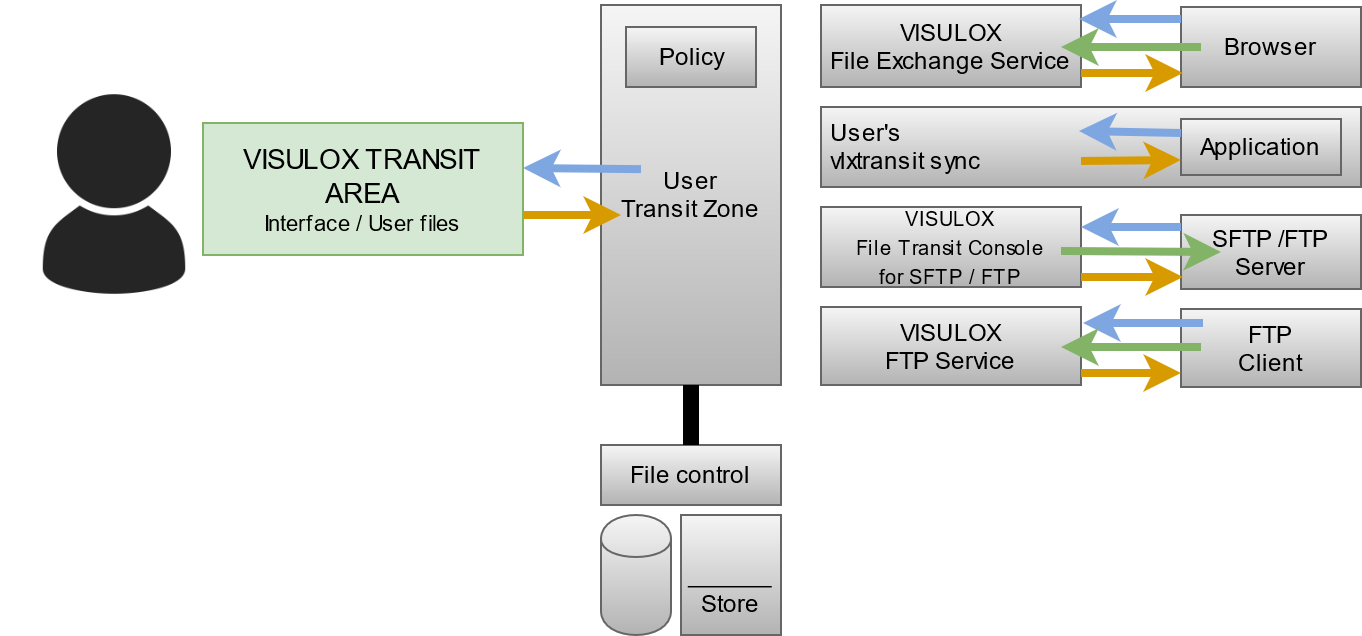
The modules provide access to the Transit Zone. There are several File Transfer modules, each providing a connection to the Transit Zone:
Transit Web in Workspace | File Transfer interface is presented in the user`s Workspace. The user can upload or download files from his client into the Transit Zone. |
File Exchange | The user can connect to every VISULOX node, using the internal WEB browser and a known URL. The WEB Access PIN is needed to see the Transit Zone. |
| Sync | Depending on the configuration, the user has a local directory, where he has direct access to the Transit Zone. |
| Passon script / CLI (automated transfer) | Users are able to upload into the Transit Zone. Depending on the user, file name or file type these files can be passed on automatically to another location via script. |
File Transit Client SFTP/FTP | Interface to interact between the Transit Zone and an SFTP/FTP endpoint. This allows to connect to a server using SFTP, FTP passive or FTP active protocol. Depending on the policy, the user gets a list of hosts he can connect to or he is able to configure his own host list for File Transfer. |
| FTP Service | Interface to interact between an application server side FTP client with the Transit Zone. ( The FTP Service has to be enabled , before the service can be used). The FTP Service has to be enabled , before the service can be used). |
Usage
The heart of the VISULOX File Transfer is the user's Transit Zone. Every file a user transports in or outbounded is passing the Transit Zone.
VISULOX Transit Area in Workspace
The VISULOX Transit Area is displayed in the Workspace (File Transit Zone).
The maximum quota, number of files in the zone, max file size and the retention time are shown in the status line.
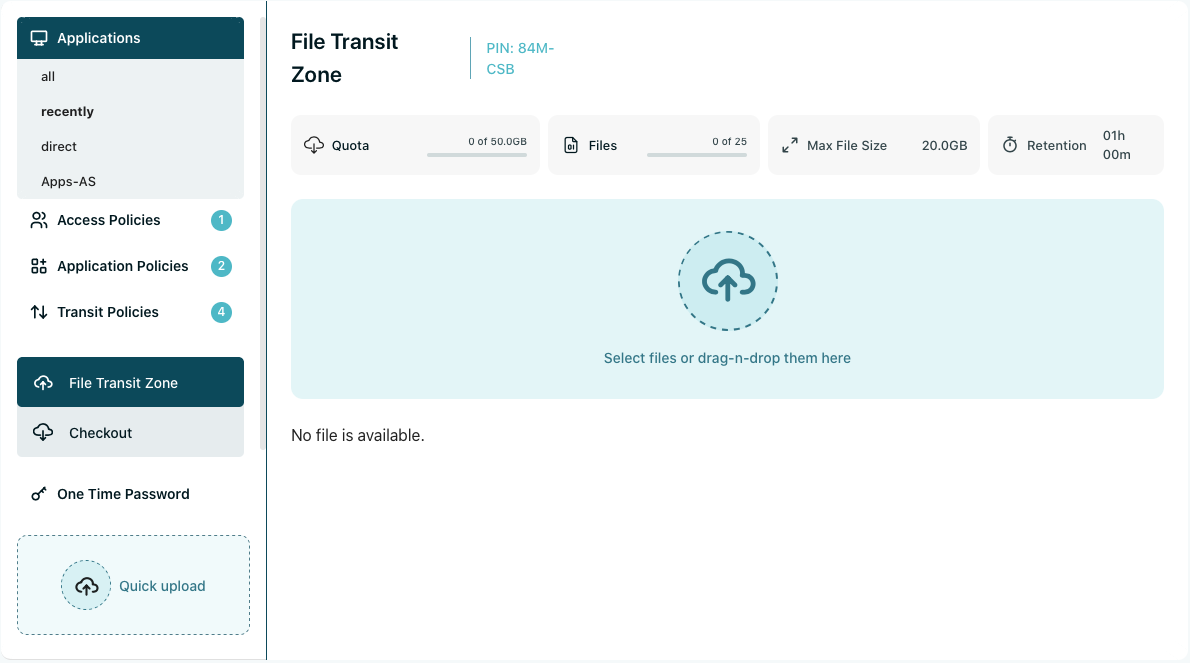
Within the File Transfer page, the user is able to upload or download files from the local PC into the Transit Zone.
With click on the drag & drop field files can be chosen from the local drives or using drag & drop of files into the area.
Using the "Start All" button, the files will be uploaded to the Transit Zone.
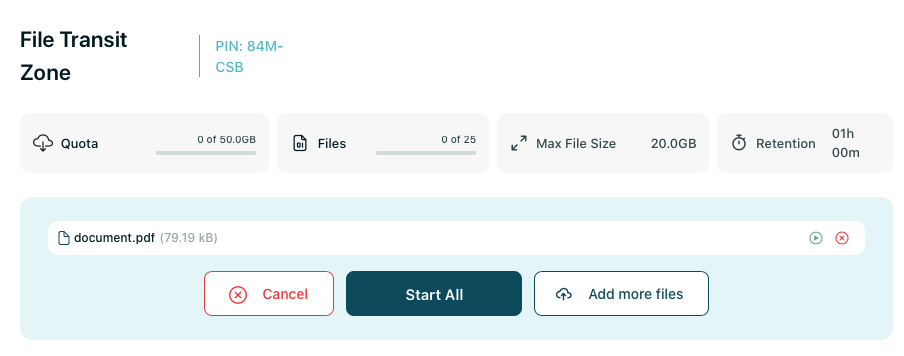
Detailed status information is available after uploading:

If a virus scanner is setup, the files are scanned and will be rejected, if a virus is found.
A file can be deleted manually by the user to gain more free diskspace, when the quota is reached.
The files will also be deleted automatically, if the lifetime (retention time) in the Transit Zone is reached.
File Exchange
The File Exchange module is used to upload and download files from the Transit Zone to application servers inside the datacenter.
Starting a browser on the application server and entering the URL provided for example via the internal message and the PIN displayed in the Transit Zone.

FT Client
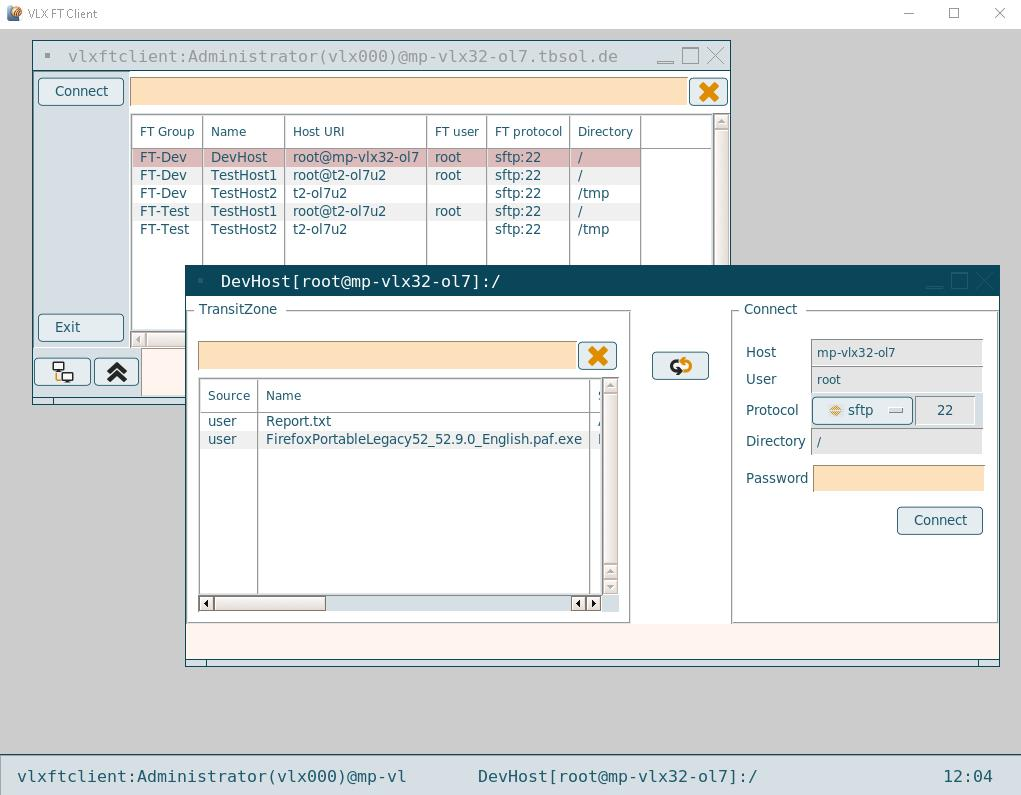
The FT Client is an interface to interact between the user's Transit Zone and an FTP / SFTP endpoint inside the system environment.
With valid credentials the user is able to login to a system with a running FTP / SFTP server. The files in the user's Transit Zone are visible and ready for further transferring.
Sync
Using a VISULOX implementation of rdesktop client, the user's directory in the Transit Zone will be passed to the application server.
All files from Transit Zone belonging to the user are visible and accessible for further processing.