
File Transfer features
Overview
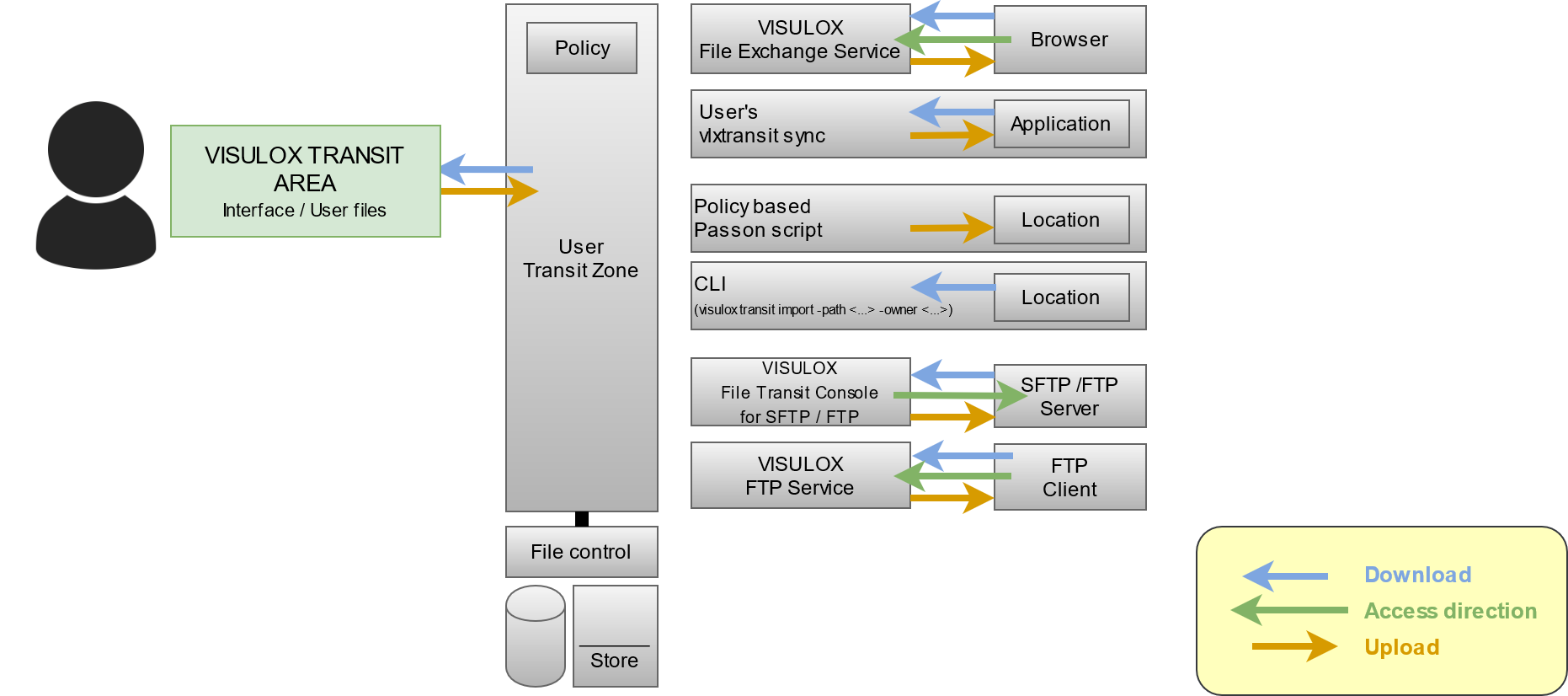
The File Transfer modules
The modules provide access to the Transit Zone. There are several File Transfer modules, each providing a connection to the Transit Zone:
| Module | Description |
|---|---|
Transit Web in Workspace | File Transfer interface is presented in the user`s Workspace. The user can upload or download files from his client into the Transit Zone |
File Exchange | The user can connect to every VISULOX Node, using the internal WEB browser and a known URL. The WEB Access PIN is needed to see the Transit Zone. |
| Sync | Depending on the configuration, the user has a local directory, where he has direct access to the Transit Zone. sshfs must be installable. For OL 8 use "Oracle Linux 8 CodeReady Builder (x86_64) - Unsupported" as repository. |
| Passon script / CLI (automated transfer) | Users are able to upload into the Transit Zone. Depending on the user, file name or file type these files can be passed on automatically to another location via script. |
File Transit Client SFTP/FTP | Interface to interact between the Transit Zone and an SFTP/FTP endpoint. This allows to connect to a server using SFTP, FTP passive or FTP active protocol. Depending on the policy, the user gets a list of hosts he can connect to or he is able to configure his own host list for File Transfer. |
| FTP Service | Interface to interact between a application server side FTP client with the Transit Zone. ( The FTP service has to be enabled , before FTP Service can be used). The FTP service has to be enabled , before FTP Service can be used). |

Also have a look at the User Guide: File Transfer modules

To display the checksum of transferred files in the File Transfer interface in the user's Workspace it is necessary to install rhash, which is available in the Epel repository.
Status of the transferred files
The heart of the VISULOX File Transfer is the user's Transit Zone. Every file a user transports in or outbound is passing the Transit Zone.
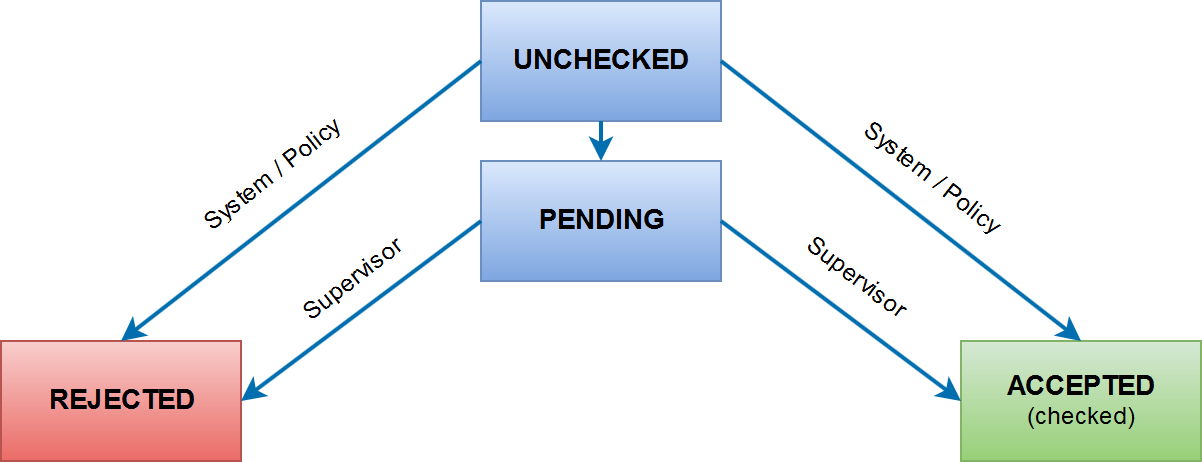
A file in the Transit Zone can have several states:
| State | Description |
|---|---|
| unchecked | If a file is inserted into the file store, it is set to unchecked and the background task is informed to check the file |
| pending | If the File Transfer Policy detects a file pattern, where the file type needs approval, the file is marked as "Needs approval". Using the Cockpit a supervisor can "approve" or "reject" this file for the user. |
| rejected | If the system rejects the file, there are several reasons:
|
| checked or approved | The file is checked and can be used by the user internally or externally |
A file can be deleted manually by the user to gain more free diskspace, when his quota is reached. Also the files will be deleted automatically, if the lifetime in the Transit Zone is reached.
Related articles
- VISULOX File Transit and Sophos Endpoint Security and Control
- How to discard filetypes from the Transit Zone synchronisation
- Configuration of File Transfer in the VISULOX Cockpit
- File Transfer
- File Transfer modules
- Command Connect / Guard and FT Client with empty filters
- VISULOX4_FileTransfer_(VFT)
- Accessing the File Exchange web page
- VISULOX Transit Mapping and Ubuntu application servers
- Automated transfer of files into Transit Zone (Passon)
- VISULOX FTP Service
- File Transfer recommendations
- How to attach Chrome/Chromium download directory to vlxtransit
- How to control FT Client from the command line
- How to setup File Exchange on a VISULOX Node without VISULOX PORTAL Service
- How to configure File Transfer content check
- Object ID
- Transit Policy
- Allowing File Transfer from internal to internal
- Transit script variables
- File Transfer features
- Custom vlxuser ID for transit users
- File Transfer via command line
- File Transit with approval
- How to control File Transit Policy from the command line
- Extended Transit Policy with hash check by provided hash file
- VISULOX addon command line interface (CMD Connect / Guard, etc)
- How to use SSH-Keys within Command Connect / Guard and FT Client
- VISULOX Transit mapping
- VISULOX FTP Service
- VISULOX addon command line interface (CMD Connect / Guard, etc)
- Command Connect / Guard and FT Client with empty filters
- Custom vlxuser ID for transit users
- Transit Policy
- How to use SSH-Keys within Command Connect / Guard and FT Client
- How to control File Transit Policy from the command line
- File Transfer via command line
- File Transfer
- Object ID
- VISULOX4_FileTransfer_(VFT)
- How to control FT Client from the command line
- Accessing the File Exchange web page
- Configuration of File Transfer in the VISULOX Cockpit
- File Transfer recommendations
- Automated transfer of files into Transit Zone (Passon)
- File Transit with approval
- VISULOX Transit Mapping and Ubuntu application servers
- How to attach Chrome/Chromium download directory to vlxtransit
- How to setup File Exchange on a VISULOX Node without VISULOX PORTAL Service
- File Transfer features
- Transit script variables
- Extended Transit Policy with hash check by provided hash file
- How to discard filetypes from the Transit Zone synchronisation
- File Transfer modules
- VISULOX File Transit and Sophos Endpoint Security and Control
- How to configure File Transfer content check
- Allowing File Transfer from internal to internal
- VISULOX Transit mapping
- VISULOX File Transit and Sophos Endpoint Security and Control
- Transit script variables
- VISULOX FTP Service
- How to use SSH-Keys within Command Connect / Guard and FT Client
- Object ID
- Automated transfer of files into Transit Zone (Passon)
- VISULOX addon command line interface (CMD Connect / Guard, etc)
- How to control FT Client from the command line
- How to configure File Transfer content check
- File Transit with approval
- VISULOX Transit mapping
- Extended Transit Policy with hash check by provided hash file
- Allowing File Transfer from internal to internal
- File Transfer modules
- File Transfer recommendations
- File Transfer features
- How to attach Chrome/Chromium download directory to vlxtransit
- How to control File Transit Policy from the command line
- Configuration of File Transfer in the VISULOX Cockpit
- File Transfer via command line
- File Transfer
- How to setup File Exchange on a VISULOX Node without VISULOX PORTAL Service
- Command Connect / Guard and FT Client with empty filters
- VISULOX4_FileTransfer_(VFT)
- Accessing the File Exchange web page
- Custom vlxuser ID for transit users
- VISULOX Transit Mapping and Ubuntu application servers
- Transit Policy
- How to discard filetypes from the Transit Zone synchronisation
- File Transfer features
- File Transit with approval
- VISULOX File Transit and Sophos Endpoint Security and Control
- Configuration of File Transfer in the VISULOX Cockpit
- VISULOX FTP Service
- Command Connect / Guard and FT Client with empty filters
- Extended Transit Policy with hash check by provided hash file
- How to control File Transit Policy from the command line
- File Transfer via command line
- Automated transfer of files into Transit Zone (Passon)
- Transit Policy
- How to discard filetypes from the Transit Zone synchronisation
- File Transfer
- How to configure File Transfer content check
- How to use SSH-Keys within Command Connect / Guard and FT Client
- VISULOX4_FileTransfer_(VFT)
- Custom vlxuser ID for transit users
- Transit script variables
- File Transfer modules
- File Transfer recommendations
- How to setup File Exchange on a VISULOX Node without VISULOX PORTAL Service
- Accessing the File Exchange web page
- How to attach Chrome/Chromium download directory to vlxtransit
- Object ID
- VISULOX Transit Mapping and Ubuntu application servers
- VISULOX Transit mapping
- How to control FT Client from the command line
- VISULOX addon command line interface (CMD Connect / Guard, etc)
- Allowing File Transfer from internal to internal
- How to control File Transit Policy from the command line
- Automated transfer of files into Transit Zone (Passon)
- VISULOX FTP Service
- Accessing the File Exchange web page
- File Transit with approval
- Allowing File Transfer from internal to internal
- How to control FT Client from the command line
- VISULOX Transit Mapping and Ubuntu application servers
- VISULOX File Transit and Sophos Endpoint Security and Control
- File Transfer modules
- VISULOX addon command line interface (CMD Connect / Guard, etc)
- How to configure File Transfer content check
- Extended Transit Policy with hash check by provided hash file
- Transit script variables
- Command Connect / Guard and FT Client with empty filters
- File Transfer features
- How to use SSH-Keys within Command Connect / Guard and FT Client
- VISULOX4_FileTransfer_(VFT)
- How to attach Chrome/Chromium download directory to vlxtransit
- Custom vlxuser ID for transit users
- Object ID
- Configuration of File Transfer in the VISULOX Cockpit
- File Transfer via command line
- How to discard filetypes from the Transit Zone synchronisation
- File Transfer
- How to setup File Exchange on a VISULOX Node without VISULOX PORTAL Service
- Transit Policy
- File Transfer recommendations
- VISULOX Transit mapping