
Extended Transit Policy with hash check by provided hash file
About
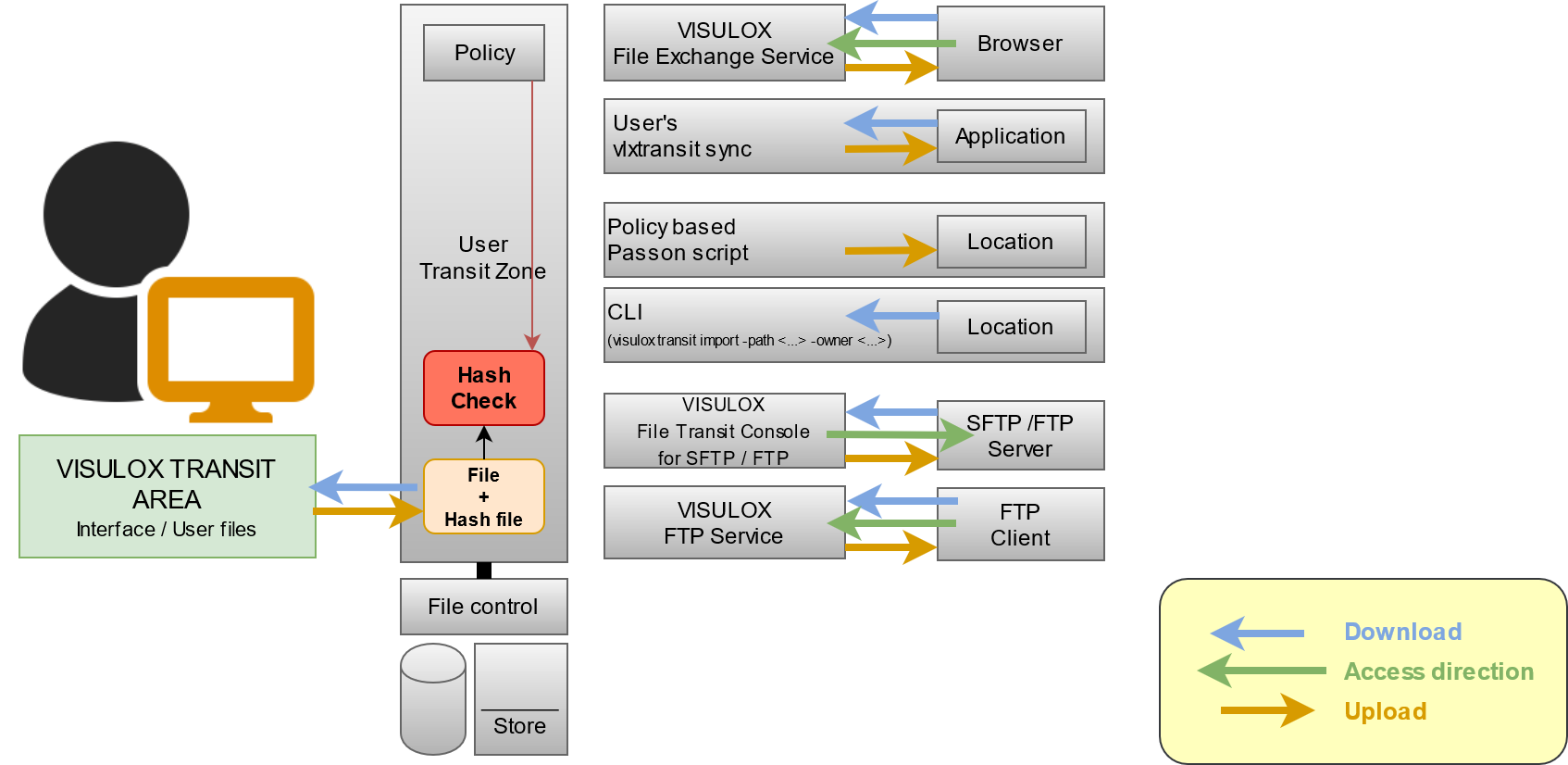
File Transit has been enhanced to check the hash values of uploaded files against a created hash file.
If the Transit Policy is set to "Hash check enabled", files can be uploaded into Transit Zone as usual.
The files matching the policy with hash check enabled will get the status "pending" in the Transit Zone.
Such files can only be processed, if a valid hash file is uploaded into the Transit Zone as well.
The hash file containing one or more hash values can be uploaded before or after the actual files. Files and hash files are always checked for hash values, once they are in the Transit Zone.
Files that have a matching hash value in a hash file will be processed depending on the configured policy mode.
Features
- One or more hash values are possible in a single hash file
Files can be processed as long as the files and their corresponding hash file are available in the Transit Zone
 Default lifetime of files in the Transit Zone is set to two hours!
- Hash check is available for all policy modes: Allowed, Approval, Passon and Passon with Approval
- The hash file itself is passed on like regular files to check the hash values of the files on the endpoint as well
- Hash check ban be enabled for files transferred in (client → Transit Zone → server) and out (server → Transit Zone → client) of the environment
Configuration
Enabling hash check for a Transit Policy
Hash check can be enabled in VISULOX Cockpit / Policies / Transit within a Transit Policy.
It is also possible to create or adjust Transit Policies via the command line (see: Command Line Interface).
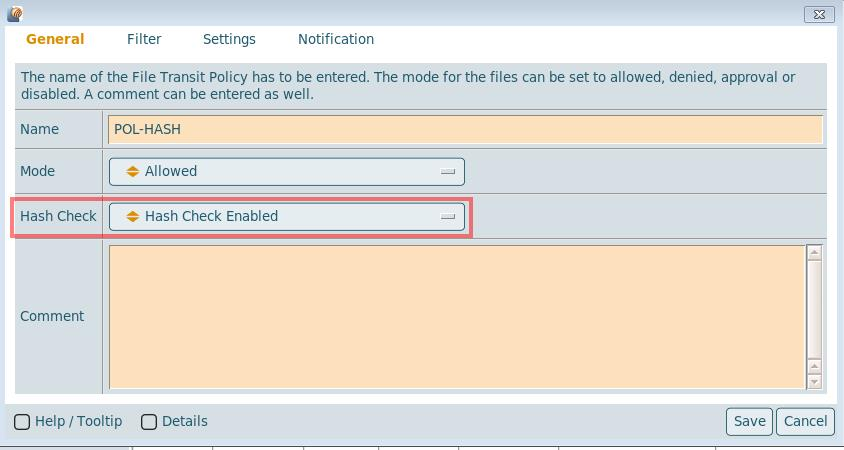
Hash check has to be set to enabled for the Transit Policy.
The Transit Policy has to be configured as usual (filter, settings, notifications) to match the wanted files uploaded into Transit Zone.
In this case policy mode "Allowed" is selected.
Files matching this policy will be available for further processing, once a file and a hash file with matching hash values are uploaded into the Transit Zone.
More policy modes (Approval and Passon)
Transit Policy with policy mode set to "Approval":
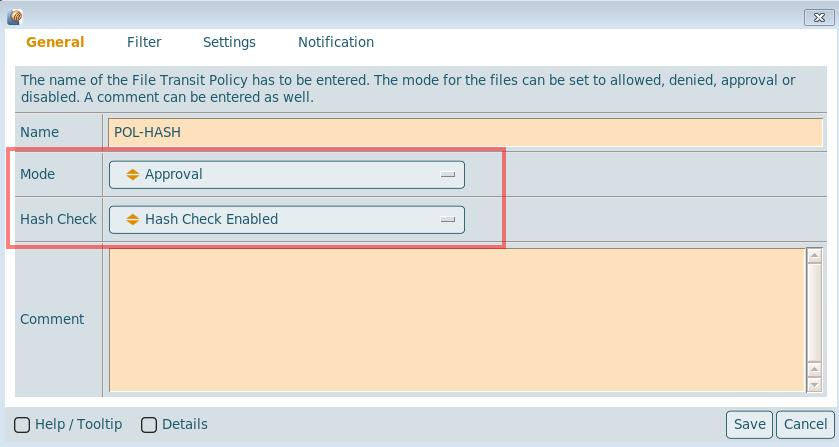
Files matching this policy will be available for further processing, once a file and a hash file with matching hash values are uploaded into the Transit Zone and approval has been done.
Transit Policy with policy mode set to "Passon":
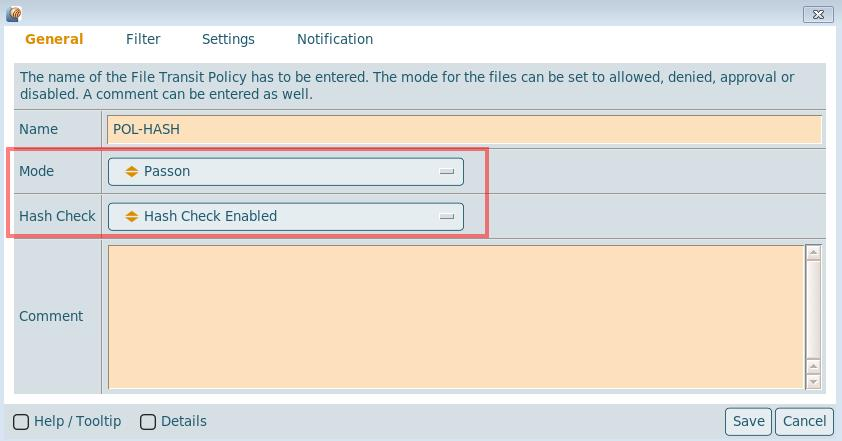
The passon script has to be adjusted and selected in Notification / Passon Script.
Files matching this policy are passed on, once a file and a hash file with matching hash values are uploaded into the Transit Zone.
The policy mode "Passon with approval", which is a combination of passon and approval can also be used with hash check enabled.
Using hash check / Workspace view
In the Workspace of the users all necessary information regarding File Transit are diplayed.
Transit policies
In the "Transit Policies" section all policies of the current user and details about file transit are listed:
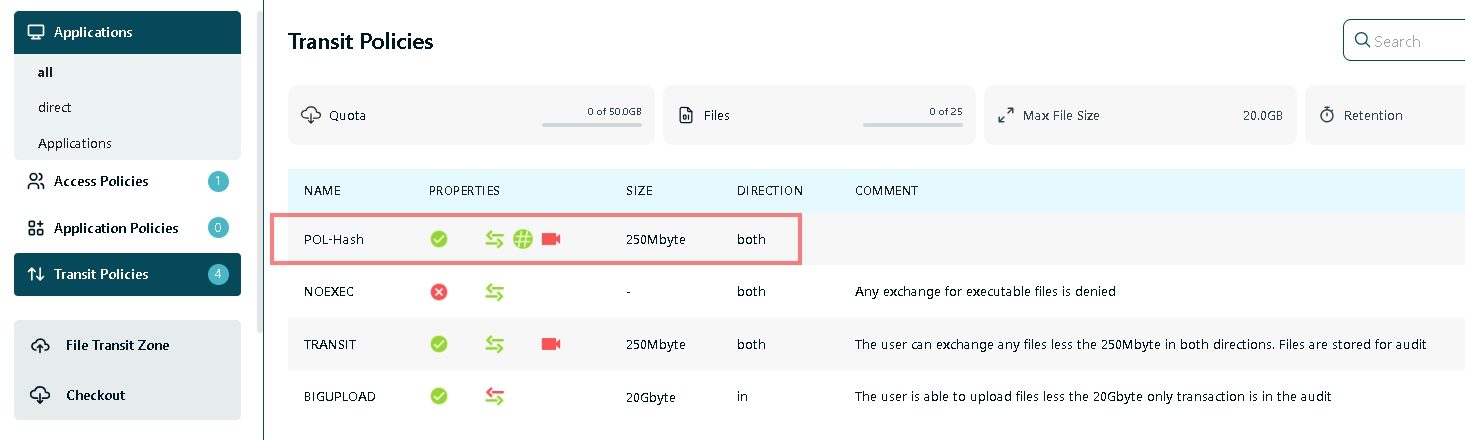
Uploading files
In the VISULOX Transit Area of the Workspace the files can be uploaded from the client to the Transit Zone:
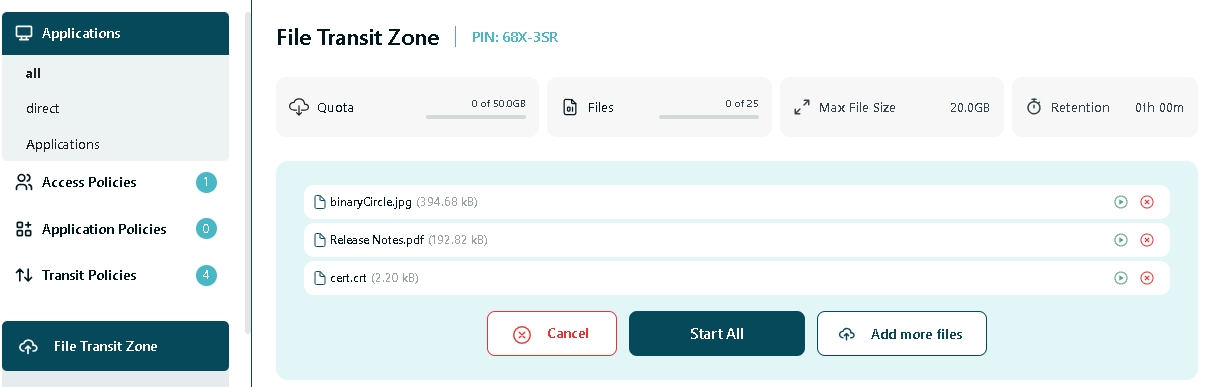
Files can be uploaded one by one or numerous files can be added and uploaded at once, depending on the configured restrictions of the File Transit Zone.
Transit Zone
Once the files are uploaded, they are displayed in the "Transit Zone":
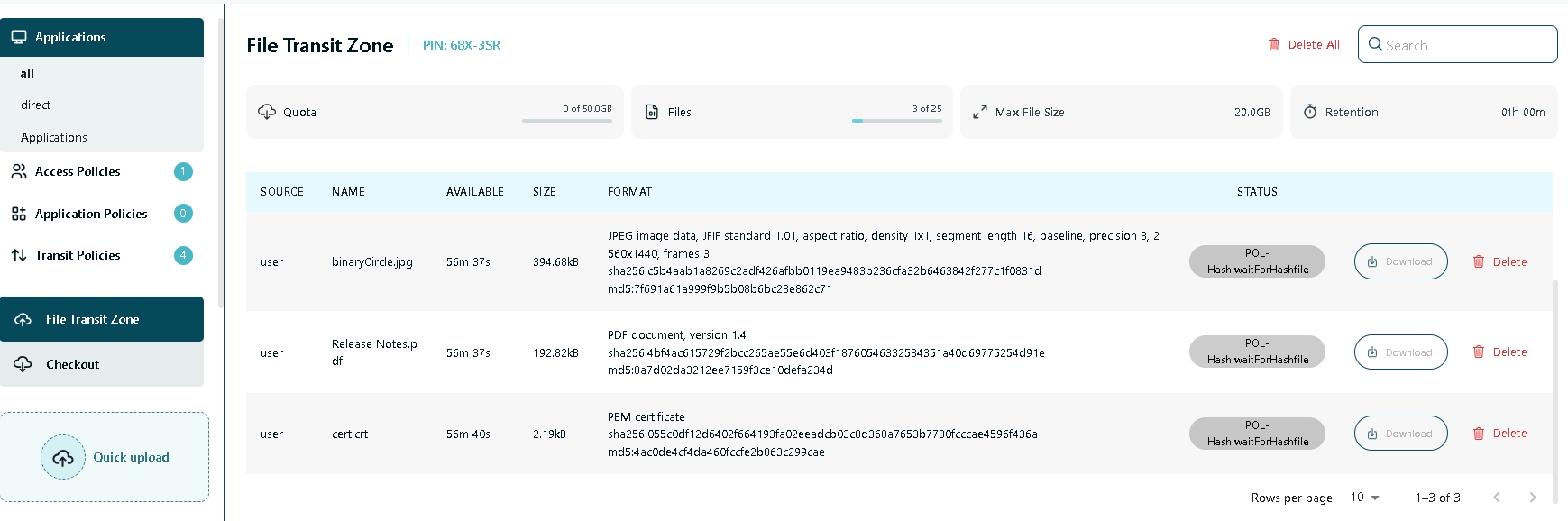
The files matching the hash check policy are set to the status "Wait for hash file" and can not be processed further without the hash file containing the correct hash values.
The hash file including the hash values for the files must uploaded to the Transit Zone as well:

Example: md5 hash file with three hash values:
File: md5list.md5
7f691a61a999f9b5b08b6bc23e862c71  binaryCircle.jpg
4ac0de4cf4da460fccfe2b863c299cae  cert.crt
8a7d02da3212ee7159f3ce10defa234d  Release Notes.pdf
The default hash check is done with sha256 / md5 for files ending with .md5 and .sha256,
The configuration parameters for the checksum and the recognized hash files are set with:
visulox config -name transit.checksums
    --------------------------------------------
    | changed | key               | value      |
    --------------------------------------------
    |         | transit.checksums | sha256:md5 |
    --------------------------------------------

visulox config -name transit.hashfile
    -----------------------------------------------
    | changed | key              | value          |
    -----------------------------------------------
    |         | transit.hashfile | *.md5:*.sha256 |
    -----------------------------------------------
Once the hash file is uploaded to the Transit Zone, the previous uploaded files change their status to "accepted":
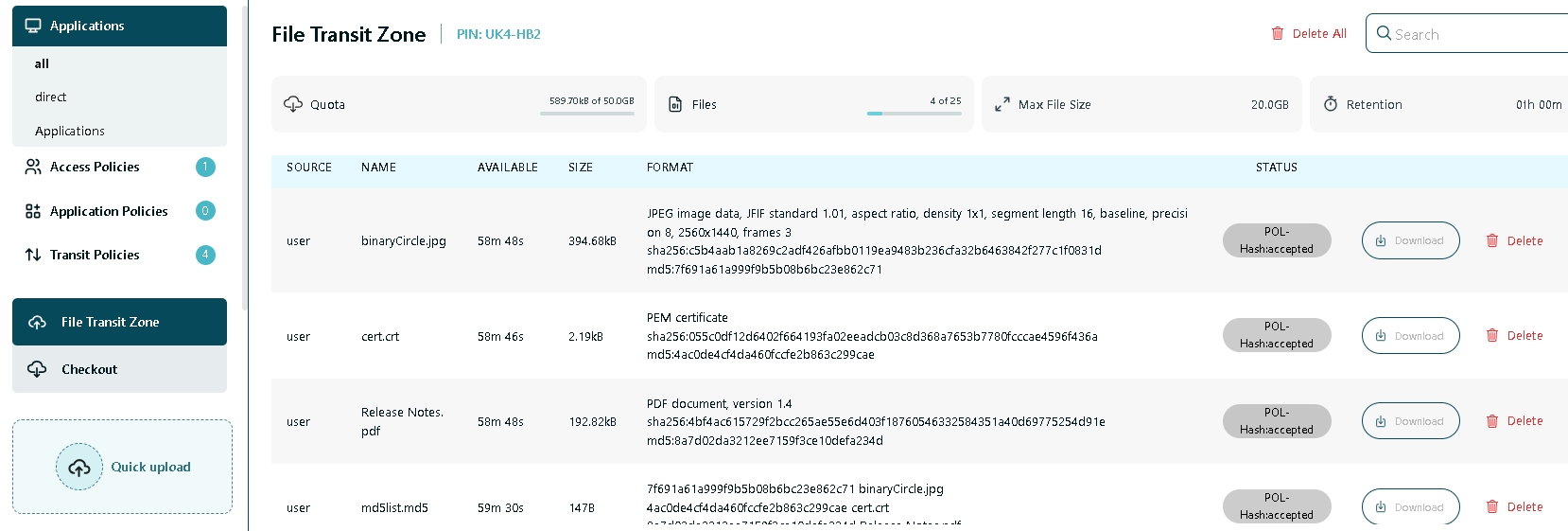
Depending on the policy mode (here policy mode: Allowed), the files are now available for further processing in this case.

Policy mode: Approval
With the policy mode set to "Approval" and hash check enabled, the status is set to status "Wait for hash file":
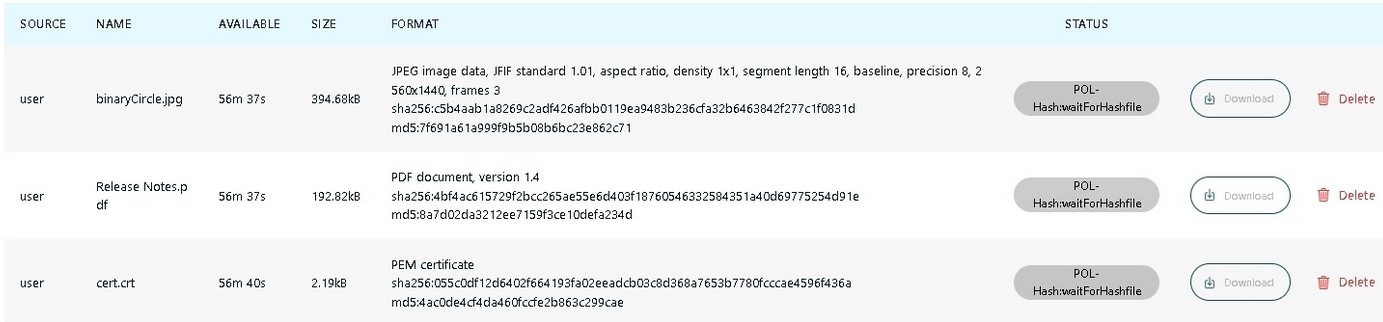
Uploading the hash file changes the status to "pending":

Approval is done by a supervisor in VISULOX Cockpit / Online / Transit Zone or via mail with an assigned request script:
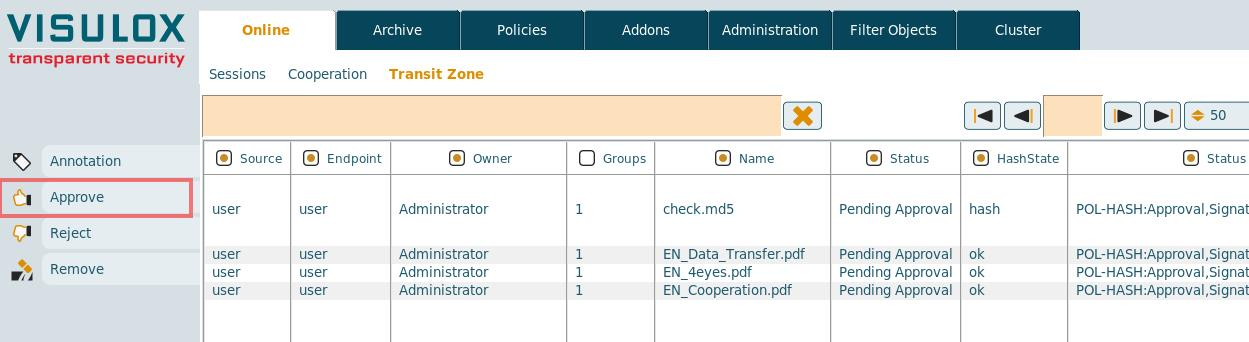
The supervisor is able to approve, reject and remove files. An annotation for a file can also be set.
Approving and rejecting files can also be done via command line interface (see: VISULOX transit command) or via mail with assigned request script..
Policy mode: Passon
With the policy mode set to "Passon" and hash check enabled, the status is set to status "Wait for hash file".
Uploading the hash file changes the status to "Passon Done":
Policy mode: Passon with approval
"Passon with approval" is a combined mode of "Passon" and "Approval".
If the policy mode "Passon with approval" is set, the files have to be approved by a supervisor before they are passed on.
Hash information
The hash value of each file is displayed and the hash values included in the hash file are displayed as well in the format column.
Command line interface
VISULOX policy transit command
The command line tool "VISULOX policy transit" allows to control the File Transit Policy.
The following subcommands are available:
| Command | Description |
|---|---|
| list | List and print File Transit Policies. |
| add | Add a File Transit Policy. |
| edit | Modify fields of a File Transit Policy. |
| delete | Remove a File Transit Policy. |
| fields | List available database fields (-raw = enhanced output) |
File Transit Policy elements (edit):
| Element | Description |
|---|---|
| -name <> | Name of policy or use AUTO |
| -mode <> | Policy off, allow, approval, deny. Default value: allow. |
| -hash <> | Policy hash modes: off, on. Default value: off |
| -direction <> | Policy in, out, both. Default value: both |
| -size <> | Filesize in Kilobytes (k), Megabytes (M), Gigabytes (G). Default value:<50M> |
| -namepattern <> | Wildcard on filename <> |
| -pattern <> | Wildcard on file signature <> |
| -email <> | eMail for approval <> |
| -endpoint <> | Mask for endpoints <> |
| -object <> | Policy filter: mask or unique distinguished object of user or group <> |
| -remoteip <> | Policy filter: remote IP or remote IP mask <> |
| -accesspoint <> | Policy filter: Access Point <> |
| -script <> | Trigger script <> |
| -passon <> | Passon script <> |
| -comment <> | Comment for the policy. Default value: CLI. |
| -grant <> | Set granted user in database record <> |
Examples
List current available File Transit Policies
visulox policy transit list
    ----------------------------
    | basicname |  transitmode |
    ----------------------------
    |  POL-HASH | passedon.map |
    |    NOEXEC |     deny.map |
    |   TRANSIT |  allowed.map |
    ----------------------------
List available fields
visulox policy transit fieldsList selected fields
visulox policy transit list -fields basicname,transitmode,ft_script,hashAdd new File Transit Policy
visulox policy transit add -name TRANS1 -mode allow -hash on
Edit File Transit Policy
visulox policy transit edit -name TRANS1 -direction inRemove an entry
visulox policy transit delete -name TRANS1VISULOX transit command
The visulox transit command can be used to copy files into the Transit Zone of another user. A standard Transit Policy is applied.
Available commands and their options
| approval | Approve or reject pending files in Transit Zone
|
| import | Import file into a users Transit Zone
|
| list | List user's with files in the Transit Zones |
Example to import a file for download into the Transit Zone
|
- Import command needs a standard Transit Policiy with the direction both or out, size, pattern, etc.
- The retention time maximum is limited to the lifetime in archive
Related articles in documentation
- Accessing the File Exchange web page
- Allowing File Transfer from internal to internal
- Automated transfer of files into Transit Zone (Passon)
- Command Connect / Guard and FT Client with empty filters
- Configuration of File Transfer in the VISULOX Cockpit
- Custom vlxuser ID for transit users
- Extended Transit Policy with hash check by provided hash file
- File Transfer
- File Transfer features
- File Transfer modules
- File Transfer recommendations
- File Transfer via command line
- File Transit with approval
- How to attach Chrome/Chromium download directory to vlxtransit
- How to configure File Transfer content check
- How to control File Transit Policy from the command line
- How to control FT Client from the command line
- How to discard filetypes from the Transit Zone synchronisation
- How to setup File Exchange on a VISULOX Node without VISULOX PORTAL Service
- How to use SSH-Keys within Command Connect / Guard and FT Client
- Object ID
- Transit Policy
- Transit script variables
- VISULOX addon command line interface (CMD Connect / Guard, etc)
- VISULOX File Transit and Sophos Endpoint Security and Control
- VISULOX FTP Service
- VISULOX Transit mapping
- VISULOX Transit Mapping and Ubuntu application servers
- VISULOX4_FileTransfer_(VFT)
- Accessing the File Exchange web page
- Allowing File Transfer from internal to internal
- Automated transfer of files into Transit Zone (Passon)
- Command Connect / Guard and FT Client with empty filters
- Configuration of File Transfer in the VISULOX Cockpit
- Custom vlxuser ID for transit users
- Extended Transit Policy with hash check by provided hash file
- File Transfer
- File Transfer features
- File Transfer modules
- File Transfer recommendations
- File Transfer via command line
- File Transit with approval
- How to attach Chrome/Chromium download directory to vlxtransit
- How to configure File Transfer content check
- How to control File Transit Policy from the command line
- How to control FT Client from the command line
- How to discard filetypes from the Transit Zone synchronisation
- How to setup File Exchange on a VISULOX Node without VISULOX PORTAL Service
- How to use SSH-Keys within Command Connect / Guard and FT Client
- Object ID
- Transit Policy
- Transit script variables
- VISULOX addon command line interface (CMD Connect / Guard, etc)
- VISULOX File Transit and Sophos Endpoint Security and Control
- VISULOX FTP Service
- VISULOX Transit mapping
- VISULOX Transit Mapping and Ubuntu application servers
- VISULOX4_FileTransfer_(VFT)
- Accessing the File Exchange web page
- Allowing File Transfer from internal to internal
- Automated transfer of files into Transit Zone (Passon)
- Command Connect / Guard and FT Client with empty filters
- Configuration of File Transfer in the VISULOX Cockpit
- Custom vlxuser ID for transit users
- Extended Transit Policy with hash check by provided hash file
- File Transfer
- File Transfer features
- File Transfer modules
- File Transfer recommendations
- File Transfer via command line
- File Transit with approval
- How to attach Chrome/Chromium download directory to vlxtransit
- How to configure File Transfer content check
- How to control File Transit Policy from the command line
- How to control FT Client from the command line
- How to discard filetypes from the Transit Zone synchronisation
- How to setup File Exchange on a VISULOX Node without VISULOX PORTAL Service
- How to use SSH-Keys within Command Connect / Guard and FT Client
- Object ID
- Transit Policy
- Transit script variables
- VISULOX addon command line interface (CMD Connect / Guard, etc)
- VISULOX File Transit and Sophos Endpoint Security and Control
- VISULOX FTP Service
- VISULOX Transit mapping
- VISULOX Transit Mapping and Ubuntu application servers
- VISULOX4_FileTransfer_(VFT)
- Accessing the File Exchange web page
- Allowing File Transfer from internal to internal
- Automated transfer of files into Transit Zone (Passon)
- Command Connect / Guard and FT Client with empty filters
- Configuration of File Transfer in the VISULOX Cockpit
- Custom vlxuser ID for transit users
- Extended Transit Policy with hash check by provided hash file
- File Transfer
- File Transfer features
- File Transfer modules
- File Transfer recommendations
- File Transfer via command line
- File Transit with approval
- How to attach Chrome/Chromium download directory to vlxtransit
- How to configure File Transfer content check
- How to control File Transit Policy from the command line
- How to control FT Client from the command line
- How to discard filetypes from the Transit Zone synchronisation
- How to setup File Exchange on a VISULOX Node without VISULOX PORTAL Service
- How to use SSH-Keys within Command Connect / Guard and FT Client
- Object ID
- Transit Policy
- Transit script variables
- VISULOX addon command line interface (CMD Connect / Guard, etc)
- VISULOX File Transit and Sophos Endpoint Security and Control
- VISULOX FTP Service
- VISULOX Transit mapping
- VISULOX Transit Mapping and Ubuntu application servers
- VISULOX4_FileTransfer_(VFT)
- Accessing the File Exchange web page
- Allowing File Transfer from internal to internal
- Automated transfer of files into Transit Zone (Passon)
- Command Connect / Guard and FT Client with empty filters
- Configuration of File Transfer in the VISULOX Cockpit
- Custom vlxuser ID for transit users
- Extended Transit Policy with hash check by provided hash file
- File Transfer
- File Transfer features
- File Transfer modules
- File Transfer recommendations
- File Transfer via command line
- File Transit with approval
- How to attach Chrome/Chromium download directory to vlxtransit
- How to configure File Transfer content check
- How to control File Transit Policy from the command line
- How to control FT Client from the command line
- How to discard filetypes from the Transit Zone synchronisation
- How to setup File Exchange on a VISULOX Node without VISULOX PORTAL Service
- How to use SSH-Keys within Command Connect / Guard and FT Client
- Object ID
- Transit Policy
- Transit script variables
- VISULOX addon command line interface (CMD Connect / Guard, etc)
- VISULOX File Transit and Sophos Endpoint Security and Control
- VISULOX FTP Service
- VISULOX Transit mapping
- VISULOX Transit Mapping and Ubuntu application servers
- VISULOX4_FileTransfer_(VFT)