
Access and transit request via actionlink
About
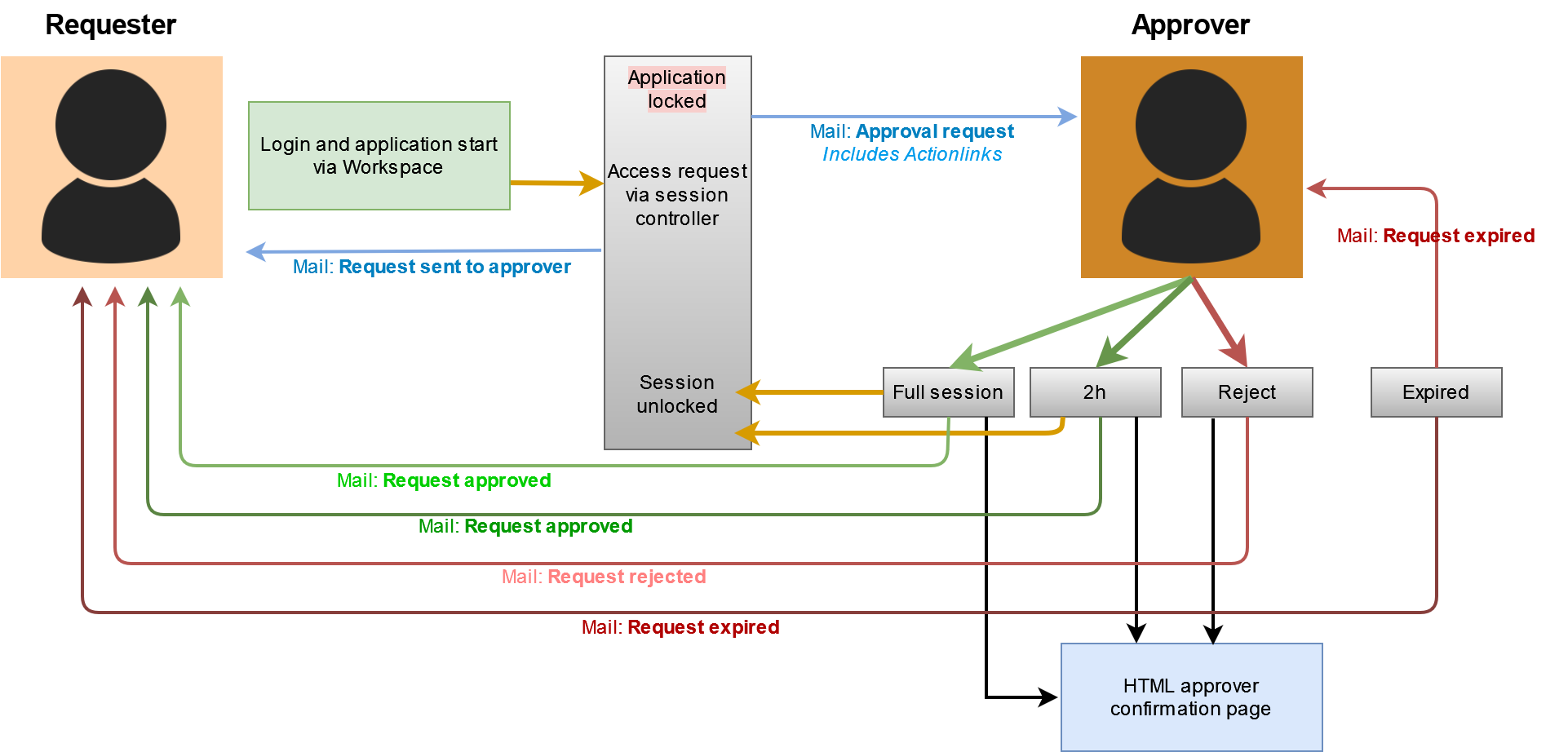
Users without access to one or more applications are able to request access within the locked session (in-time request) or with the "VLX Request" application via a form in the Workspace.
With actionlinks it is possible to send a mail to the approver, who is able to grant access via an actionlink in the mail.
The requester also receives mails, when request is sent, approved, rejected or expired.
It is also possible to use actionlinks for files that have to be approved, when they are uploaded into Transit Zone.
Actionlinks are available for:
- Planned application access via Workspace - request and approval via mail
- In-time application access via session controller - request and approval via mail
- File Transit - request and accept via mail
The requester always gets a mail, when he has sent a request and when the request has been approved, rejected or expired.
The approver gets a mail to approve the request. Depending on the request, he is able to accept, accept for a time period or reject.
Once he has chosen an option in the mail, a HTML page is diplayed with the information.
If a request has expired, the approver also gets a mail.
Configuration
The configuration and setup can be done easily with a script:
/opt/visulox/setup/actionscripts/requestScriptTemplate.sh
The request script template:
- enables the webservice on the local server
- adds necessary configuration parameters
- adds the request script to the action scripts in VISULOX
Webservice
Run the script on all VISULOX Portal Servers to enable the webservice.
At least one webservice must be enabled. If the setup via script is only started on one server, the webservices on the other VISULOX Portal Servers should be enabled manually.
visulox config -name layout.vT2OL7U2.webservice
    --------------------------------------------------
    | changed | key                          | value |
    --------------------------------------------------
    | changed | layout.<log name>.webservice | true  |
    --------------------------------------------------
Reverse proxy configuration
The necessary proxy settings are needed in /opt/tarantella/webserver/apache/default/conf/httpd-visulox.conf on the VISULOX Portal Servers.
This configuration is created with the visulox portal attach command:
<Directory "/opt/tarantella/var/docroot">
RewriteEngine on
RewriteRule ^$ /sgd/index.jsp [R,L]
RewriteRule ^/$ /sgd/index.jsp [R,L]
RewriteRule ^index_([A-z]*)\.html$ /sgd/index.jsp?langSelect=$1 [R,L]
RewriteRule ^index.html$ /sgd/index.jsp [R,L]
</Directory>

### END REDIRECT ###
<IfDefine SSL>
       SSLProxyEngine On
      SSLProxyCheckPeerCN off
       SSLProxyCheckPeerName off
       SSLProxyCheckPeerExpire off
       SSLProxyProtocol ALL -SSLv2 -SSLv3
</IfDefine>
<Location /vack>
        ProxyPass        https://localhost:8115/vack
        ProxyPassReverse https://localhost:8115/vack
</Location>
Configuration paraneters
The following configuration parameters are set, at least the generalapprover parameter should be adjusted in the request script before setup.
   visulox config -name request.
    -----------------------------------------------------------------------------------------------------------------------
    | changed | key                               | value                                                                 |
    -----------------------------------------------------------------------------------------------------------------------
    |         | request.dumpvars                  | false                                                                 |
    |         | request.feedback.url              |                                                                       |
    |         | request.mfa.requestlifetime       | 5                                                                     |
    |         | request.session.autoclose         | 15                                                                    |
    | changed | request.session.requestlifetime   | 60                                                                    |
    | changed | request.transit.requestlifetime   | 60                                                                    |
    | changed | request.workspace.access          | Dump                                                                  |
    |         | request.workspace.ahead           | 10                                                                    |
    |         | request.workspace.duration        | 200                                                                   |
    | changed | request.workspace.request         | REQUEST                                                               |
    | changed | request.workspace.requestlifetime | 60                                                                    |
    |         | request.workspace.timeprofile     | 24x7                                                                  |
    |         | request.workspace.validation      |                                                                       |
    |         | request.workspace.validation.args |                                                                       |
    -----------------------------------------------------------------------------------------------------------------------
Depending on the module, the request.<module>.requestlifetime has to be greater than 0, then the request action script will be triggered.
request.<module>.requestlifetime is always in minutes and request.session.autoclose in seconds.
Lifetimes in minutes (reaction time for approval)
- Access via Workspace: request.workspace.requestlifetime
- Access via application: request.session.requestlifetime
- Transit access: request.transit.requestlifetime
At least for the access request via Workspace, the GENERALAPPROVER has to be adjusted:
# at least needed
VLXAPPROVER=${VLXAPPROVER:-visulox@amitego.com}
VLXEMAIL=${VLXEMAIL:-visulox@amitego.com}
GENERALAPPROVER=visulox@amitego.com
- VLXAPPROVER can be set via args in the policy.
- VLXEMAIL is the email of the user set in datastore.
- GENERALAPPROVER is used for a configuration parameter, which set during script setup for Workspace access and has to be adjusted.
The fallback user visulox@amitego.com should be set to an existing user in the environment.
Request setup via script
After the script has been adjusted, run the script with:
sh requestScriptTemplate.sh setup

Done: action -name <REQUEST> modified!
layout.<log-name>.webservice : Needs restart of VISULOX Node
Start Webservice
 *** Make sure on any relevant note the webservice is enabled as well
 *** Make sure your VISULOX Gateway has a assoziated reversproxy configuration for the feeback links
 *** Make sure you configured the VISULOX Mail service
 *** Make sure you have the necessary policy (access,transit)
Configuration after setup
In-time access
An Access Policy must be created and set to denied.
The request action script has to be chosen and the arguments can be set.
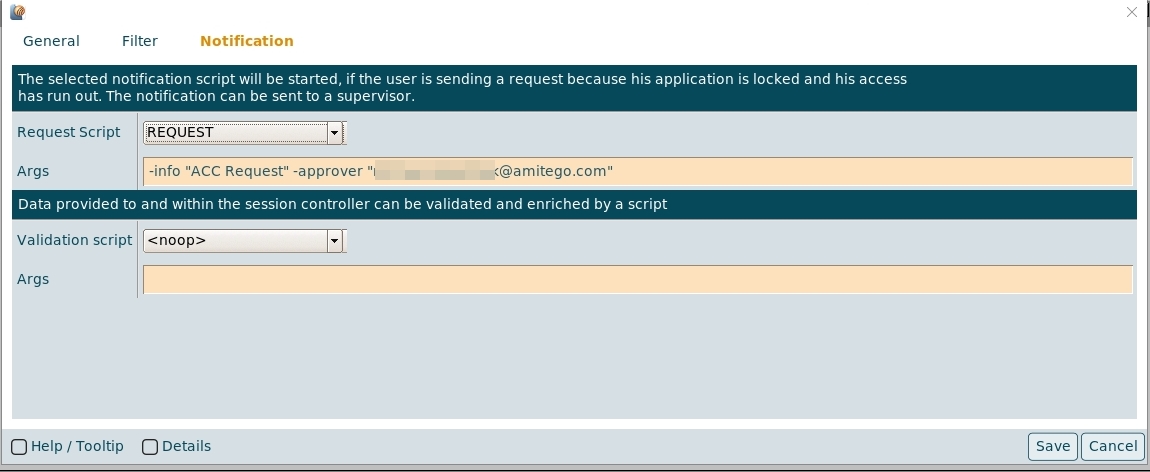
The -approver argument is the mail address of the approver.
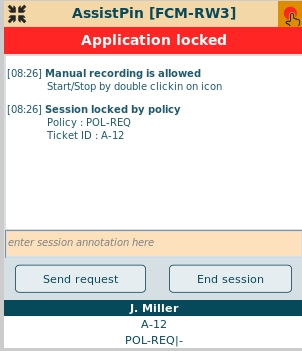
The user requests his access with the Send Request button in the session controller of the application:
Workspace access
All necessary configurations have been set via the adjusted script.
| changed | request.workspace.request | REQUEST |
| changed | request.workspace.request.args | -info "A comment from the policy ...." -approver mail@amitego.com |
The user requests his access with the VLX Request application:
|
|
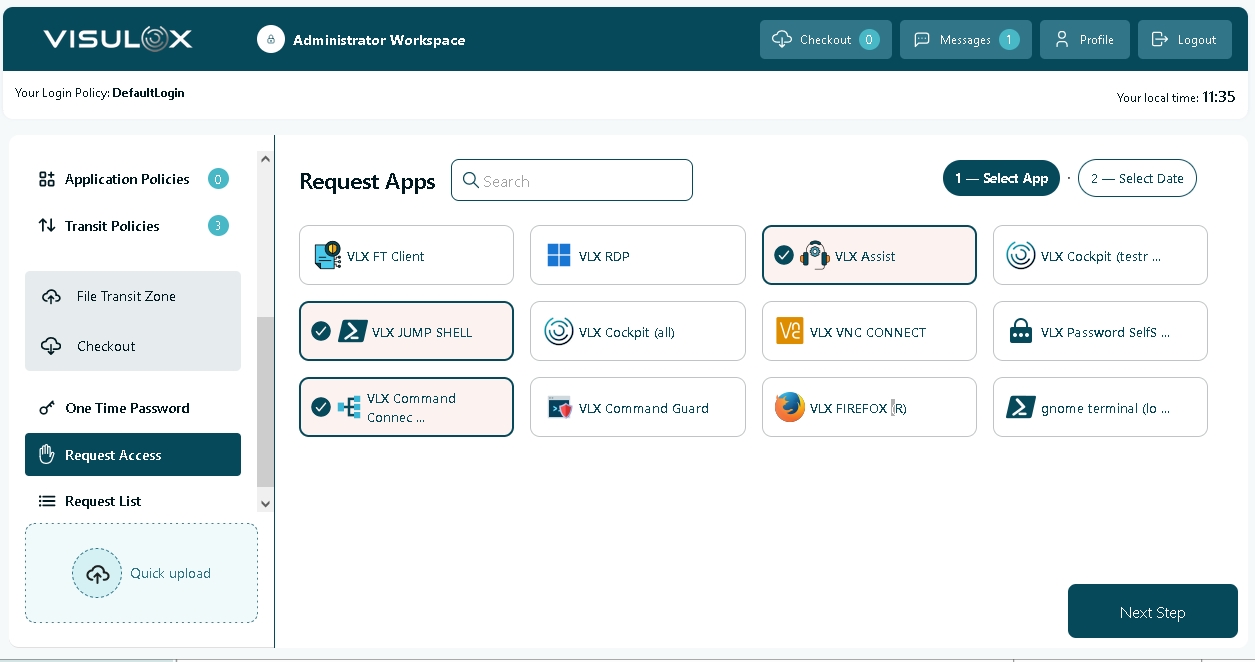
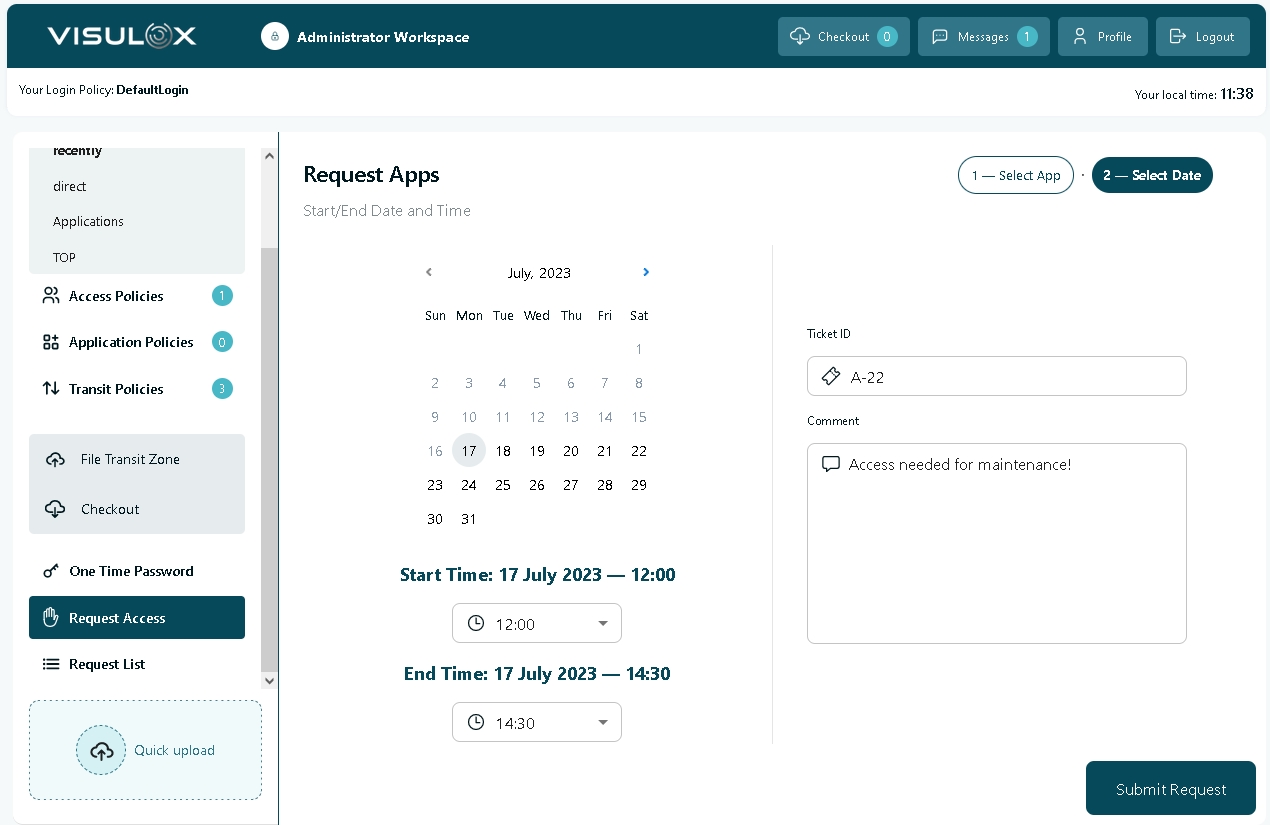
The user can request access for all selected applications. He has to enter a time frame, the ticket ID and a comment. All is checked against the configured ruleset.
Transit access
A Transit Policy must be created and set to approval or Passon after approval.
The request action script has to be chosen and the arguments can be set.
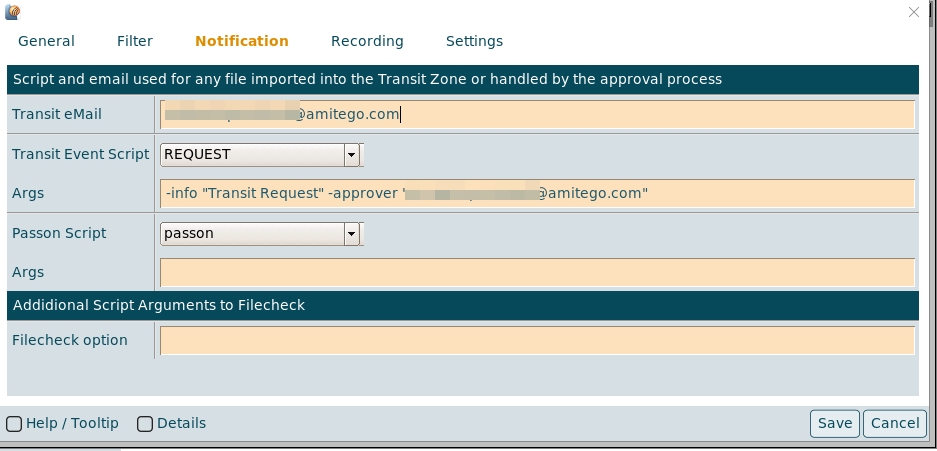
Once the user has uploaded a file into Transit Zone, that has to be approved, the mails are sent to the requester and approver.
The status of the file can also be seen in the File Transit Zone section of the Workspace.
Optional arguments
The optional arguments are -info "<text>'" and -approver "<mail@domain.de>" and are provided as VLXAPPROVERINFO and VLXAPPROVER .
If the arguments are set, they will be displayed in the session controller.
If -approver is not set via arguments, the approver configured in the action script will be used.
VLXAPPROVER=${VLXAPPROVER:-visulox@amitego.com}The default system send address for the mails can be adjusted with:
visulox config -name mail.sender
    -----------------------------------------------
    | changed | key         | value               |
    -----------------------------------------------
    | changed | mail.sender | noreply@amitego.com |
    -----------------------------------------------
Requester and approver mails / HTML
Example: Access request confirmation
Overview:
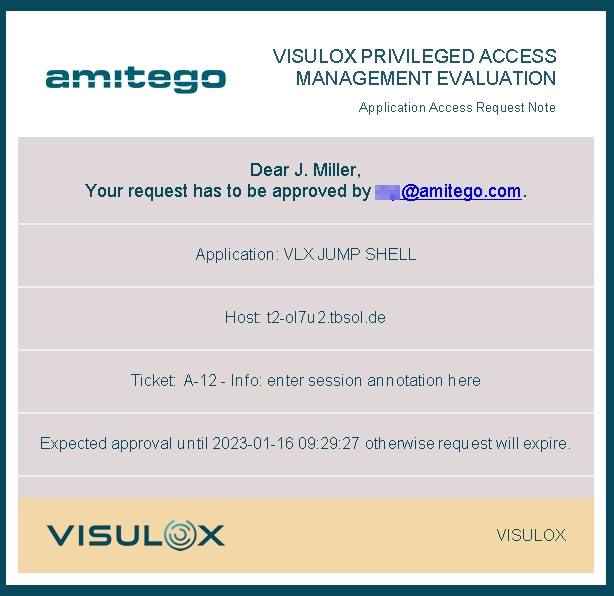
The requester always gets a confirmation mail for his Workspace or in-time request:
The configured approver gets the mail with the actionlink to approve, reject the access:
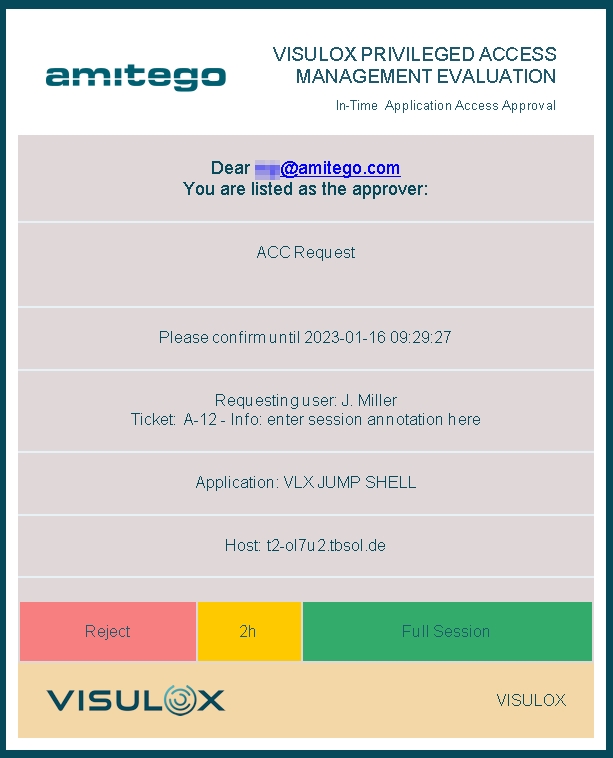
In case of an in-time session request. the approver can choose Reject, 2h or Full Session.
In case of a Workspace request Accept or Reject can be chosen.
The approver is forwarded to a HTML confirmation page once he has pressed a button.
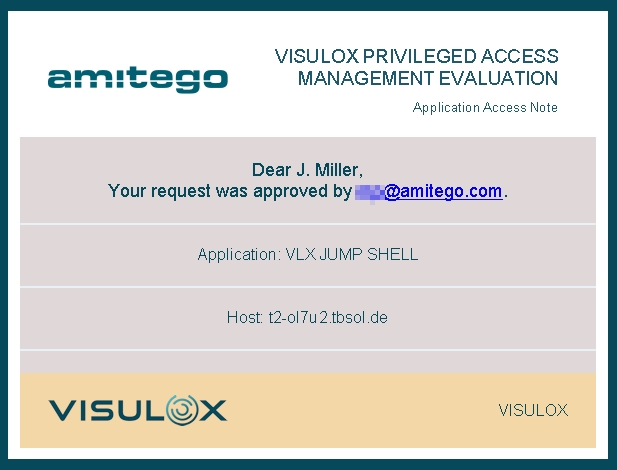
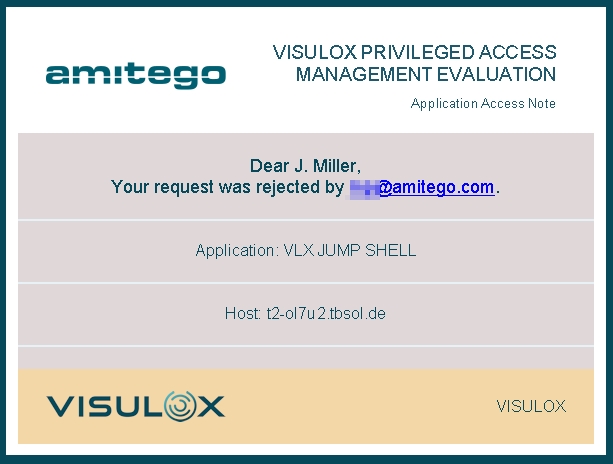
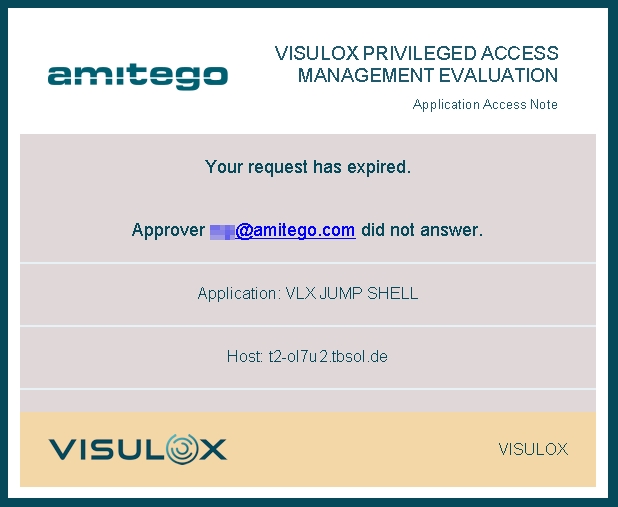
Now the requester receives a mail depending on the result of his request: approved, rejected or expired:
| Approved | Rejected | Expired |
|
|
|
Access is approved, Session is no longer locked. If Full Session has been chosen by the approver, | Access is rejected by the approver. The session is closed. | When the approver does not react, the request will expire, a mail is sent to the requester and the approver. The session is closed. |
Example: Transit request confirmation
Overview:
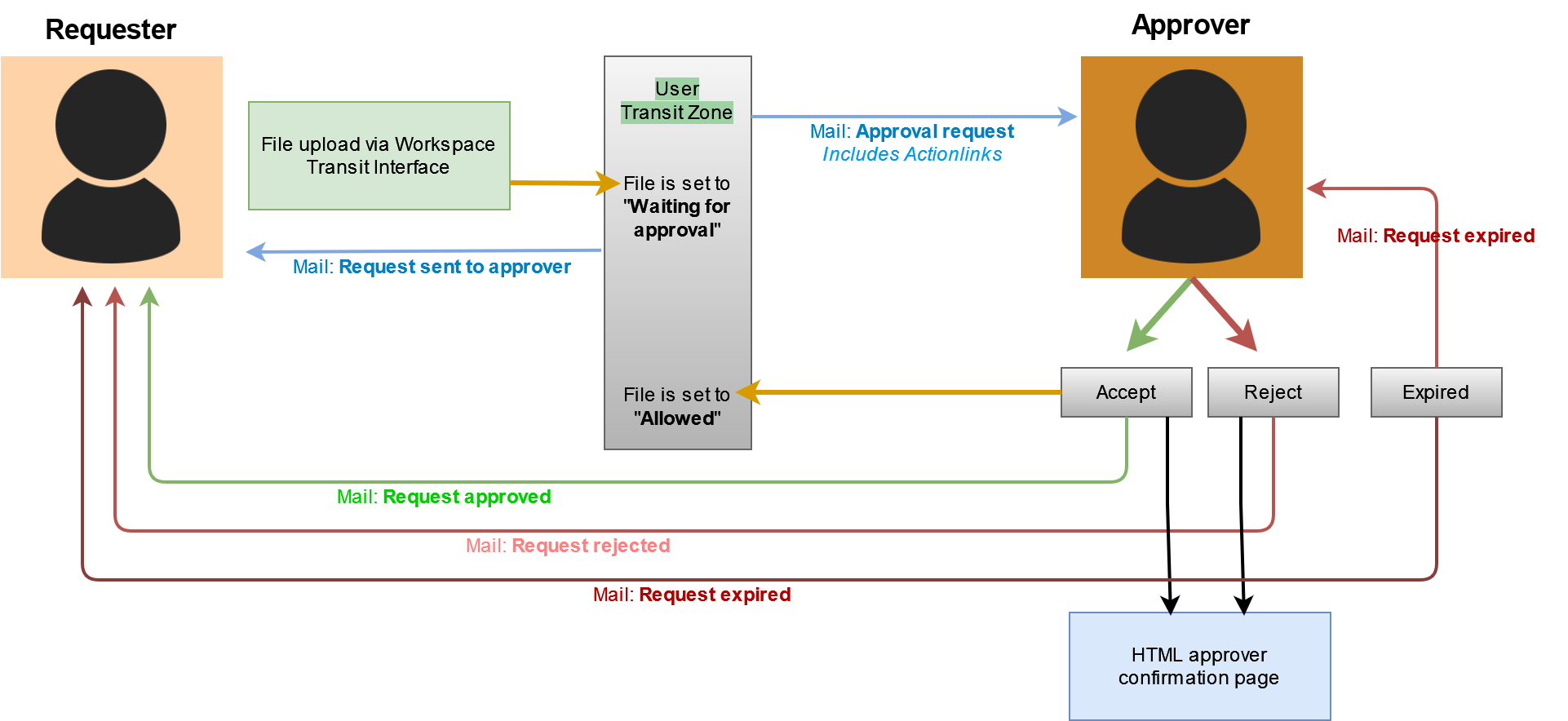
Once the requester has uploaded a file into Transit Zone, the status of the file in Workspace is "Pending":

The requester always gets a confirmation mail for his file request:
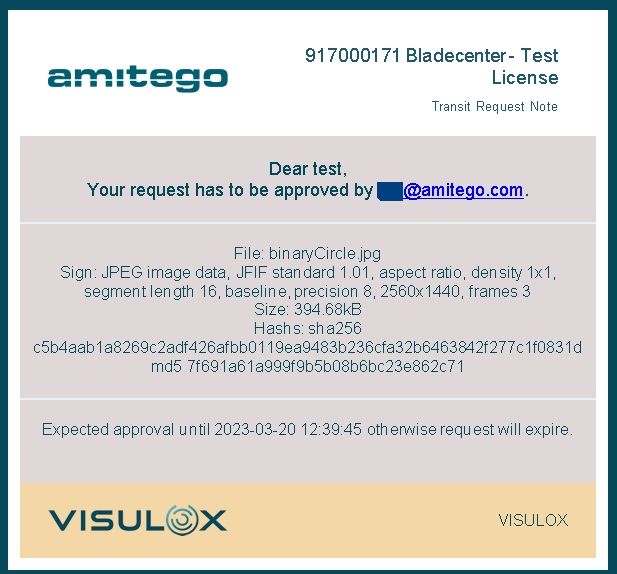
The configured approver gets the mail with the actionlink to approve or reject the file:
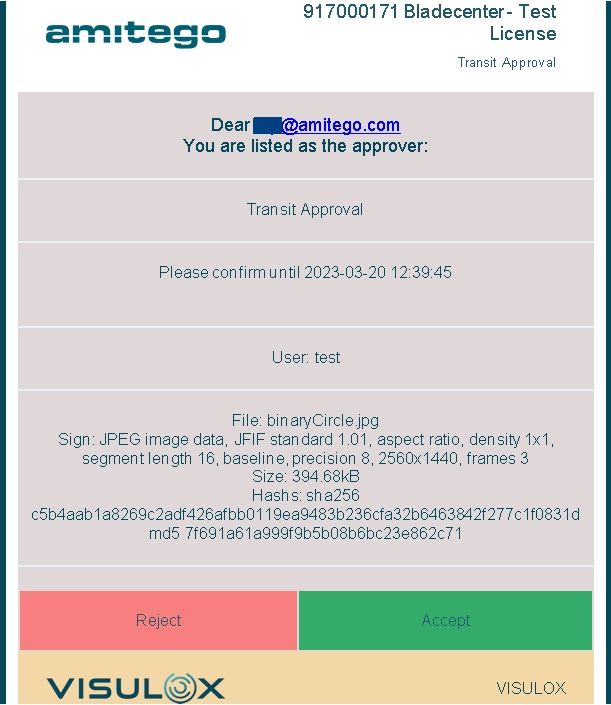
The approver is forwarded to a HTML confirmation page once he has pressed a button.
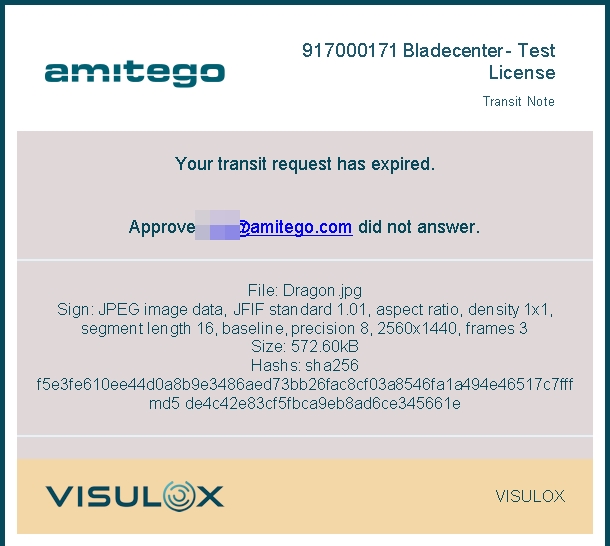
Now the requester receives a mail depending on the result of his request: approved, rejected or expired:
| Approved | Rejected | Expired |
|
|
|
File is approved and allowed to transfer. | File is rejected by the approver and not allowed to transfer. | When the approver does not react, the request will expire, a mail is sent to the requester and the approver. |
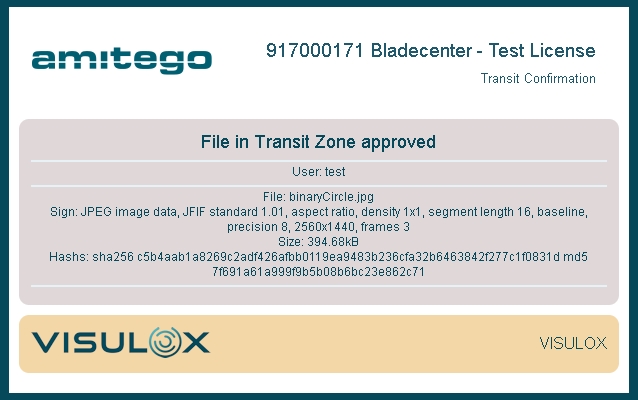
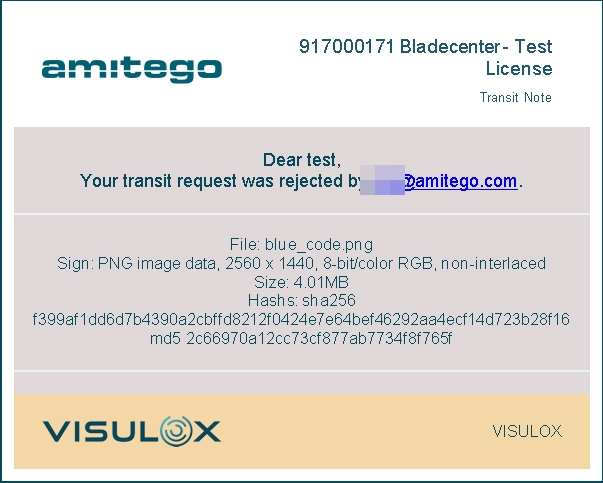
If the file is approved, the status of the file in the Workspace is set to "Approved":

Modification
The modification of the default request / approve mails and the HTML page is possible.
The CSS templates can be found in: /opt/visulox/etc/html/css/
The HTML templates can be found in: /opt/visulox/etc/html/templates/

The mails / HTML pages, that are used can be adjusted or added in the request action script;
...
case $SUBCOMMAND in
    "")
        usage
        ;;
    "setup")
        runSetup
        ;;
     "accessRequestedByUser")
        checkParams
        mailToRequester WS-Req requesterWorkspaceEmail
        mailToApprover  WS-Req approverWorkspaceEmail
        ;;
    "accessRequestedFromSession")
        checkParams
        mailToRequester ACC-Req requesterSessionEmail
        mailToApprover  ACC-Req approverSessionEmail
        ;;
    "accessRequestApproved")
        checkParams
        mailToRequester ACC-Confirm requesterEmailApproved
        ;;
    "accessRequestRejected")
        checkParams
        mailToRequester ACC-Rejected requesterEmailReject
        ;;
    "accessRequestExpired")
        checkParams
        mailToRequester ACC-Expired requesterEmailExpired
        mailToApprover  ACC-Expired approverEmailExpired
        ;;
    "transitRequestedByUser")
        checkParams
        mailToRequester TZ-Req requesterTransitEmail
        mailToApprover  TZ-Req approverTransitEmail
        ;;
    "transitRequestApproved")
        checkParams
        mailToRequester TZ-Confirm requesterEmailTransitApproved
        ;;
    "transitRequestRejected")
        checkParams
        mailToRequester TZ-Rejected requesterEmailTransitReject
        ;;
    "transitRequestExpired")
        checkParams
        mailToRequester TZ-Expired requesterEmailTransitExpired
        mailToApprover  TZ-Expired approverEmailTransitExpired
        ;;
    *)
        usage
esac
...
All system logos used in the mails should have 96dpi.
If the design is adjusted, the mails and the HTML page should be checked with different mail clients and browsers.
Templates and testing
The HTML page templates can be viewed with:
https://<server>/ack/test?page=<name>The mail templates can be tested with:
/opt/visulox/lib/utils/mailclient.tcl -html <template>-subject 'TEST: <template>' -to <mail@domain.com>With visulox config -name request.dumpvars=true, a list of the current VLX variables is attached to the footer.
Available variables
VLXTTAMODE VLXUSERPROFILE VLXUSERPROFILESHORT VLXSESSIONMODE VLXAPPLICATIONHOST	VLXAPPLICATIONARGUMENTS
VLXGATEWAYIP VLXAPPROVERINFO VLXOWNERID	VLXSESSIONID VLXCREATETIME_FMT VLXAPPLICATIONUSER
VLXAPPLICATIONCOMMAND VLXEVENTINFO VLXSESSIONSTARTTIME_FMT VLXAPPROVER VLXLOGINUSER	VLXREPOSITORY
VLXPOLICY VLXRECIPIENT VLXCUSTOMERLOGO VLXACCESSPOINT VLXPATH VLXBANNER	VLXCLIENTIP VLXSESSIONHOST
VLXOWNERSHORT VLXACKNOWLEDGE VLXWEBTOPBASE VLXAPPLICATIONSHORT VLXREMOTEIP VLXLOGINSCRIPT VLXEMAIL
VLXGROUPLIST VLXACKNOWLEDGELIFETIME VLXOWNER VLXSURNAME	VLXACKNOWLEDGEUUID VLXAPPLICATIONID
VLXTICKETID	A-12 VLXCREATETIME VLXCONNECTIONINFO VLXFULLNAME VLXUTIL VLXGROUPLIST_FMT
VLXACKNOWLEDGELIFETIME_FMT VLXSESSIONSTARTTIME VLXLANG VLXAPPLICATION VLXTEXTCOLOR VLXBASECOLORDARK
VLXBANNERCOLOR VLXACCENTCOLOR VLXPRODUCTLOGO VLXBANNERTEXTCOLOR VLXPRODUCTTITLE VISULOX
Related articles
- Access and transit request via actionlink
- Access Branding
- Access Policy
- Access request and access to applications
- Handling ticket IDs from external systems
- How to control access from the command line
- How to control groupaccess from the command line
- How to enable access to applications
- How to handle access for groups
- How to limit the granting endtime in Access Policies
- How to lock a user permanently for using an application after keyword detection
- How to use the VISULOX Command Line Interface from a remote server
- In-time access
- Login and Access Management
- Time zones, holidays and time profiles
- Access and transit request via actionlink
- Access Branding
- Access Policy
- Access request and access to applications
- Handling ticket IDs from external systems
- How to control access from the command line
- How to control groupaccess from the command line
- How to enable access to applications
- How to handle access for groups
- How to limit the granting endtime in Access Policies
- How to lock a user permanently for using an application after keyword detection
- How to use the VISULOX Command Line Interface from a remote server
- In-Time Access
- Login and Access Management
- Time zones, holidays and time profiles
- Access and transit request via actionlink
- Access Branding
- Access Policy
- Access request and access to applications
- Handling ticket IDs from external systems
- How to control access from the command line
- How to control groupaccess from the command line
- How to enable access to applications
- How to handle access for groups
- How to limit the granting endtime in Access Policies
- How to lock a user permanently for using an application after keyword detection
- How to use the VISULOX Command Line Interface from a remote server
- In-Time Access
- Login and Access Management
- Time zones, holidays and time profiles
- Access and transit request via actionlink
- Access Branding
- Access Policy
- Access request and access to applications
- Handling ticket IDs from external systems
- How to control access from the command line
- How to control groupaccess from the command line
- How to enable access to applications
- How to handle access for groups
- How to limit the granting endtime in Access Policies
- How to lock a user permanently for using an application after keyword detection
- How to use the VISULOX Command Line Interface from a remote server
- In-Time Access
- Login and Access Management
- Time zones, holidays and time profiles
- Access and transit request via actionlink
- Access Branding
- Access Policy
- Access request and access to applications
- Access termination enforced
- Handling ticket IDs from external systems
- How to control access from the command line
- How to control groupaccess from the command line
- How to enable access to applications
- How to handle access for groups
- How to limit the granting endtime in Access Policies
- How to lock a user permanently for using an application after keyword detection
- How to use the VISULOX Command Line Interface from a remote server
- In-Time Access
- Login and Access Management
- Time zones, holidays and time profiles