
How to enable access to applications
General
With VISULOX Access Management it is possible to assign controlled access to the IT infrastructure for internal and external employees, administrators and IT service providers.
This is limited to defined times or time periods and always booked under their own individual reference numbers.
Prerequisites
For this example setup two users have to be registered in VISULOX PORTAL with the following settings:
| User | Role | SMS | Application | Other | |
|---|---|---|---|---|---|
| Master | Supervisor | <supervisor>@company.com | - | VISULOX Cockpit | - |
| Miller | User | <user>@company.com | - | VLX Jump Shell | - |
Supervisor Master enables and configures the access.
User Miller logs into VISULOX PORTAL and starts applications.
Supervisor Master: Enable access to applications for Miller
Creating a new Access Policy in the Cockpit:
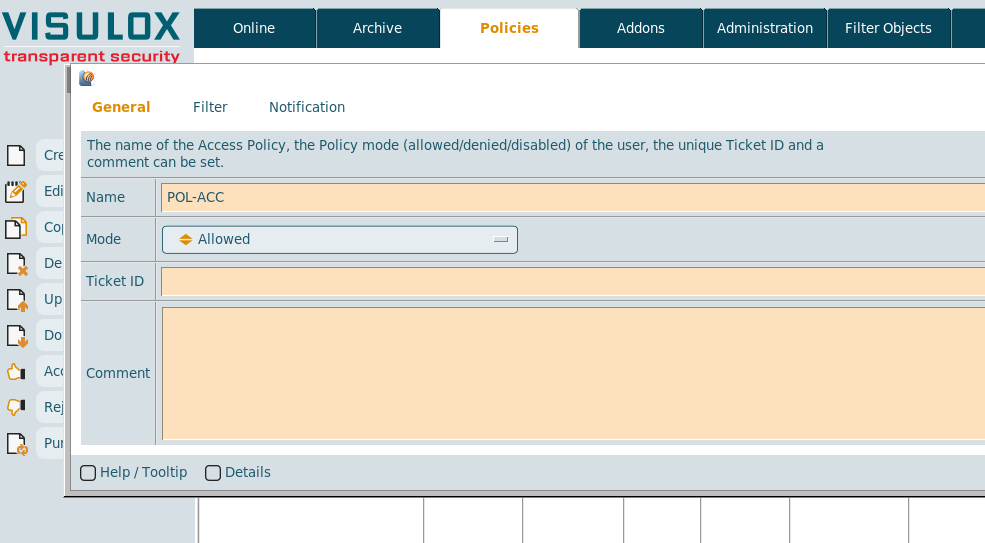
A unique name for the policy must be entered: "POL-ACC".
"Allowed" has to be selected to enable access for user Miller.
A valid Ticket ID has to be entered: "A-1234".
A comment for the policy can be entered as well.
Selecting the Application Policy mode:- Example 1: Application access is allowed
- Example 2: Application access is not allowed
Setting the filter:
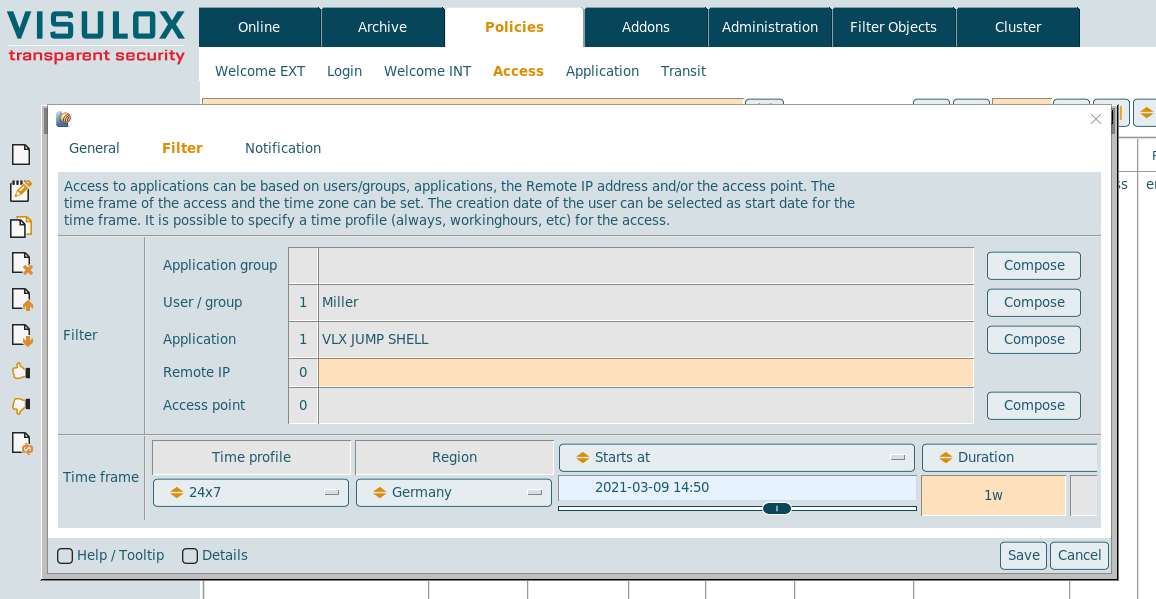
Access will only be enabled for the "VLX Jump Shell" application from user "Miller" in this example.
It is also possible to set a filter for the Remote IP address or the Access point (not used in this example).
It is possible to choose a time profile and a time zone from a dropdown list of pre-configured entries.
The start and end time of the access can be chosen as well.
The default values are fine for this example (always, Germany, 7days from now).
- On the Notification page, a notification script can be selected, which displays a "Send request" button if the session is locked.
This makes only sense for an additional denied policy and is not used in this example. It is also possible to setup a request script,
which allows to send mails to the requester and approver, who can allow, reject the request via mail.
Example 1: Miller starts an application with access allowed
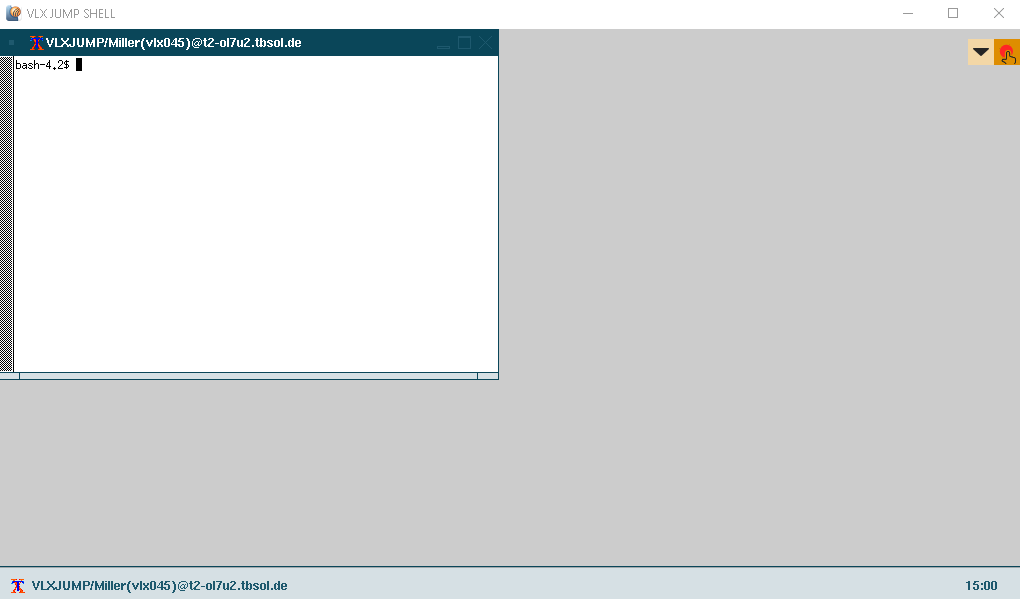
User Miller starts the "VLX Jump Shell" application from his Workspace.
The application is not locked, working is possible.
Example 2: Miller starts an application with access not allowed
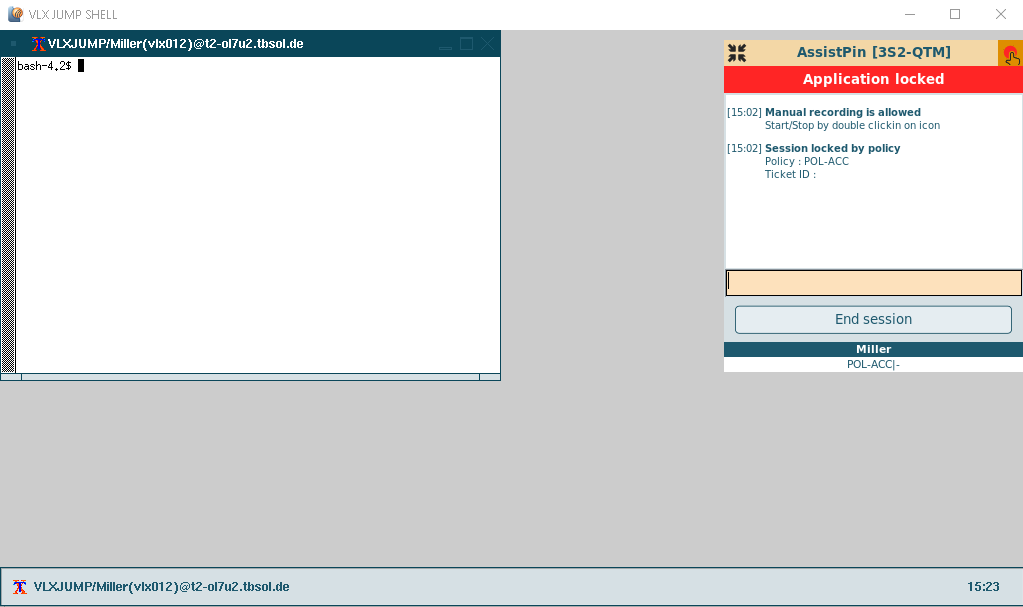
User Miller starts the "VLX Jump Shell" application from his Workspace.
The application is locked.
If a denied Access Policy with a notification script matches, a notification will be sent to the supervisor by clicking the "Send request" button.
If a denied Access Policy with a request script matches, mails are sent to the requester and the approver, who can allow, reject this request via mail.
The session can also be ended with the "End session" button.
Access check list with additional tests
| Feature | Expected behaviour | Comment |
|---|---|---|
| Application access is allowed |
| |
| Application access is not allowed |
| |
| Disabled |
| |
| Filter settings |
| |
| Time frame |
| |
| Notification |
| |
| Events |
|
Related articles:
- Access and transit request via actionlink
- Access Branding
- Access Policy
- Access request and access to applications
- Handling ticket IDs from external systems
- How to control access from the command line
- How to control groupaccess from the command line
- How to enable access to applications
- How to handle access for groups
- How to limit the granting endtime in Access Policies
- How to lock a user permanently for using an application after keyword detection
- How to use the VISULOX Command Line Interface from a remote server
- In-time access
- Login and Access Management
- Time zones, holidays and time profiles
- Access and transit request via actionlink
- Access Branding
- Access Policy
- Access request and access to applications
- Handling ticket IDs from external systems
- How to control access from the command line
- How to control groupaccess from the command line
- How to enable access to applications
- How to handle access for groups
- How to limit the granting endtime in Access Policies
- How to lock a user permanently for using an application after keyword detection
- How to use the VISULOX Command Line Interface from a remote server
- In-Time Access
- Login and Access Management
- Time zones, holidays and time profiles
- Access and transit request via actionlink
- Access Branding
- Access Policy
- Access request and access to applications
- Handling ticket IDs from external systems
- How to control access from the command line
- How to control groupaccess from the command line
- How to enable access to applications
- How to handle access for groups
- How to limit the granting endtime in Access Policies
- How to lock a user permanently for using an application after keyword detection
- How to use the VISULOX Command Line Interface from a remote server
- In-Time Access
- Login and Access Management
- Time zones, holidays and time profiles
- Access and transit request via actionlink
- Access Branding
- Access Policy
- Access request and access to applications
- Handling ticket IDs from external systems
- How to control access from the command line
- How to control groupaccess from the command line
- How to enable access to applications
- How to handle access for groups
- How to limit the granting endtime in Access Policies
- How to lock a user permanently for using an application after keyword detection
- How to use the VISULOX Command Line Interface from a remote server
- In-Time Access
- Login and Access Management
- Time zones, holidays and time profiles
- Access and transit request via actionlink
- Access Branding
- Access Policy
- Access request and access to applications
- Access termination enforced
- Handling ticket IDs from external systems
- How to control access from the command line
- How to control groupaccess from the command line
- How to enable access to applications
- How to handle access for groups
- How to limit the granting endtime in Access Policies
- How to lock a user permanently for using an application after keyword detection
- How to use the VISULOX Command Line Interface from a remote server
- In-Time Access
- Login and Access Management
- Time zones, holidays and time profiles