
Access Policy
General
An Access Policy starts with a primary policy tag, which sets the behaviour of the policy:
| Primary policy tags | Description |
|---|---|
| Application access is allowed | The matching user can use this access point to start the application. |
| Application access is denied | The matching user cannot use this access point for starting the application. |
| Group access | The matching user can access application based on group access |
| Ignored | Ignore this policy. |
A valid Ticket ID for the user must be entered.
The TicketID is a mandadory field based on configuration coming from an external incident management system. (See: Handling ticket IDs from external systems)

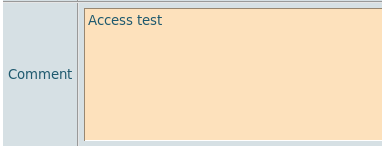
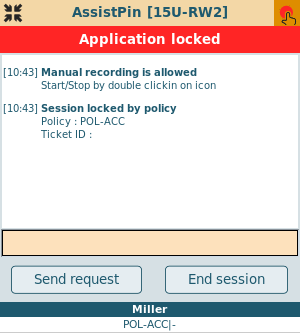
A comment for the user can be entered. This text will be shown in the locked window:
Filter
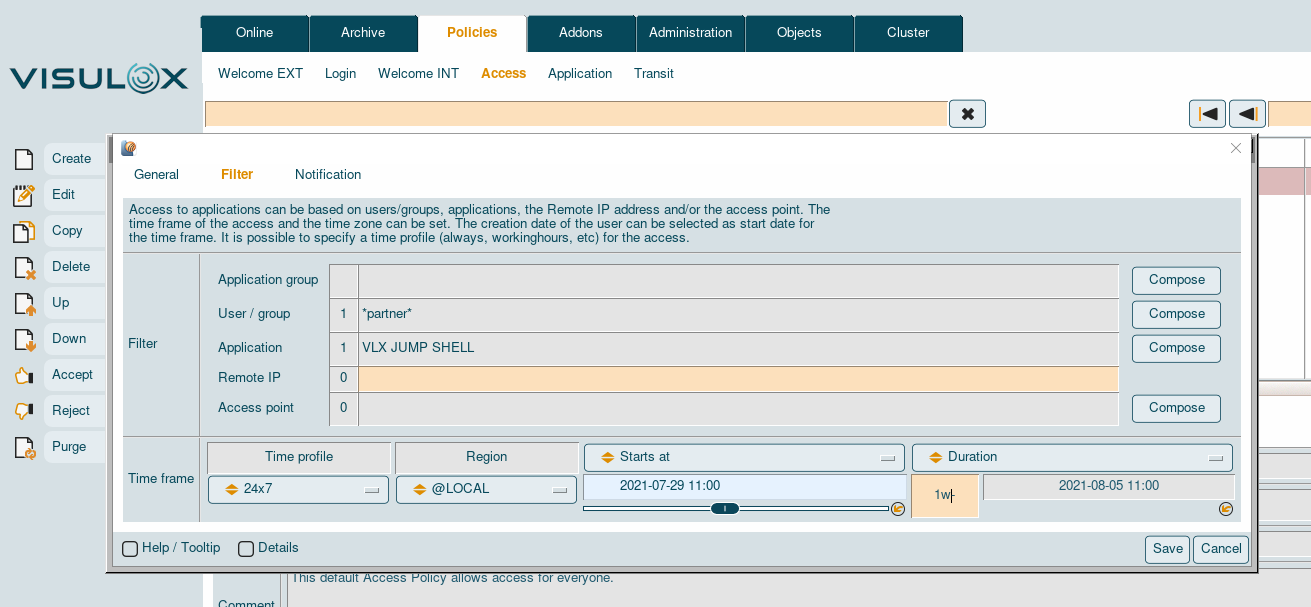
The Access Policy filter applies on a user / group the user belongs to, an application mask, the remote IP of the user's connection and / or the access point, over which the user logs in.
It is possible to choose a time profile and a time zone from a dropdown list of pre-configured entries.
The start and end time of the access can be chosen as well.
Notification
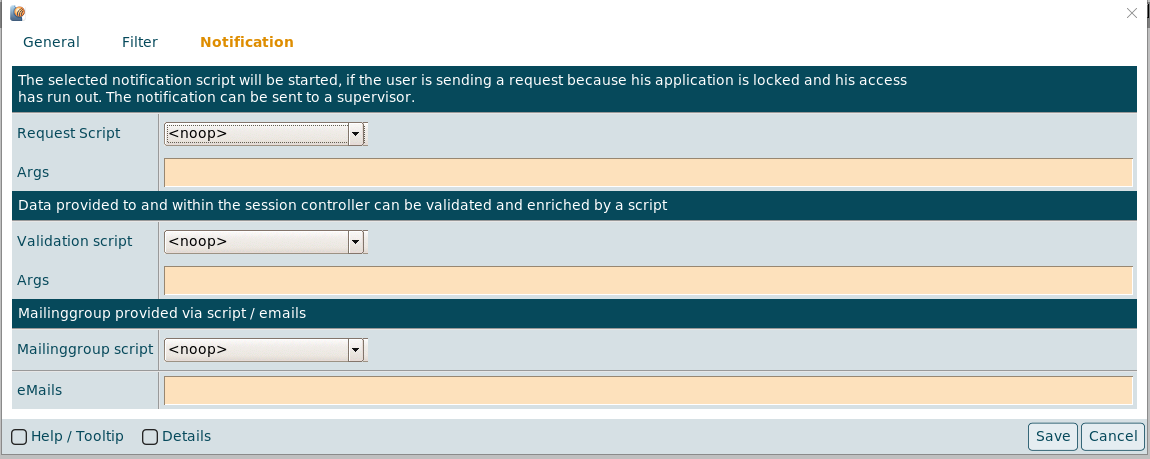
A notification / request script can be selected, that will be triggered, if a user presses the "Send request" button, because of a locked application.
|
|
This notification is sent to a supervisor / approver.
If a request script is assigned and configured, mails are sent to the requester and the approver, who is able to allow, reject the request via action link in a mail.
Arguments for the Request and Validation script can be entered in the according Args field.
Depending on the underlying script, the format of the arguments can be: -arg -arg1 -arg2 <>
Also a preconfigured mailinggroup can be set via Mailinggroup script and/or single email addresses can be set via eMails. (See also: Mailinggroups.)
The "Send request" button is only displayed in the control panel, if a notification / request script is assigned.

A policy where the access time has run out is no longer matching, so another (denied) policy must be created to display the "Send request" button.
VISULOX Access Request
Users are able to request access via the VLX Request application in their Workspace.
|
|
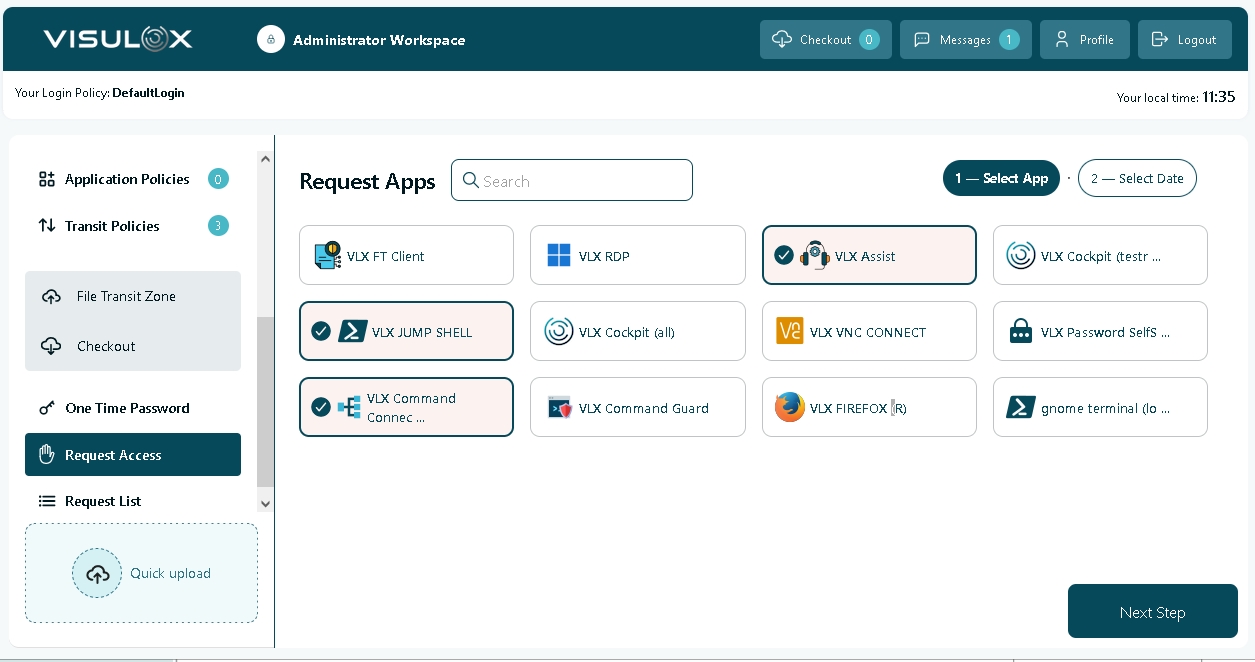
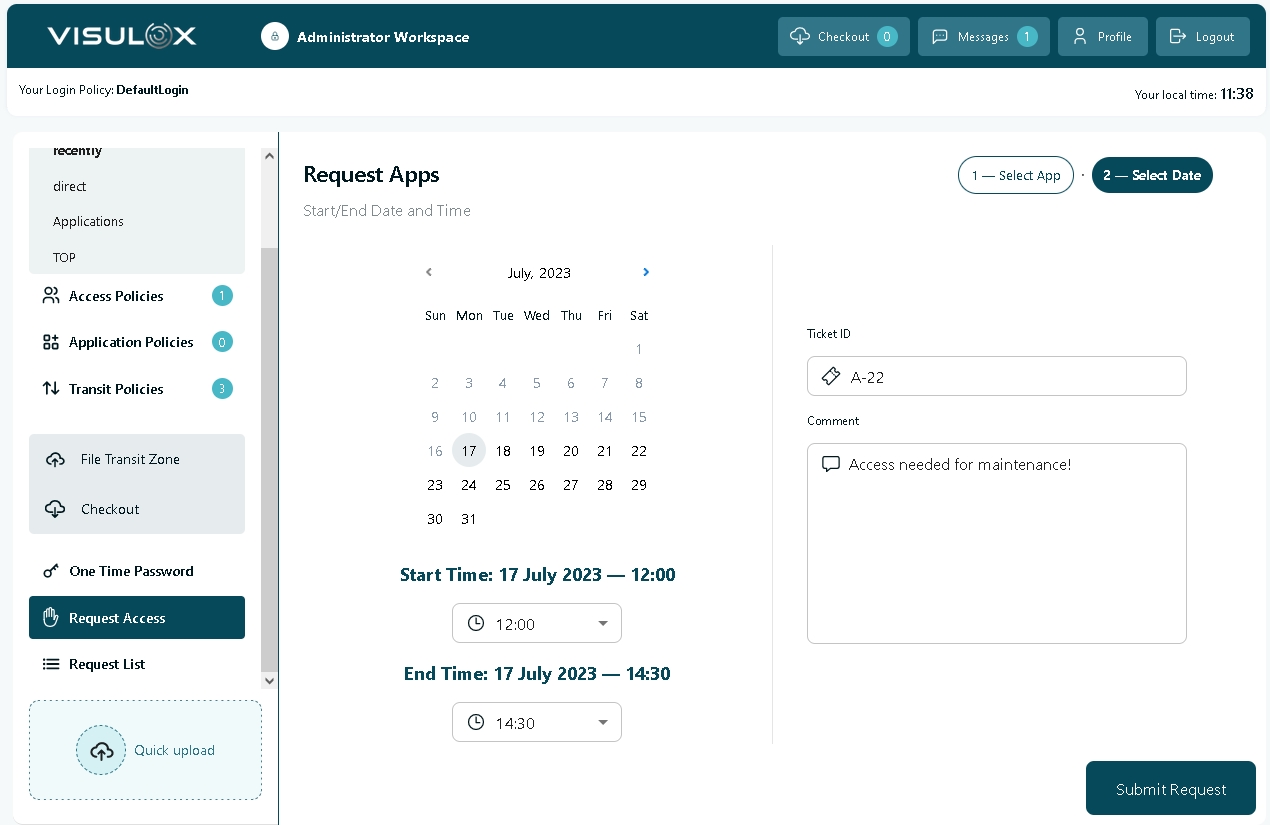
The user can request access for all selected applications. He has to enter a time frame, the ticket ID and a comment. All is checked against the configured ruleset.
The successful submit adds an access request to the Access Policies. This request is ignored and the first applying rule should be "Deny".
A supervisor can now modify this access request to "Reject" or "Accept". "Reject" is handled as "Deny", "Accept" as "Allow".
This can be done in the Cockpit or via action link in a mail, if a request script is used.
The script and additional parameters can be set with:
visulox config -name request.workspace.request=REQUEST

visulox config -name request.workspace.request
    ---------------------------------------------------------------------------------------------------------------------
    | changed | key                               | value                                                               |
    ---------------------------------------------------------------------------------------------------------------------
    | changed | request.workspace.request         | REQUEST                                                             |
    | changed | request.workspace.request.args    | -info "A comment from the  policy   ...." -approver dev@amitego.com |
    | changed | request.workspace.requestlifetime | 60                                                                  |
    ---------------------------------------------------------------------------------------------------------------------
Once an access is requested, a supervisor can see the detailed request in Cockpit / Policies / Access Policy.
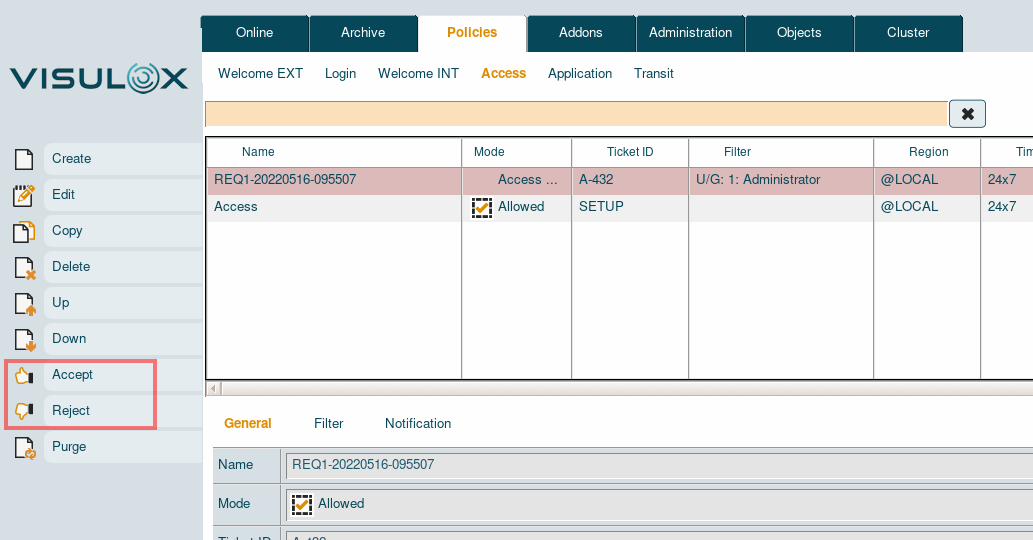
The supervisor is able to accept or reject the access request by selecting the request and using the appropriate buttons.
When request is configured with action links via mail , the mails are sent to the requester and the approver, who is also able to to allow, reject the request via mail.
If the request is accepted, it will be changed into a valid Access Policy.