
Overview
Player In VISULOX Cockpit / Archive / Sessions all ended recorded sessions are displayed.
The VISULOX player has several views, controls and presents all information available for the recorded film. Live player Users are able to start a live player in their recorded application session to see what has been recorded in this session so far. Checkout It is also possible to checkout the recorded sessions to the Transit Zone of the user (via Checkout button in the Cockpit or CLI),
|
Player elements
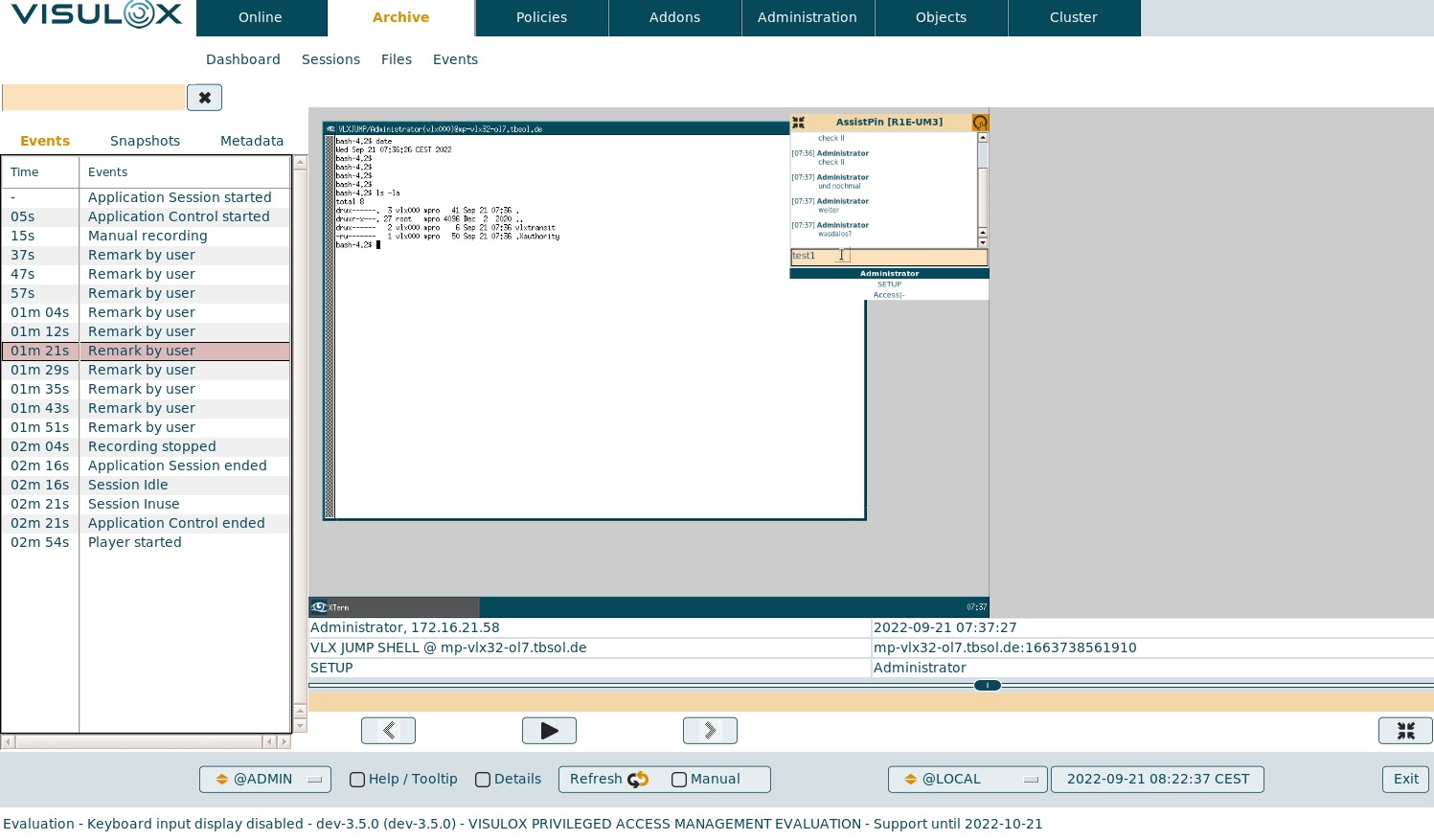
Features
Search field
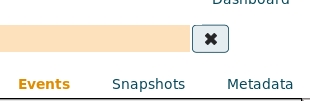
In the search field the events can be filtered:
-
Search is also done in event information (keyword, info ...)
-
Search is case insensitive
-
Search with glob mask is possible
Player tab views
|
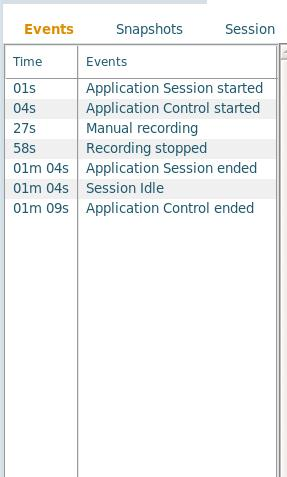
Events |
Event list with all registered events is displayed, jumping to events with double click is possible |
|---|---|
|
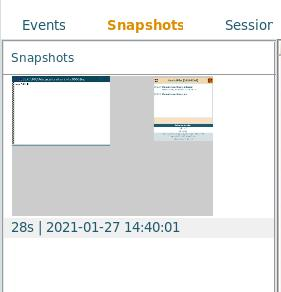
Snapshots |
Snapshots of the tecorded session are displayed, jumping to snapshots with double click is possible |
|
Session |
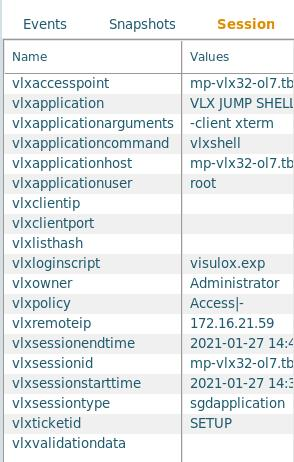
More details can be displayed for the session (e.g. user information) |
Below the sidebar the current active user is displayed (useful in recorded cooperation sessions with more participants).
|
Events |
Snapshots |
Session |
|---|---|---|
|
|
|
|
Main screen
-
The film is displayed in the main part of the screen. The detailed session information of the recorded film is available in the Session tab, showing information about the portal user name, the application name, the Application Server and the time.
Player controls
|
|
|
|---|---|
|
Timeline |
Moveable marker for current position in the running chapter. |
|
Chapter line |
Moveable marker for current position in chapter. The current chapter and the name of the current user is displayed.
|
|
Player controls |
|

Live player
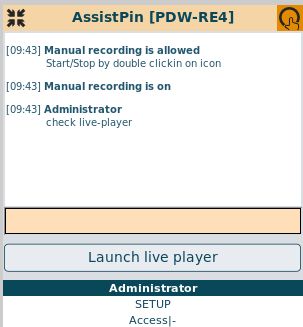
To enable the live player in recorded application sessions, use:
visulox config -name recorder.liveplayer=true
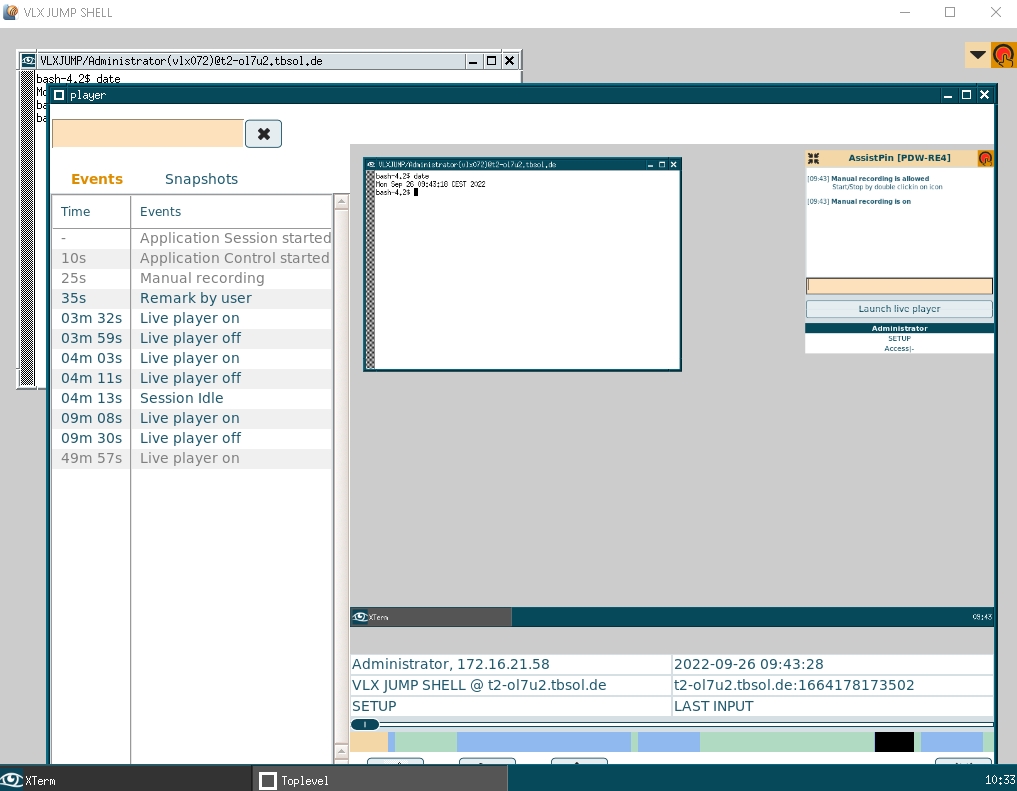
With this setting the "Launch live player" button is displayed in the session controller and the session can be watched from the beginning :
|
|
|
-
The live player can be enabled for all types of recorded sessions, e.g manual recording, recording via poliy, etc
-
The session is still recorded, when using the live player.
-
Keyboard entries are not displayed in the live player
Checked out recorded films
Checkout via Cockpit
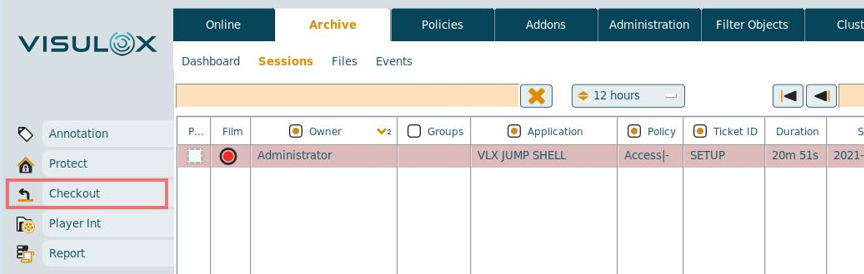
Selected recorded sessions can be checked out with the Checkout button on the Archive / Session page of the Cockpit.
-
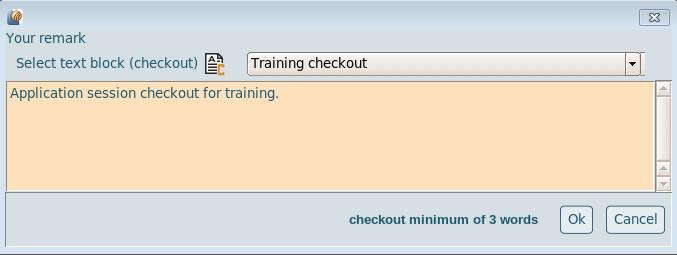
A comment has to be filled out for every checkout:
-
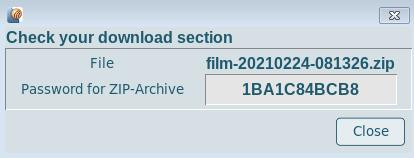
The ZIP-Archive password is displayed and copied to clipboard:
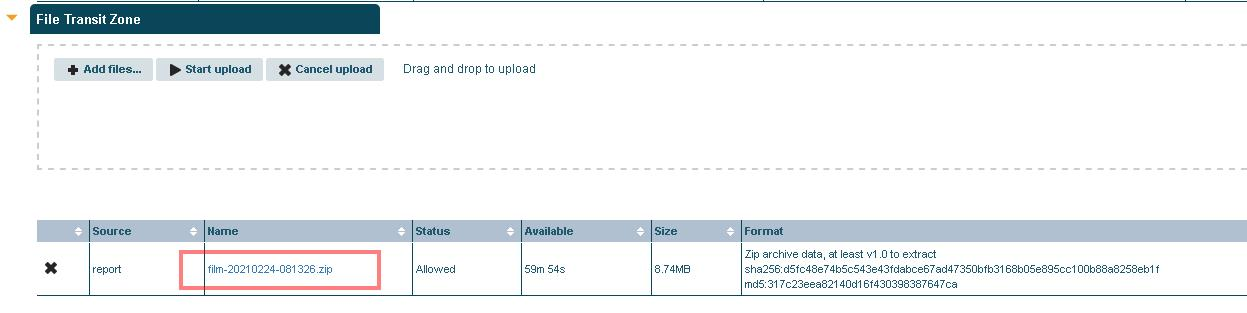
Once the session is checked out, it is available for download in the File Transit Zone of the user:
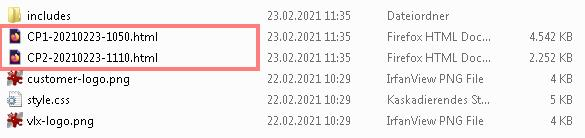
The files have to be extracted from the downloaded ZIP-Archive (ZIP password is needed!).
Then the recorded chapters can be watched in the browser by opening the chapter HTML files:
Offline player
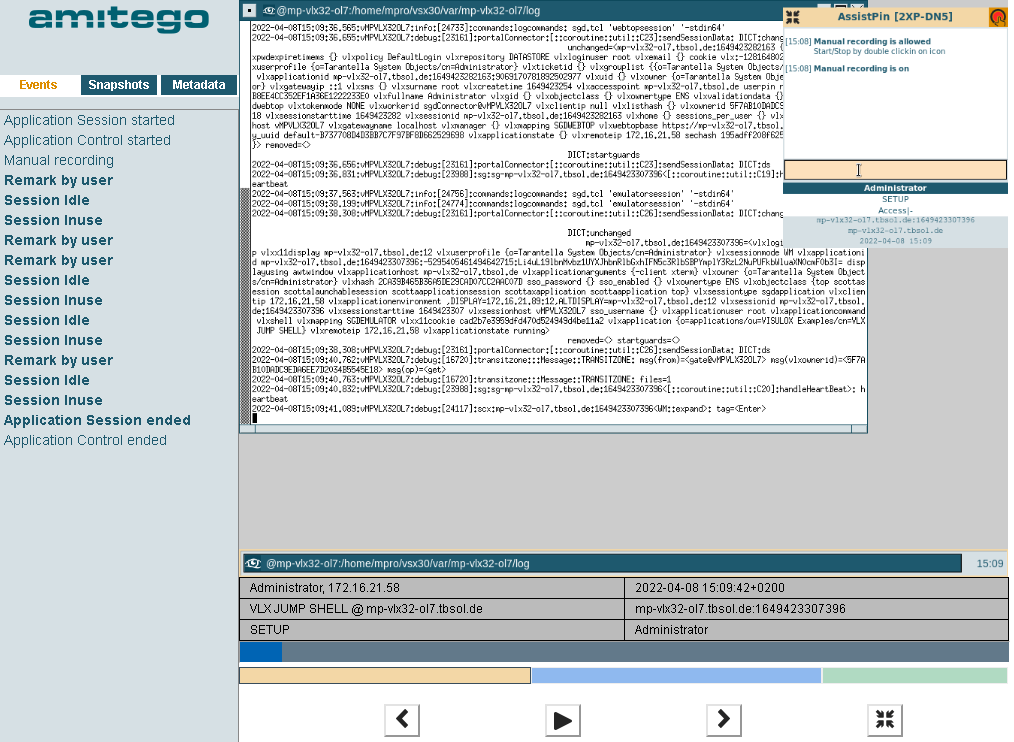
The oflline player has three tabs: Events, Snapshots and Metadata.
A footnote with information about the session is attached on the bottom of the film.
|
Player controls |
|
|---|
Checkout via command line
Recorded sessions can also be checked out with the visulox export sessions command.
For example:
visulox export sessions -object Administrator -directory </tmp/export> -starttime "-1 week" -endtime now -run
For a detailed description of the visulox export command, see:
How to export information interactive from VISULOXCheckout configuration options
visulox config -name checkout.
    ----------------------------------------
    | changed | key               | value  |
    ----------------------------------------
    |         | checkout.disksize | 10.0GB |
    |         | checkout.max      | 40     |
    ----------------------------------------