
About
Multi Factor Authentication can be used with external services.
There are two possible scenarios:
1. The external service provides the MFA PIN. Once the user has entered the MFA PIN in the login mask, it is sent to the external service for validation.
Configuration
A Login Policy has to be created with the mode: MFA via external Service (an example script is available, which can be used to setup the policy and the according action script).
The PIN script for this policy has to be created and assigned, for example:
-
#!/bin/bash
# create policy for external MFA using action links

WORKBASE=$( cd "$( dirname "${BASH_SOURCE[0]}" )" && pwd )
export WORKBASE

trap 'Script Error lineno=${LINENO} : $BASH_COMMAND ; exit 1' ERR
set -eu

NAME=externalWaitTest
SCRIPTNAME=$0

VLX_HOME=${VLX_HOME:-/opt/visulox}

LOGFILE=/tmp/${NAME}.log
SCRIPTRACE=/tmp/${NAME}.trace

VLXCMD=$VLX_HOME/bin/visulox
TRACE=0

# policy Name
PNAME=P-$NAME
# script Name
SNAME=S-$NAME

###################################################################
cleanerLog() {
    echo "-------------------------" > $LOGFILE
    echo "" >> $LOGFILE
    echo "" >> $LOGFILE
}
header() {
    local date=$(date +%H:%M:%S)
    echo "" >> $LOGFILE
    echo $date $SUBCOMMAND $$ $* >> $LOGFILE
}
#####################################
dump() {
    #env | sort | grep VLX | grep -v VLX_ >> $LOGFILE
    (
    echo "VLXPIN: $VLXPIN"
    echo "VLXPIN_SEQUENCE: $VLXPIN_SEQUENCE"
    echo "VLXOWNER: $VLXOWNER"
    ) >> $LOGFILE
}

###################################################################
usage () {
    echo "use setup"
    return 1
}

###################################################################
runSetup() {
    cleanerLog
    $VLXCMD admin action add -name $SNAME \
        -category pin \
        -scriptfile $SCRIPTNAME \
        -force

    $VLXCMD policy login delete -name $PNAME  -force || true

    $VLXCMD policy login add -name $PNAME \
        -mode external -pinscript  $SNAME -force

    #$VLXCMD config reset -name extendsession.login.entry1
    #$VLXCMD config -name otp.always=true
    #$VLXCMD config -name otp.label="*** TEST $NAME ***"
 }


####################################
runExternal () {
    if [[ "$TRACE" == "1" ]]; then
        # for debugging
        exec 9> "$SCRIPTRACE"
        BASH_XTRACEFD=9
        set -x
    fi

    VLXMFADATA=${VLXMFADATA:-undef}
    VLXMFATOKEN=${VLXMFATOKEN:-}

    noteData="(has <${VLXMFADATA}>)"
    note="${VLXOWNERSHORT} |  0000=WAIT / 5678=REQUEST / 1234=OK / other=DENY / ${noteData}"

    if [[ "$VLXMFATOKEN" = "" ]]
      then
        # create session / init a session
        sessionData=SD$$

        $VLXUTIL/scriptAnswer.tcl -format base64  -code MFAREQUEST \
          -info "$note / (init <${sessionData}>)" \
          -data "$sessionData"

       elif [[ "$VLXMFATOKEN" = "0000" ]]
        then
          $VLXUTIL/scriptAnswer.tcl -format base64  -code MFAWAIT  \
            -info "$note"  -data "$VLXMFADATA"

      elif [[ "$VLXMFATOKEN" = "5678" ]]
        then
          $VLXUTIL/scriptAnswer.tcl -format base64  -code MFAREQUEST \
            -info "CHALLANE $note" -data "$VLXMFADATA"

      elif [[ "$VLXMFATOKEN" = "1234" ]]
        then
          $VLXUTIL/scriptAnswer.tcl -format base64  -code SUCCESS  \
            -info "OK / ${noteData}"

      else
        $VLXUTIL/scriptAnswer.tcl -format base64  -code MFADENY \
          -info "Your request was denied / ${noteData}"
      fi

}
###################################################################
runUndef() {
        header "SUBCOMMAND=$SUBCOMMAND unknown"
        >&2 echo SUBCOMMAND $SUBCOMMAND unknown
        return 255
}
###################################################################
SUBCOMMAND=${1:-}
header

case $SUBCOMMAND in
    "")
        usage
        ;;
    "setup")
        runSetup
        ;;
    "external")
        runExternal
        ;;
    *)
        usage
        runUndef
esac
exit $?
The check against the external service with username / VLXMFAToken has to be implemented.
-
If $? then -code SUCCESS
-
If not then -code MFADENY
Be careful if this script is created via the setup method. The according Login Policy will be on the first position and matches with all users.
Before starting setup, open a Visulox Cockpit as Administrator and once setup is done move the created Policy to the end of the policy list.
-
The user logs in with his credentials and VISULOX Service waits for the answer of external service. The external service checks the login and gives feedback to VISULOX.
Configuration
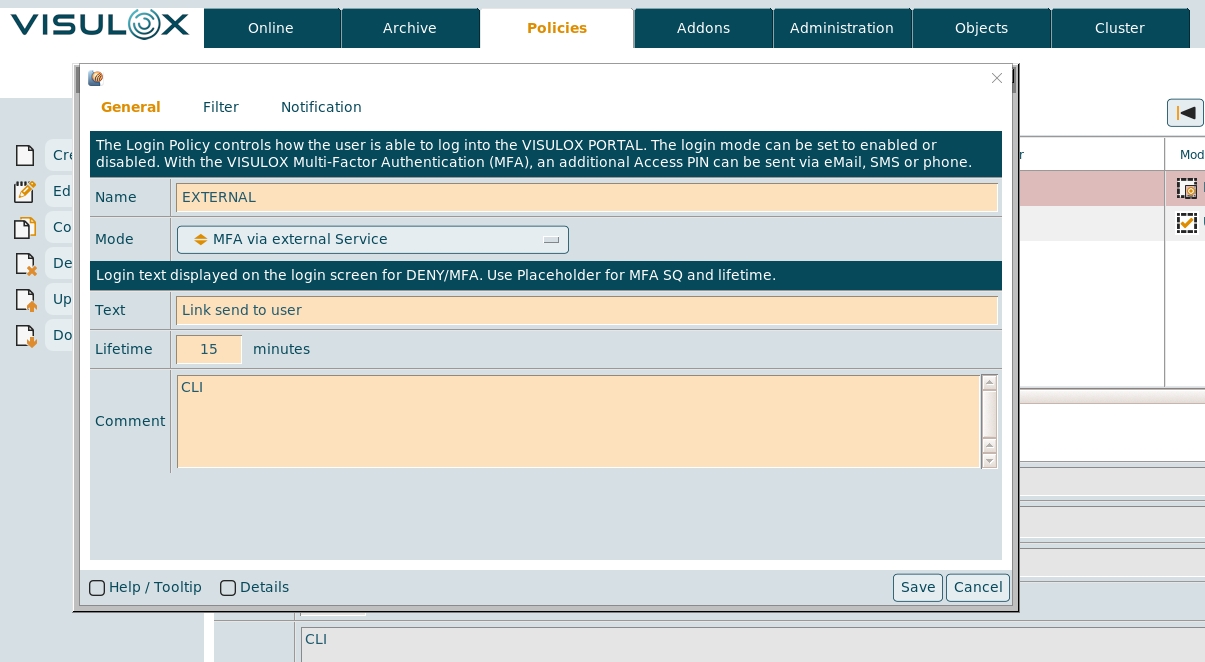
A Login Policy has to be created with the mode: MFA via external Service
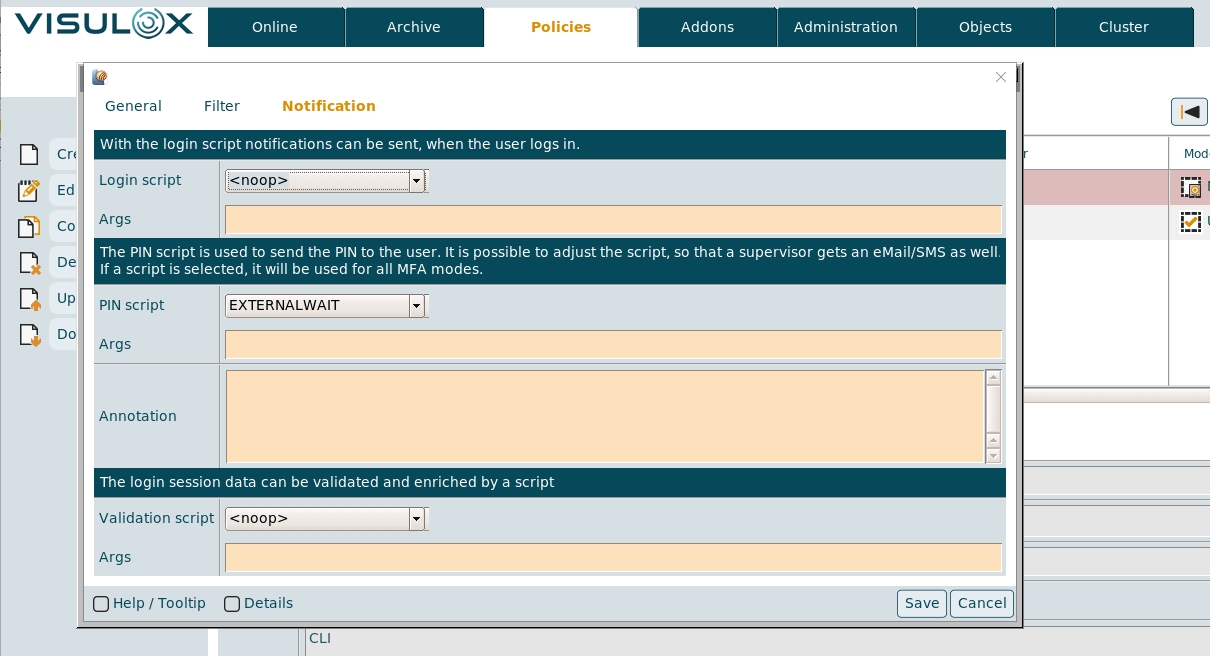
The PIN script for this policy has to be created and assigned, for example:
# exitcode 0: script run without error
# any other exitcode: script error
# State results on stdout
# echo "ok:a free text (currenly no seen by the user"
# echo "request: Message in the login dialog"
# echo "denied: Message in the login dialog"
#
# enviroment as variable. see documentation
# Example with pin request:
examplePinRequest () {
  if [[ "$VLXPIN" = "1234" ]]
    then
     echo "ok:any text ..."
   elif [[ "$VLXPIN" = "NULL" ]] || [[ "$VLXPIN" = "" ]]
    then
     echo "request: ... enter pin ..."
   else
      echo "denied: ....pin is wrong...."
   fi
}
exampleLoginConfirmed () {
	local result=$( external service)
	[[ -z "$result" ]] && echo "ok" || echo "failed:$result"
	exit 0
 }
#examplePinRequest
#exampleLoginConfirmed
echo "denied: modify template script"
exit 0
This script has to be adjusted according to the needs of the external service.
In the example the section examplePinRequest has to be adjusted for the first method, where the MFA PIN is provided by the external service.
For the second method, where the user logs in with his credentials, the section exampleLoginConfirmed has to be adjusted.
If the external service takes time to respond, the proxy timeout setting has to be adjusted on the VISULOX GATEWAY.
External MFA via email with action links
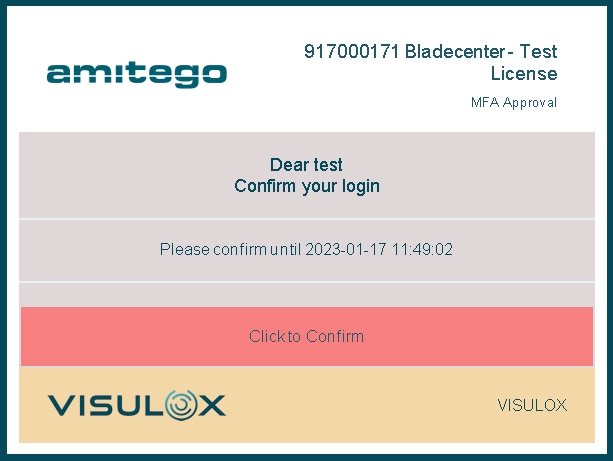
It is also posssible to send a mail to the user, once he has entered his username and password on the login page.
In this mail the user can click on Click to Confirm and his Workspace will be opened in his browser.
For this setup an example script is available, use:
sh /opt/visulox/setup/actionscripts/mfaConfirmationViaEmailLink.sh setup
With this setup:
-
The webservice is enabled and started
-
An actionscript for external MFA via email link is added
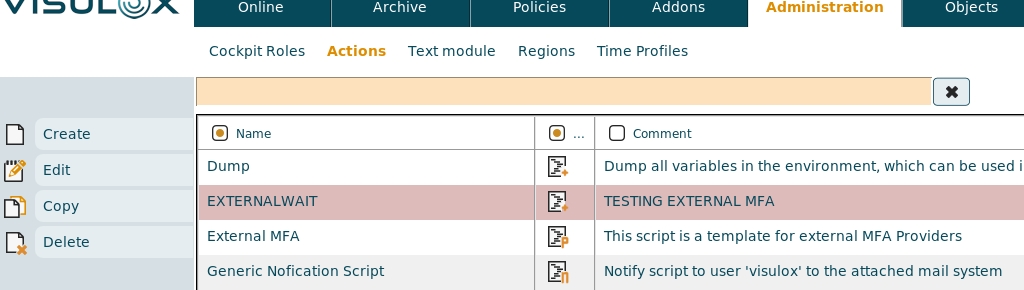
Within this script $VLXUTIL/confirmStatus.tcl -uuid $VLXACKNOWLEDGEUUID is used for external MFA via email links.
-
An example Login Policy for external MFA is added and the actionscript is assigned
User login
After the user assigned to this Login Policy has entered his credentials, the following page is displayed:

The user will get the following mail, where he can confirm the login:
After confirmation the Workspace is opened directly.