

About
This article explains how to setup a persistent Firefox profile to be used in the VISULOX Firefox integration via VLX JUMP SHELL.
There serveral steps:
Preparing a profile
Log into VISULOX PORTAL and start a VLX Jump Shell.
Run the following commands:
firefox -CreateProfile default
firefox -profile $HOME/.mozilla
You can now make customizations to your profile like visual customizations or add homepage, links etc.
A good approach is also to add profile specific certificates to the Firefox browser:
firefox -profile $HOME/.mozilla
Exit Firefox after customizations are done.
firefox -profile $HOME/.mozilla
Packing and saving the profile as an archive
bash-4.2$ cd  .mozilla/
bash-4.2$ tar czf $HOME/myProfile.tgz .
bash-4.2$ ls -l
total 28468
drwx------. 2 vlx000 vlxgroup        6 Feb 25 11:43 Downloads
-rw-r-----. 1 vlx000 vlxgroup 29151090 Feb 25 11:54 myProfile.tgz
drwx------. 2 vlx000 vlxgroup        6 Feb 25 10:23 vlxtransit
The packed Firefox profile has to be copied into a directory outside of the VLX Jump Shell environment, accessable by all VLX Jump Shells. Also the content in the folder needs to be synchronized with all nodes running the VLX Jump Shell.
mkdir /opt/firefoxProfiles/
cp /opt/visulox/vlxusers/vlx000/myProfile.tgz /opt/firefoxProfiles/
chgrp -R vlxgroup /opt/firefoxProfiles/
Apply the profile to a Firefox application
In the VISULOX PORTAL Console create a VLX Jump Shell with Firefox:
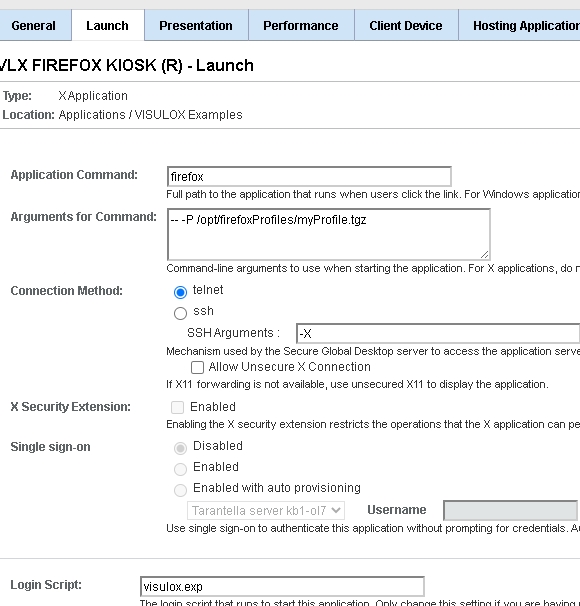
You can now launch the application and check your profile.
Please take note that the created profile must be distributed to all nodes in the VISULOX Array.