

Enable captcha
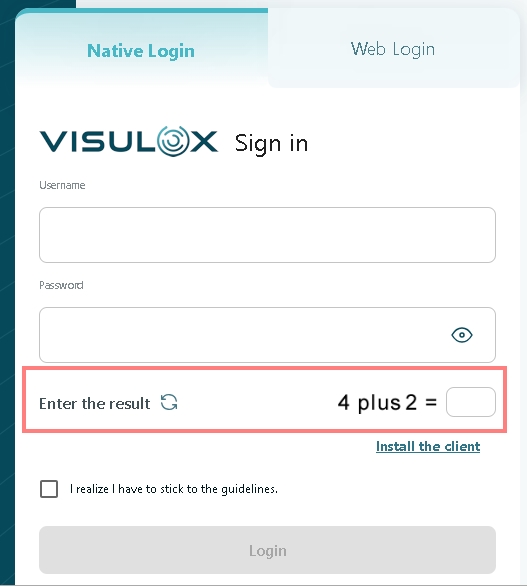
A captcha can be displayed on the login page, that has to be entered by the user before login:
To enable the human check, use:
visulox config -name login.human.check=true
With Access Branding it is possible to display different login page designs for different users according to their access point.
It is possible to overwrite the global login.human.check setting for the different accesspoints:
visulox config accesspoint edit -name customera.tbsol.de -human true
Possible values for -human are: true / false / config
With the value config, the login.human.check from the global configuration will be used.
In use check
A message can be displayed, where the user is able to continue and transfer the running session or to cancel the login.
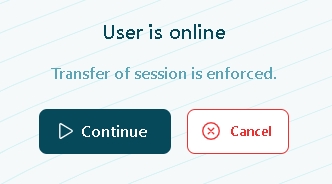
This message is enabled and the according text / tooltip is configured with:
visulox config -name loginextend.inusecheck

    -------------------------------------------------------------------------------
    | changed | key                            | value                            |
    -------------------------------------------------------------------------------
    | changed | loginextend.inusecheck         | true                             |
    |         | loginextend.inusecheck.comment | User is online                   |
    |         | loginextend.inusecheck.usertip | Transfer of session is enforced. |
    -------------------------------------------------------------------------------
Disable install the client option
visulox config -name portal.clients.download=false

    ---------------------------------------------
    | changed | key                     | value |
    ---------------------------------------------
    |         | portal.clients.download | false |
    ---------------------------------------------
Setting the default login method
visulox config -name portal.clients
    -----------------------------------------------
    | changed | key                     | value   |
    -----------------------------------------------
    |         | portal.clients          | tcc:hc5 |
    ...
Disable external messages
visulox config -name design.ui4.loginmessages=false
Setting the language
On the login page, the language used in the VISULOX Portal can be selected:
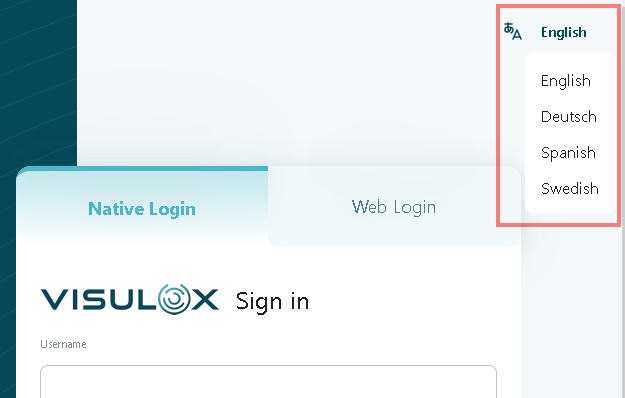
The displayed languages and can be changed with:
visulox config -name portal.language=de:en:es
To use the language setting from the client, the following parameter has to be set:
visulox config -name portal.language.useclient=true
If the client language is not available, english will be used.
Hide PIN
If a second factor has to be entered by the user, the PIN entry can be hidden with:
visulox  config -name pin.hide -info
    ------------------------------------------------------------------------------------------------------------
    | changed | key      | value |                                                    shortinfo | defaultvalue |
    ------------------------------------------------------------------------------------------------------------
    |         | pin.hide | false | if true the frontend will hide the entry of the PIN using *  |        false |
    ------------------------------------------------------------------------------------------------------------
Examples
visulox config -name loginextend.override.ticketid=true
visulox config -name loginextend.inusecheck=true,loginextend.inusecheck.comment="In use",loginextend.inusecheck.usertip="User already in use"

visulox config -name extendsession.login.entry1="Ticket<br>(Valid Ticket Number)"
visulox config -name extendsession.login.entry1.usertip="Registered users have to provide a valid ticket number."

visulox config -name extendsession.login.entry2="Phone<br>(Valid Phone Number)"
visulox config -name extendsession.login.entry2.usertip="Users can leave this empty."

visulox config -name extendsession.login.entry3=""

visulox portal attach -jspconf
Related articles
How to disable/modify the presentation of the remote IP address on the login page
How to setup a standard form contract to commit on login (consent)