
General
VISULOX MFA enriches the standard VISULOX PORTAL authentication layer to change the behaviour of the one factor authentication process (username, password) to a multi factor process (username, password / random-pin). Every time the user tries to login, a new PIN is generated. The PIN is randomly chosen and unique.
Prerequisites
For this example setup two users have to be registered in VISULOX PORTAL with the following settings:
|
User |
Role |
|
SMS |
Application |
|---|---|---|---|---|
|
Master |
Supervisor |
<supervisor>@company.com |
- |
VISULOX Cockpit |
|
Miller |
User |
<user>@company.com |
<user SMS via LDAP> |
- |
Supervisor Master enables and configures the MFA login.
User Miller logs into VISULOX PORTAL with MFA authentciation enabled.
Supervisor Master: Enable MFA for Miller
Creating a new Login Policy in Cockpit:
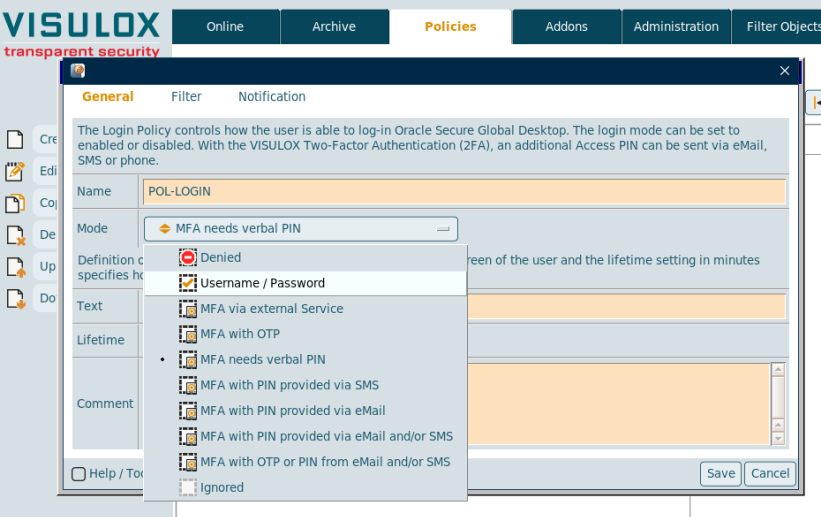
A unique name for the policy must be entered: "POL-LOGIN".
The Policy mode can be chosen from a dropdown list.
The sequence number, the lifetime and the time will be displayed on the login mask of the user.
The default settings are fine for this example. A comment for the policy can be entered as well.
Selecting the policy Login mode:
-
Example 1: Login is allowed with verbal token
-
Example 2: Login is allowed with token provided via eMail
-
Example 3: Login is allowed with token provided via SMS
See: How to setup MFA with SMS response from the SMS Provider
Setting the filter:
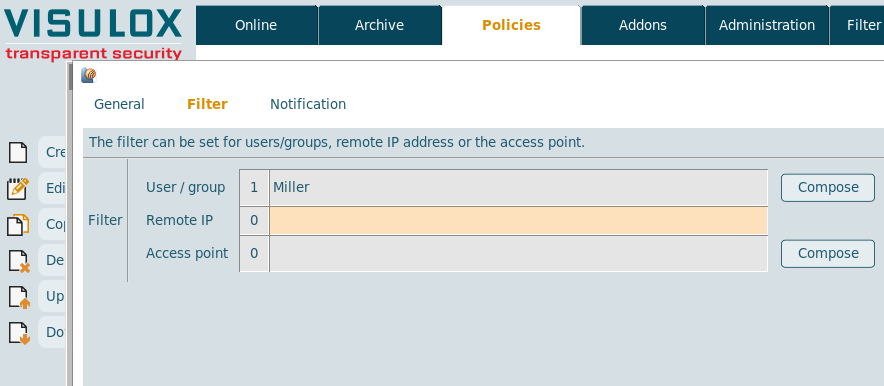
Filter is set to "Miller" for all examples.
Additional filters can be set based on the Remote IP address or on the access point (not used in this example).
Selecting the script:
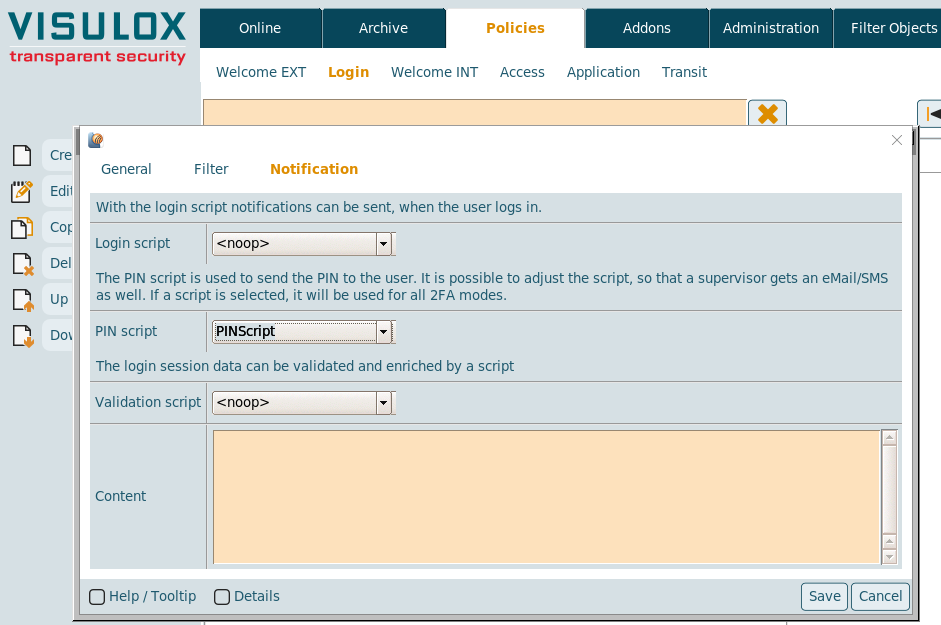
With the Login script, notifications can be sent to the supervisor (Not used in this example).
The default "PINScript" can be used to send the PIN notification to user Miller.
It is also possible to adjust the PIN script, so that a supervisor gets an eMail/SMS as well (See: Action script interface & variables).
If a script is selected, it will be used for all MFA modes.
After saving the new Login Policy, it will be shown on top of the existing entries. The first Login Policy, that matches the filter criteria will be used.
Example 1: Miller logs into VISULOX PORTAL with verbal token
-
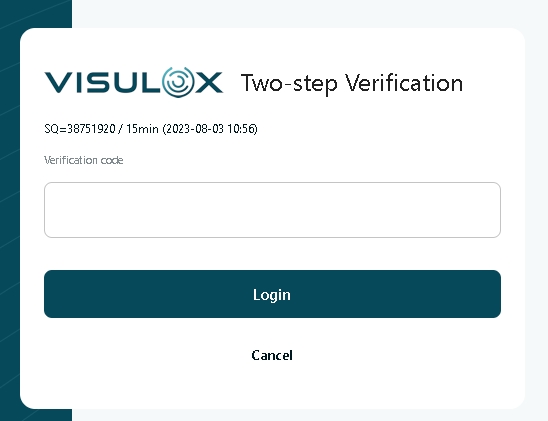
Miller tries to login with his credentials and needs an additional PIN to login:
The generated PIN is valid for 15 Minutes and Miller has to call supervisor Master to request the PIN for SQ=38751920.
-
Supervisor Master receives the call from Miller and opens his Cockpit:
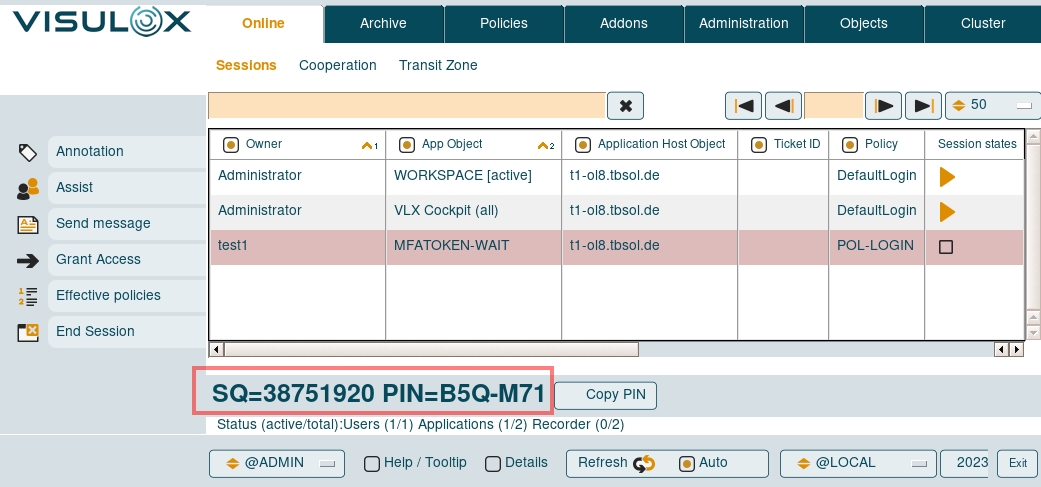
Master selects the session from Miller ("Wait for Token") and the sequence number with the according valid PIN is displayed.
Master provides the PIN verbally.
(With the "Copy PIN" button, the user and the sequence number will be copied to clipboard and can also be used in an eMail.)
-
Now Miller is able to login with his credentials and the PIN (Here: "B5Q-M71").
Example 2: Miller logs into VISULOX PORTAL with PIN provided via eMail
-
Miller tries to login with his credentials and needs an additional PIN to login.
-
Miller receives the eMail with his PIN shortly after he has tried to login:
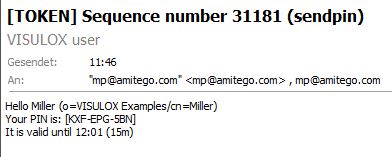
The default PIN script displays the sequence number in the subject.
The name of the user, the PIN and how long the PIN is valid is shown in the eMail text.
-
Now Miller is able to login with his credentials and the PIN.
Example 3: Miller logs into VISULOX PORTAL with token provided via SMS
-
Miller tries to login with his credentials and needs an additional PIN to login.
-
Miller receives the SMS with his PIN shortly after he has tried to login.
-
Now Miller is able to login with his credentials and the PIN.
MFA check list with additional tests
|
Feature |
Expected behaviour |
Comment |
|---|---|---|
|
Login is allowed |
|
|
|
Login allowed with verbal token |
|
|
|
Login is allowed wiith token provided via eMail |
|
|
|
Login is allowed with token provided via SMS |
|
|
|
Login is allowed wiith token provided via eMail and/or SMS |
|
|
|
Login is not allowed |
|
|
|
Disabled |
|
|
|
Filter settings |
|
|
|
PIN definition |
|
|
|
Notification |
|
|
|
Events |
|
|