
Overview
The File Transfer modules
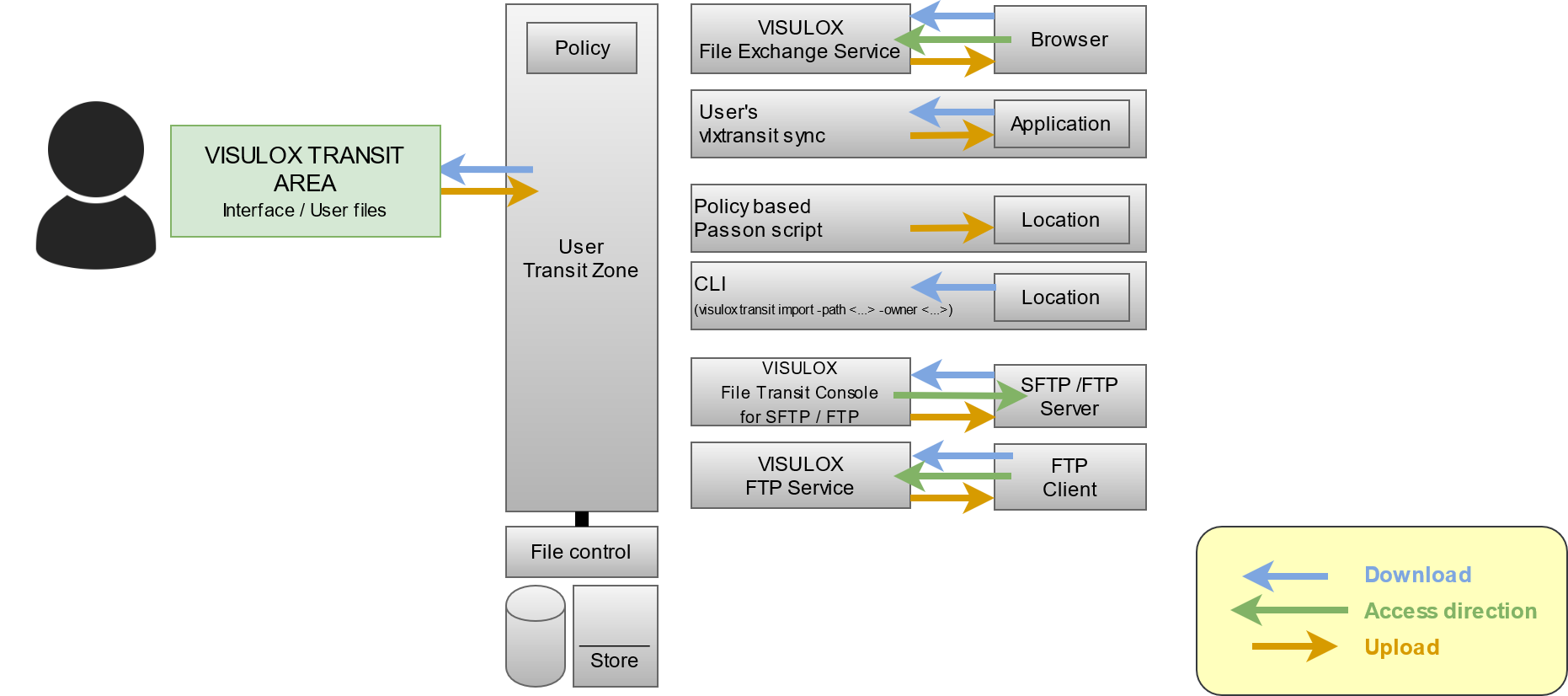
The modules provide access to the Transit Zone. There are several File Transfer modules, each providing a connection to the Transit Zone:
|
Module |
Description |
|---|---|
|
Transit Web in Workspace |
File Transfer interface is presented in the user`s Workspace. The user can upload or download files from his client into the Transit Zone |
|
File Exchange |
The user can connect to every VISULOX Node, using the internal WEB browser and a known URL. The WEB Access PIN is needed to see the Transit Zone.
|
|
Sync |
Depending on the configuration, the user has a local directory, where he has direct access to the Transit Zone.
sshfs must be installable. For OL 8 use "Oracle Linux 8 CodeReady Builder (x86_64) - Unsupported" as repository. |
|
Passon script / CLI
|
Users are able to upload into the Transit Zone. Depending on the user, file name or file type these files can be passed on automatically to another location via script.
|
|
File Transit Client SFTP/FTP |
Interface to interact between the Transit Zone and an SFTP/FTP endpoint. This allows to connect to a server using SFTP, FTP passive or FTP active protocol. Depending on the policy, the user gets a list of hosts he can connect to or he is able to configure his own host list for File Transfer. |
|
FTP Service |
Interface to interact between a application server side FTP client with the Transit Zone. ( |
Also have a look at the User Guide: File Transfer modules
To display the checksum of transferred files in the File Transfer interface in the user's Workspace it is necessary to install rhash, which is available in the Epel repository.
Status of the transferred files
The heart of the VISULOX File Transfer is the user's Transit Zone. Every file a user transports in or outbound is passing the Transit Zone.
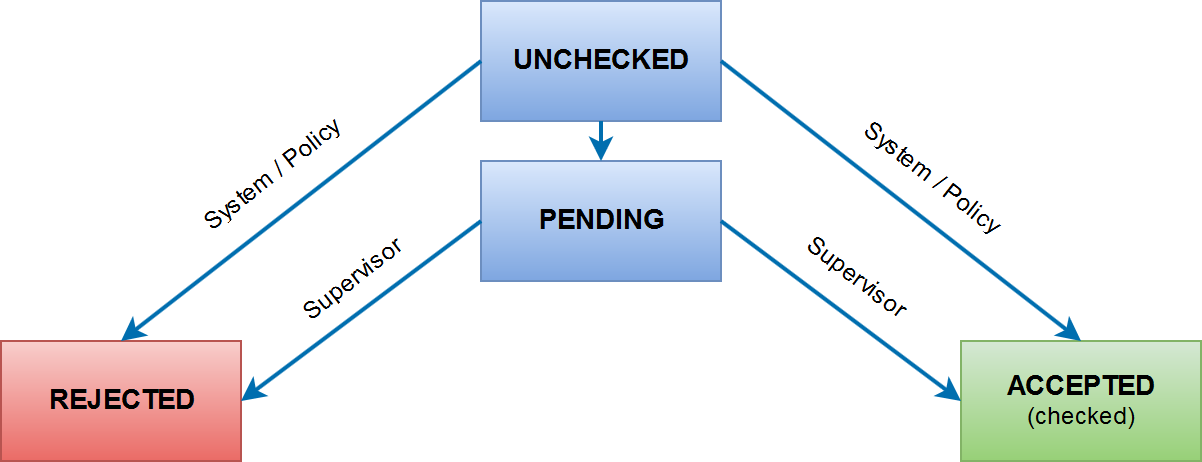
A file in the Transit Zone can have several states:
|
State |
Description |
|---|---|
|
unchecked |
If a file is inserted into the file store, it is set to unchecked and the background task is informed to check the file |
|
pending |
If the File Transfer Policy detects a file pattern, where the file type needs approval, the file is marked as "Needs approval". Using the Cockpit a supervisor can "approve" or "reject" this file for the user. |
|
rejected |
If the system rejects the file, there are several reasons:
|
|
checked or approved |
The file is checked and can be used by the user internally or externally |
A file can be deleted manually by the user to gain more free diskspace, when his quota is reached. Also the files will be deleted automatically, if the lifetime in the Transit Zone is reached.
Related articles
- Configuration of File Transfer in the VISULOX Cockpit
- Transit Policy
- How to attach Chrome/Chromium download directory to vlxtransit
- Extended Transit Policy with hash check by provided hash file
- VISULOX addon command line interface (CMD Connect / Guard, etc)
- How to use SSH-Keys within Command Connect / Guard and FT Client
- File Transfer modules
- File Transfer
- File Transfer via command line
- How to configure File Transfer content check
- File Transfer modules
- Custom vlxuser ID for transit users
- How to discard filetypes from the Transit Zone synchronisation
- File Transfer features
- Transit script variables
- File Transfer recommendations
- How to control FT Client from the command line
- Transit Policy
- File Transfer
- VISULOX File Transit and Sophos Endpoint Security and Control
- Object ID
- Custom vlxuser ID for transit users
- Accessing the File Exchange web page
- Command Connect / Guard and FT Client with empty filters
- VISULOX Transit mapping
- File Transfer via command line
- VISULOX addon command line interface (CMD Connect / Guard, etc)
- How to control File Transit Policy from the command line
- How to configure File Transfer content check
- File Transfer features
- File Transit with approval
- Command Connect / Guard and FT Client with empty filters
- How to discard filetypes from the Transit Zone synchronisation
- File Transit with approval
- VISULOX Transit Mapping and Ubuntu application servers
- Configuration of File Transfer in the VISULOX Cockpit
- Allowing File Transfer from internal to internal
- Object ID
- Allowing File Transfer from internal to internal
- VISULOX Transit mapping
- How to control FT Client from the command line
- How to setup File Exchange on a VISULOX Node without VISULOX PORTAL Service
- How to attach Chrome/Chromium download directory to vlxtransit
- Accessing the File Exchange web page
- How to use SSH-Keys within Command Connect / Guard and FT Client
- How to control File Transit Policy from the command line
- File Transfer recommendations
- How to setup File Exchange on a VISULOX Node without VISULOX PORTAL Service
- Automated transfer of files into Transit Zone (Passon)
- VISULOX FTP Service
- VISULOX File Transit and Sophos Endpoint Security and Control
- Automated transfer of files into Transit Zone (Passon)
- Transit script variables
- Extended Transit Policy with hash check by provided hash file
- VISULOX Transit Mapping and Ubuntu application servers
- VISULOX FTP Service