
What is a Directory?
A directory connects VISULOX to an external identity provider.
Directories allow VISULOX to:
-
authenticate users against LDAP or Active Directory
-
import user accounts and groups
-
synchronize organizational structures
-
centralize identity management
Instead of creating local users manually, administrators can integrate an existing directory service.
Directory Types
VISULOX supports directory types such as:
-
LDAP
-
Active Directory
Each directory configuration represents a connection to a specific directory server.
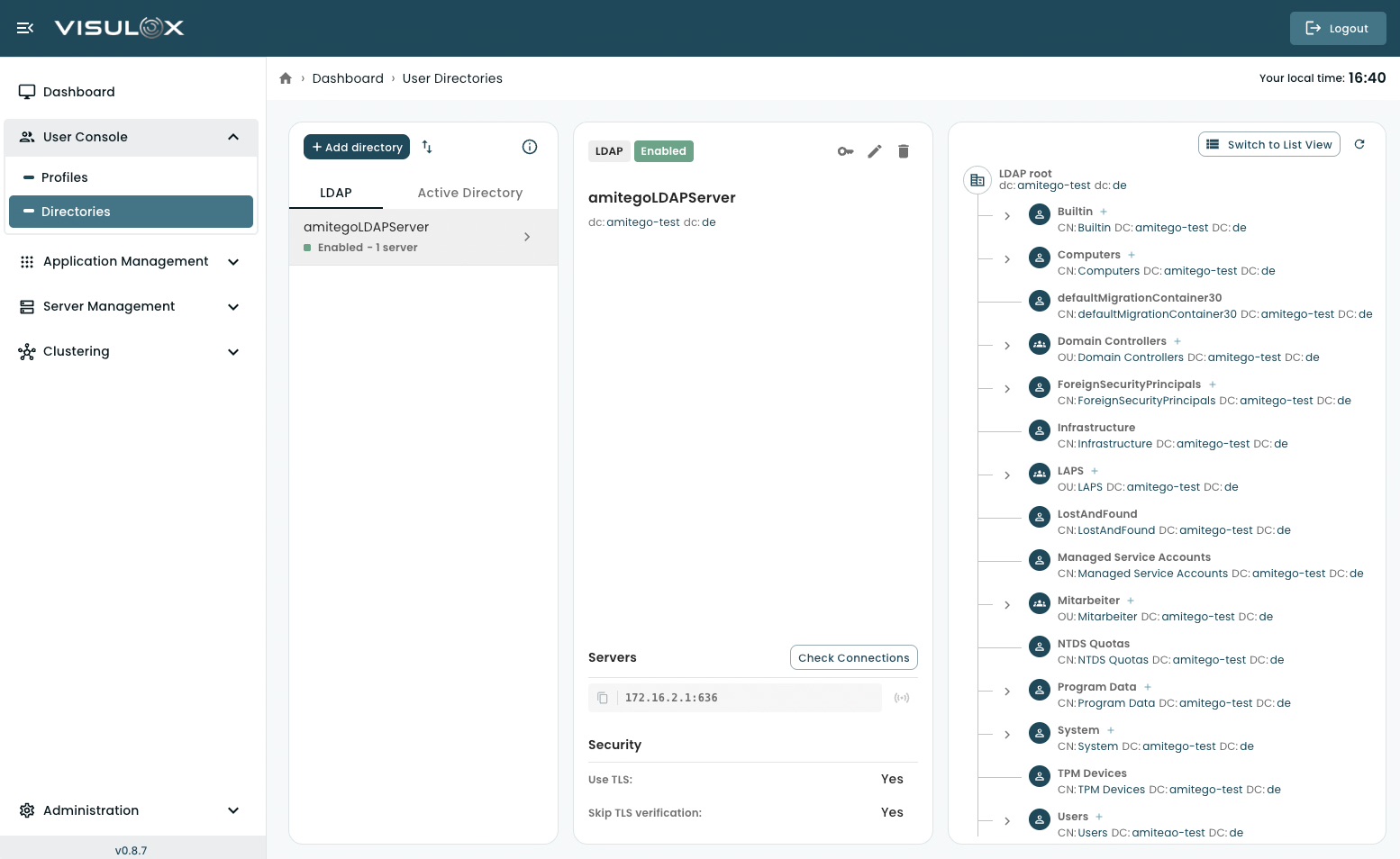
Directories Page Overview
The Directories page consists of three main areas:
1️⃣ Directory List (Left Panel)
Displays configured directory connections.
From here, administrators can:
-
add a new directory
-
select an existing directory
-
enable or disable directory connections
2️⃣ Directory Configuration (Center Panel)
Shows detailed configuration for the selected directory, including:
-
directory name
-
status (enabled / disabled)
-
root DN
-
connected servers
-
security settings (TLS, certificate verification)
Administrators can also test connectivity using Check Connections.
3️⃣ Directory Structure (Right Panel)
Displays the directory tree structure.
This allows administrators to:
-
browse organizational units
-
view users and groups
-
confirm correct base DN configuration
-
verify directory visibility
You can switch between different views if supported (e.g., tree or list view).
Managing Directories
Adding a New Directory
-
Click + Add Directory.
-
Select the directory type (LDAP or Active Directory).
-
Enter server details and credentials.
-
Configure security settings.
-
Save the configuration.
After saving, enable the directory to activate authentication.
Editing a Directory
Select the directory and click the Edit icon.
You can update:
-
Server address
-
Port
-
Base DN
-
Bind credentials
-
TLS settings
Changes take effect after saving.
Testing the Connection
Use the Check Connections button to verify:
-
Server reachability
-
Credential validity
-
Proper LDAP binding
Connection testing helps diagnose configuration issues.
Deleting a Directory
Click the Delete icon to remove the directory configuration.
Removing a directory may affect user authentication if users depend on that source.
Security Settings
Security options typically include:
-
Use TLS → Encrypts communication with the directory server
-
Skip TLS verification → Disables certificate validation (not recommended for production)
Always configure secure connections in production environments.