
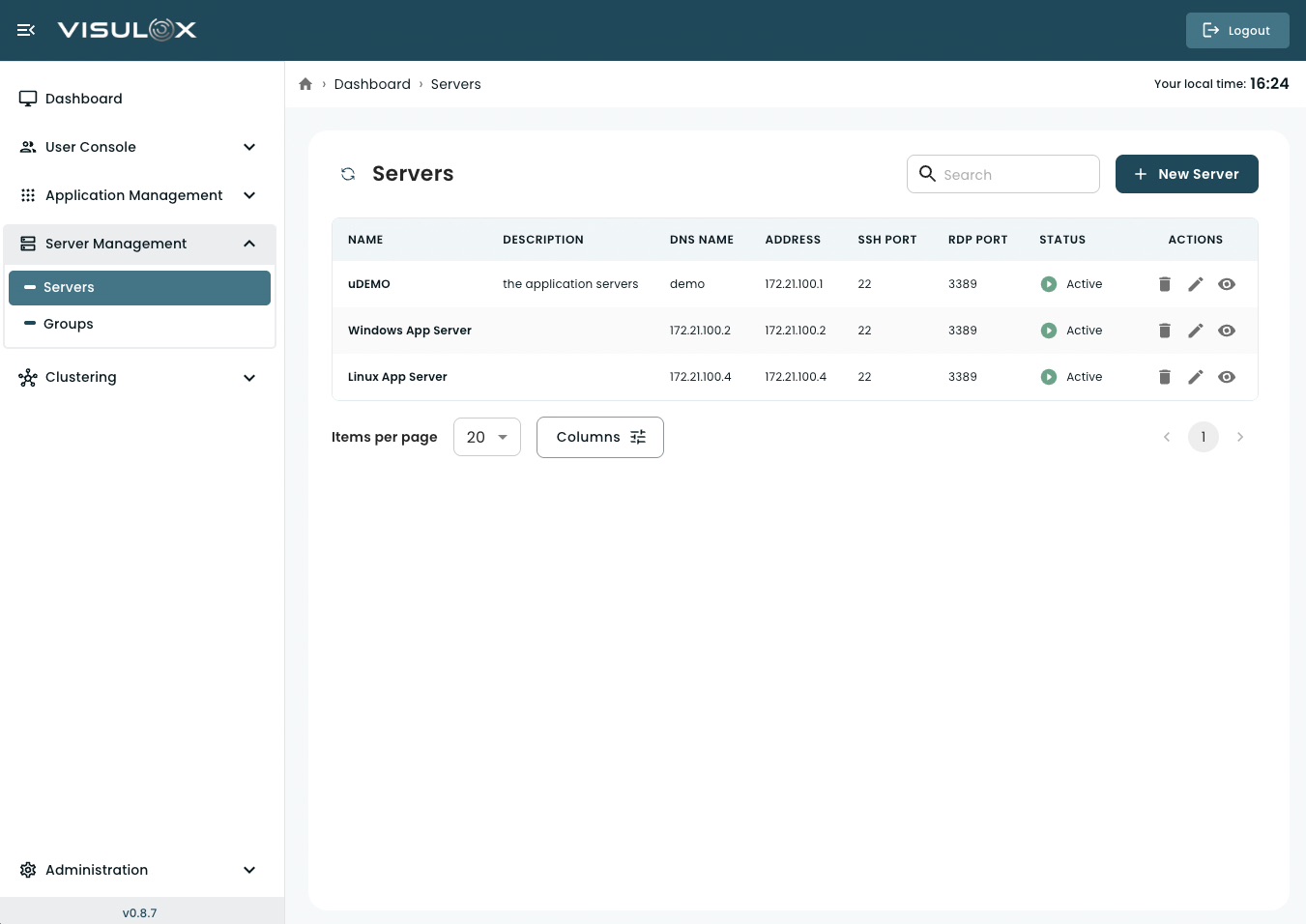
What is a Server in VISULOX?
A Server represents a system that hosts applications or provides remote resources.
Servers are required so that VISULOX knows:
-
where applications are running
-
how to connect to them
-
which ports are used
-
whether the server is reachable
Applications rely on configured servers to function properly.
If a server is not configured or is inactive, applications assigned to it may not work.
Servers Page Overview
The servers page provides a centralized overview of all configured servers.
Each server entry displays important connection and status information, including:
-
Server name
-
Description
-
DNS name
-
Address
-
SSH port
-
RDP port
-
Current status (Active / Inactive / Maintenance)
From this page, administrators can:
-
add new servers
-
review server details
-
modify server settings
-
remove servers
-
search and filter entries
-
navigate using pagination
The status indicator reflects the availability or intended usage state of the server.
Managing Servers
Adding a New Server
Click + New Server (top-right corner).
Enter the required server details.
Save the configuration.
After saving, the server becomes available for application assignments.
Server Configuration (Field-by-Field)
1. Name
The name of the server
-
should follow organizational naming conventions
-
is used to identify the server within the system
2. Description
Optional description of the server.
-
Can include role, purpose, or configuration details
(e.g., Production app server, RDP host for finance team)
3. DNS Name
The DNS name or network identifier of the server
-
can be a hostname or IP address
-
is used for resolving the server in network communication
4. Address
The fully qualified domain name (FQDN) or address
-
Example:
server.domain.com -
is used for establishing connections
5. SSH Port
Port used for SSH connections.
-
Default:
22 -
Required for Linux-based or SSH-based applications
6. RDP Port
Port used for Remote Desktop (RDP) connections.
-
Default:
3389 -
Required for Windows-based remote sessions
7. Status
Defines the operational state of the server:
-
Active
Server is available for use -
Inactive
Server is disabled and not used -
Maintenance
Server is temporarily unavailable (e.g., updates, troubleshooting)
Viewing a Server
Click the View icon to open server details in read-only mode.
Editing a Server
Click the Edit icon to update server configuration such as:
-
Name
-
Description
-
DNS name
-
Address
-
Ports
-
Status
Changes take effect after saving.
Deleting a Server
Click the Delete icon to permanently remove the server.
If applications are assigned to this server, they may stop functioning after deletion.
Search and Table Controls
Use the search field (top-right) to filter servers by name.
Use pagination controls at the bottom to navigate between pages.
Adjust the number of items per page as needed.
Use the column selector (if available) to customize visible columns.