After successfully logged in, the Workspace is displayed showing all applications, which are assigned to the user.
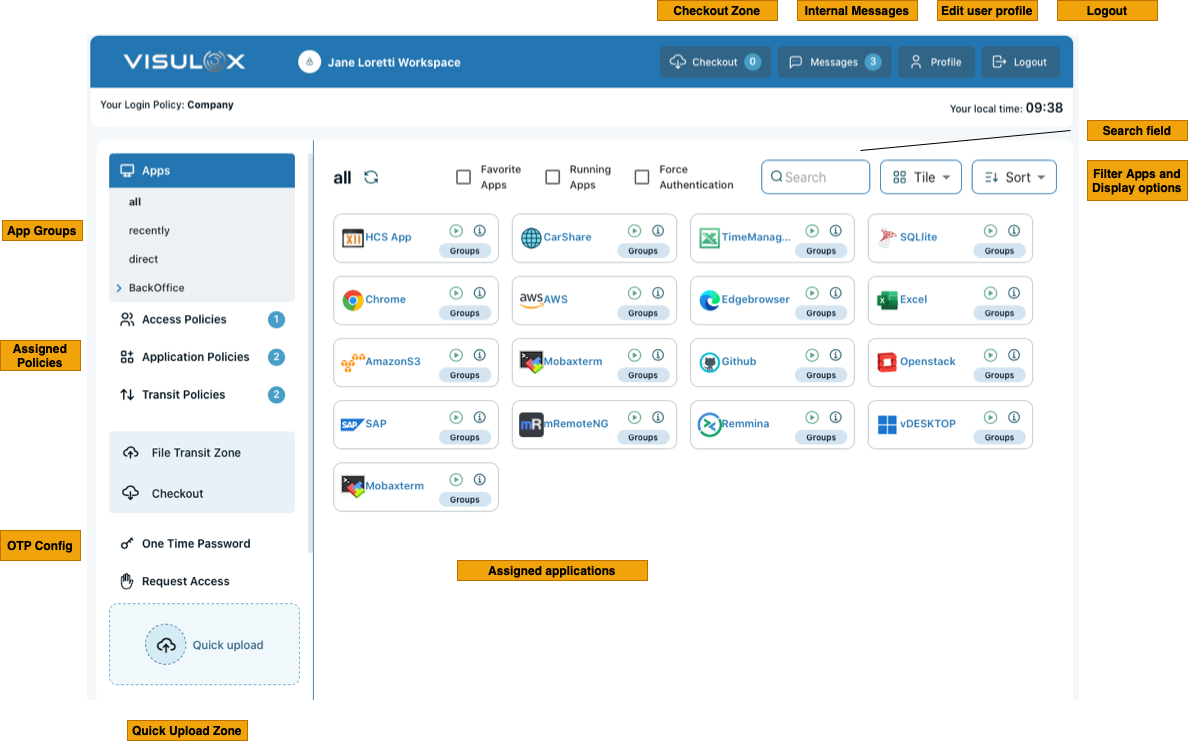
With the internal welcome message feature, it is possible to display a message for the logged in user in the Workspace ("Messages" - button).
The matching policies (access, application, transit) of the user is displayed on the left side.
The Transit Zone for up/downloading files and the Checkout Zone for Reports and film checkouts is also integrated in the Workspace.
With the "Quick Upload" zone it is possible to drag & drop files to transfer them into the internal IT environment.
By clicking the "Groups" button within the application area it is possible to assign an application to a group or create a new application group:
|
|
|
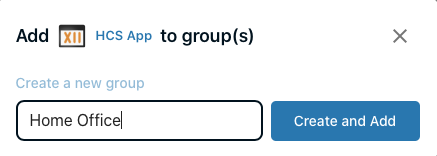
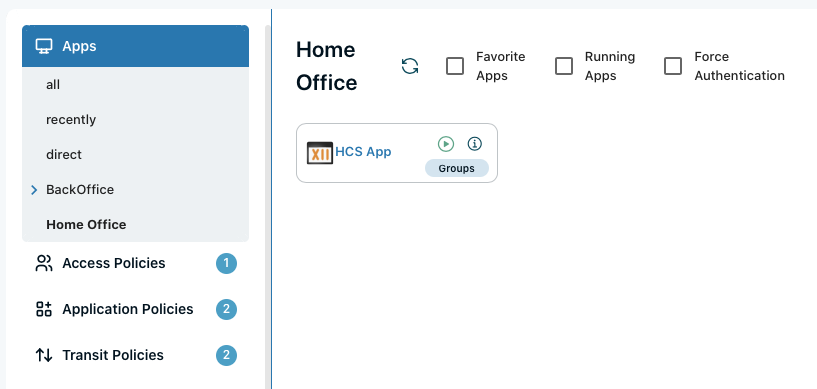
Applications can be added or removed from existing groups. If the last application is removed from a group, the group itself will be removed as well.
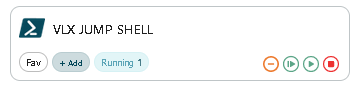
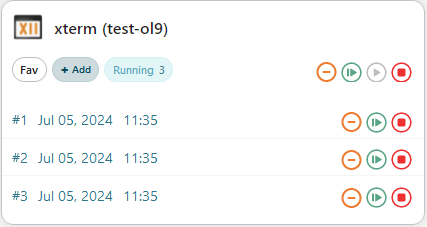
With the search field applications can be filtered and the applications can be controlled (suspend / resume, cancel, etc) all at once or each application on its own.
Status of the applications:
|
|
|
|
Hover over the application to see the running instances: |
|
|
|
|
|
|
|
|
|
|


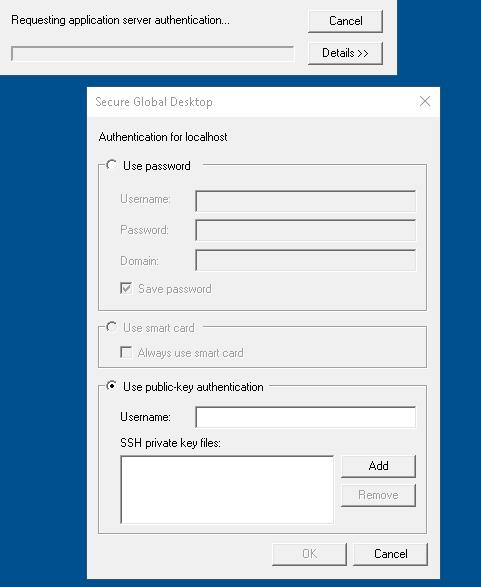
After starting an application the authentication dialog is displayed (depending on the configuration).
If the dialog is not shown because the login user credentials are passed through, the display can be forced by checking "Force Authentication" in the Workspace.