
Application Policy
The following features are controlled with an Application Policy: Notification, Recording, , Dual Control, Detection control and Keyword detection:

General
An Application Policy starts with a primary policy tag, which sets the behaviour of the policy:
Primary policy tags | Description |
|---|---|
Ignored | Ignore this policy. |
Enabled | The policy is active for the matching users. |
Filter
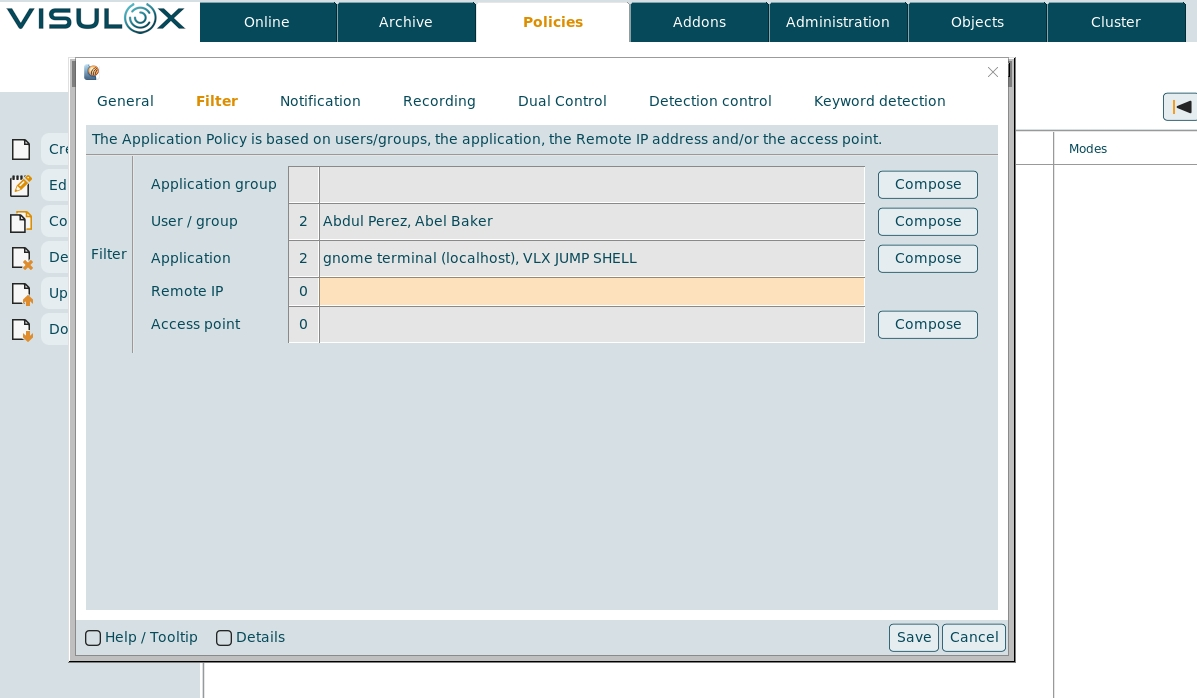
The Application Policy filter applies on a user / group the user belongs to, an application / application group, the remote IP of the user's connection and / or the access point, where the user wants to login.
Notification
A notification can be sent, when an application is started or stopped.
The script that will be started, when a keyword is detected can be set as well.
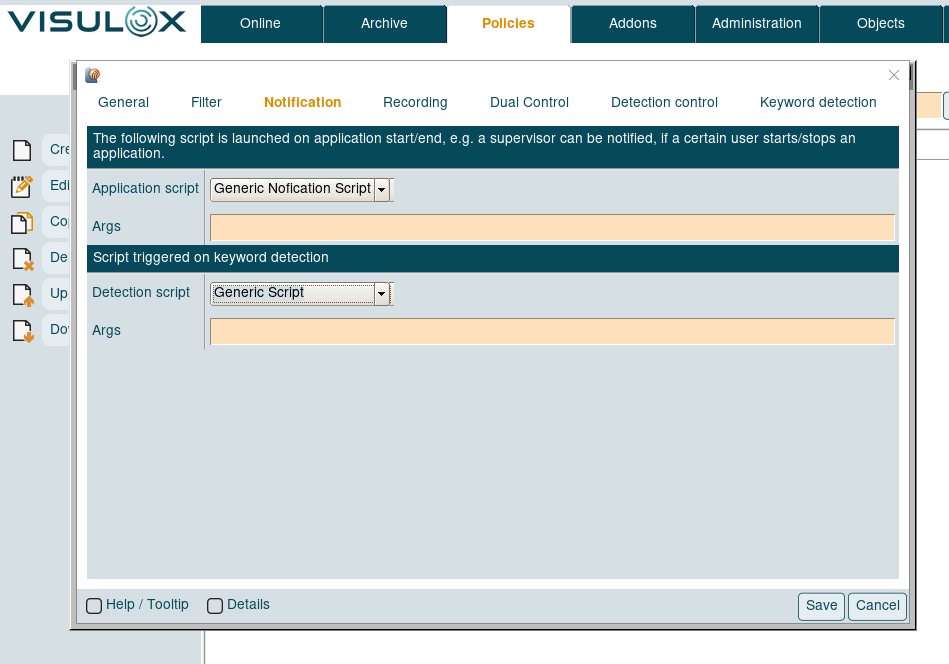
Arguments for the Application and Detection script can be entered in the according Args field.
Depending on the underlying script, the format of the arguments can be: -arg -arg1 -arg2 <>
Recording
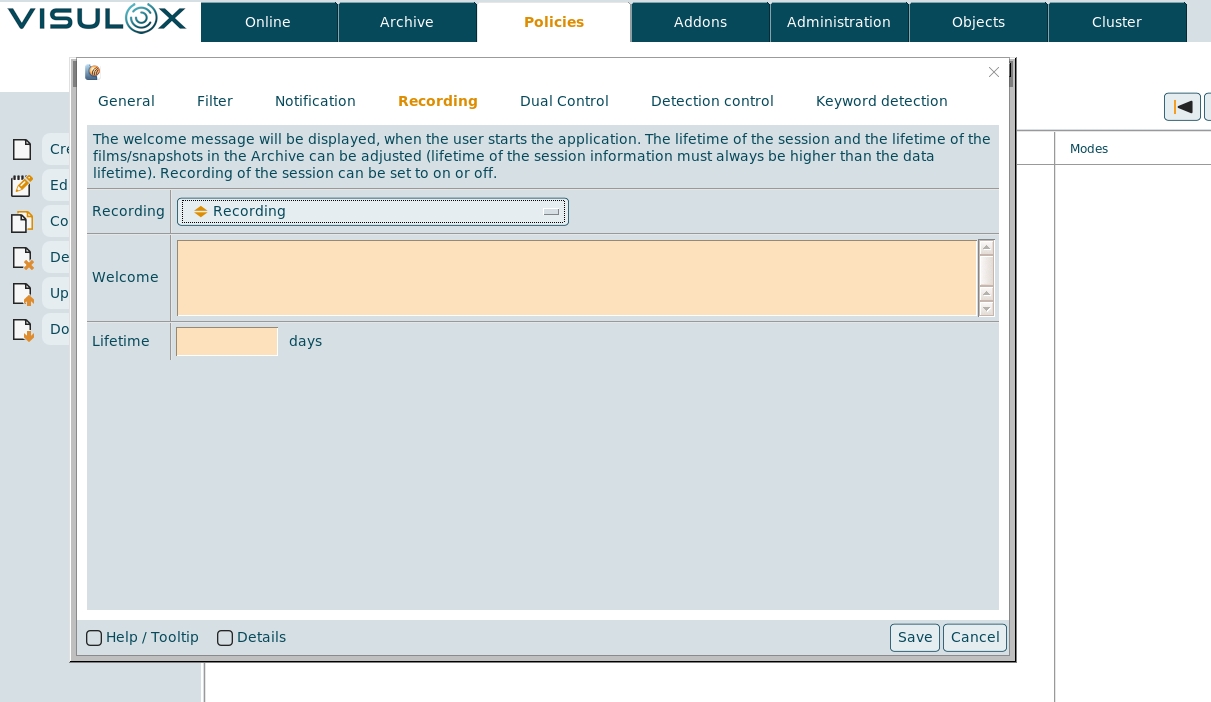
Recording can be set to "Recording" or "Recording off" and a welcome message, that will be displayed in the recorder box can be entered. The session information lifetime is set in days.
Dual Control
Primary policy tags | Description |
|---|---|
Dual Control disabled | Dual Control will not be activated. |
Dual Control observe | The supervisor is able to see the application and has a mouse pointer with his name, but can not interact. |
Dual control observe and assist | The supervisor is able to see the application and has a mouse pointer with his name, but can not interact. |
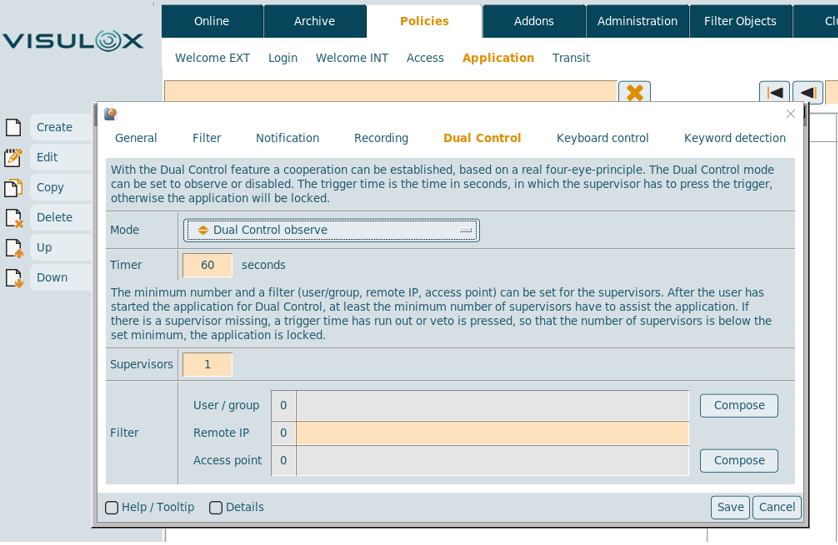
The Dual Control timer is set in seconds. If the supervisor does not press the trigger and the timer has run out, the session is locked. The minimum number of controllers that are needed to unlock the application and the filter for the cooperation partner, who will be able to unlock the session for the user can be set based on the user / group, the remote IP address and / or the access point.
Detection control
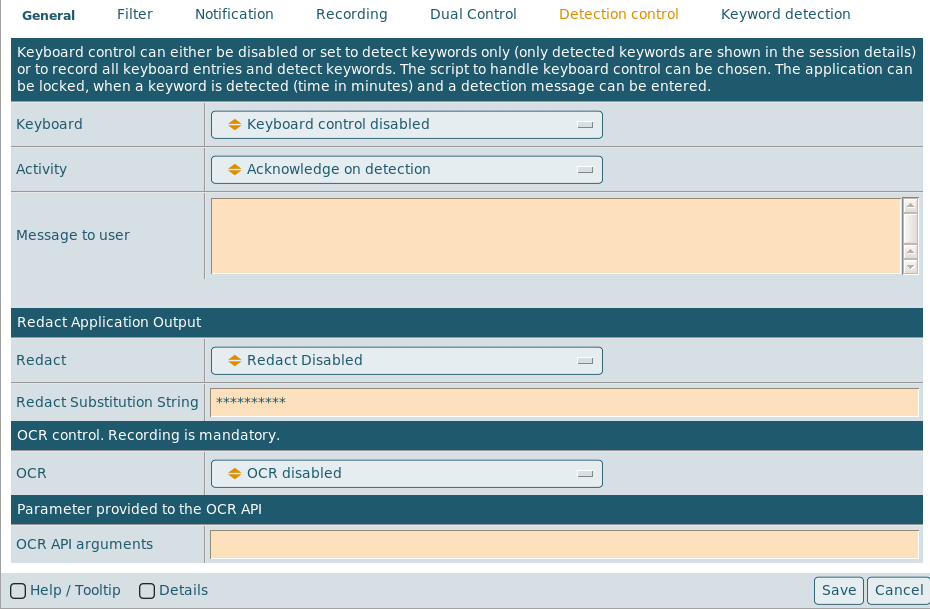
Keyboard control mode:
Primary policy tags | Description |
|---|---|
Keyboard control disabled | Keyboard control will not be activated. |
Detect keywords only | Only keywords are detected, other keystrokes are not displayed in the Cockpit. |
Record input and detect keywords | Keywords are detected, all keystrokes are recorded and can be displayed in the Cockpit. |
Activity
Primary policy tags | Description |
|---|---|
Keyword detection muted | No message or lock for the user, but detected keywords are shown in Cockpit events. |
Acknowledge on detection | Screen is locked, the user has to acknowledge the "Keyword detected" box to continue working. |
Lock on detection | Screen is locked, the user is able to send a request to the supervisor, screen is locked until the supervisor unlocks via Cockpit. |
Redact
Similar to the keyboard recording detection it is possible to monitor and redact the input /output streams of a Command Connect session.
Using an Application Policy with keyboard recording enabled and a keyword that should trigger an event. A connection via Command Connect to a server and opening a file e.g. with cat, that contains the keyword, an event is triggered.
Primary policy tags | Description |
|---|---|
Redact | Change mode to: Redact disabled, Redact on, Redact & close, Detect only |
Redact substitution string | String for the redaction |
Available event stream parameters for redact mode:
visulox config -name redact
    ------------------------------------------------------------------------------------------------
    | changed | key                                                | value                         |
    ------------------------------------------------------------------------------------------------
    |         | commandconnect.event.redact                        | default                       |
    |         | commandconnect.event.redactinfo                    | Redact %POLICY% %RMC%: %RMI%  |
    |         | guidefaults.global_application_policy.redactmode   | redactOff.map                 |
    |         | guidefaults.global_application_policy.redactstring | **********                    |
    ------------------------------------------------------------------------------------------------
In the keyword detection process a script can be inserted to lock a user permanently after entering a keyword.
See: How to lock a user permanently for using an application after keyword detection
For Acknowledge on detection the Detection script has to be set on the Notification tab.
OCR control mode
 Recording is mandatory for OCR
Primary policy tags | Description |
|---|---|
OCR disabled | OCR control will not be activated. |
OCR keyword detection | Only keywords are detected, other keystrokes are not displayed in the Cockpit. |
OCR recording and detect keywords | Keywords are detected, OCR is recorded and can be displayed in the Cockpit. |
OCR keyword detection asynchronously | Only keywords are detected asynchronously, other keystrokes are not displayed in the Cockpit. |
OCR recording and detect keywords asynchronously | Keywords are detected asynchronously, OCR is recorded and can be displayed in the Cockpit. |
OCR parameter
Additional arguments can be provided to the OCR API.

OCR configuration parameters
visulox config -name ocr
    -------------------------------------------------------------------------------------------------------
    | changed | key                                               | value                                 |
    -------------------------------------------------------------------------------------------------------
    |         | guidefaults.global_application_policy.ocr_enabled | disabled.map                          |
    |         | ocr.arguments                                     | --oem 1 --psm 11                      |
    |         | ocr.async.clients                                 | 5                                     |
    | changed | ocr.async.interval                                | 20                                    |
    |         | ocr.async.worker                                  | 5                                     |
    |         | ocr.interval                                      | 120                                   |
    |         | ocr.length                                        | 3                                     |
    |         | ocr.pattern                                       | ^[0-9:,.]+$|^Estimating resolution as |
    |         | ocr.risk.expression                               | (%D% / %W%) * 100                     |
    |         | ocr.risk.watermark                                | 10                                    |
    |         | ocr.statistic                                     | false                                 |
    |         | ocr.summery                                       | false                                 |
    -------------------------------------------------------------------------------------------------------
The underlying OCR script (ocr.sh.template) can be found in /opt/visulox/tools/.
The script has to be adjusted and renamed to ocr.sh.
In idle sessions OCR is stopped to keep the size small.
Keyword detection
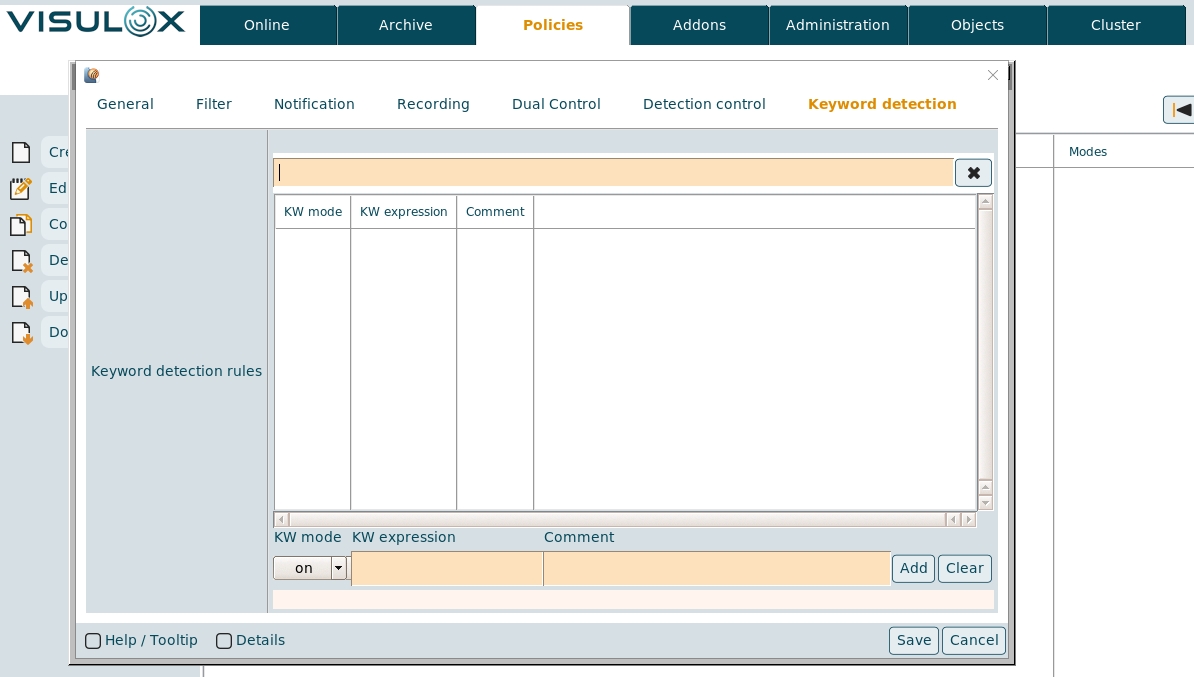
The KW mode for the keyword detection must be selected: "on" or "ignored". A keyword detection comment for the keyword can be entered and the regexpression of the keyword has to be defined, e.g. "y\badword\y"