
Appendix
Troubleshooting and Glossary
Troubleshooting
The following information can help to identify possible errors on the client side and it is useful to have them at hand, when contacting an administrator / support.
Version of the used browser
Displaying the version of the used browser (for example: Edge, Firefox and Chrome):
|
Microsoft Edge |
|
Help and Feedback / Info about Microsoft Edge |
|
Mozilla Firefox |
|
Help / About Firefox |
|
Google Chrome |
|
Help / About Google Chrome |
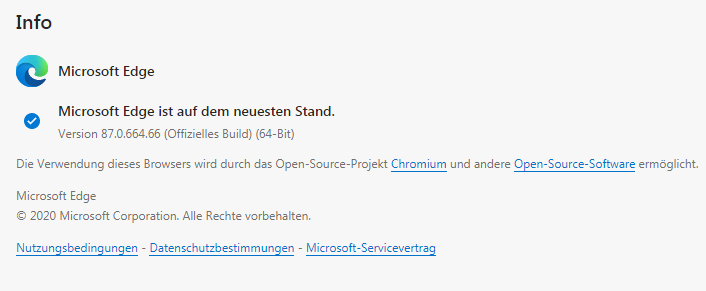
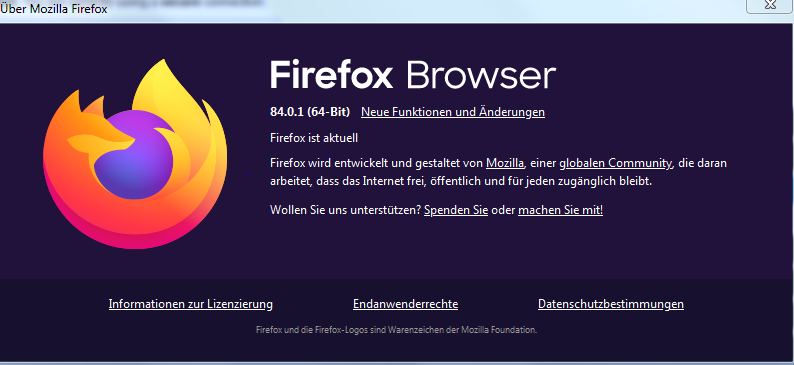
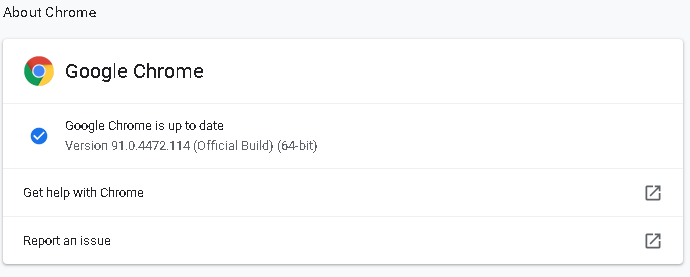
The supported browsers and browser versions by VISULOX are listed in the current documentation.
Other settings:
The settings of the used browser should be checked and possibly critical settings or addons should be disabled (e.g. popup blocker, noscript, etc).
Microsoft Edge
Edge's settings should be changed to prevent idle tabs from sleeping, which can disconnect the workspace:
Disable sleeping tabs in Microsoft Edge:
-
Open Microsoft Edge.
-
Click the three dots (⋯) in the top-right corner and select Settings.
-
In the left sidebar, click System and performance.
-
Scroll down to the Optimize Performance section.
-
Toggle off the switch for:
-
"Save resources with sleeping tabs"
-
Optional: If you want more control, you can also add sites to the "Never put these sites to sleep" list.
After these changes, please set the following parameter on the VISULOX side:
visulox config -name api.sessioncookie.lifetime=240
Native Client
In case of problems with the automatic download of the native client, it can be downloaded and installed manually, if no direct forwarding to the login page is configured.
The Native Client is provided by Oracle.
|
Native Client |
|
|
Client versions |
|
|
Installation |
|
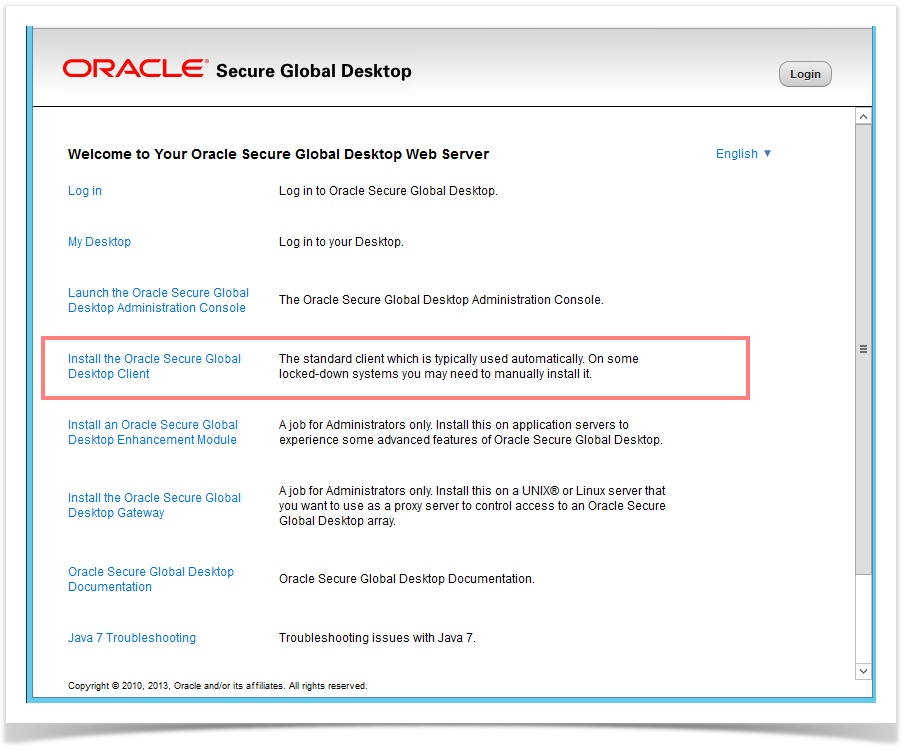
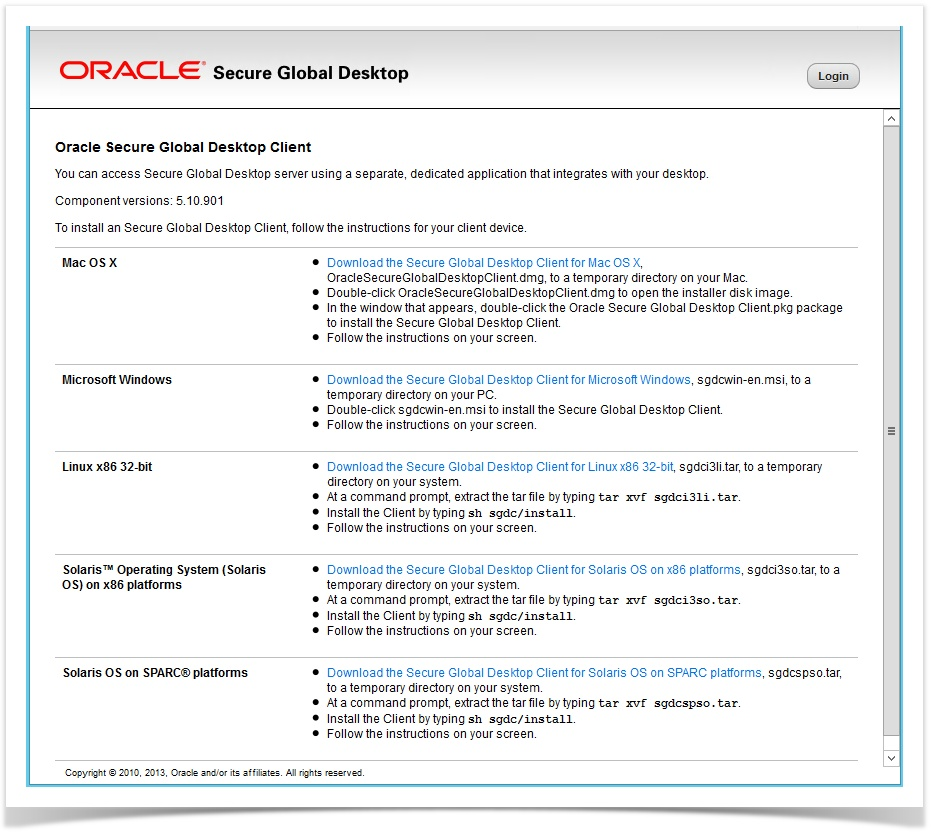
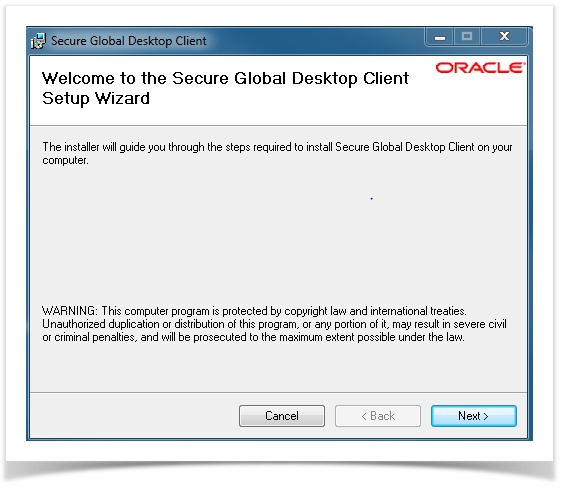
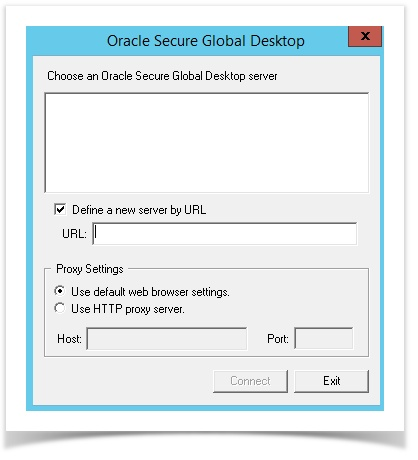
After installation, the Native Client can be started manually:
How to install the client for Linux Mint
sudo dpkg -i ./sgdclient_5.60.567-ubuntu22.04_x86_x64.deb
sudo apt-get install libxm4 libmotif-common
Tarantella Client Component (TCC)
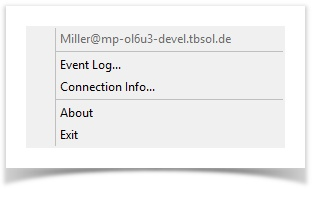
Once connected to a VISULOX PORTAL, a TCC connection icon ( 
|
TCC taskbar-menu |
|
|
Connection Info |
|
|
Event Log |
|
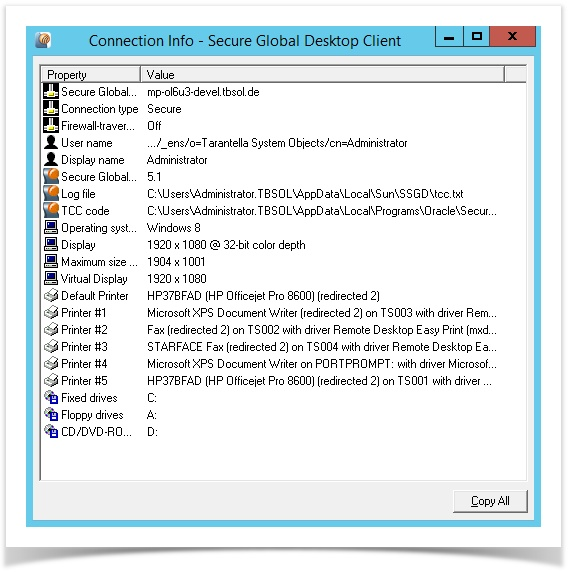

General: Special characters in passwords
In mixed environments (Windows / Linux and also cloud services) there are so called interoperability issues.
Therefore the following rules should be considered:
The allowed characters in a password can vary depending on the recommendations of the particular website, platform or system.
However, the following character types are generally recommended:
-
Characters: Upper case characters (A-Z) and lower case characters (a-z).
-
Numbers: (0-9).
-
Special characters:
These may vary by system, but typically include:
VISULOX has been tested with these characters.
VISULOX PORTAL Login error codes
The -1 error code is due to invalid data provided, so that it could not get a connection to the VISULOX PORTAL. Maybe due to an invalid profile.
The -7 is more than likely a proxy problem, maybe due to proxy chaining.
#define EHTTPCONNECTFAILED -1
#define ENEEDPROXYAUTH -2
#define EHTTPERRORRESPONSE -3
#define EPROXYERRORRESPONSE -4
#define EPROXYNONBASICAUTH -5
#define EHTTPSSLHANDSHAKE -6
#define ESERVERCHAIN -7 // error occured in the server chain
#define EUSERCANCELLED -8 // user cancelled the request (e.g., by using
// the Cancel button on an Auth dialog)
#define EDOWNGRADEDSSL -9
Application start via Workspace
When an application is started via Workspace a small Connection Progress window is opened. Mostly this window disappears immediately and the application is launched. If there is a problem with the connection to the application, then this window stays open and shows the errors occurred.
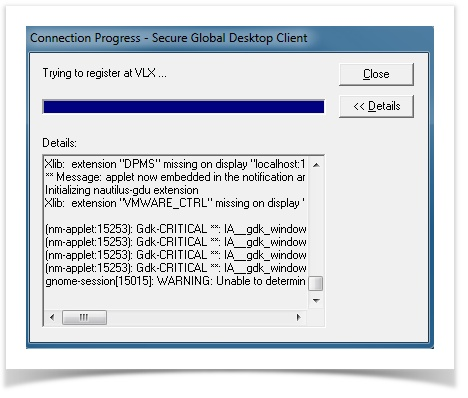
With Paste & Copy the output can be copied to a text file and send to a supervisor / support.
Error during start of an application in Workspace
It may happen, that the Tarantella Client Component (TCC) disappears or has no connection to the VISULOX PORTAL, the following error is displayed in the Workspace:
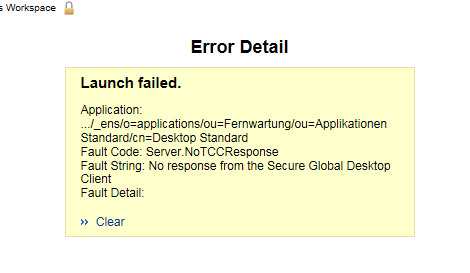
In this case refreshing the Workspace (F5) or logging out and logging in again will solve the problem.
VISULOX shell script tracing
VISULOX Shell scripts are running in the background. Errors can be found in the log.
For testing, the following lines in the header of the shell scripts activate tracing:
#!/bin/bash
# verify helpful lines
exec 99> <path to a log file>
BASH_XTRACEFD=99
set -x
Using Flash Player and checked out films
Flash is no longer supported.
Citrix Receiver
Depending on the version of Citrix Receiver, the following error message can be shown:
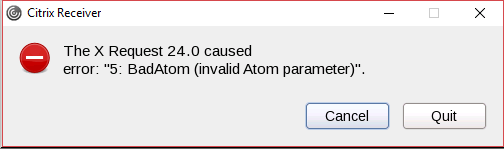
The “Cancel”-button has to be used to close the window. The application starts as usual.
Also always take care, that the Citrix Receiver plugin is not blocked by the browser. Check plugin status via address bar icon in the browser:
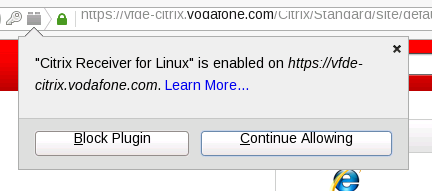
Copy & paste for Mac OS
Use the following configuration steps for X11 to activate the copy/paste function in command Connect / X11 windows for Mac OS + XQuartz:
-
Open the X11 preferences and activate “Emulate three button mouse”
-
Enable all actions for Pasteboard / Clipboard
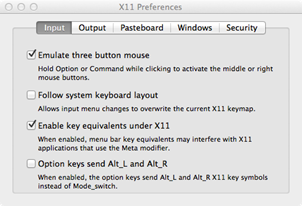
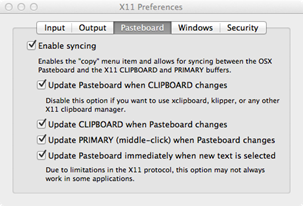
Paste = ALT + click
Copy = Select the text to copy it to the clipboard
Copy & paste in HTML5 sessions / application toolbar
When you are displaying an application, a toolbar on the left side of the application tab is shown. The toolbar has icons that can be used for some operations, such as copy and paste.
|
Icon |
Description |
|---|---|
|
|
Copies the selected text to the clipboard. |
|
|
Pastes the selected text from the clipboard. |
|
|
Displays menu options for sending keyboard shortcuts to the application window. |


Copying and pasting between applications
Copy and paste text to and from the client, and between applications. When the HTML5 Workspace is used, it is not allowed to access the local device's clipboard directly.
This means for copy and paste on the HTML5 Workspace there are extra stages necessary, compared to the standard Workspace.
The following changes apply for copy and paste:
-
Data must be placed on to the HTML5 Workspace clipboard first, before it can be pasted to a remote application or to the client device.
The copy icon in the side toolbar can be used to retrieve the data that should be copied from an application and place it on the Workspace clipboard. -
The paste icon can be used to copy text to the client device's clipboard.
The following procedures describe how to copy and paste text for applications:
Copying from an application to a client device
-
Select and copy the text in the application.
Use the normal method for the application you are copying from. For example, use a menu option in the application. -
Retrieve the text from the application.
Click the Copy icon in the application toolbar.
Click Confirm to allow the application to copy text to the client device clipboard. -
Paste the copied text into an application on the client device.
Use the normal method for the application you are pasting to. For example, use a menu option in the application.
Pasting to an application from a client device
-
Select and copy the text from the application on the client device. Use the normal method for the application you are copying from.
For example, use a menu option in the application. -
Retrieve the text from the client device clipboard.
Click the Paste icon in the application toolbar.
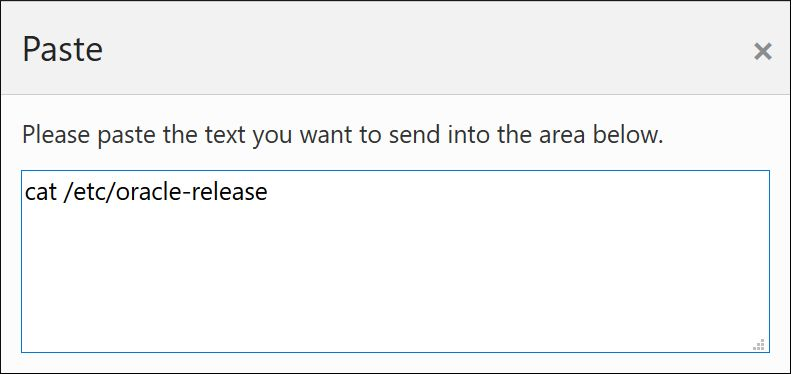
The Paste dialog is shown:
-
Paste the copied text into the text box on the paste dialog.
Do either of the following:
• Right-click and select paste.
• Use the Ctrl-V keyboard shortcut.
This will automatically close the paste dialog. -
Paste the copied text into the pplication.
Use the normal method for the application you are pasting to. For example, use a menu option in the application.
Copying between applications
-
Select and copy the text in the first application. Use the normal method for the application you are copying from.
For example, use a menu option in the application. -
Retrieve the text from the application.
Click the Copy icon in the application toolbar. -
Switch to the second application.
The copied text is sent automatically to the second application. -
Paste the copied text into the second application.
Use the normal method for the application you are pasting to. For example, use a menu option in the application.
Sending local keyboard shortcuts to the remote application
The Windows key and keyboard shortcuts for managing windows can be sent to the remote session.
-
Click the keyboard icon in the application toolbar.
Options are shown for inserting one of the following remote keyboard shortcuts:
• Ctrl-Alt-Del
• Windows key -
Click the required remote keyboard shortcut.
The key presses are sent to the remote application window.
Glossary
|
Expression |
Description |
|
3PA |
Third Party Authentication / 3rd Party Authentication |
|
Access Branding |
With Access Branding it is possible to display different login page designs for different users according to their access point. |
|
Access Management |
Enhanced VISULOX Concept for administrating the access of users |
|
AD |
Active Directory |
|
AIP |
Adaptive Internet Protocol: Client communication protocol from the VISULOX PORTAL Service |
|
Ambiguous login |
The situation where an authentication mechanism has found more than one match for a user and cannot distinguish between them without further information from the user |
|
Annotation |
A short text, that can be entered before a recorded session is confirmed, during a recorded session or in VISULOX Cockpit / Archive for closed sessions |
|
API |
Application Programming Interface |
|
Application server |
A server which provides applications, that can be accessed via the VISULOX PORTAL |
|
Application session |
See: emulator session |
|
Args |
The arguments an application is started with |
|
Assist / Assistance |
See: Assisting Cooperation |
|
Assisting cooperation |
Within the VISULOX Cockpit, the user can select an application and press assist to join the application. The owner of the application selects the cooperation mode |
|
Chapter |
A chapter equals 20 minutes film of a recorded session |
|
CLI |
Command Line Interface |
|
CMD |
The command / path an application is started with |
|
Cooperation |
When two or more users are watching or working with the same application in realtime on their own desktop |
|
Cooperation master |
The user, who has started the application (owner) will be the master of this application in a Cooperation |
|
Cooperation member |
A user, who is not owner of an application and who is not able to switch the cooperation modes |
|
Cooperation modes |
On hold: Member is assigned to a Cooperation, but does not participate Observe: Member is able to watch the Cooperation application, but can not interact Interact: Member can interact with the application |
|
CP |
Short form for Cooperation |
|
Datastore |
Internal VISULOX PORTAL Service database, where all defined objects (users, hosts, applications) are stored. A VISULOX PORTAL Array replicates the datastore between all members simultaneously |
|
DMZ |
Demilitarized zone (Perimeter zone) |
|
DSI |
Directory Service Integration |
|
Dual Control |
Cooperation enforcing a real four-eye-principle |
|
ELU |
Extended License Usage - When ELU has expired, its not possible to start more recorders or display more users than allowed under MD / Status, max users / recorders |
|
Emulator session |
The running session, when an application is started with the Workspace on an application server |
|
Expect script |
VISULOX PORTAL connection script started during the launch of an application |
|
External DNS name |
The name by which an VISULOX PORTAL Server is known to a client device. A VISULOX PORTAL Server can have multiple external DNS names. |
|
File Exchange |
File Transfer web access for transferring files between a client and the Transit Zone for users without access to the VISULOX PORTAL |
|
File Transfer Client |
VISULOX Component for transferring files securely from Transit Zone to application servers and back |
|
Film |
Summary of the recorded chapters |
|
Forced authentication |
When VISULOX PORTAL prompts for a user name or password, by displaying an authentication dialog box
|
|
FQDN |
Fully Qualified Domain Name - The full name of a system, containing its hostname and its domain name.
|
|
Group Access |
Group Access is used to define an Access Policy for a specific list of users. This is needed when users are working together in a project and the project is represented by a group object in the repository |
|
Host object |
Host objects can be assigned to File Transit, Command Guard and Command Connect groups. |
|
Host Connect |
See: VISULOX Command Connect / VISULOX Command Guard |
|
IAR |
Intelligent Array Routing |
|
ICA |
Independent Computing Architecture: Client communication protocol from Citrix |
|
Integrity-Check |
Tool to check the VISULOX components and services |
|
Internal / external message |
The VISULOX Service supplies an external message for the login page and an internal message for the user's Workspace |
|
Kiosk mode |
VISULOX PORTAL display mode, where an application is displayed in full-screen |
|
LDAP |
Lightweight Directory Access Protocol |
|
LDAPS |
Lightweight Directory Access Protocol over SSL. Used for secure connections to an LDAP directory. |
|
LID |
Short form for License ID - Contains the date, the license started |
|
Management Console |
See: VISULOX Cockpit |
|
MFA |
Multi Factor Authentication |
|
Native Client |
A VISULOX PORTAL component that can be installed on client devices. The client maintains communication with the VISULOX PORTAL Server and is required to run applications
|
|
NEP |
Short form for Network Entry Point |
|
Network Entry Point |
See: RIP |
|
NFS |
Network File System |
|
Notifications |
Implemented notification system for access, Workspace / File Transfer and emulator sessions in the VISULOX Services |
|
Object |
A self-contained entity, defined by a number of attributes and values. VISULOX PORTAL Objects have different types, such as an X application.
|
|
One Time Passcode |
The One Time Passcode is used for authentication and will become invalid after usage. A provided OTP is based on a secret key and the time via a smartphone APP |
|
Organization object |
A VISULOX PORTAL Object used to represent the top level of an organizational hierarchy.
|
|
Organizational hierarchy |
The collection of objects in the VISULOX PORTAL Datastore, descending from one or more organization or domain component objects. Represents the collection of people, application servers, and applications within an organization. |
|
Organizational unit object |
A VISULOX PORTAL Object used to distinguish different departments, sites, or teams in an organizational hierarchy. Organizational unit (OU) objects can be contained in an organization or domain component object. Organizational unit objects have an OU= naming attribute |
|
OTP |
Short form for One Time Passcode |
|
Peer DNS name |
The name by which an VISULOX PORTAL Server is known to other VISULOX PORTAL Servers in the same array |
|
Primary server |
The VISULOX PORTAL Server that acts as the authoritative source for global information, and maintains the definitive copy of the VISULOX PORTAL Datastore |
|
RDP |
Remote Desktop Protocol: Client communication protocol from Microsoft |
|
Remote IP |
Remote IP address, the information, from where a client request is coming |
|
Report |
The VISULOX Service is collecting data about workspacesessions, emulatorsessions, recordings and cooperations. The information can be clearly arranged in reports. In VISULOX Cockpit a variety of possible reports can be created on several pages |
|
Resume |
To redisplay an application session that has been suspended. See also: suspend |
|
RIP |
Short form for Remote IP address |
|
RVA |
Remote Vendor Access |
|
S & M |
Short form for Support and Maintenance |
|
Secondary server |
An array member that is not the primary server. The primary server replicates information to secondary servers. |
|
Session |
The VISULOX PORTAL generates a session for any X11 or RDP application, which has an unique session ID |
|
SIEM |
Security Information and Event Management |
|
SOX |
Short form for Sarbanes-Oxley Act |
|
SSL certificate |
A digital passport that establishes credentials on the web. In VISULOX PORTAL Service, allows client devices to trust the identity of a VISULOX PORTAL Server |
|
Suspend |
To pause an application session. A suspended application is not closed, it can be resumed. See also: resume |
|
TAP |
Short form for Temporary Access PIN, part of the Multi Factor Authentication (MFA) |
|
TCC |
Short form for Tarantella Client Component: Component for login into the VISULOX PORTAL via Native Client |
|
TCL |
Programming Language. Most of the VISULOX products are based on TCL |
|
Temporary Access PIN |
VISULOX method for the Multi Factor Authentication (MFA) |
|
TFN |
Tarantella Full Naming, X.500 format to address a VISULOX PORTAL object |
|
Transit Zone |
Zone, where files are transferred from/to application servers/clients |
|
VAP |
Short form for Virtual Access Point |
|
Virtual Access Point |
VISULOX method to get an independent URL of the VISULOX Access Nodes for reliability and Workspace balancing |
|
VISULOX Access Node |
Node running the VISULOX PORTAL Service and the VISULOX Service |
|
VISULOX Base |
Single VISULOX Node |
|
VISULOX Cluster |
Two or more VISULOX Nodes, that are joined together because of scalability, redundancy and load balancing |
|
VISULOX Cockpit |
Central VISULOX application to control sessions, access, recording, cooperations and to generate reports |
|
VISULOX Command Connect |
VISULOX component, which provides the possibility to connect to multiple hosts and to open an X-Client on these hosts. The connection method can be SSH, RDP or telnet. Former: Host Connect |
|
VISULOX Command Guard |
VISULOX component, which provides the possibility to connect to multiple hosts and to open an X-Client on these hosts Command Guard has command level controls for the application. It allows and denies the usage of certain commands by the user Additionally server side scripts can be issued either to multiple endpoints or to a single one |
|
VISULOX Common Access Platform |
The whole environment, that is built with the VISULOX GATEWAY, VISULOX Portal Service, VISULOX Service and databases |
|
VISULOX Data |
VISULOX Database and VISULOX Filestore |
|
VISULOX Filestore |
File system which stores the films. 5 MByte per user and per hour. Recommended for VISULOX is a local disk with 150-250 GB, for VISULOX Archive Node depending on the lifetime of films, up to x TB on a NAS/SAN storage |
|
VISULOX GATEWAY |
The VISULOX GATEWAY is a proxy server designed to be deployed in front of a VISULOX PORTAL Array in a demilitarized zone (DMZ). This enables the VISULOX PORTAL Array to be located on the internal network of an organization. Additionally, all connections can be authenticated in the DMZ before any connections are made to the VISULOX PORTAL servers in the array.
|
|
VISULOX Host Connect |
See: VISULOX Command Connect |
|
VISULOX Hotfix |
Tool to check the software status in the cluster, backup and apply hotfixes |
|
VISULOX keystroke recording
|
In this recording mode all user keyboard interactions are registered and can be checked for unwanted entries (analyzing engine) |
|
VISULOX Node |
Node running the VISULOX Service to control sessions, films and recorders |
|
VISULOX PAM |
VISULOX Privileged Access Management |
|
VISULOX PORTAL Array |
Two or more VISULOX Access Nodes, that are joined together because of scalability, redundancy and load balancing |
|
VISULOX PORTAL Benchmark |
Tool to create a defined number of demo-users, who log into the VISULOX PORTAL and start recorded applications automatically. All settings can be configured easily within a GUI |
|
VISULOX PORTAL Console |
Web-based management console for the VISULOX PORTAL Service (Former: Administration Console) |
|
VISULOX PORTAL Web Server |
A pre-built web server installed and configured along with the VISULOX PORTAL Service, contains Apache, mod_ssl for HTTPS support, and Tomcat for Java Servlet and JSP support |
|
VISULOX PORTAL Web Services |
An API collection that allows developers to build their own applications to work with the VISULOX PORTAL Service. The APIs can be used to authenticate users, launch applications, and interact with the VISULOX PORTAL Datastore |
|
VISULOX Revision Server
|
VISULOX Node which replicates the production database into Revision Server database and transfers the films from the production filestore into the Revision Server filestore (also known as Archive Server) |
|
VISULOX Service Group |
See: VISULOX Cluster |
|
VISULOX Short Support Report |
A Short Support Report to send via eMail created with visulox support -info. The Short Support Report should be sent to the VISULOX Support Team every time a new Support Request is opened |
|
VISULOX Support Report |
Package generated by the visulox support command, containing all information, necessary for support |
|
VISULOX Transit Area |
File Transfer component embedded in the Workspace to transfer files between client and Transit Zone |
|
VISULOX Transit Mapping |
To setup the VISULOX Transit Zone on Unix application servers, that are not a VISULOX Node, an RPM file is available for installation. |
|
VISULOX Videolog Player |
Player to view the recorded films inside the VISULOX Cockpit or checked out films in a browser |
|
VISULOX Webservice User |
Each VISULOX Service needs this user in the datastore to read the webservices on the VISULOX Access Nodes. The VISULOX webservice user has to be setup once in the datastore |
|
VISULOX_Setup.xls |
Excel-sheet, which has to be filled out in the planning phase by the responsible project leader, together with the amitego consultant |
|
vlxMode |
VISULOX variable set in the VISULOX PORTAL Console |
|
VLX Password SelfService |
Active Directory (AD) and Oracle Unified Directory (OUD) users are able to change their password by themselves with this appliction assigned. |
|
Webtop |
In the current version, the Webtop is called the Workspace. A Workspace is the term used to describe a user's applications, documents, and desktops. See: Workspace |
|
WM |
Short form for Window Manager |
|
Workspace |
The Workspace is displayed after logging into the VISULOX PORTAL. It is a special web page, that lists the applications that are assigned to the user |
|
Workspace balancing |
VISULOX load balancing mechanism including a virtual access point |
|
Workspace session |
The running session, after a user has logged into the VISULOX PORTAL via browser or Native Client |
|
X11 forwarding |
The process of forwarding, or tunneling, the windows of a remotely started X application to a client desktop |
|
X Window System |
A distributed window system for UNIX platform operating systems, based on the X11 protocol. Also called X11, or X Windows |
|
X.509 certificate |
See: SSL certificate |