
How to configure FreeRDP for VISULOX PORTAL
IntroductionThe goal is to call a Windows remote application using FreeRDP. The configuration is done in the VISULOX PORTAL Console. |
Step 1 : Configuring passcache, single sign on, script object
Resource:
VISULOX PORTAL Console / Launch tab / Arguments for Command
-resource <name>Resources can be configured in the VISULOX Cockpit / Addons / Passcache or via Command Line Interface.
Script object
VISULOX PORTAL Console / Launch tab / Arguments for Command
-rdpfile <name>RDP configuration files can be configured in VISULOX Cockpit / Addons / Script Objects or via Command Line Interface.
See also: Script objects / RDP configuration files
Single sign on:
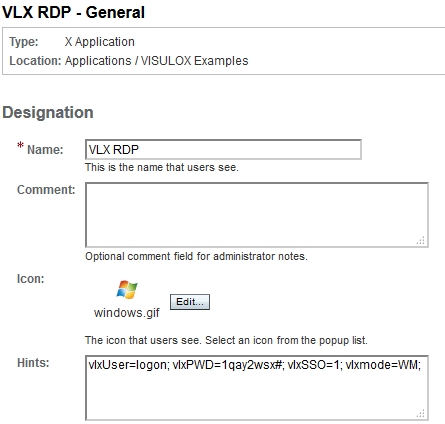
VISULOX PORTAL Console / General tab / Hints field
vlxSSO=1;
These steps can be skipped, but in this case user and password must be entered everytime the WTS is connected, before the remote application will be started.
Step 2 : Configuring FreeRDP as an integrated part of VISULOX
VISULOX PORTAL Console / Launch tab / Application Command field
vlxshell In this example a preconfigured script object and a resource will be used:
VISULOX PORTAL Console / Launch tab / Arguments for Command field
-client freerdp -rdpfile test -resource <resource-name> -- <freerdp-parameter>vlxshell parameters with RD Gateway configuration and resource:
-client freerdp -rdpfile RDP -gateway-resource test /g:<server.domain> /gateway-usage-method:direct
The commands of xfreerdp have been changed in version 2.x.
If the new version is used, also the new parameters have to be used in the Arguments for Command field of the vlxshell application.
VISULOX PORTAL Console / Launch tab / Login Script field
visulox.exp 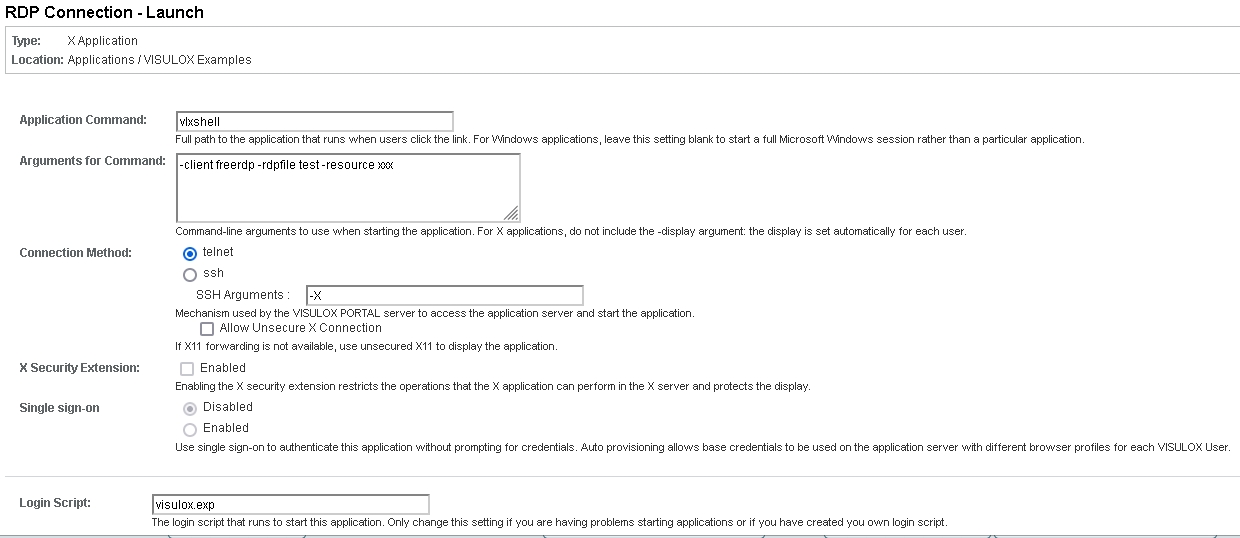
Step 3 : Configuring Window Manager
The Window Manager has to be configured in the General tab:
VISULOX PORTAL Console / General tab / Hints field
vlxMode=WM; If WM mode is not set freerdp may throw a bad atom error.
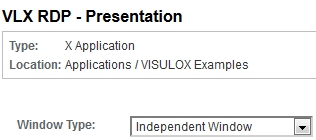
Set the VISULOX PORTALConsole / Presentation tab / Window Type field to "Independent Window"
Remote applications will not be terminated after ending the RDP session, if the WTS is not configured otherwise.