
How to change the VISULOX logos and colors
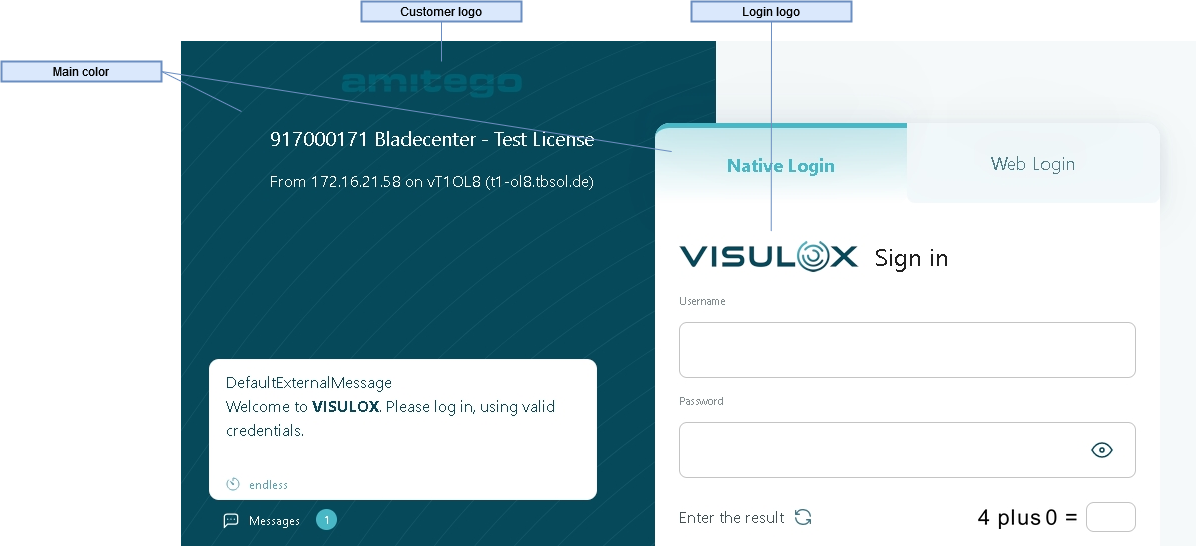
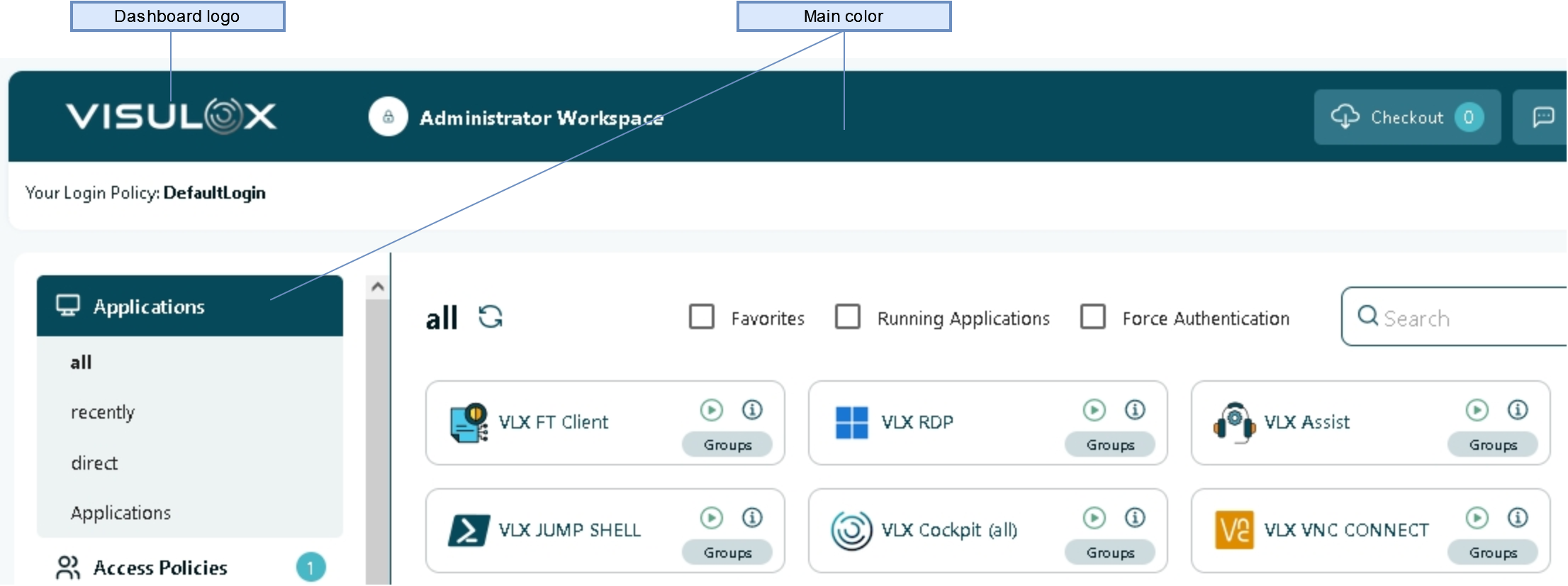
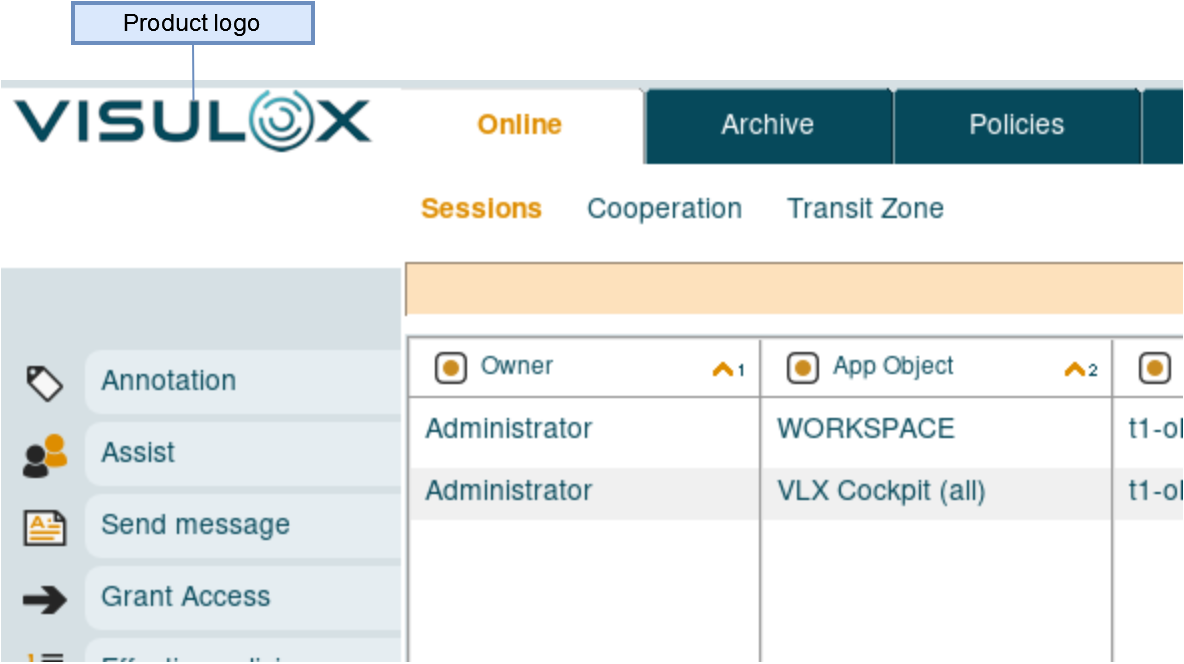
OverviewOn the login page, reports and recorded sessions the customer logo in GIF or PNG format is displayed. Above the login mask,the login logo can be found. The dashboard logo is displayed on the Workspace. The product logo is shown in the VISULOX Cockpit and the report logo is placed in the top right corner of reports and in recorded sessions. With these different logos it is possible to adjust the look and the size for all places a logo can be displayed. |
| Default customer logo | Default login logo | Default dashboard logo | Default product logo | Default report logo |
|
|
|
|
|
| Login page | Login mask | Workspace | VLX Cockpit | Reports / recorded sessions |



The default size of the logos is 140x50 pixels. A good width for the customer logo within the new design is 450 pixels.
It is possible to change all logos with the "visulox config" command.

Make sure, that the logos are not too small or large. After changing the logos, the display of the logos in reports, recorded sessions, on login page and on the Workspace should be checked.
Usage
It is always a good idea to change the logos to project or customer related logos to increase project awareness.
For individually customized login pages based on different access URLs, see: Access Branding
Configuration
Display the current logos names, types and design colors:
visulox config -name design.*logo
    --------------------------------------------------------
    | changed | key                  | value               |
    --------------------------------------------------------
    |         | design.customerlogo  | amitego (png)       |
    |         | design.dashboardlogo | visulox-white (png) |
    |         | design.loginlogo     | visulox (png)       |
    |         | design.productlogo   | visulox (png)       |
    |         | design.reportlogo    | visulox (png)       |
    --------------------------------------------------------
 visulox config -name design.ui4.color
    -------------------------------------------------
    | changed | key                       | value   |
    -------------------------------------------------
    |         | design.ui4.color.dark     | #000000 |
    |         | design.ui4.color.error    | #ed3131 |
    |         | design.ui4.color.favorite | #edda31 |
    |         | design.ui4.color.main     | #06495b |
    |         | design.ui4.color.success  | #5ba587 |
    |         | design.ui4.color.warning  | #ed7d31 |
    -------------------------------------------------
design.ui4.color.background is used to change the left side of the login screen apart from the main color. This can be helpful, if the logo and the background have a similar color.
If the logo and the background have different colors (light/dark) and are well recognizable, both values can be the same.
design.ui4.color.dark is used in the Workspace for certain elements (table headers, background in tables.
Login page
|
Workspace
|
VISULOX Cockpit
|
Available design placeholders:
VLXDESIGNADVANCEDERRORLIGHT VLXDESIGNUI4COLORBACKGROUND VLXDESIGNDASHBOARDLOGO VLXDESIGNADVANCEDWARNINGMAIN VLXDESIGNUI4COLORSUCCESS
VLXPRODUCTLOGO VLXDESIGNLOGINLOGO VLXDESIGNADVANCEDERRORDARK VLXDESIGNADVANCEDINFOLIGHT VLXDESIGNUI4COLORERROR
VLXDESIGNADVANCEDINFODARK VLXREPORTLOGO VLXDESIGNADVANCEDERRORMAIN VLXDESIGNADVANCEDSECONDARYLIGHT VLXDESIGNADVANCED
VLXDESIGNUI4LOGINMESSAGES VLXDESIGNADVANCEDBACKGROUNDCOMMON VLXDESIGNADVANCEDINFOMAIN VLXDESIGNADVANCEDSECONDARYDARK
VLXDESIGNUI4COLORFAVORITE VLXDESIGNADVANCEDSUCCESSDARK VLXDESIGNBANNERTEXTCOLOR VLXDESIGNADVANCEDPRIMARYLIGHT
VLXDESIGNUI4COLORDARK VLXDESIGNPRODUCTTITLE VLXCUSTOMERLOGO VLXDESIGNADVANCEDSECONDARYMAIN VLXDESIGNADVANCEDBACKGROUNDDEFAULT
VLXDESIGNTEXTCOLOR VLXDESIGNBASECOLORDARK VLXDESIGNADVANCEDWARNINGLIGHT VLXDESIGNADVANCEDSUCCESSMAIN VLXDESIGNADVANCEDPRIMARYDARK
VLXDESIGNBANNERCOLOR VLXDESIGNACCENTCOLOR VLXDESIGNUI4COLORMAIN VLXDESIGNADVANCEDWARNINGDARK VLXDESIGNADVANCEDBACKGROUNDPAPER
VLXDESIGNUI4COLORWARNING VLXDESIGNADVANCEDSUCCESSLIGHT VLXDESIGNADVANCEDPRIMARYMAIN VLXDESIGNADVANCEDAPPNAMES
VLXBASECOLORDARK VLXACCENTCOLOR VLXTEXTCOLOR VLXBASECOLOR
Change the current logos with
visulox config -name design.customerlogo=<path/filename of logo>

visulox restart
visulox portal attach
Change the colors with
With the main color the base color for all pages is chosen and shades of this color are used as well.
visulox config -name design.ui4.color.main=#225522

visulox config -name design.ui4.color.dark=#111111
visulox config -name design.ui4.color.error=#ee3530
visulox config -name design.ui4.color.favorite=#edda31
visulox config -name design.ui4.color.success=#5ba587
visulox config -name design.ui4.color.warning=#ed7d31 
Known issues and comments
Changing the logo does not affect running sessions. Only new started sessions will have the changed logo applied.
It is necessary to restart the VISULOX service and to use the visulox portal attach command on the VISULOX Access Nodes to display the new design.
Clearing the browser cache on the client side can be necessary as well.