
Example: Assistance
General
An assisting cooperation is started by a supervisor, selecting a running session and using the "Assist" button in the Cockpit.
The user is the owner of the application and he is able to control or close the cooperation.
Prerequisites
For this example setup two users have to be registered in VISULOX PORTAL with the following settings:
| User | Role | SMS | Application | Other | |
|---|---|---|---|---|---|
| Master | Supervisor | <supervisor>@company.com | - | VISULOX Cockpit | - |
| Miller | User | <user>@company.com | - | VLX Jump Shell | - |
Supervisor Master initiates the Assistance.
User Miller logs into VISULOX PORTAL and starts an application for the Assistance.
Assistance on a running session in the VISULOX Cockpit
- User Miller starts the "VLX Jump Shell" application from his Workspace
Supervisor Master checks the running applications in "VISULOX Cockpit / Online":
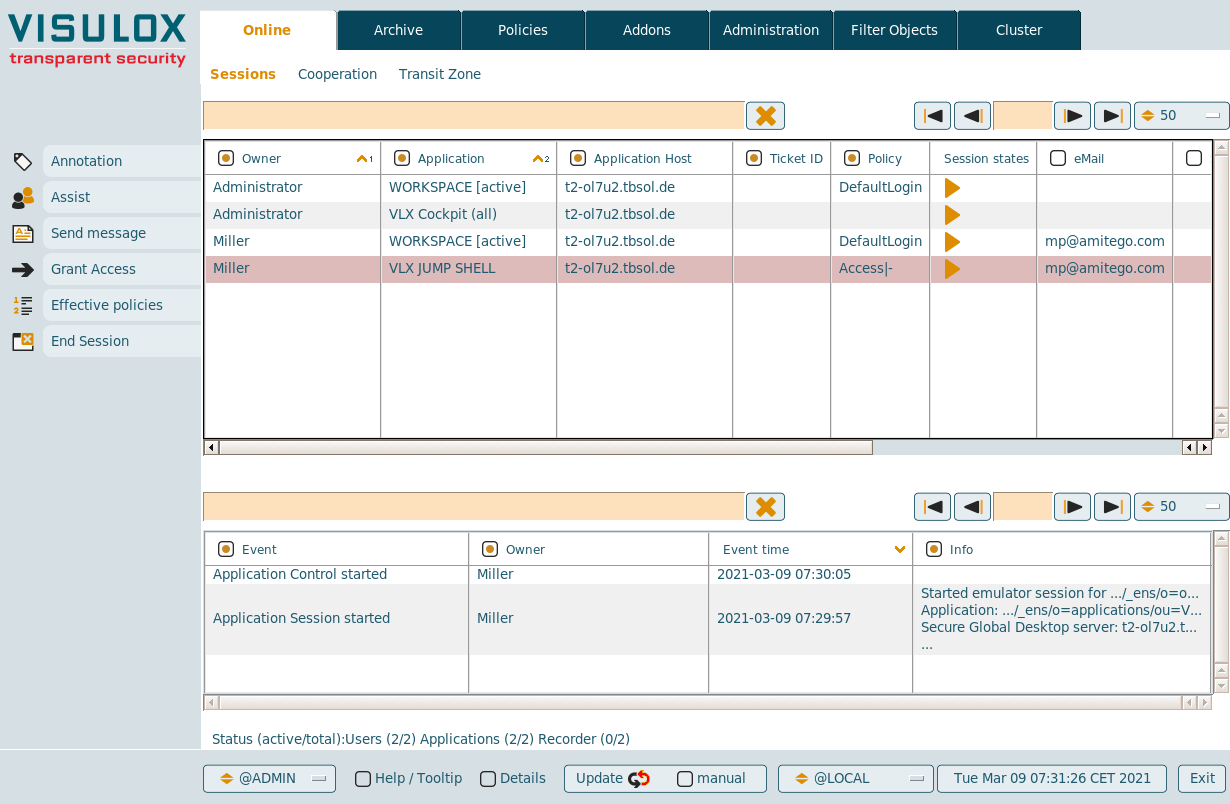
Master selects the "VLX Jump Shell" application from Miller.
With the "Assist" button, an Assistance request is sent into the selected application.
Each registered application also has an Assist PIN (4-6 digits), which is displayed in the user's session control panel. If this PIN is provided by the user, it is possible for Master to request access to the application using the "Assist" button on the cooperation page.
User Miller receives the Assistance request:
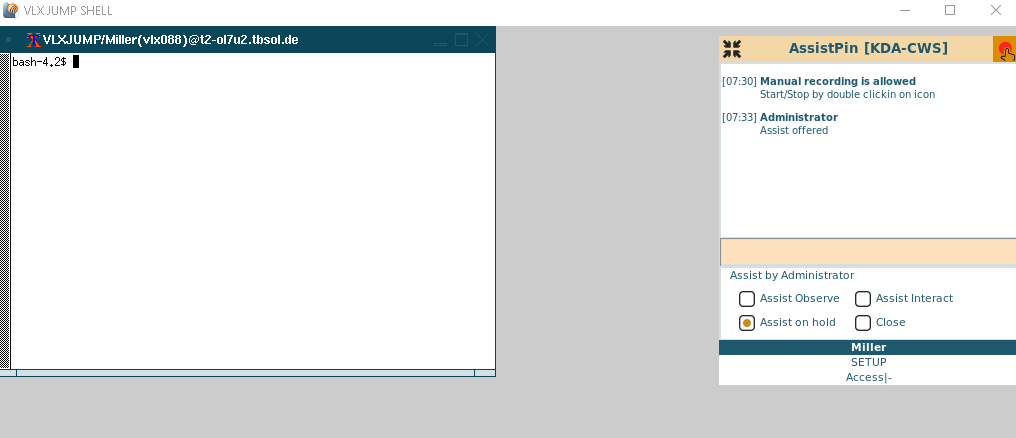
Default mode on start of a Assistance request is "Assist on hold".
Miller can now choose the mode for the Assistance:
- Assist Observe:
In observe mode, the supervisor is able to see the screen of the user, but he can not interact with the application, just displaying his mouse pointer and name is possible. - Assist Interact:
In interact mode, the supervisor has full access to the application of the user. - Assist on hold:
In standby mode, the cooperation is active, but the supervisor is not able to see the screen of the application user. - Close:
Assistance will be closed. Miller can continue working without Assistance.
- Assist Observe:
In the "VLX Cockpit" of Supervisor Miller now a cooperation window is displayed
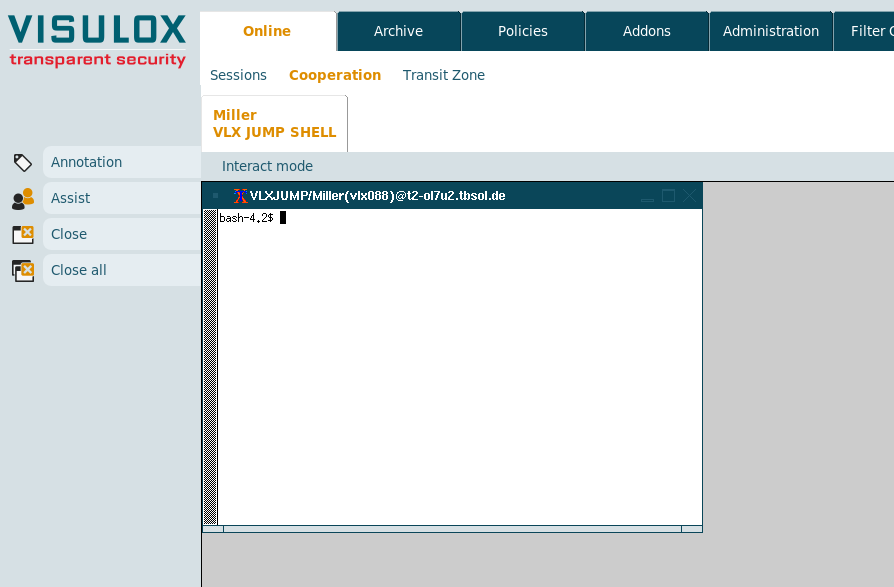
The mode of the Assistance is displayed above the cooperation window.
In "Interact" mode master has full access to the application.
Assistance check list with additional tests
Feature Expected behaviour Comment Assistance - Assist by selecting an application in VISULOX Cockpit / Online
- Assist with provided PIN in VISULOX Cockpit / Online / Cooperation
- Supervisor session is in "on hold" mode after pressing assist
Assist modes - User has control over the cooperation and is able to select the cooperation mode:
- Assist Observe:
In observe mode, the supervisor is able to see the screen of the user,
but he can not interact with the application, just displaying his mouse pointer and name is possible. - Assist Interact:
In interact mode, the supervisor has full access to the application of the user. - Assist on hold:
In standby mode, the cooperation is active, but the supervisor is not able to see the screen of the application user. - Close:
Assistance will be closed. Miller can continue working without Assistance.
- Assist Observe:
Events - In the Cockpit all actions of the cooperation are displayed.