
Example: Application based recording via vlxMode parameter
General
Application based recording can be configured via vlxMode parameter in the Hints field of the application via the VISULOX PORTAL Console.
Prerequisites
For this example setup two users have to be registered in VISULOX PORTAL with the following settings:
User | Role | eMail | SMS | Application | Other |
|---|---|---|---|---|---|
| Master | Supervisor | <supervisor>@company.com | - | VISULOX Cockpit | Access to VISULOX PORTAL Console |
| Miller | User | <user>@company.com | - | VLX Jump Shell | - |
Supervisor Master enables and configures recording in the VISULOX PORTAL Console.
User Miller logs into VISULOX PORTAL and starts the recorded application.
Application based recording via vlxMode parameter
Supervisor Master has to adjust the launch parameter of the "VLX Jump Shell" application:
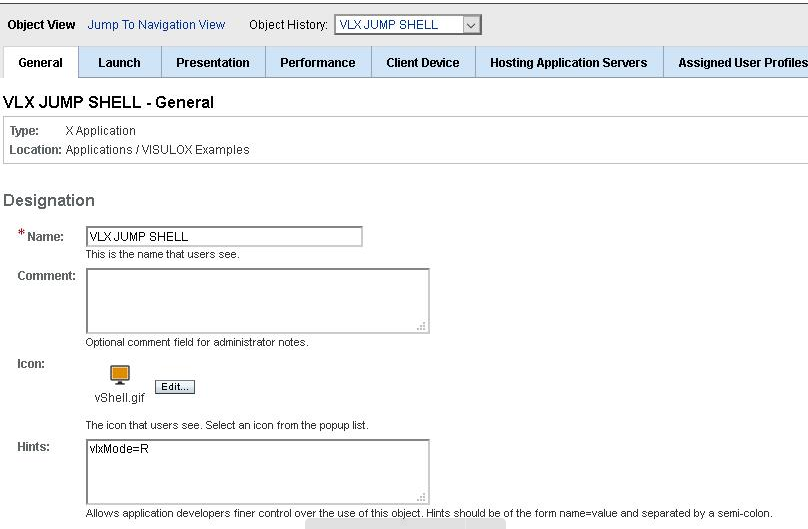
In the "Hints" field of the application, the vlxMode variable must be entered. For recording: "vlxMode=R".
Using the existing VISULOX PORTAL expect scripts (unix.exp, windows.exp, ...) will result in what we call "lazy registration".
That means, that the recorder may need up to 15 seconds to be started.User Miller starts the "VLX Jump Shell" application from his Workspace
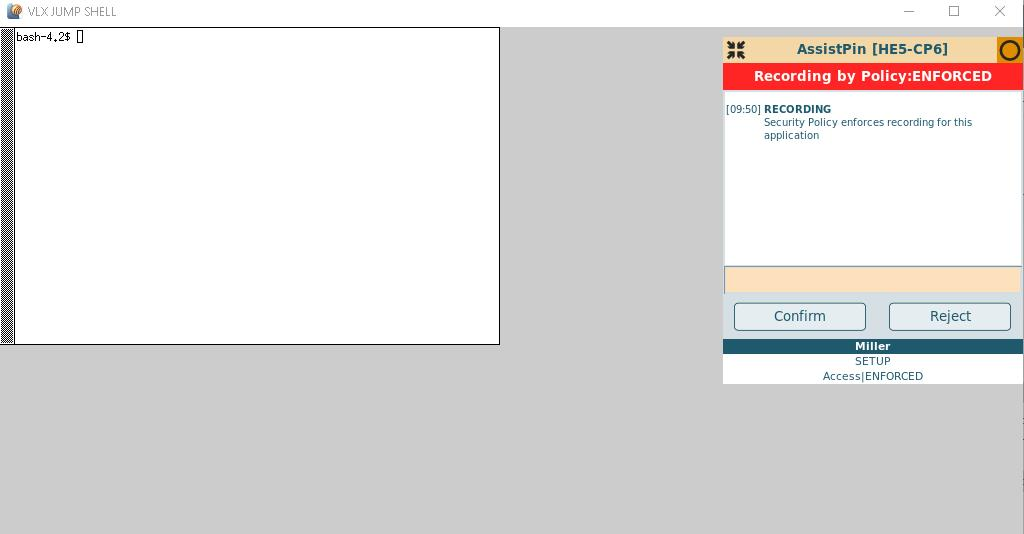
Once the application is started the "Recording by Policy: Enforced" box is displayed, locking the application.
Miller can enter an annotation and must confirm the "Recording by Policy" box to work with the application.
If Miller rejects, the application will be closed.
Recording check list with additional tests
| Feature | Expected behaviour | Comment |
|---|---|---|
| Expect scripts |
| |
| vlxmode variable |
| |
| Configured recording |
| |
| Manual recording |
| |
| Events |
|