
Connecting
To connect to the service, the URL has to be provided by the supervisor. With this URL, connection to the VISULOX PORTAL via browser is possible.
Supported browsers are Firefox, Chrome, Edge and Safari.
| Supported Client Platform | Supported Browsers |
|---|---|
| Microsoft Windows 10 (64-bit only) Microsoft Windows 11 | Microsoft Edge 130 Mozilla Firefox 131 |
Oracle Linux 8 | Mozilla Firefox 131 |
Ubuntu Linux 20.04 Ubuntu Linux 24.04 | Mozilla Firefox 131 |
| macOS 10.13 or later | Safari 17.5 |
The table shows the client platforms and browser versions that have been tested with this release.
The latest versions of the browsers listed in this table are supported. Browsers not shown in this table may be supported at a later stage.
In a VISULOX environment direct login is configured by default, so the login mask of VISULOX PORTAL is displayed.
Access with Native Client
VISULOX PORTAL provides a modern login mechanism. Therefore a client side component has to be downloaded and registered in the browser.

The Native Client is provided by Oracle.
Login screen: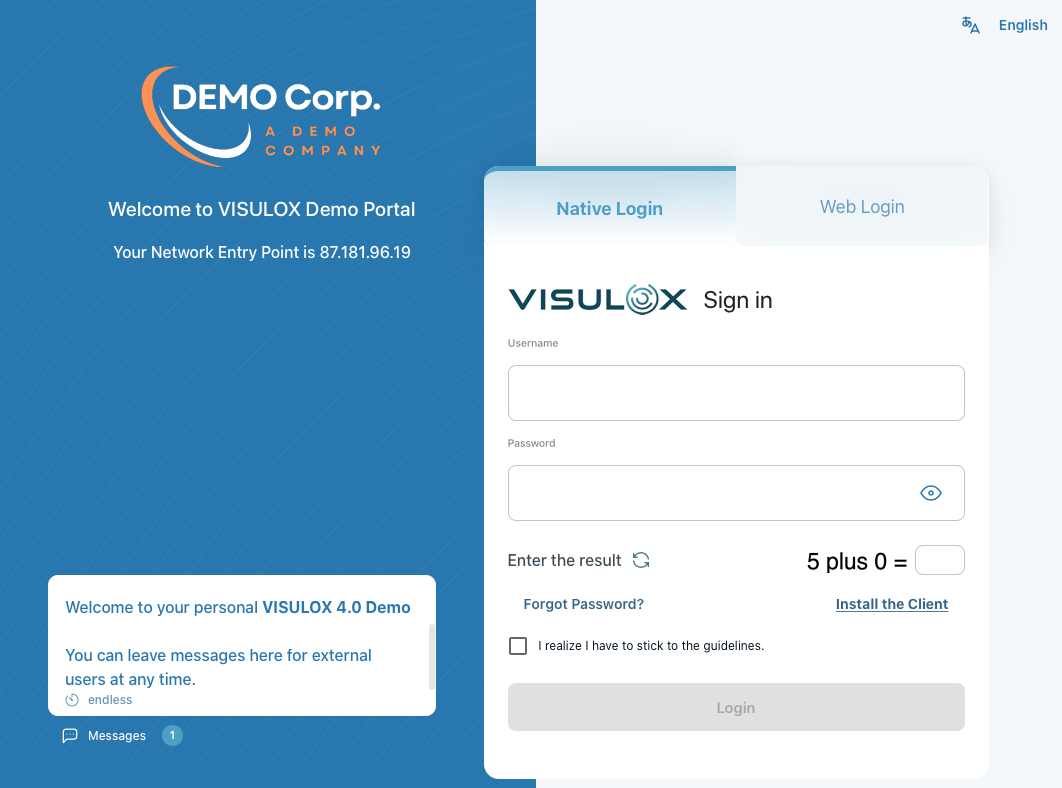
Choose "Install the client" link before the first login.
Choose "Web Login" to use the HTML5 Client.
Download the client for your system:
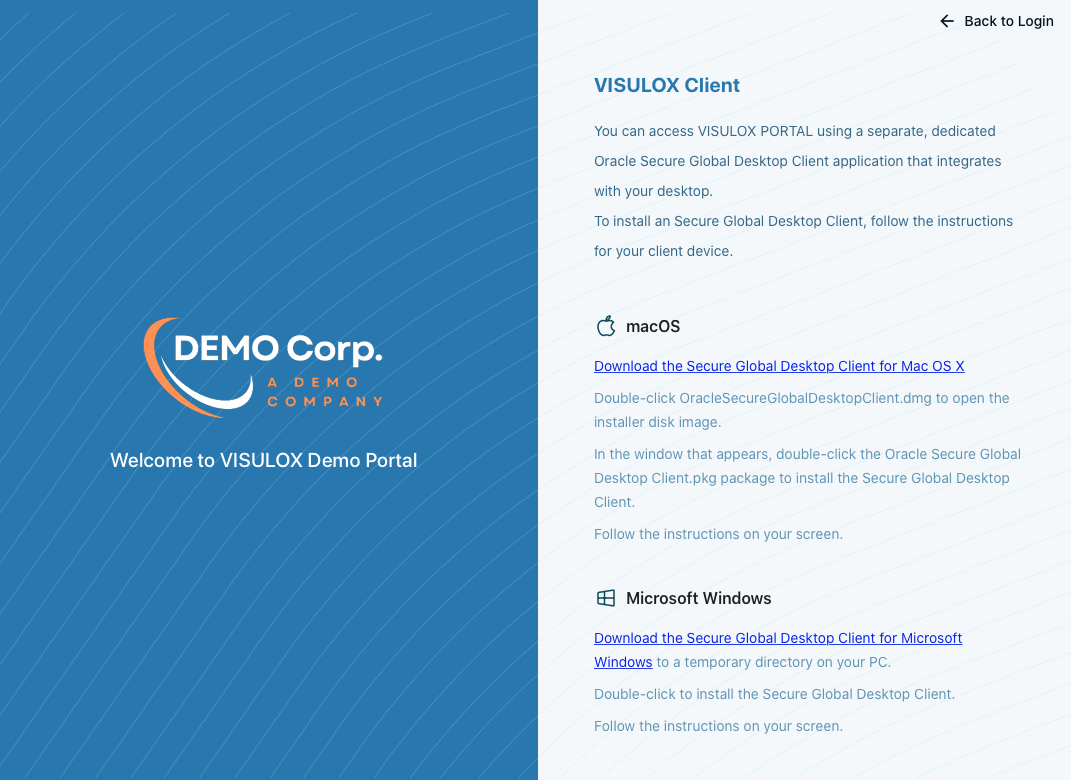
For example: Installation on Windows
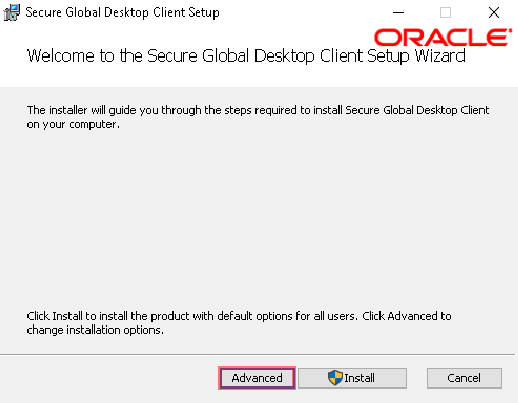
Follow the installation steps for the Native Client or use "Advanced".
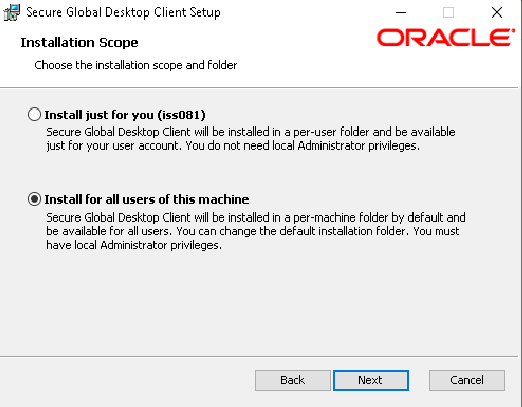
User-Specific Installation
For a user-specific installation, the user must have permissions to write to the install location.
The default locations for a user-specific installation are as follows:
- Microsoft Windows platforms. The user's Home folder. For example:
C:\Users\username\AppData\Local\Programs\Oracle\Secure Global Desktop Client - Linux platforms (64-bit). User-specific installation is not supported for the 64-bit Linux versions of the Native Client.
- macOS platforms. There is not a default location for user-specific installation.
Users can install the Native Client application in any installation folder.
A common location is /Users/username/Applications.
System-Wide Installation
This installation method can be used on a shared file system.
The default locations for a system-wide installation are as follows:
- Microsoft Windows platforms.
C:\Program Files\Oracle\Secure Global Desktop Client - Linux platforms (64-bit).
/opt/oracle/sgdclient - macOS platforms.
/Applications
Loggin into Workspace with the client (version 5.60.550 or newer)
When users connect with a 5.60.550 or later installed client for the first time, they are prompted to give consent for access to resources on their client device.
The settings are saved and apply to all installations. The settings can be changed from the "'Device Sharing..." menu on the client icon.
The dialog box is not localized and presented in English.
A popup box for Device Sharing is displayed:
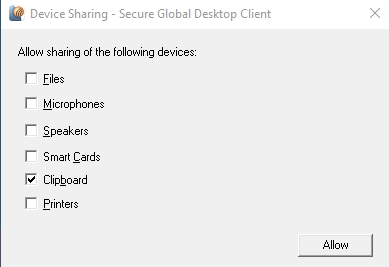
All settings except clipboard need further configuration steps to be enabled.
These settings can also be adjusted later, once they are needed.
JAVA based access
JAVA based access is no longer supported.
Other access methods
Access is also possible via HTML5, if not disabled.
Proxy Handling
Client side proxies can be used. The proxy has to be configured for the browser.
Access with Native Client
Currently the native client does not support proxy directly. If proxy is needed, a manual start of the tcc.exe is needed for the first time.
The tcc.exe can be found by using the Windows file search, for example: C:\Program Files\Oracle\Secure Global Desktop Client\tcc.exe
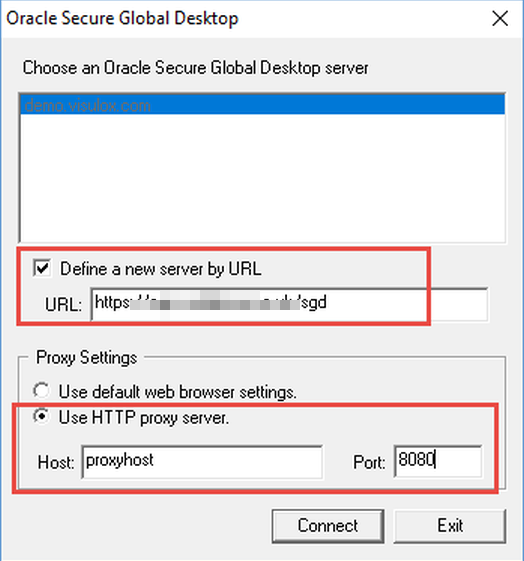
This is needed only for the first time. After a first successful connect, the browser can be used directly.