Configuration example for Client Site Certificates
Configuration for client certificate authentication
Server side
Gateway certificate import
Gateway certificate import
CODE
visulox-gateway sslkey import --certfile <certificate.pem> \
--keyfile <private_key.key> \
--cacertfile <certificate.pem> \
--alwaysoverwrite

visulox-gateway stop
visulox-gateway start
Create and/or check user
- Add Unix user (testcert)
- Create profile in VISULOX-Portal
For example:
| Type: | User Profile |
| Location: | User profiles / amitego / support |
| Login user: | testcert |
Create certificate for this user (testcert).
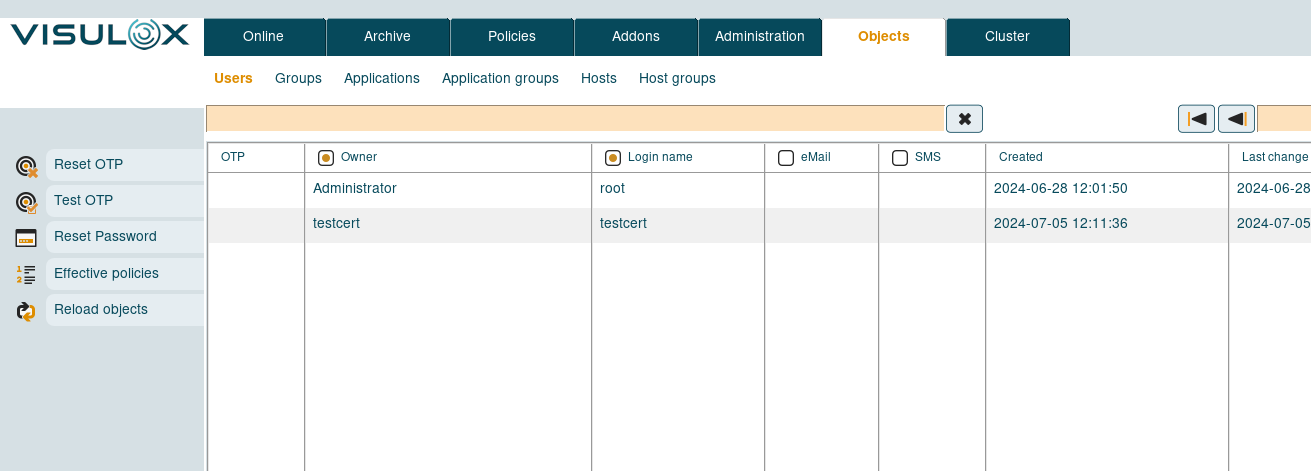
Check if user was imported correctly:
Client certificate
Generating private key
CODE
openssl req -x509 -newkey rsa:4096 -keyout myKey.pem -out cert.pem -days 365 -nodes

Generating a RSA private key
...........................................................................................++++
............................................++++
writing new private key to 'myKey.pem'
-----
You are about to be asked to enter information that will be incorporated
into your certificate request.
What you are about to enter is what is called a Distinguished Name or a DN.
There are quite a few fields but you can leave some blank
For some fields there will be a default value,
If you enter '.', the field will be left blank.
-----
Country Name (2 letter code) [XX]:DE
State or Province Name (full name) []:BW
Locality Name (eg, city) [Default City]:Stuttgart
Organization Name (eg, company) [Default Company Ltd]:amitego
Organizational Unit Name (eg, section) []:support
Common Name (eg, your name or your server's hostname) []:testcert
Email Address []:xxx@amitego.com
Export
CODE
openssl pkcs12 -export -out keyStore.p12 -inkey myKey.pem -in cert.pem

  Enter Export Password:****
  Verifying - Enter Export Password:****
Import
CODE
visulox-gateway clientcert import --certfile cert.pem --alias mycert
  Certificate was added to keystore

visulox-gateway config edit --services-clientcerts required
  You will need to restart VISULOX Gateway for this change to take effect

visulox-gateway stop
visulox-gateway start

visulox-portal config edit --tarantella-config-signed-data-auth-enabled 1
  Changed attribute tarantella-config-signed-data-auth-enabled.
visulox-portal config edit --login-thirdparty 1
  Changed attribute login-thirdparty.
visulox-portal config edit --login-thirdparty-nonens 1
  Changed attribute login-thirdparty-nonens.
visulox-portal config edit --login-thirdparty-ens 1
   Changed attribute login-thirdparty-ens.

visulox-portal restart

visulox config -name portal.clientcertificate=true
visulox portal attach
visulox-portal restart

If there are issues with the usermapping, set also visulox config -name api.portal.auth.external.strict=false and try again.
Client side
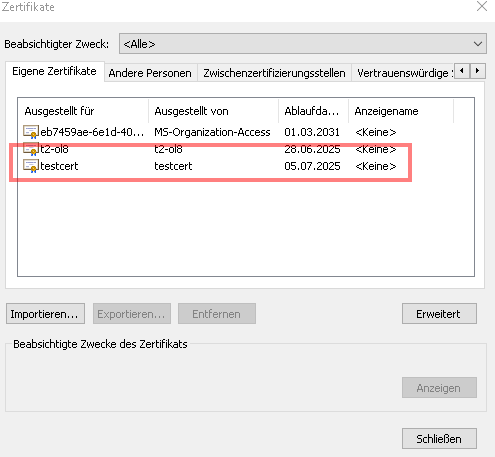
For example add the exported certificate to Chrome (keyStore.p12):
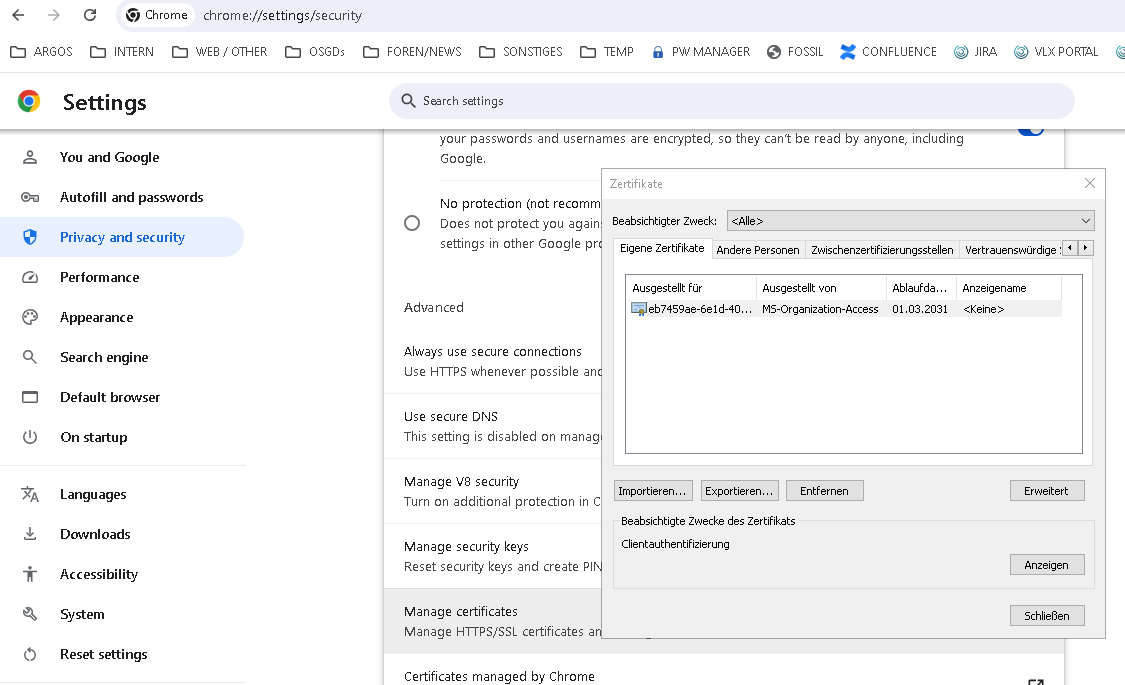
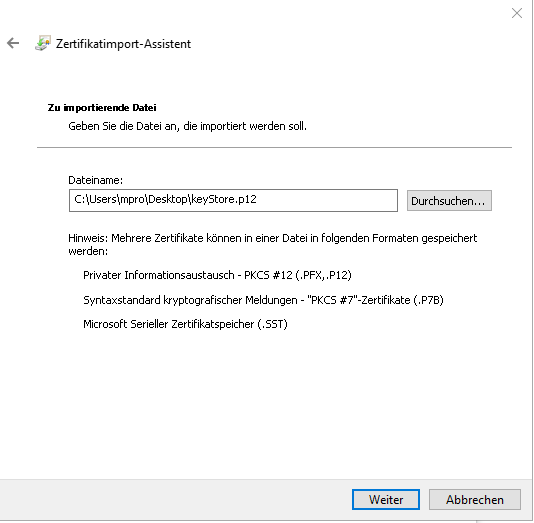
Certificate imported:
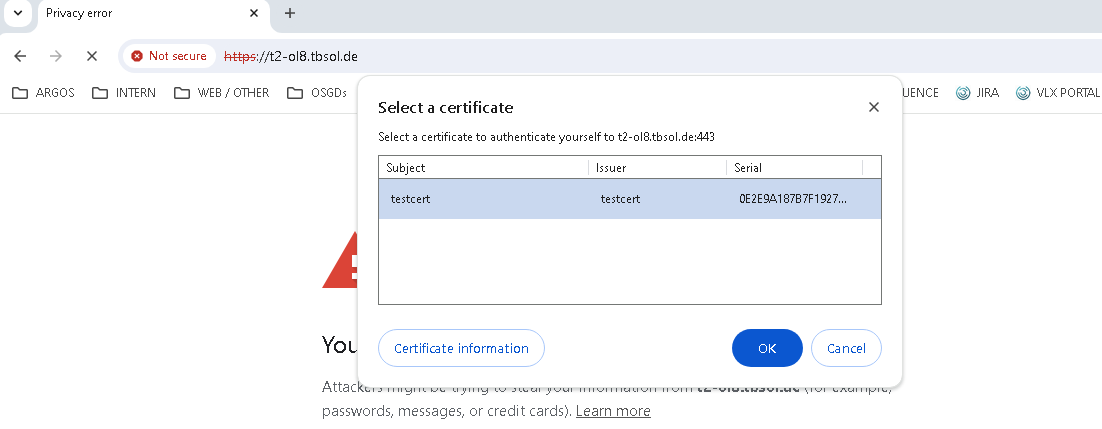
Login with certificate