
VISULOX Filestore
The files, films and snapshots created during recording or File Transfer by VISULOX are stored on the disk attached to the VISULOX Filestore.
These files are stored with an unique ID in a two-layer directory hierarchy. All files are encrypted and tagged with the creation time of 1.1.1970.
A file is always written to the filestore slot with the largest available capacity. There are two types of filestore slots. The default store and links to extra file system partitions to extend the file store.
The default filestore is always a sym link to slot 0.
Filestore anchor
Jan  1  1970 d1/76/d1769ac2-99b7-48c5-bf77-ea2ad4dda44b
Jan  1  1970 12/26/12268c3f-3d97-437b-aa99-ee182bb47cfe
Jan  1  1970 a2/12/a212a0c3-5f18-4d56-a70e-5c6d6baff692
Jan  1  1970 52/b2/52b2e02e-7aab-430f-b37e-bf85284b3cb1
Jan  1  1970 8a/be/8abe83bc-9ffc-405e-9073-ed9dd452d48a
A slot is a mount point to a disk or NFS share. The slot 0 represents the local disk and is used as long as no other slot is enabled.

If there is a problem with an enabled slot, this slot will be disabled and the next available slot will be used. If no other slots are available, the default slot 0 will be used as fallback.
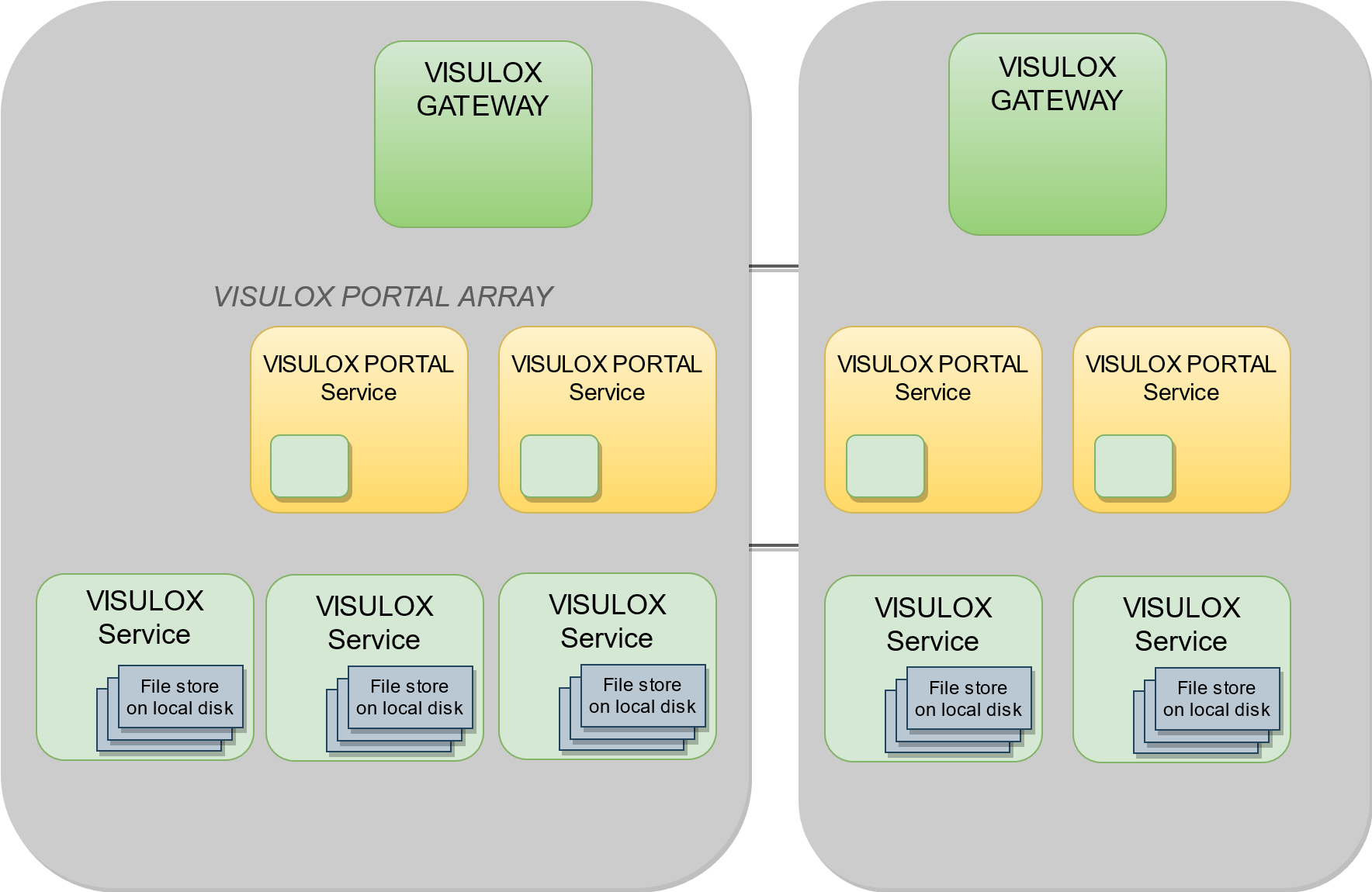
To extend the filestore an extra disk or NFS share must be attached. Important are the permissions. They must be vlx:vlxgroup and are checked by integrity.
After attaching and enabling a slot, the default slot is disabled automatically.
Status
visulox store

File store status
    ---------------------------------------------------------------------------------
    | slot | attached | enabled |    total |    used | available | capacity | files |
    ---------------------------------------------------------------------------------
    |    0 |     true |   false |  98.43GB | 62.82GB |   30.61GB |      68% |     0 |
    |    1 |     true |    true | 978.52MB |  1.88MB |  909.30MB |       1% |     6 |
    |    2 |     true |    true | 978.55MB | 42.64MB |  868.57MB |       5% |     4 |
    |    3 |     true |    true | 978.55MB |  1.30MB |  909.91MB |       1% |     1 |
    ---------------------------------------------------------------------------------
Using -verbose will also present the physical device of the file store slot.
Managing
There are two steps to activate slots by VISULOX:
visulox store attach -path <path to mount point>
visulox store enable -slot #
Attaching is always done to the next free slot.
Once a slot is enabled, it is used when new files are stored on the disk.
For example
mkdir /store1
mount /dev/sdb1 /store1
chmod -R 777 /store1
chown -R vlx: /store1
visulox store attach -path /store1
visulox store enable -slot 1
To stop storing files on a slot, the following command can be used:
visulox store disable -slot #After a slot has been disabled, files can still be read from this slot.
To release a disk, the files on the disk must be moved to another disk:
visulox store migrate -from # -to #Only a disabled slot can be used as a source.
Migrate only moves files that are relevant for the node, where the command is executed. The files remain where they were. This is important for sessionstores on NFS shares.
With the parameter -global files will be moved regardless of their owner.
visulox store migrate -from # -to # -global
The -global parameter is set on Archive Nodes per default.
In case of a NFS share as destination, it may happen that not all files are migrated in the first run. Try to run the command again with -force option several times. The amount of files that were not copied should decrease with every run.
The managing of the filestore can be done when the VISULOX Service is online. This allows to add additional disks, if they are needed or to merge disks onto a disk with larger capacity.
There are additional commands to check the integrity of the filestore.
Using NFS
A slot can be mounted on a NFS share. This has the advantage, that all files are seen across the cluster. It is recommended to have an independent NFS share for each location.

Do not use any purgeing of files if the Filestore was provided via NFS across multiple Nodes.
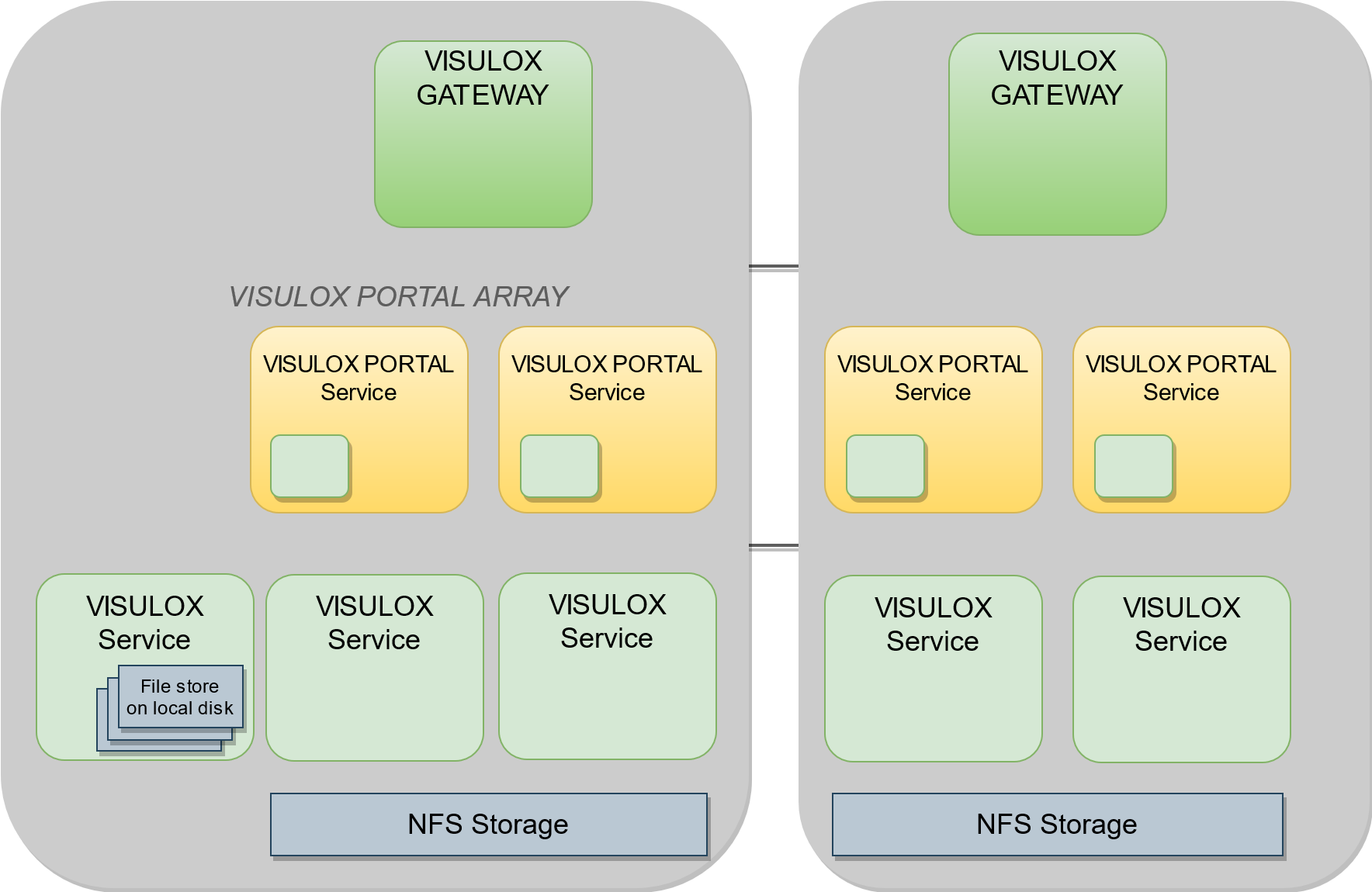
The outcome of using VISULOX Filestore via NFS is also an improved performance.
The Archive Server cannot be connected to the NFS share, because node and Archive life times are different. The node would delete the files in the Archive.
Make sure the mount points are available after reboot.
Make sure the mount points have the right permissions.
If there are many files in the filestore, operations like status / migrate will take a long time.
Filestore parameters
| Parameter | Description |
|---|---|
| attach | Attach path to slot of filestore |
| changed | List files that do not match their records |
| detach | Detach slot from filestore |
| disable | Disable an attached slot |
| enable | Enable an attached slot |
| extras | List files present on disk, but not listed in the database Do not use this command on nodes, where replication is off and a shared NFS Filestore is used! |
| files | List files in filestore |
| get | Get file from filestore |
| migrate | Move files from source to destination slot |
| missing | List files registered in the database, but missing on disk - details More info regarding missing files |
| purge | Delete files, that do not match the database -slot <value> Slot to purge |
| put | Put file into filestore |
| status | Filestore status |
| survey | Survey cluster for a given file |
Using a commands like "missing" requires the VISULOX Services running.
On VISULOX Access Nodes in a cluster, that are used often for checkout or viewing films, the purge -nonlocal command should be used to get more free disk space again.
In case of large files this command will take some time.
This command should not be used if the Filestore was provided via NFS across multiple Nodes.