
How to create a persistent Firefox profile for VISULOX integration
About
This article explains how to setup a persistent Firefox profile to be used in the VISULOX Firefox integration via VLX JUMP SHELL.
There serveral steps:
Preparing a profile
Log into VISULOX PORTAL and start a VLX Jump Shell.
Run the following commands:
Initialize Firefox with a default profile
firefox -CreateProfile default
firefox -profile $HOME/.mozilla
You can now make customizations to your profile like visual customizations or add homepage, links etc.
A good approach is also to add profile specific certificates to the Firefox browser:
Launch Firefox and make your customizations
firefox -profile $HOME/.mozilla
Exit Firefox after customizations are done.
Test / verify youz new profile
firefox -profile $HOME/.mozilla Packing and saving the profile as an archive
Saving the profile must be done by the administrator
bash-4.2$ cd  .mozilla/
bash-4.2$ tar czf $HOME/myProfile.tgz .
bash-4.2$ ls -l
total 28468
drwx------. 2 vlx000 vlxgroup        6 Feb 25 11:43 Downloads
-rw-r-----. 1 vlx000 vlxgroup 29151090 Feb 25 11:54 myProfile.tgz
drwx------. 2 vlx000 vlxgroup        6 Feb 25 10:23 vlxtransit
The packed Firefox profile has to be copied into a directory outside of the VLX Jump Shell environment, accessable by all VLX Jump Shells. Also the content in the folder needs to be synchronized with all nodes running the VLX Jump Shell.
Save into a folder readable for vlxgroup in a common place
mkdir /opt/firefoxProfiles/
cp /opt/visulox/vlxusers/vlx000/myProfile.tgz /opt/firefoxProfiles/
chgrp -R vlxgroup /opt/firefoxProfiles/
Apply the profile to a Firefox application
In the VISULOX PORTAL Console create a VLX Jump Shell with Firefox:
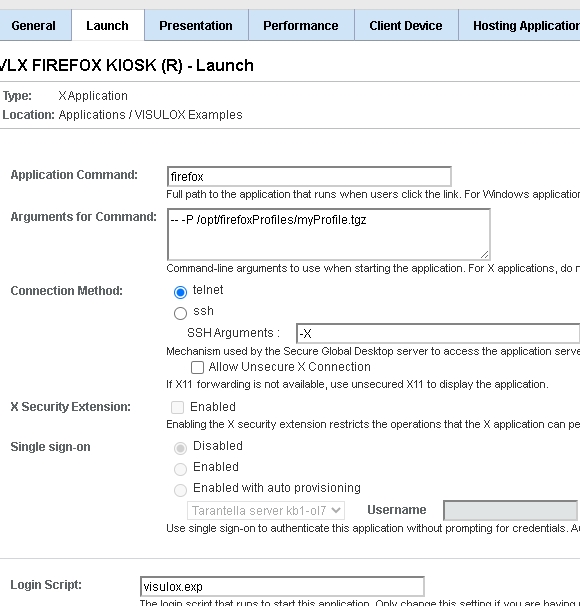
You can now launch the application and check your profile.

Please take note that the created profile must be distributed to all nodes in the VISULOX Array.