
Example: Dual Control
General
With the Dual Control feature a cooperation can be established based on a real four-eye-principle. The supervisor has to acknowledge the cooperation within a configured period of time. If the supervisor does not acknowledge the cooperation, the cooperation window will be locked for the participant.
With Dual Control it is guaranteed, that the supervisor is always in front of the screen.
Prerequisites
For this example setup two users have to be registered in VISULOX PORTAL with the following settings:
| User | Role | SMS | Application | Other | |
|---|---|---|---|---|---|
| Administrator | Supervisor | <supervisor>@company.com | - | VISULOX Cockpit | - |
| Miller | User | <user>@company.com | - | VLX Jump Shell | - |
Supervisor Administrator initiates and configures the Dual Control cooperation.
User Miller logs into VISULOX PORTAL and starts the application for the cooperation..
Configuration and start of a Dual Control cooperation
Supervisor Master creates a new Application Policy in the "VLX Cockpit":
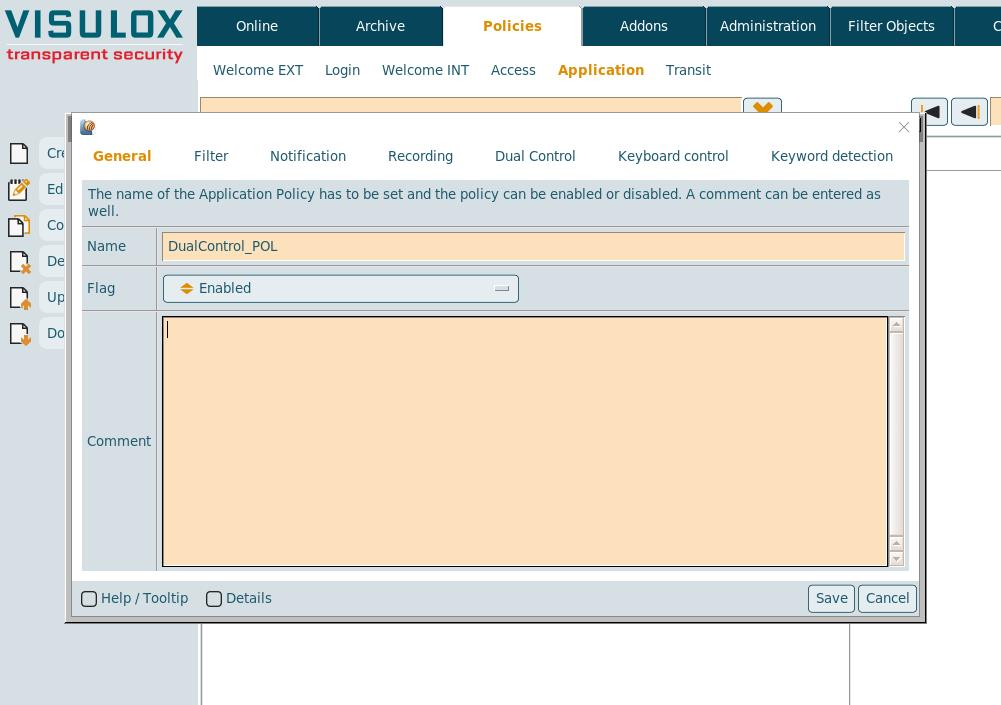
A unique name for the policy must be entered: "DualControl_POL".
To use the Application Policy "Policy Enabled" has to be selected.
A comment for the policy can be entered as well.
Setting the filter:
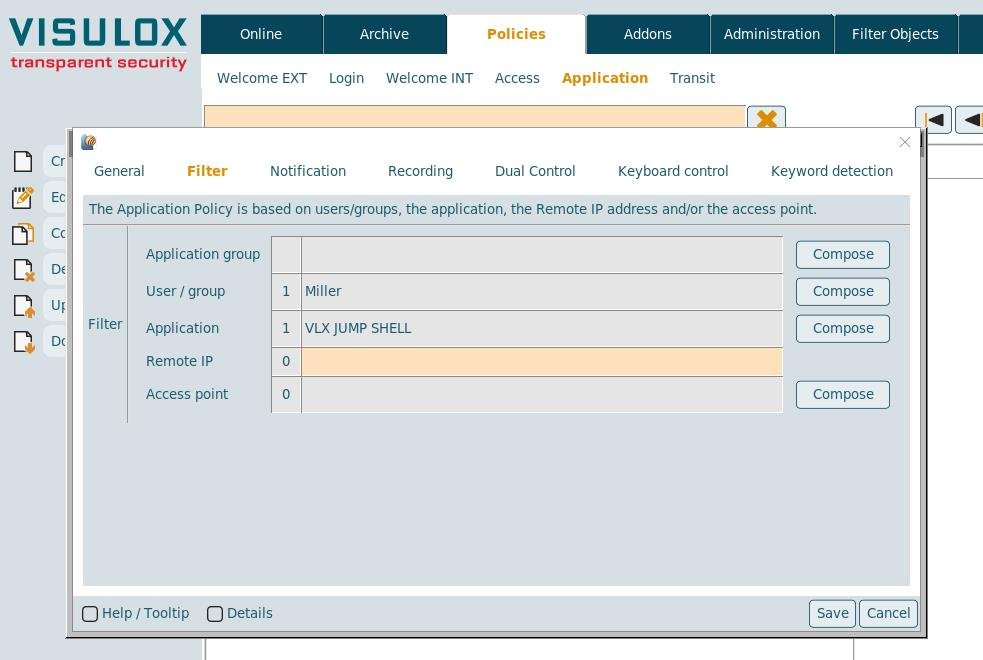
Only the "VLX Jump Shell" application from user "Miller" will be used in this example.
It is also possible to set a filter for the application group, the remote IP address or the access point (not used in this example).
Configuring Dual Control:
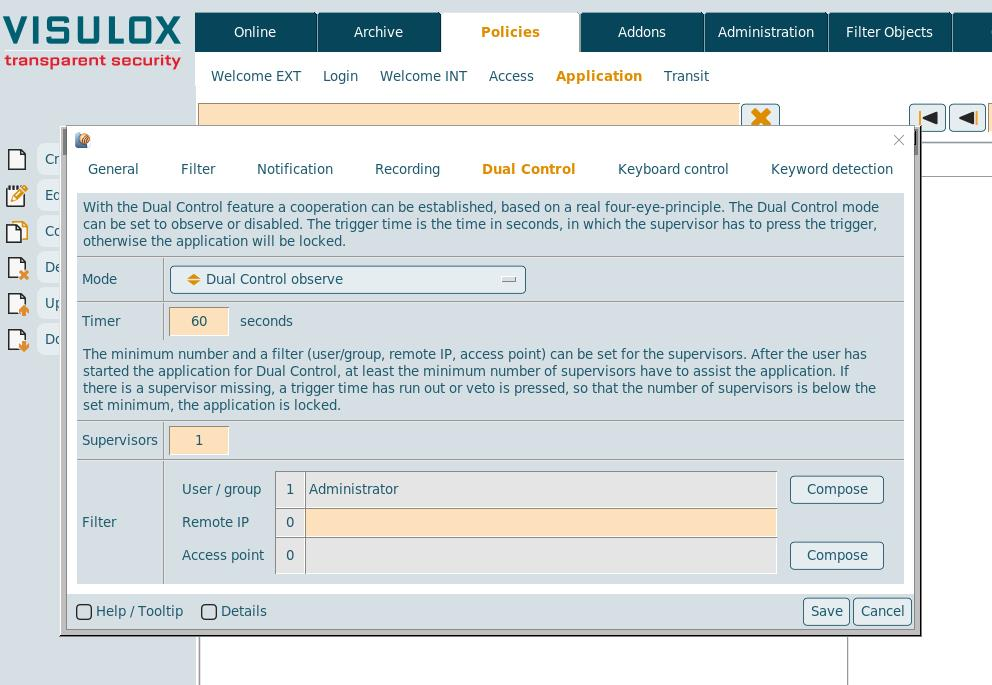
Setting the Dual Control mode:
- Dual Control disabled:
No dual control cooperation possible - Dual Control observe:
The supervisor is able to see the application and has a mouse pointer with his name, but can not interact - Dual Control observe and assist
The supervisor is able to see the application and has a mouse pointer with his name, but can not interact. An additional user can be invited in assist observe mode
The supervisor selects "Dual Control observe" for this example.
The Dual Control timer can be set: "60" seconds is fine. The minimum number of controllers must be set to "1" and the filter for the cooperation partner is set to supervisor "Administrator".
- Dual Control disabled:
User Miller starts the "VLX Jump Shell" application:
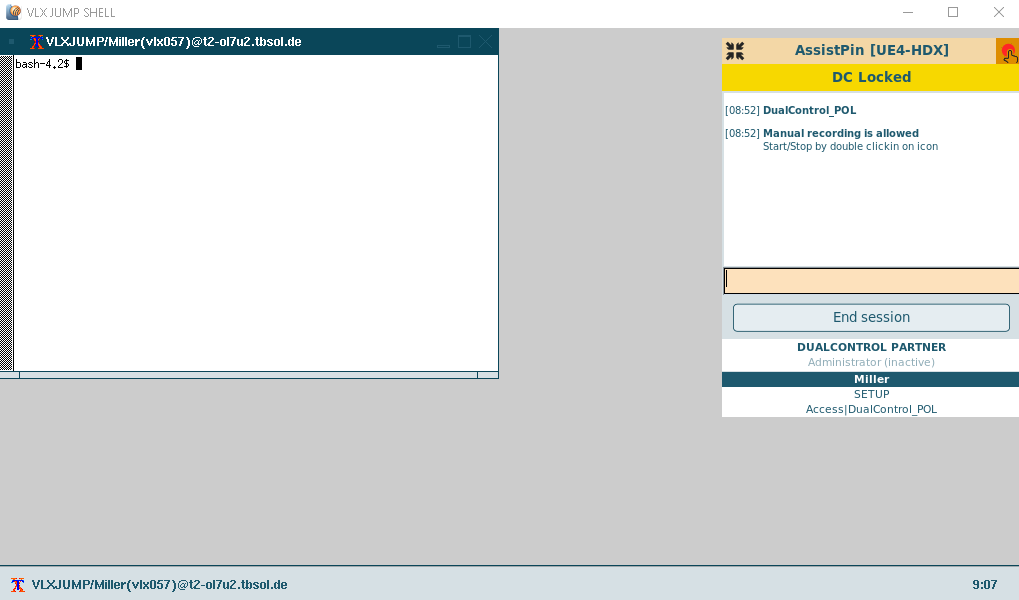
The application is "Locked by Dual Control".
User Miller has to wait for the supervisor to press the trigger.
- The supervisor opens "VLX Cockpit" / Online
The supervisor selects the "VLX Jump Shell" session of user Miller and presses the "Assist" button or he enters the provided Assist PIN on the cooperation page:
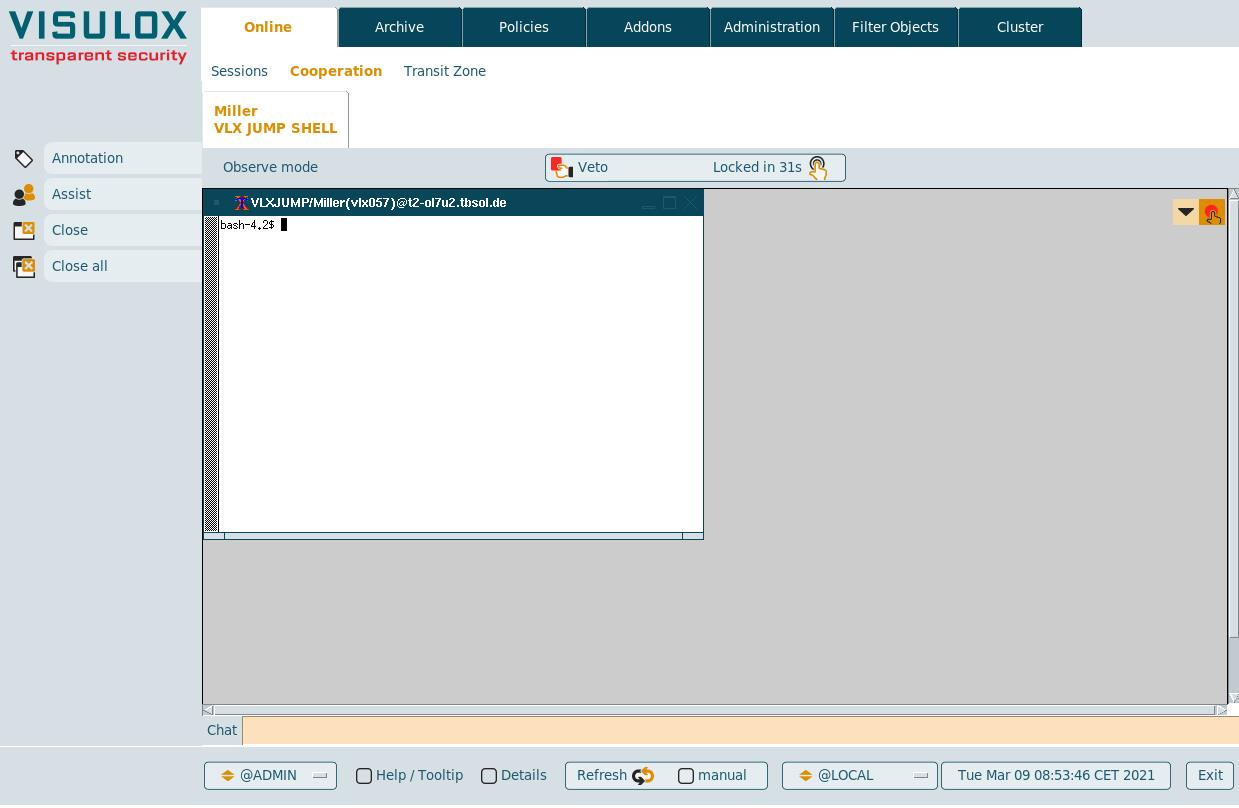
The session is unlocked, once the supervisor has joined the Dual Control cooperation.
The trigger countdown has started.
The supervisor can doubleclick on the trigger to reset the timer.
The supervisor can also use the "Veto" button to lock the screen immediately.
User Miller can now work with the application and the supervisor is watching in observe mode:
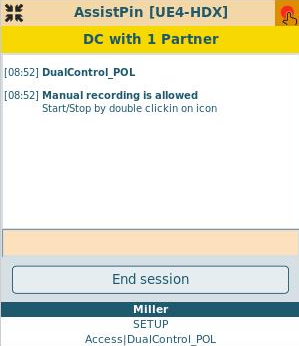
Miller is able to see the current Dual control state
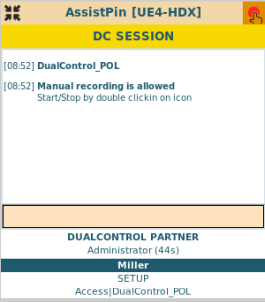
If Master does not press the trigger,
the access to the application is running out.
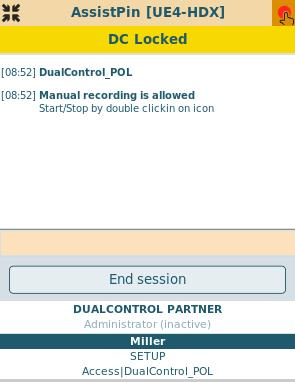
Once the trigger time has run out, the application is locked again.
Dual Control check list with additional tests
| Feature | Expected behaviour | Comment |
|---|---|---|
| Policy mode: disabled |
| |
| Filter settings |
| |
| Dual Control |
| |
| Dual Control timer |
| |
| Minimum number of controllers |
| |
| Filter settings Participant |
| |
| Dual Control Cooperation |
| |
| Events |
|