
VISULOX Cockpit / Online
Overview
VISULOX Cockpit Online / Sessions
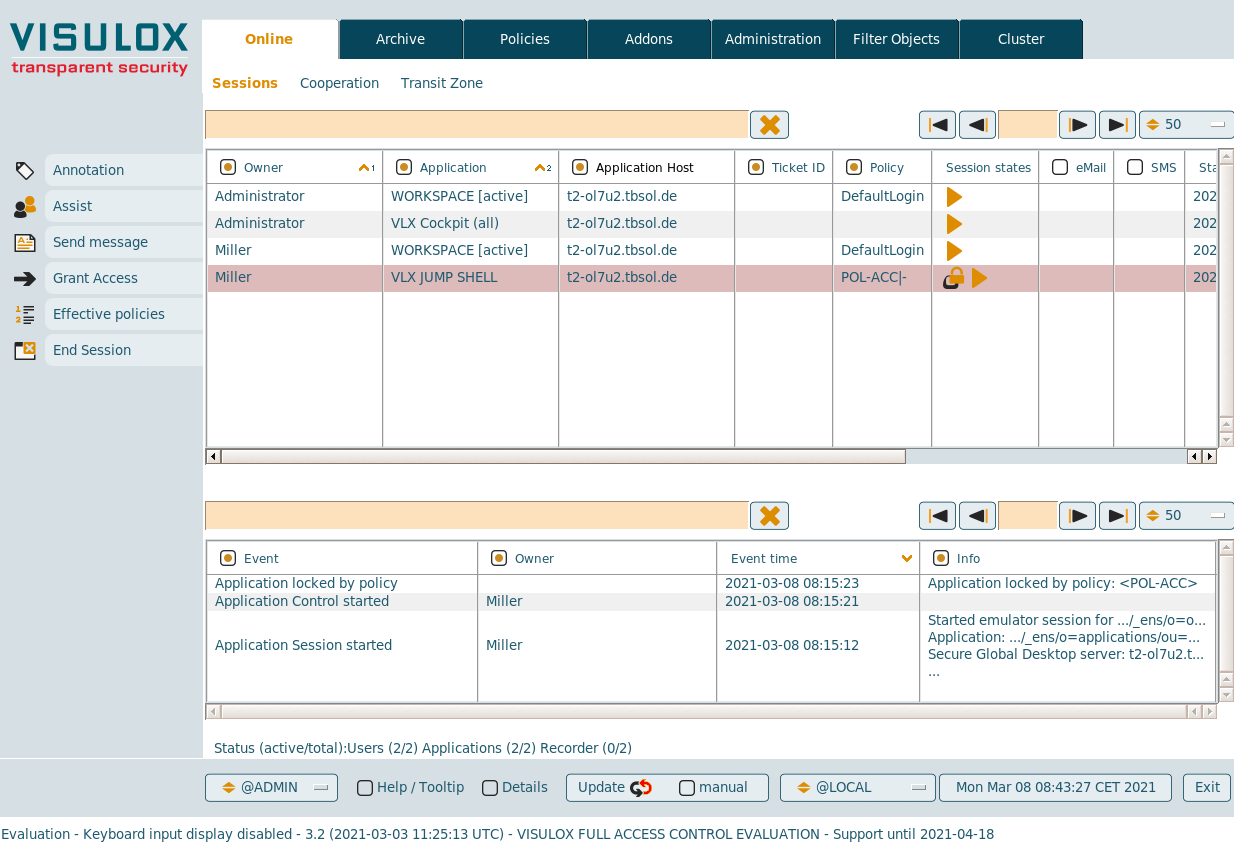
In the sessions tab the currently logged in users and their active applications are displayed in a table.
If there is a pending Two-Factor Authentication process for a user, his token can be shown by selecting the user entry in the table.
A remark can be added to a session. It is also possible to send messages to application sessions, display the effective policies, grant temporary access and to end application sessions.

VISULOX Command Line Interface
With the visulox online command, the online status can be displayed as well:
| Command | Description | Additional commands / args |
| visulox online | VISULOX online status | getpin, fields (list available fields), -i (ignore case), -object <> (owner or group mask), List of fields to present <vlxowner,vlxapplication,vlxsessionstarttime,vlxremoteip,vlxapplicationstate> |
Available features
Annotation
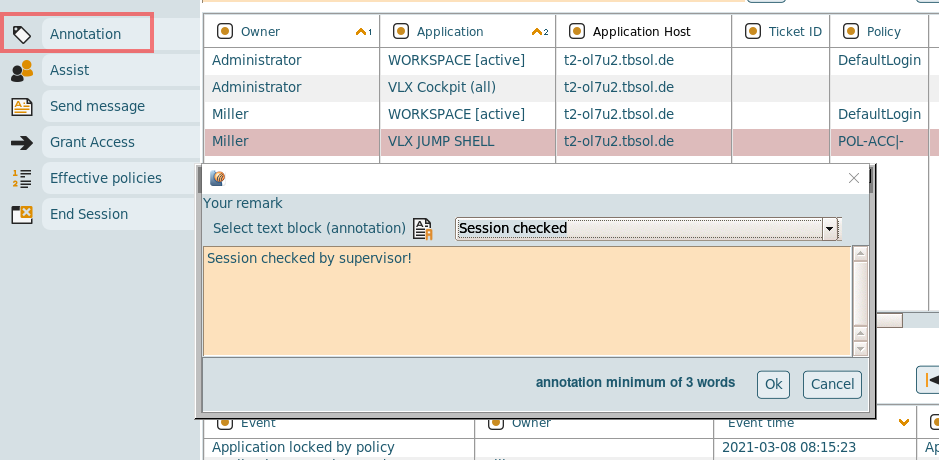
A remark can be added to a session by the supervisor. Remarks are shown in the events section of the a selected session.Assist
A cooperation can be started with a selected session. The user controls the cooperation and he has to choose the mode.
The focus switches to Online / Cooperation. (See: Example: Assistance)- Send message
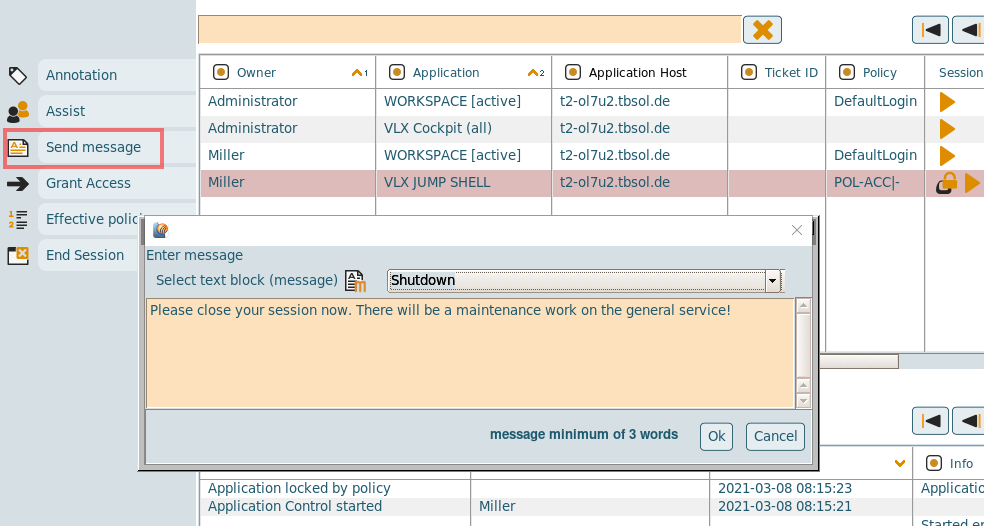
Supervisors are able to send messages to users, who are working with an application.
This message is displayed in a popup-window and the application is locked.
The user has to confirm the message to continue working. The user is also able to give feedback.
The supervisor gets an overview for the pending and acknowledged messages with comments. - Grant access
With access on demand a supervisor is able to give spontaneous access to a session locked by policy. (See: In-Time Access) - Effective policies
The effective policies for a session can be displayed.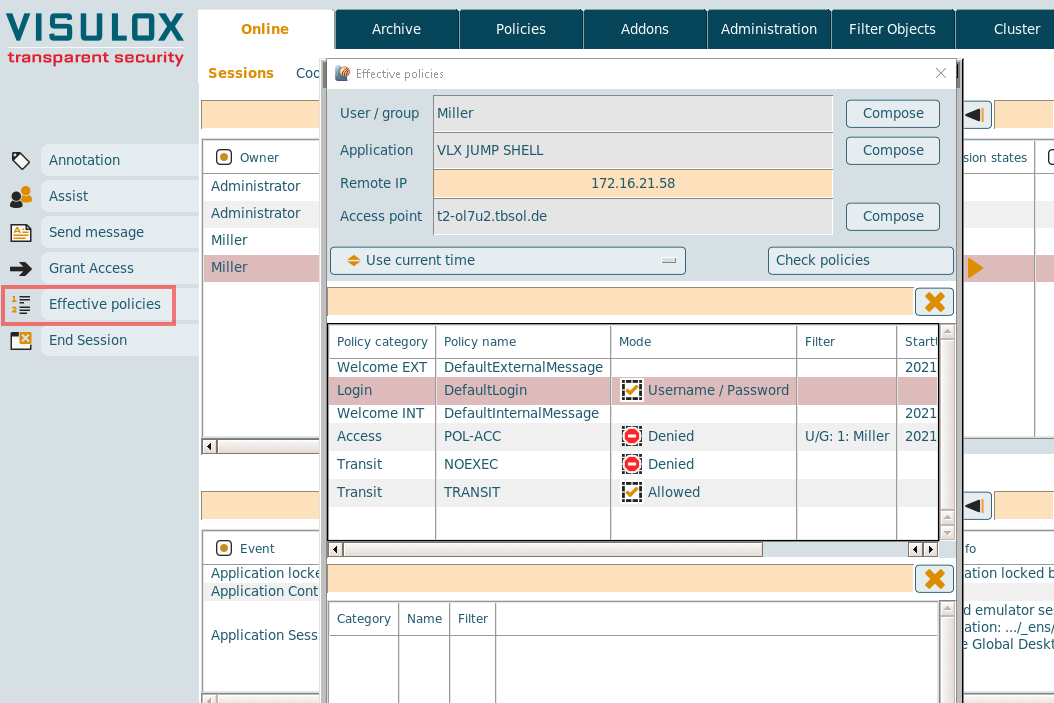
- End session
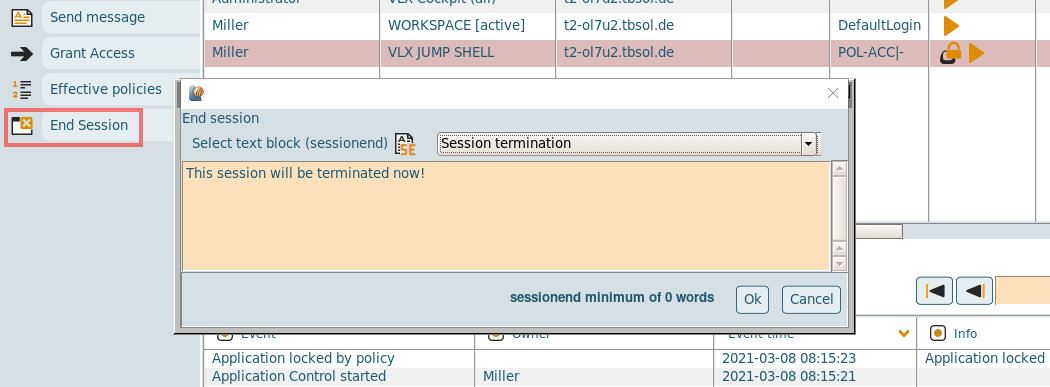
The selected sessions will be terminated. A text has to be entered. - Online view - status line

The status line shows the current active users, applications and recorders.
The status of the Workspace session can also be seen directly in the application object column in brackets: (active).
(A Workspace session is considered to be active, if at least one application session is running.)
VISULOX Cockpit Online / Transit Zone
Depending on the underlying Transit Policy files can have the status set to "Waiting for approval":
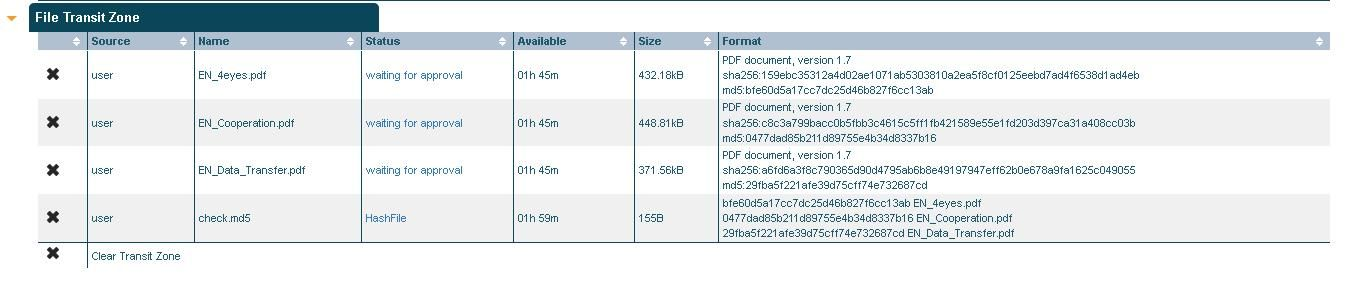
Approval is done by a supervisor in VISULOX Cockpit / Online / Transit Zone or via mail with an assigned request script:
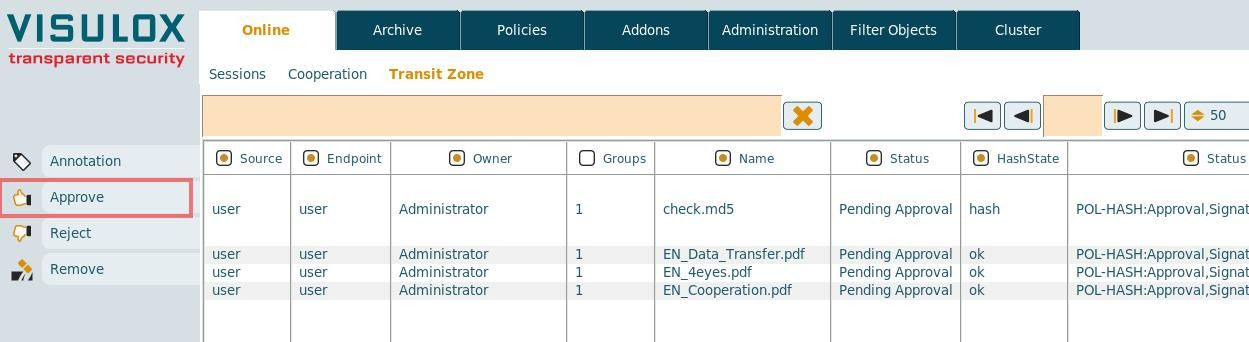
The supervisor is able to approve, reject and remove files. An annotation for a file can also be set.
Approving and rejecting files can also be done via command line interface (see: VISULOX transit command) or via mail with assigned request script..