
Login with One Time Password (OTP)
AboutIt is possible to create a Login Policy also with a One Time Passcode (OTP) as a second factor. User can set his OTP by entering:
Login via verbal token will always be possible beside the OTP login. |
Login wiith username and password | 2nd factor verbal PIN |
|
|
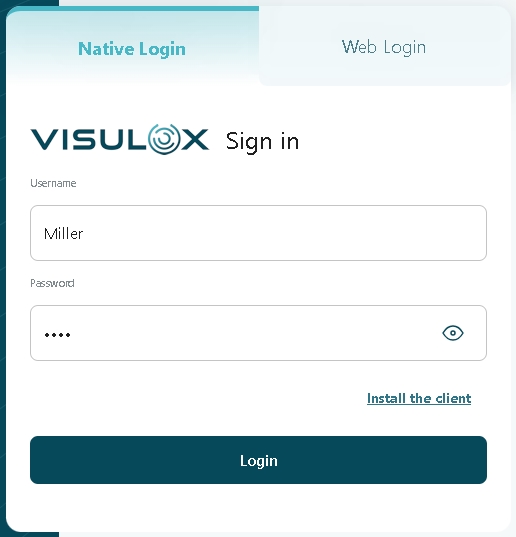
Once logged in with a verbal token, the user can generate his secret key the welcome page and acknowledge the use of the OTP mechanism by confirming with a first OTP from his device.
It is also possible to generate the key before changing the Login Policy to OTP, so the first login via verbal PIN is not necessary, see: Migrating to One Time Password Authentication

OTP and Multi-User Login Profile
If a profile is tagged as a Multi-User Login Profile multiple persons can use the credentials. As result multiple independent sessions exist.
The mechanism of the VISULOX user password cache is disabled, and the user cannot create an OTP within the Workspace.
The function to create OTPs during the first login is still available. If this is used, the person who logs in for the first time has to communicate the OTP secret to participants.
Alternatively, the OTP setup can be done within a user deployment process by the admin using the CLI.
For compatability reasons SHA1 is used as default value for the OTP authentication.
In case of the OTP authentication in VISULOX this is not relevant, because it is not possible to recalculate the secret key from the OTP key and time, which would be the only possible attack.
However VISULOX is able to use SHA-256 for the OTP hash values.
visulox config -name otp.hash=sha256If SHA-1 is not wanted, the client must be set to use SHA-256 as well. For example, the Google Authenticator application only supports SHA1.
Initial key generation on the welcome page
The QR code (and the OTP Key) is displayed in the Workspace. To initialize OTP, the user's password has to be entered as well. |
| |||
With a smartphone App (e.g. Google Authenticator) an initial OTP can be generated and submitted via the input field. The initial code can be created via QR code scanner or with the OTP key. |
|

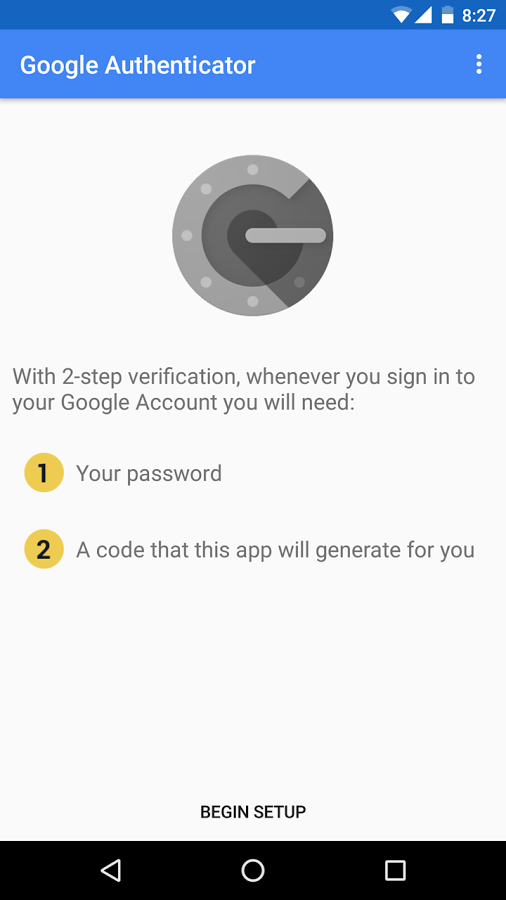
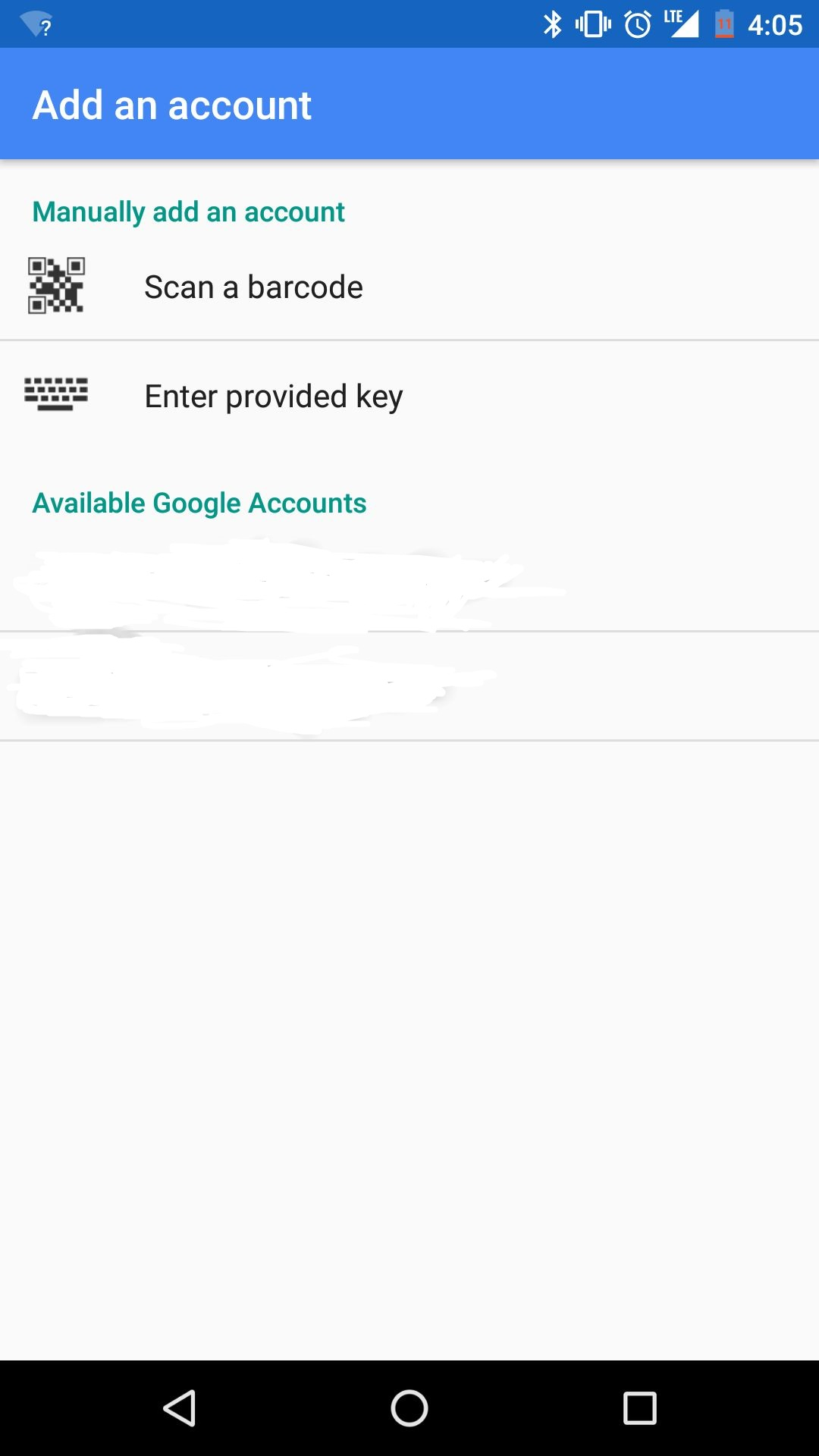
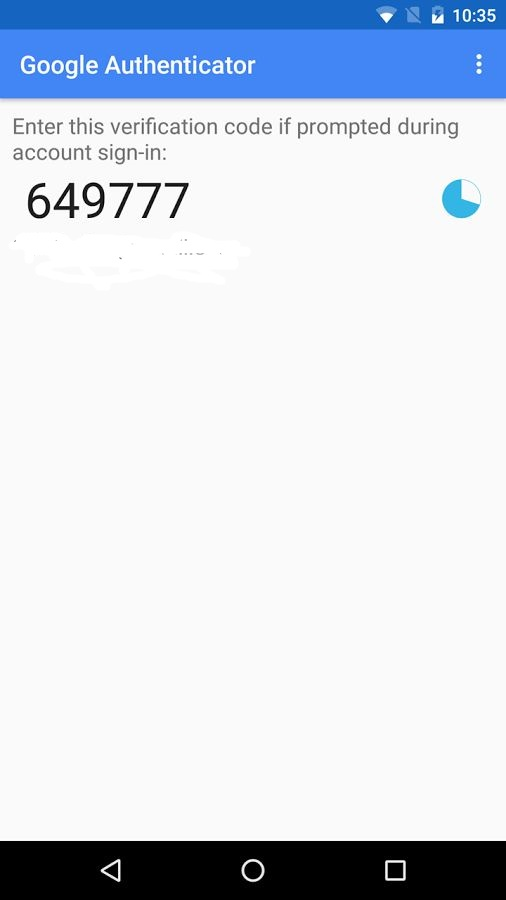
Once the user has entered the initial key, he is able to login in VISULOX PORTAL with the current key displayed in his authentication App and his password.
The initial code is crypted with the cluster key. If the cluster key is changed, the users will loose their OTP-configuration.
Configuration parameters
 visulox config -name otp
    ----------------------------------------------------------------------------------------------------
    | changed | key                 | value                                                            |
    ----------------------------------------------------------------------------------------------------
    |         | otp.always          | false                                                            |
    |         | otp.confirm         | false                                                            |
    |         | otp.confirmscript   |                                                                  |
    |         | otp.enforcedmessage | Please, enter the One Time Password!                             |
    |         | otp.label           | PIN/OTP                                                          |
    |         | otp.label.usertip   |                                                                  |
    |         | otp.name            | %LICENSE%                                                        |
    |         | otp.setupmode       | enabled                                                          |
    |         | otp.strict          | false                                                            |
    |         | otp.wait.text       | Registration closes in <span id="time">few</span> minutes!<br /> |
    |         | otp.wait.timeout    | 600                                                              |
----------------------------------------------------------------------------------------------------| Parameter | Description | Default value |
|---|---|---|
| otp.always | In environments where users have to request the PIN, it makes sense to hide the third entry until a PIN for such a user is known. | false |
| otp.confirm | Enable OTP 2FA confirmation | false |
| otp.confirmscript | Name of the VISULOX action script for confirmation | |
| otp.enforcedmessage | It is possible to use HTML tags e.g. <b>, <i>, <a href>, etc. | Please, enter the One Time Password! |
| otp.label | Entry label text for second factor on the VISULOX PORTAL login page | PIN/OTP |
| otp.label.usertip | Tooltip for the label for second factor on the VISULOX PORTAL login page | |
| otp.name | Displayed In the QR App. It is possible to use other placeholders e.g. %OWNERSHORT% or %FULLNAME%. A free Text can also be displayed. | %LICENSE% |
| otp.setupmode | Operation mode for OTP setup: enabled (OTP Dialog in Workspace), enforced (forwarding to OTP page), disabled or external | enabled |
| otp.strict | OTP has to correlate with the current time (otp.strict=true), otherwise previous and next OTPs are taken into account as well (otp.strict=false). | false |
After otp.always and otp.label have been adjusted visulox portal attach -jspconf is needed.
Confirmation script example
|
The confirmation script is a VISULOX action script.
Adjusting the Login Policy
To enable login via OTP for the users, the Login Policy has to be set to MFA Login with OTP, MFA Login with PIN or OTP from eMail and/or SMS
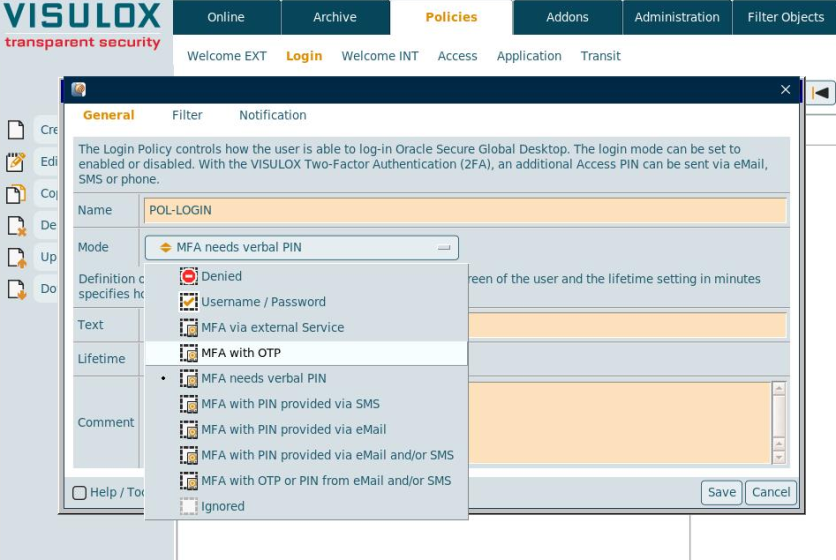
Using the OTP setup type in the Login Policy
In case of an OTP Login Policy, the setup type can be chosen: Configuration, enabled or enforced:
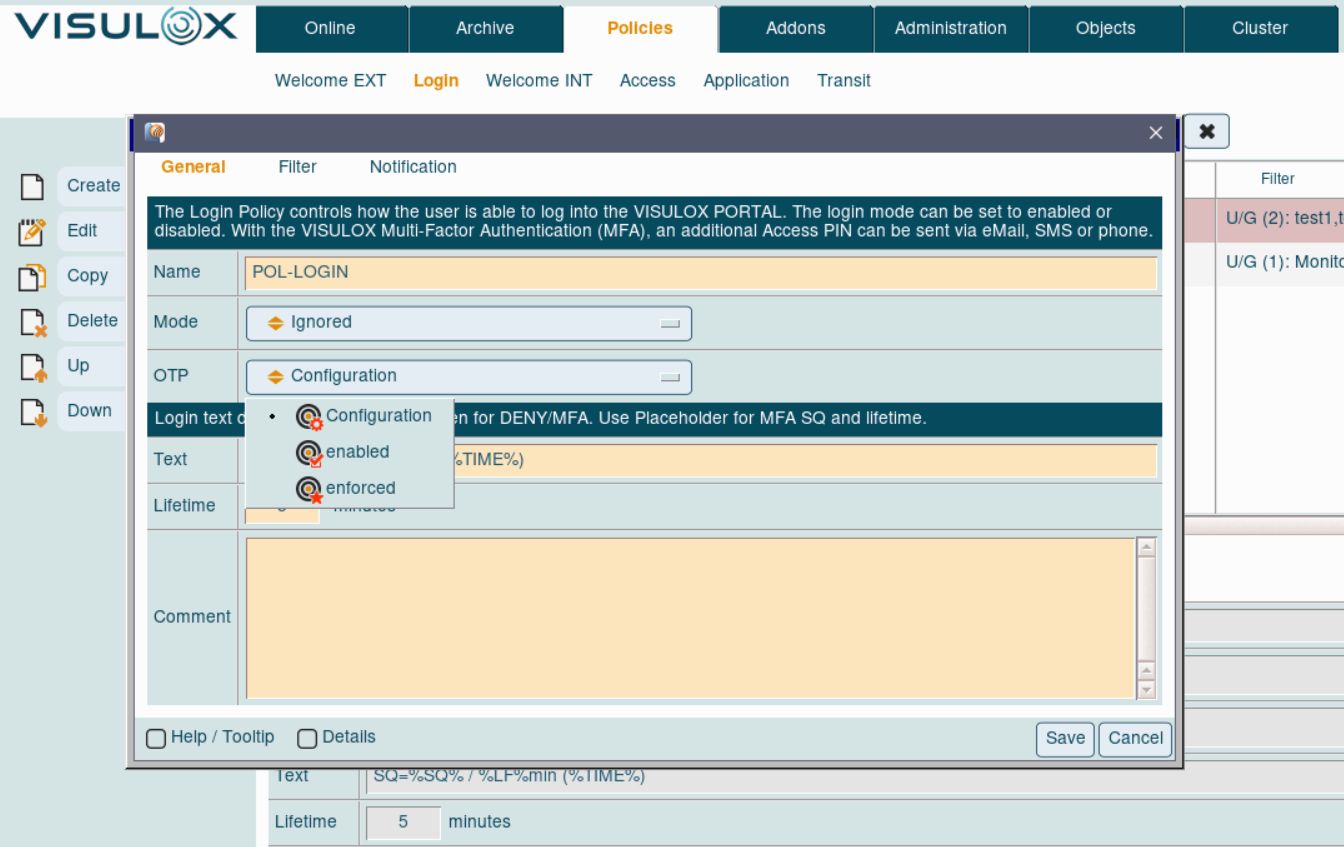
With OTP setup type configured via Login Policy it is possible to use OTP login for selected groups / users.
Setting the OTP type via configuration parameters will be applied to all users.
Resetting OTP keys
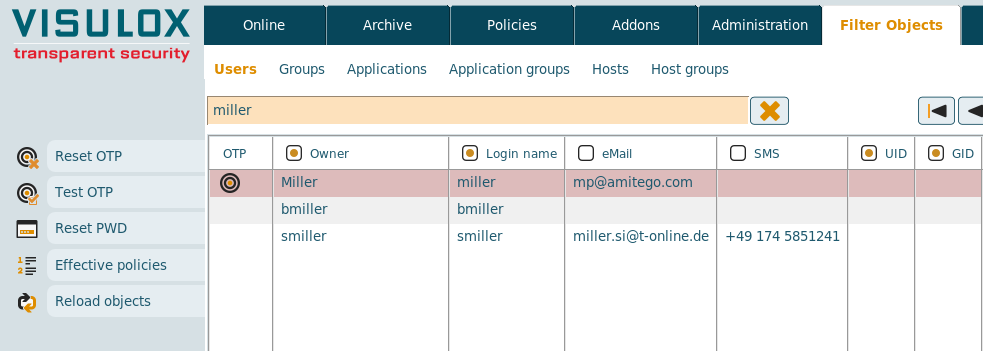
The OTP keys of selected users can be resetted via Cockpit on the Filter Objects / Users page.
Users can reset existing OTP configurations also by themselves in their Workspace:
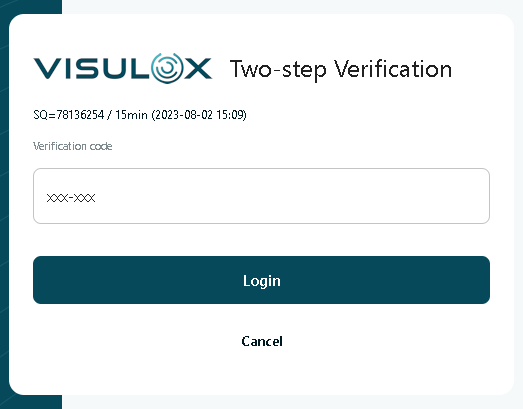
Resetting the OTP configuration via Cockpit is not available for Unix users. Unix users are able to reset the configuration only in their Workspace.
Related information
How to control OTP from the command line
Migrating to One Time Password Authentication