
Customizable action buttons in VISULOX Cockpit / Objects
A customizable action for example is selecting a user in VISULOX Cockpit / Objects / Users and start a shell script to reset the password of the selected user.
There are 5 buttons for which an individual script can be set. These buttons can be arranged individually on the VISULOX Cockpit / Objects pages for users, groups and applications (other GUI parts on request).
Each button needs four elements:
| Element | Description |
|---|---|
| Place in GUI | do-users, do-groups and do-application can be used to place the buttons (others on request) |
| Text for the button | Short free text |
| Description | The description text is presented as the tooltip |
| Selection type | Flag can be none or single. If single is used, a selection in the GUI is needed and the selection content is passed to the script. |
Configuration parameters in VISULOX
Configuration parameters
visulox config -name vlxgui.buttonscript.0="do-users:Remove:Remove user from Datasource:single"
visulox config -name vlxgui.buttonscript.1="do-users:Reset:Reset password:single"
Button script
A template is available: /opt/visulox/tools/buttonscript.sh.template
This template should be renamed to buttonscript.sh.
Notes on the buttonscript:
- When the button is pressed, /opt/visulox/tools/buttonscript.sh is called.
- The script has the VLX parameters of the selection.
- The script has the calling user data.
- The script has the button index.
- The script can have an error code and an text on stdout. This is presented to the user in the GUI.
- The script runs with "vlx" ID (not with transit vlx id).
buttonscript.sh.template
#!/bin/bash
########################################################################
#  Copyright (c) amitego engineering GmbH, www.amitego.com
########################################################################
#
# This is the general button action script.
# With the configuration several buttonscripts can be defined within the GUI.
# All of them are calling the same script. The script has general data
# + data based on the selection.
# General data:
#   VLXSCRIPTCALLER
#   VLXSCRIPTCALLER_FMT
#   VLXSCRIPTCALLERLOGIN
#
#   VLXSCRIPTID       : The buttonscript ID from the configuration vlxgui.buttonscript.<VLXSCRIPTID>
#   VLXSCRIPTGROUP    : Groupname in the definition
#   VLXSCRIPTTEXT     : Buttontext in the definition

set -E
trap 'exit 255' ERR
exec 2>&1

debug () {
    (
    echo "--------- $(date) -------------"
    env | grep VLX
    ) >> /tmp/buttonscript.log
}
cmd0 () {
    echo "Buttonscript 0: $VLXSCRIPTTEXT"
}
cmd1 () {
    echo "Buttonscript 1: $VLXSCRIPTTEXT"
}
cmd2 () {
    echo "Buttonscript 2: $VLXSCRIPTTEXT"
}
cmd3 () {
    echo "Buttonscript 3: $VLXSCRIPTTEXT"
}
cmd4 () {
    echo "Buttonscript 4: $VLXSCRIPTTEXT"
}
#debug
cmd$VLXSCRIPTID
echo "Done"
exit 0
Reset / test buttons for Objects / Users
Several reset and test buttons for OTP and LDAP / AD users are available;
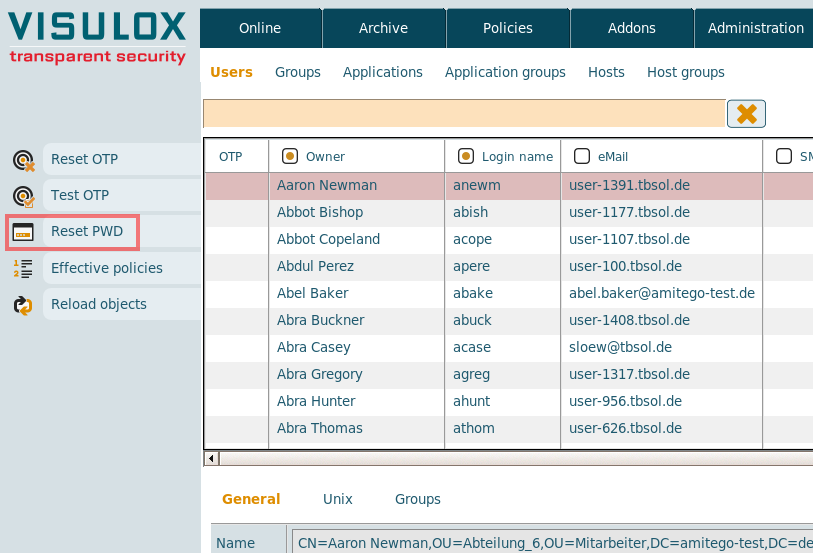
With the Reset PWD button it is possible to reset the password for LDAP / Active Directory users.

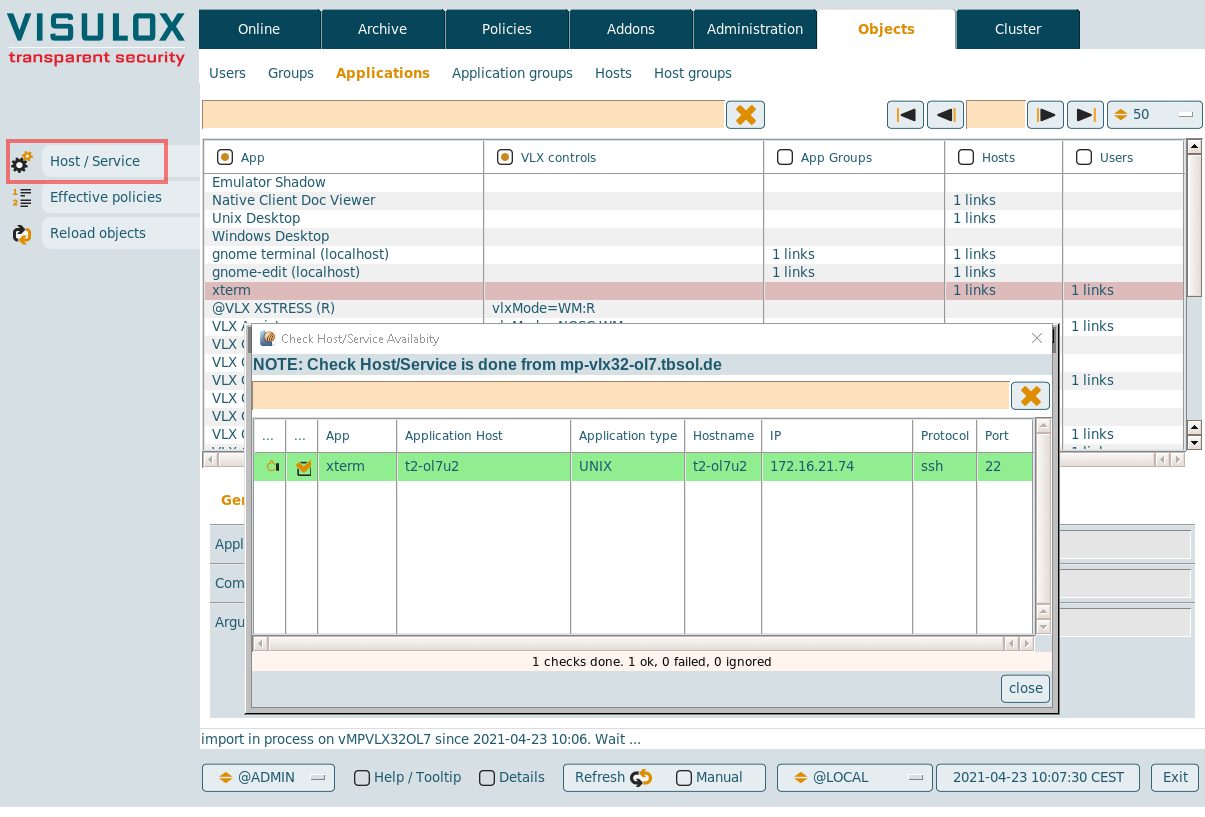
Host / Service button for VISULOX Cockpit / Objects / Applications
With the Host / Service button in VISULOX Cockpit / Objects / Applications the SSH and RDP Connection to application servers can be checked:
Reload Objects button
On all Object pages a Reload Objects button is displayed. With this button the reload of the LDAP import can be triggered by the user.