
Authentication with Microsoft Entra
Microsoft Entra can be used to authenticate users to VISULOX environments. To achieve this some preconditions have to be met.
|
|---|
Microsoft Entra - VISULOX application settings
Once the Entra application is setup, two entries are needed:
Certificates & secrets:
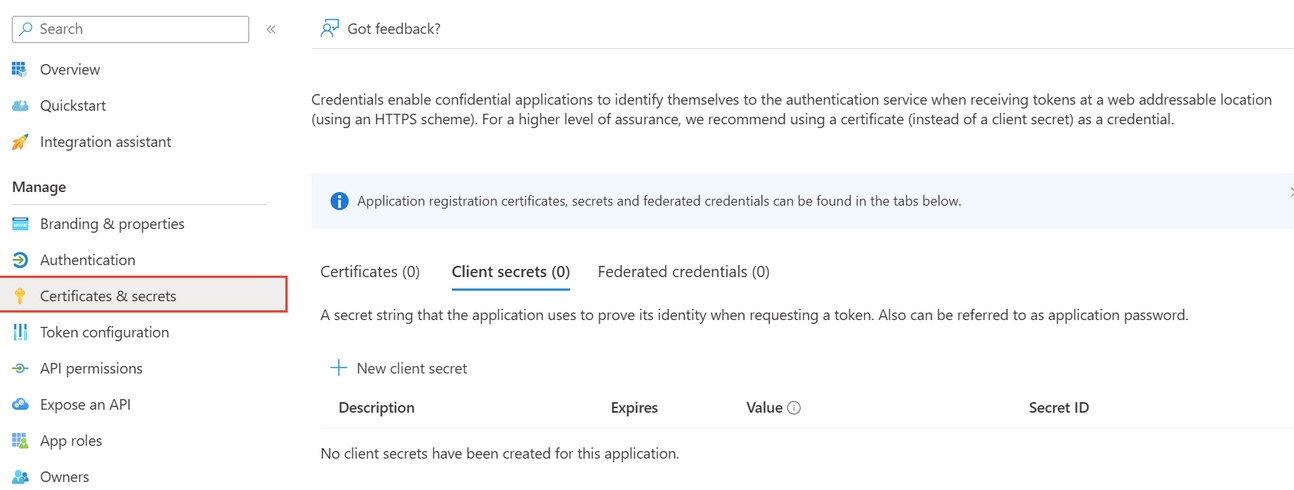
The secret / key has to be set, for example: aVl8Q~IhnT8fiLsO1qOB9AV5Em1vuasNOtBN5cFC
Authentication:
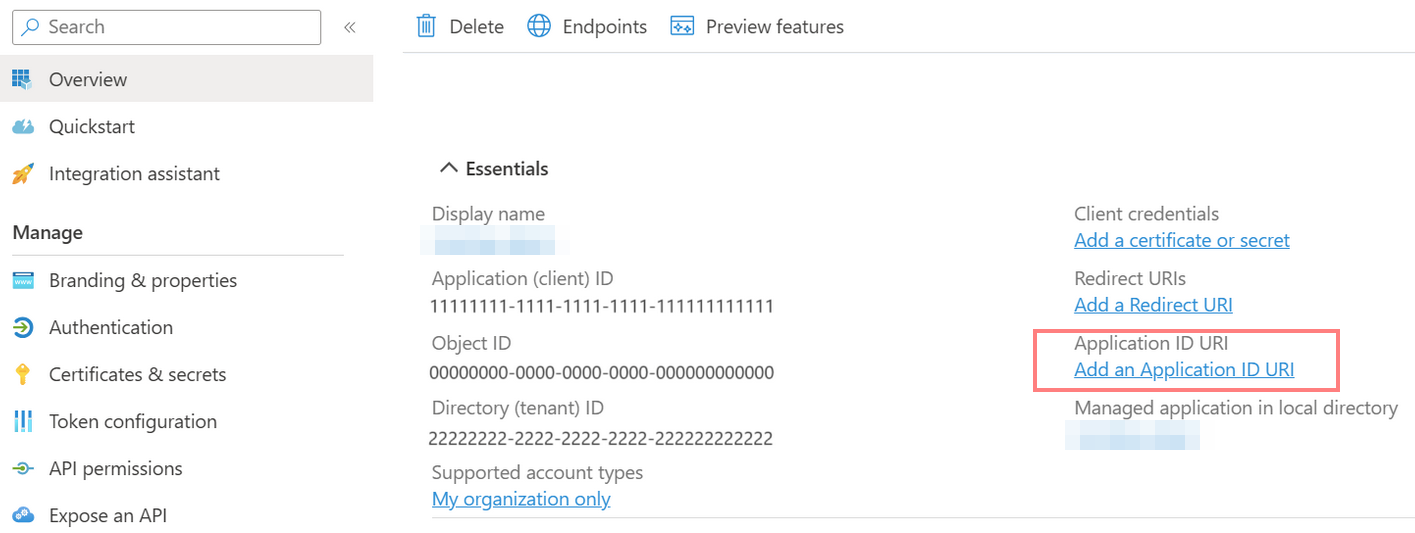
As Redirect URL, the VISULOX Portal URL must be entered, for example: https://vlx-portal-host.domain/visulox/entra/auth/redirect
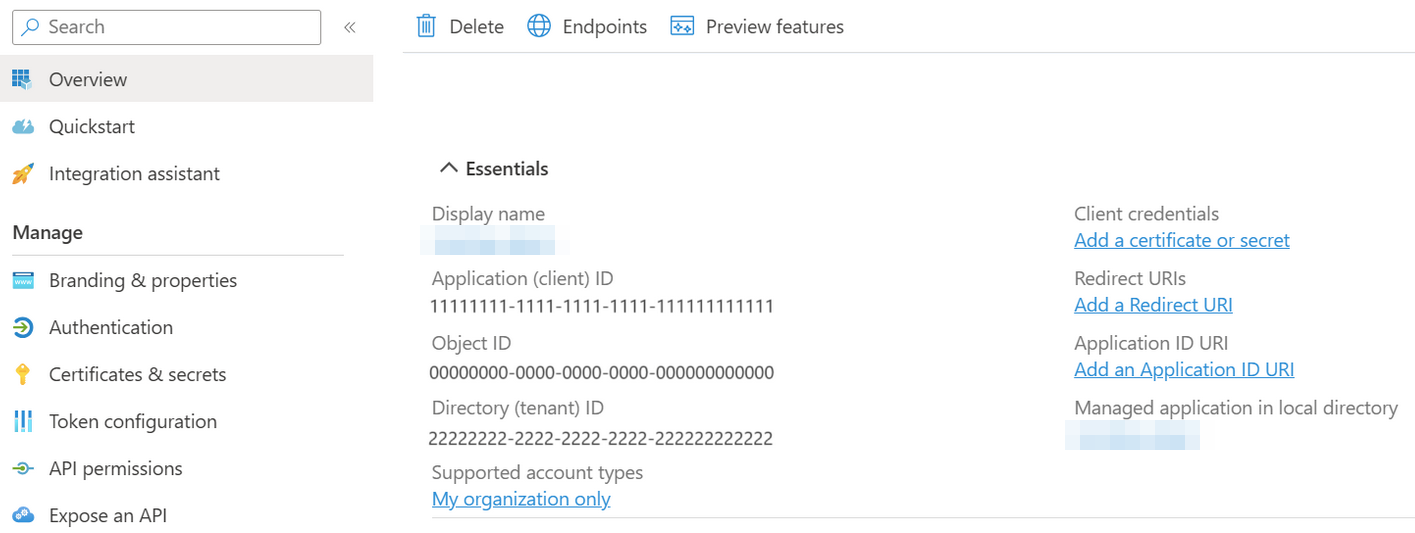
The following information is now available in the Entra application:
Application (client ) ID, for example: c157417f-d7a8-4147-9b09-d3bdc2d62a36
Directory (tenant) ID, for example: 3e1ccbff-07dc-40f7-9843-0703bbbe5436
Secret / key, for example: aVl8Q~IhnT8fiLsO1qOB9AV5Em1vuasNOtBN5cFC
VISULOX Portal URL, for example: https://vlx-portal-host.domain/visulox/entra/auth/redirect
Settings on the VISULOX Portal server
The following parameters have to be set in VISULOX for Microsoft Entra :
visulox config 3rdparty -enabled true
visulox config edit -name portal.entra.enabled=true

visulox config edit -name portal.entra.clientid=c157417f-d7a8-4147-9b09-d3bdc2d62a36
visulox config edit -name portal.entra.secret=aVl8Q~IhnT8fiLsO1qOB9AV5Em1vuasNOtBN5cFC
visulox config edit -name portal.entra.tenantid=3e1ccbff-07dc-40f7-9843-0703bbbe5436
visulox config edit -name portal.entra.homepage=https://vlx-portal-host.domain
Check parameters with:
visulox config -name portal.entra
    --------------------------------------------------------------------------
    | changed | key                   | value                                |
    --------------------------------------------------------------------------
    | changed | portal.entra.clientid | c157417f-d7a8-4147-9b09-d3bdc2d62a36 |
    | changed | portal.entra.enabled  | true                                 |
    | changed | portal.entra.homepage | https://vlx-portal-host.tbsol.de     |
    | changed | portal.entra.secret   | Concealed for Confidentiality        |
    | changed | portal.entra.tenantid | 3e1ccbff-07dc-40f7-9843-0703bbbe5436 |
    --------------------------------------------------------------------------
After these adjustments VISULOX must be attached and the VISULOX Portal has to be restarted:
visulox portal attach
visulox-portal restart
VISULOX login with Microsoft Entra authentication
On the VISULOX Portal login page use the Login with Microsoft button instead of directly entering username / password:
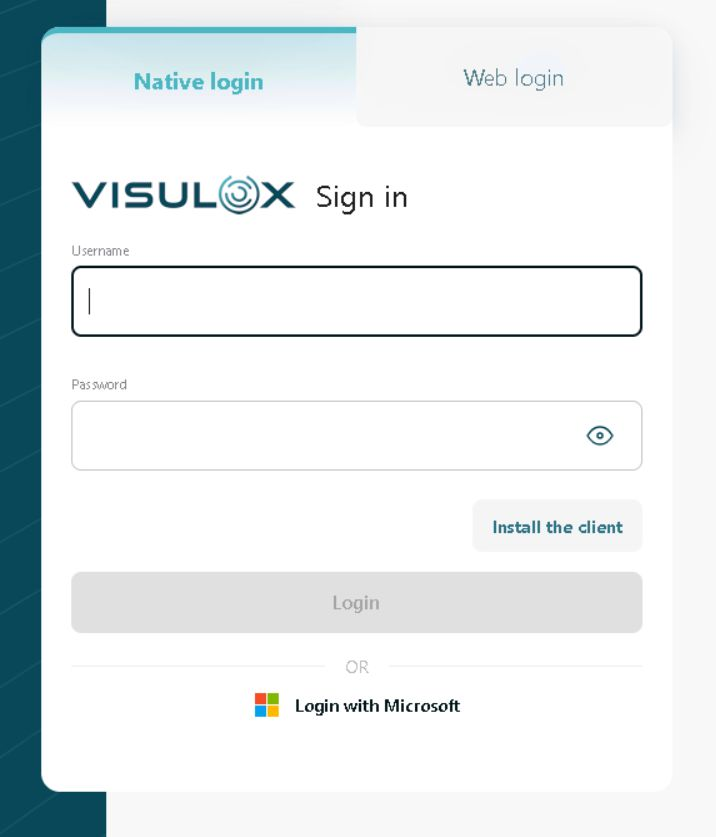
Use your Microsoft credentials in the opened Microsoft login mask.
If the login was successful, the VISULOX login page is displayed again:
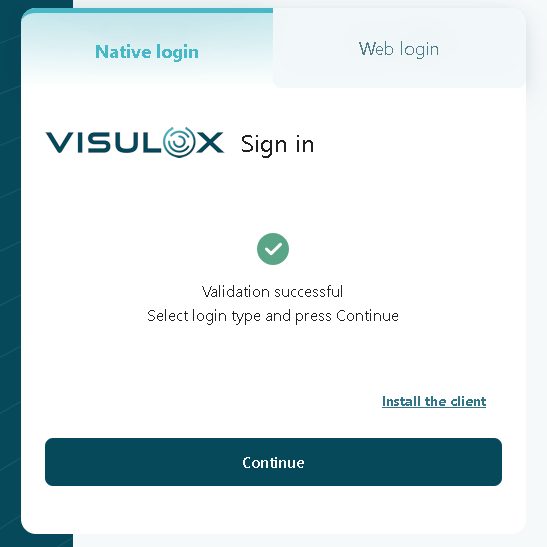
Press continue to open the Workspace.