
VISULOX PORTAL Console
The VISULOX PORTAL Console
This article describes how to run the VISULOX PORTAL Console. It also includes details of how to avoid some common problems when using the VISULOX PORTAL Console. |
Supported browsers for the VISULOX PORTAL Console
To display the VISULOX PORTAL Console, you can use a supported browser.
A list of the current supported browsers can be provided on request.
The VISULOX PORTAL Console is not supported on Safari browsers.
Beta versions or preview releases of browsers are not supported.
Browsers must be configured to accept cookies.
Browsers must have the JavaScript programming language enabled.

When using the VISULOX PORTAL Console, do not use the browser's Back button.
Instead, use the Jump to Object View and Jump to Navigation View links, or the Object History list, to navigate through the VISULOX PORTAL Console pages.
Starting the VISULOX PORTAL Console
The VISULOX PORTAL Console works best when you run it on the Primary VISULOX PORTAL Server in the array.
The VISULOX PORTAL Console can be started in the following ways:
- Click on the VISULOX PORTAL Console link in the Workspace of a VISULOX PORTAL Administrator
- Go to the https://portal-server.example.com/sgdadmin URL
The VISULOX PORTAL Console uses the preferred language for the browser. The current Workspace language is not used.

The VISULOX PORTAL Console is for VISULOX PORTAL Administrators only.
To use the VISULOX PORTAL Console the user must log in as, or be logged in as, a VISULOX PORTAL Administrator.
Avoiding VISULOX PORTAL Datastore update problems
You can perform operations on the VISULOX PORTAL Datastore, such as creating new objects and editing object attributes, using the VISULOX PORTAL Console from any VISULOX PORTAL Server in the array.
When you edit the VISULOX PORTAL Datastore, the changes you make are sent to the Primary VISULOX PORTAL Server. The Primary VISULOX PORTAL Server then replicates these changes to all secondary servers in the array.
By running the VISULOX PORTAL Console from the Primary VISULOX PORTAL Server, you can avoid problems due to the following:
- Slow network: If the network is slow, “Object not found” or “Object not created” errors can be returned. Also, problems with stale data can occur, where configuration changes are not shown correctly.
- Primary down: If the primary server is down, or unavailable, VISULOX PORTAL Datastore changes are not applied.
Performing array operations using the VISULOX PORTAL Console
The following limitations apply when using the VISULOX PORTAL Console to perform array operations, such as array joining or array detaching:
- Use the Primary VISULOX PORTAL Server:
Running the VISULOX PORTAL Console on the primary server avoids data replication problems.
See also: "Avoiding VISULOX PORTAL Datastore update poblems”. - All servers involved in an array operation must be up:
For example, the VISULOX PORTAL Console cannot be used to detach a secondary server that is down.
Instead, use the visulox-portal array detach command. - Clocks must be synchronized on all servers involved in an array operation:
For example, a secondary server cannot be added if its clock is out of synchronization by more than a minute.
NTP software or the rdate command can be used to ensure the clocks on all VISULOX PORTAL Nodes are synchronized.
VISULOX PORTAL Console configuration settings
The deployment descriptor for the VISULOX PORTAL Console web application contains settings that control the operation of the VISULOX PORTAL Console.
The deployment descriptor is the following file: /opt/tarantella/webserver/tomcat/default/webapps/sgdadmin/WEB-INF/web.xml
Any other settings in the web.xml file must not be changed.
- Only change web.xml if it is understood what is done.
- Always create and keep a backup of the original web.xml, in case it is needed to revert to a previous version.
- After changing web.xml, the VISULOX PORTAL web server must always be restarted for the changes to take effect.
- Changes to web.xml only apply for the server that is hosting the VISULOX PORTAL Console.
- The order of the XML elements contained in web.xml must not be change.
Number of search results
The com.sun.tta.confmgr.DisplayLimit context parameter enables you to configure the maximum number of search results you can display in the VISULOX PORTAL Console.
The default setting is: 150.
If there are more results than the display limit, the VISULOX PORTAL Console displays a message. Increasing the display limit can have an effect on performance.
Set the display limit to 0 to see unlimited search results.
DNS lookups
By default, VISULOX PORTAL Service uses a query class of ANY for DNS lookups. Some firewall configurations may block this class of DNS lookups.
This can lead to problems, for example when configuring Active Directory authentication using the VISULOX PORTAL Console.
To configure the VISULOX PORTAL Console to use a query class of IN for all DNS lookups, set the sgd.naming.dns.in_class_only context parameter to true.
Searching and displaying LDAP data
The com.sun.tta.confmgr.LdapSearchTimeLimit context parameter enables you to configure the maximum time, in milliseconds, to allow for a search of a Lightweight Directory Access Protocol (LDAP) directory.
The default setting is: 0, which means the search time is unlimited. This context parameter should only be changed if the LDAP directory servers are particularly slow.
The following context parameters are used to filter the display of LDAP data, when Local + LDAP is selected in the repository list in VISULOX PORTAL Console:
- Filters used by the navigation tree. These are the following context parameters:
- com.sun.tta.confmgr.LdapContainerFilter
- com.sun.tta.confmgr.LdapUserFilter
- com.sun.tta.confmgr.LdapGroupFilter
- Filters used when searching an LDAP directory. These are the following context parameters:
- com.sun.tta.confmgr.LdapContainerSearchFilter
- com.sun.tta.confmgr.LdapUserSearchFilter
- com.sun.tta.confmgr.LdapGroupSearchFilter
- Filters used when loading the LDAP assignments on the Assigned Applications tab for a user profile.
This is the com.sun.tta.confmgr.LdapMemberFilter context parameter.
These context parameters contain the definitions of what the VISULOX PORTAL Console considers as LDAP containers, users, and groups.
These filters can be changed to improve performance, or to change the definition of these LDAP object types to match those used in your LDAP directory.
For example, if an LDAP directory uses the computer object class edit the com.sun.tta.confmgr.LdapUserFilter context parameter to remove the (!(objectclass=computer)) entry.
To avoid inconsistencies, if a filter for the navigation tree is changed, it can be also needed to change the filter used for the LDAP search.
Session timeout
The session-timeout setting defines the period of time after which the user is logged out if there is no activity, meaning no HTTP requests, in the VISULOX PORTAL Console.
The default setting is 30 minutes, to ensure unattended VISULOX PORTAL Console sessions are not left open indefinitely.
Working with the VISULOX Portal Console
Starting the VISULOX Portal Console
The VISULOX Portal Console is a web application that enables you to configure and manage a VISULOX Portal server using a browser. The browser must have JavaScript software enabled.
The following procedure describes how to run the Portal Console from the VISULOX Portal Administrator's Workspace.
- Start the VISULOX Portal Console.
Click the VISULOX PORTAL Console link on the Workspace. - The VISULOX Portal Console opens in Navigation View
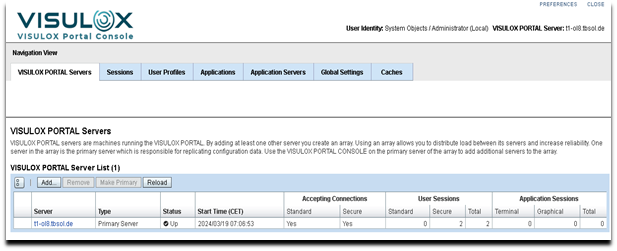
Creating an Application Server Object
You can use the VISULOX Portal host as an application server. An application server object for the VISULOX Portal host is created automatically when you install VISULOX Portal.
If you are using a different application server to host applications, use the following procedure to create an application server object.
- In the VISULOX Portal Console, click the Application Servers tab.
- In the content area, click New.
The Create a New Object window is displayed. - In the Name field, enter the fully qualified domain name for the application server.
For example, amitego.example.com. - Ensure the Application Server option is selected and click Create.
The Create a New Object window closes and the content area is updated with the new object.
Adding an application to the VISULOX Portal Workspace
The following procedure describes how to use the VISULOX Portal Console to create an application that can be displayed through VISULOX Portal, and how to add a link for the application to the VISULOX Portal Workspace.
In the following example, you create a new X terminal application.
- Create an application object.
a. In the VISULOX Portal Console, click the Applications tab.
b. In the content area, click New.
The Create a New Object dialog box is displayed.
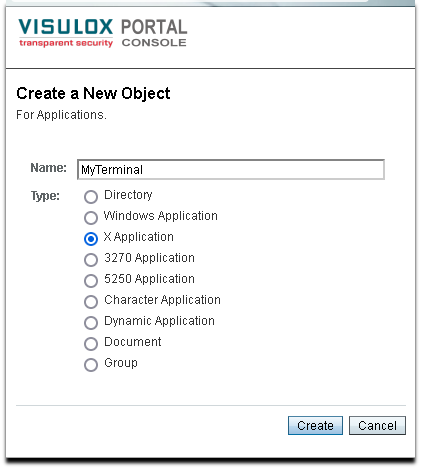
c. In the Name field, enter the name of the application. For example, MyTerminal.
The name you enter is used for the application link on the Workspace.
d. Ensure the X Application option is selected and click Create.
The Create a New Object window closes and the content area is updated with the new object.
2. Configure the application object.
a. Click the View New Object link and configure settings for the application.
In the Application Command field on the Launch tab, enter the application command.
Use the full path of the command that runs the MyTerminal application.
For example, /usr/bin/xterm.
b. Click Save to save the configuration changes.
3. Assign an application server to the application object.
In this example, we use the VISULOX Portal host as the application server.
a. Click the Hosting Application Servers tab.
b. In the Editable Assignments table, click Add.
The Add Application Server Assignment window is displayed.
c. Select the check box next to the application server object and click Add.
For this example, select Tarantella server localhost, where localhost is the VISULOX Portal host.
The Effective Application Servers table is updated with the selected application server object.
4. Add your application to the Workspace.
You add your application as a member of the Applications group.
The Applications group contains the default set of applications for the workspace.
a. In Navigation View, click the Applications tab and click the Applications group.
The General tab is displayed.
b.Click the Members tab.
c. In the Editable Members table, click Add.
The Add Application Member window is displayed.
d. Select the check box for the MyTerminal application and click Add.
The Effective Members table is updated with the selected application.
e. The MyTerminal application is shown on your Workspace.
5. Start the application.
Click the MyTerminal application link on the Workspace.
6. Close down the application.
Use the window decoration for the application, or the Workspace Close icon.