
How to configure role profiles for the VISULOX Cockpit
General
With the Cockpit role editor a customized Cockpit can be configured and assigned to users.
Prerequisites
For this example setup two users have to be registered in the VISULOX PORTAL with the following settings:
User | Role | eMail | SMS | Application | Other |
|---|---|---|---|---|---|
| Master | Supervisor | <supervisor>@company.com | - | VISULOX Cockpit | - |
| Miller | User | <user>@company.com | - | VISULOX Cockpit | - |
Supervisor Master creates a new role profile for user Miller.
User Miller logs into the VISULOX PORTAL and starts his restricted Cockpit.
Creating a new role profile in Cockpit
- User Master starts the "VLX Cockpit" application from his Workspace
Supervisor Master opens "Cockpit / Administration / Cockpit Roles":
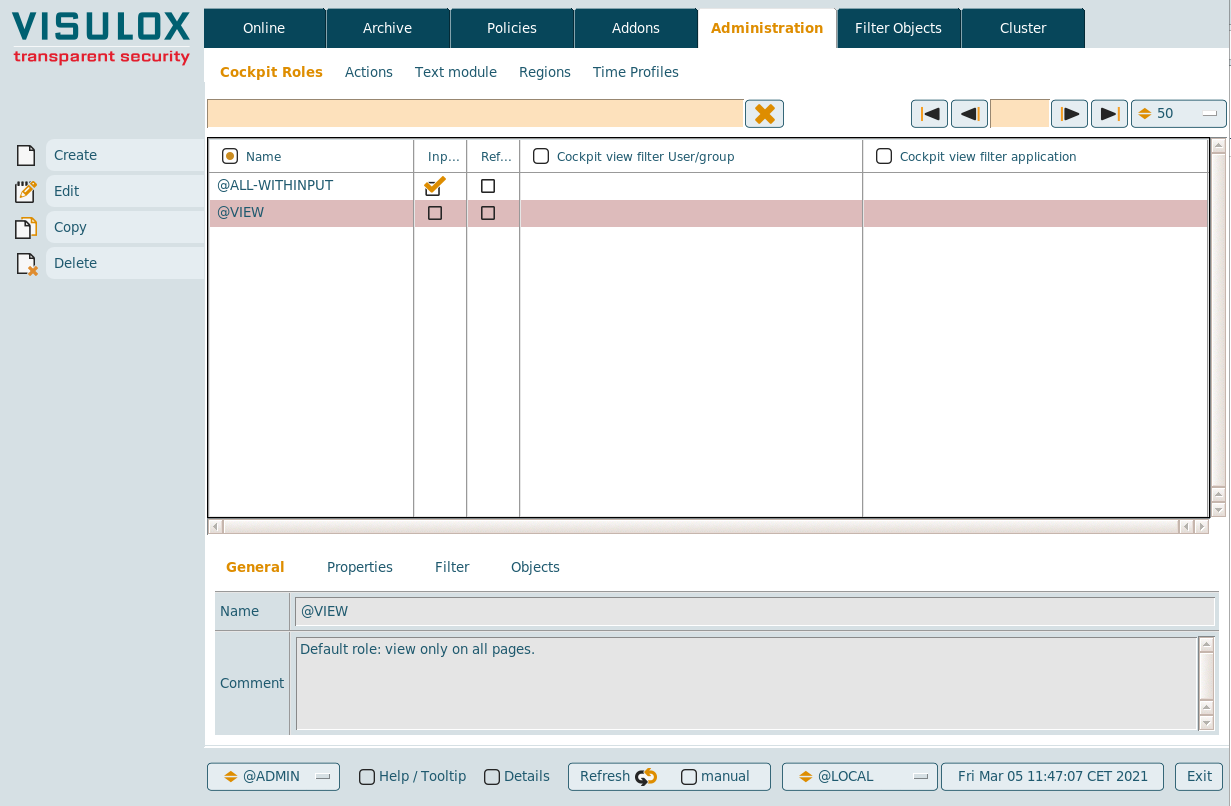
With the "Create" button, the General register tab of new Cockpit role profile is opened:
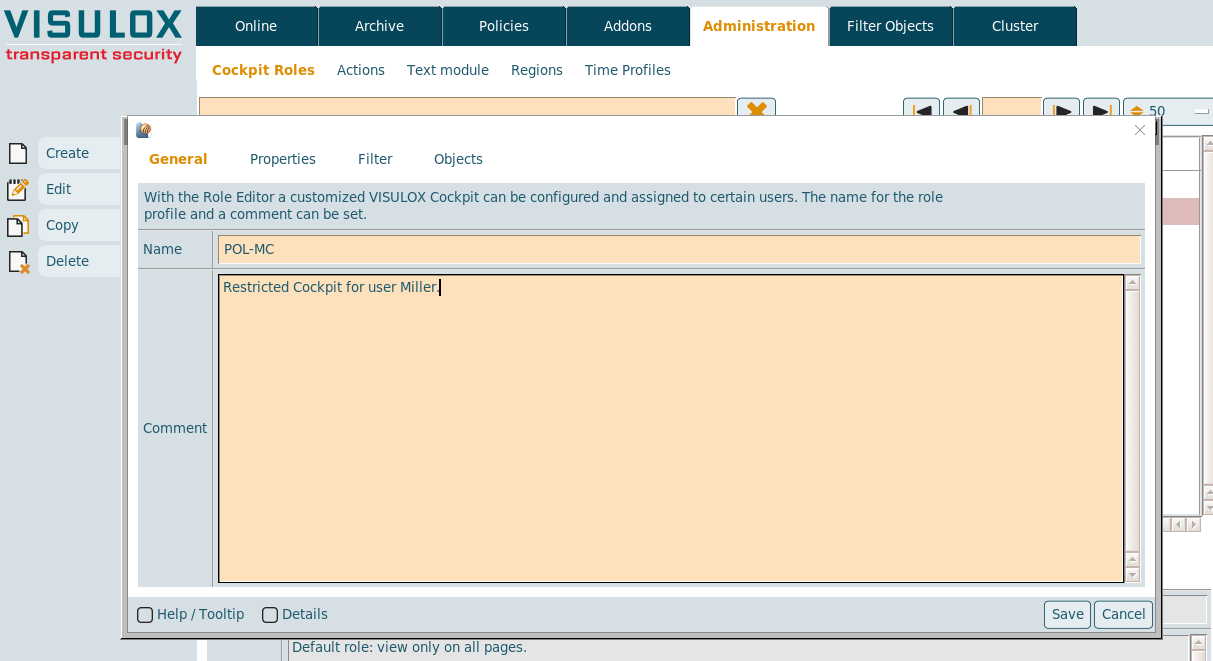
A unique name for the profile must be entered: "POL-MC".
A comment for the policy can be entered as well.
On the Proberties tab several settings can be adjusted:
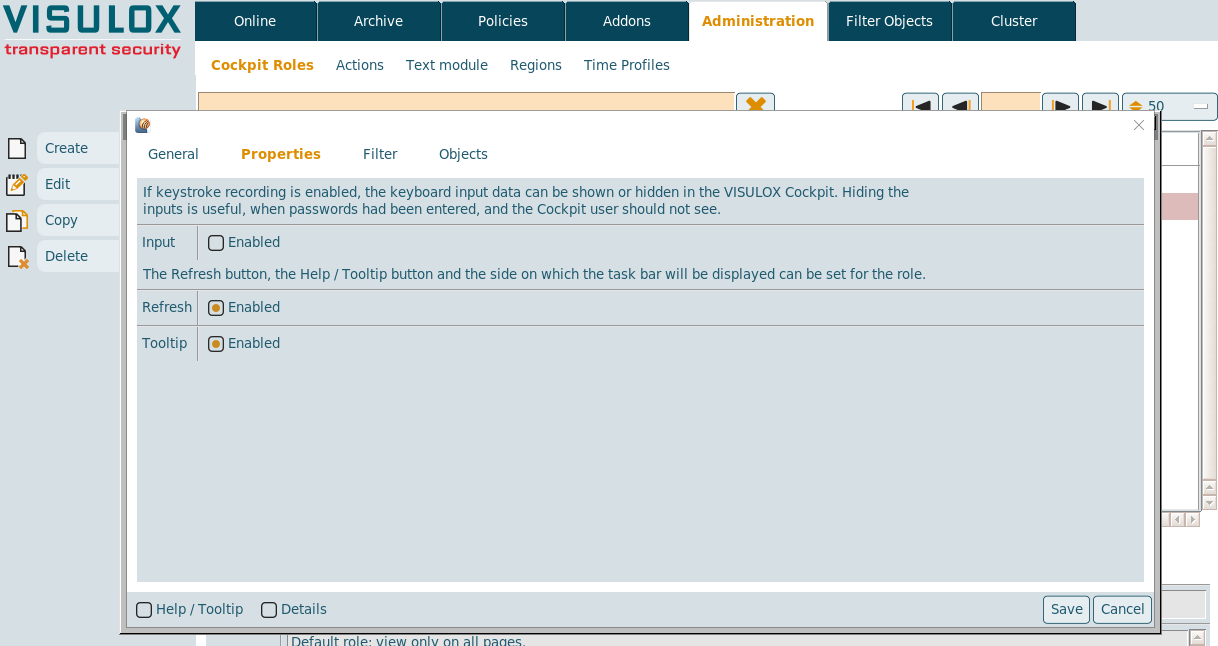
The keyboard input data should not be seen by user Miller, so this setting is left disabled for this user.
Refresh and Help / Tooltip will be available for Miller.
A filter for the displayed information in the Cockpit can be set:
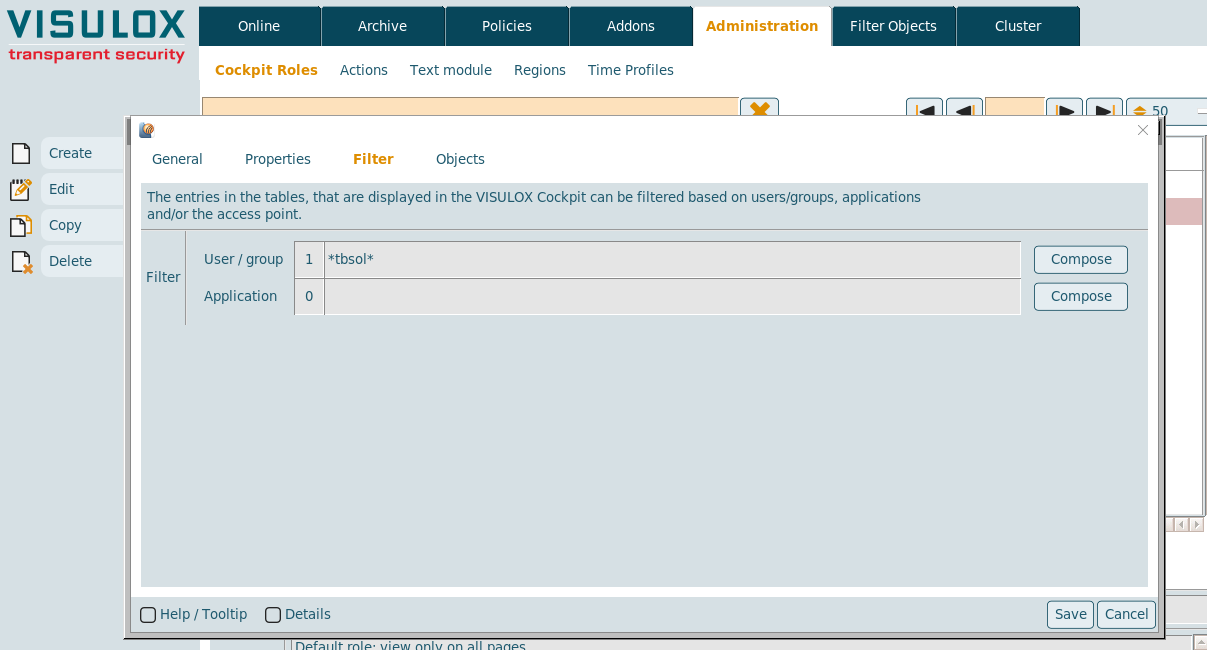
The filter is set to the group "tbsol", so Miller can see only entries from users belonging to that group in his Cockpit.
Only the entries on the Online and Archive page are filtered.Additional filters can be set based on the Remote IP address or on the access point (not used in this example).
Finally the displayed register tabs and the enabled features are set:
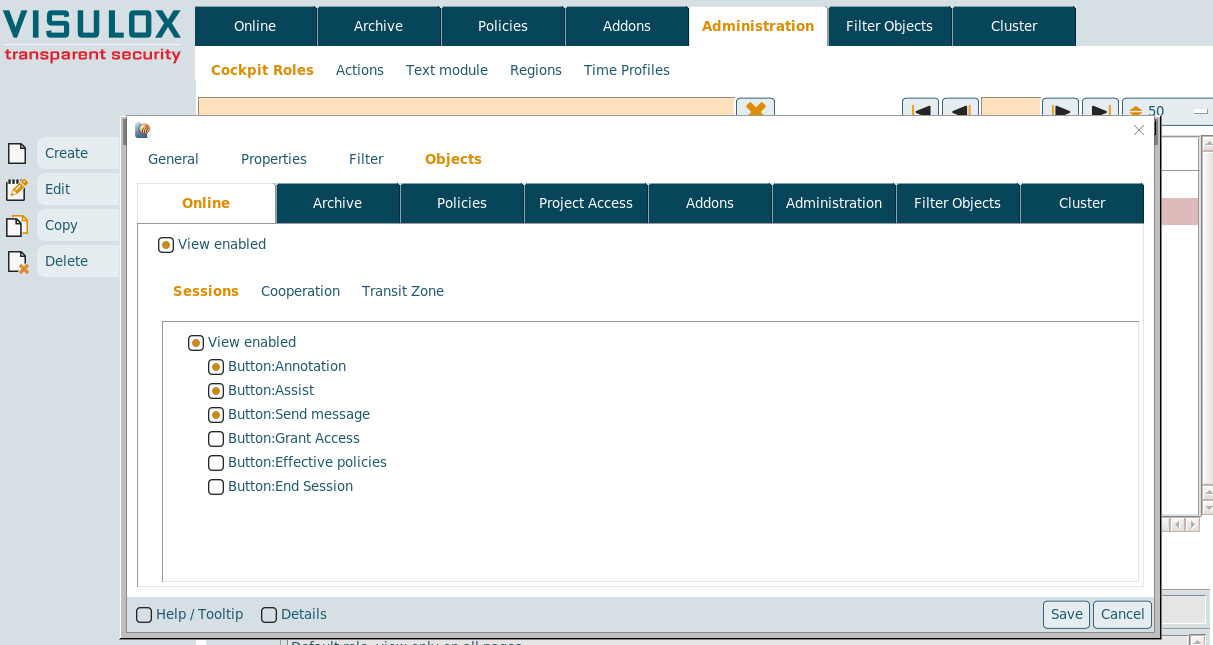
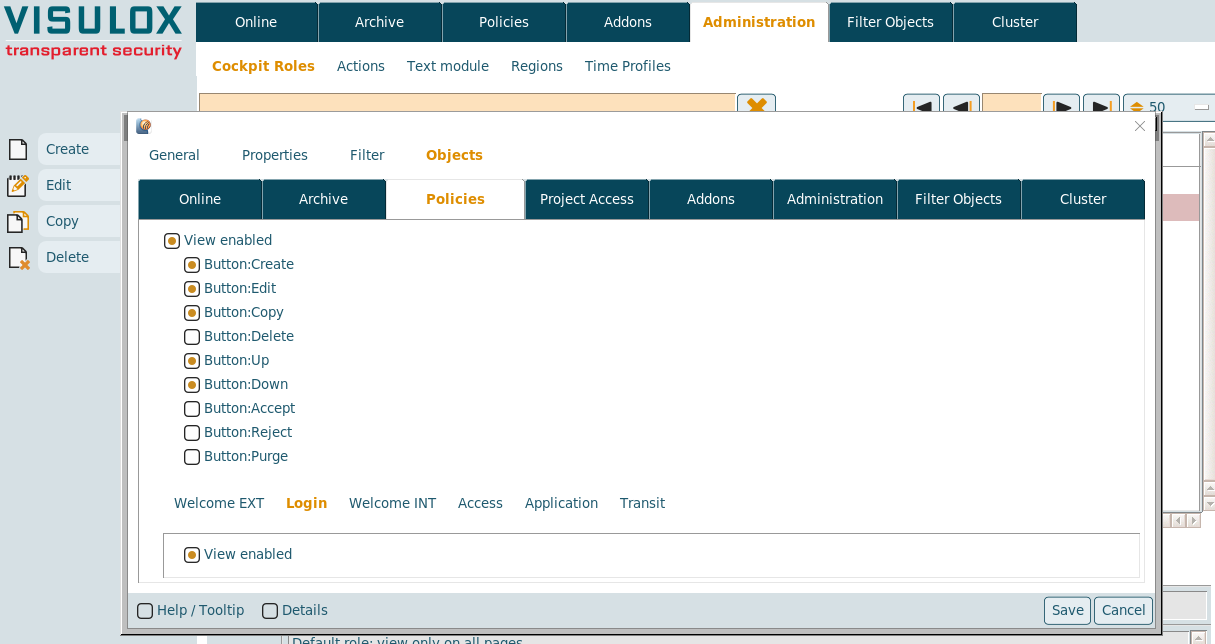
In this example user Miller will be able to see the running sessions of the users from group "tbsol".
He can create annotations, assist users and send messages to the users.
Grant Access, Effective Policies and Ending Sessions is not available for Miller.
The Policy tab will also be enabled for Miller, so that he is able to grant access to the users in the "tbsol" group.
He can Create, Edit and Copy Access Policies. Moving the Access Policies Up and Down is enabled as well.
Miller can not Delete policies. Accept / Reject and Purge is not enabled as well.
The view is enabled only for Login Policies.The new restricted Cockpit now has to be assigned to user Miller in the VISULOX PORTAL Console:
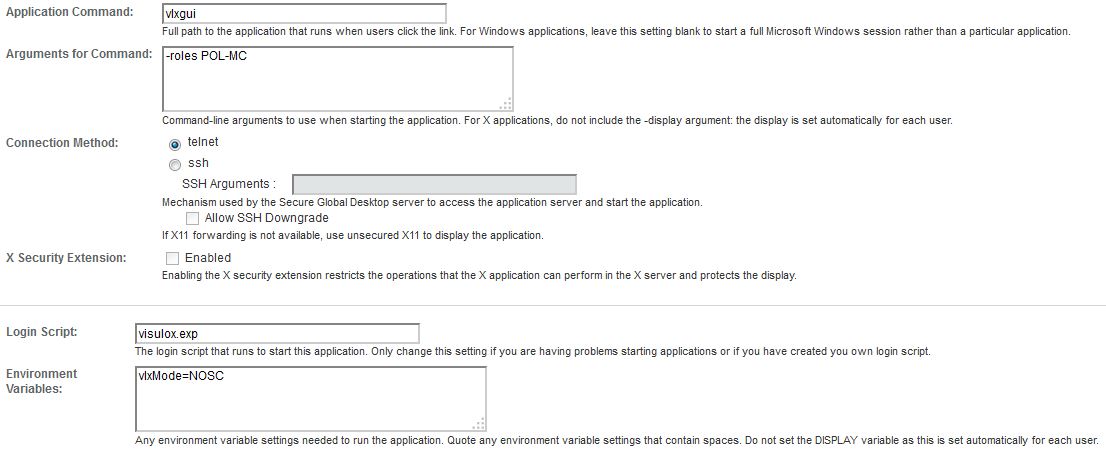
The parameters are the same as for all Cockpits, except the "Arguments for Command setting".
With "-roles POL-MC", the created role profile will be set for this Cockpit. More roles can be set at once separated by "," and can be switched in the started Cockpit.
This Cockpit application then is assigned to user Miller.ser Miller now can start the new assigned Cockpit from his Workspace:
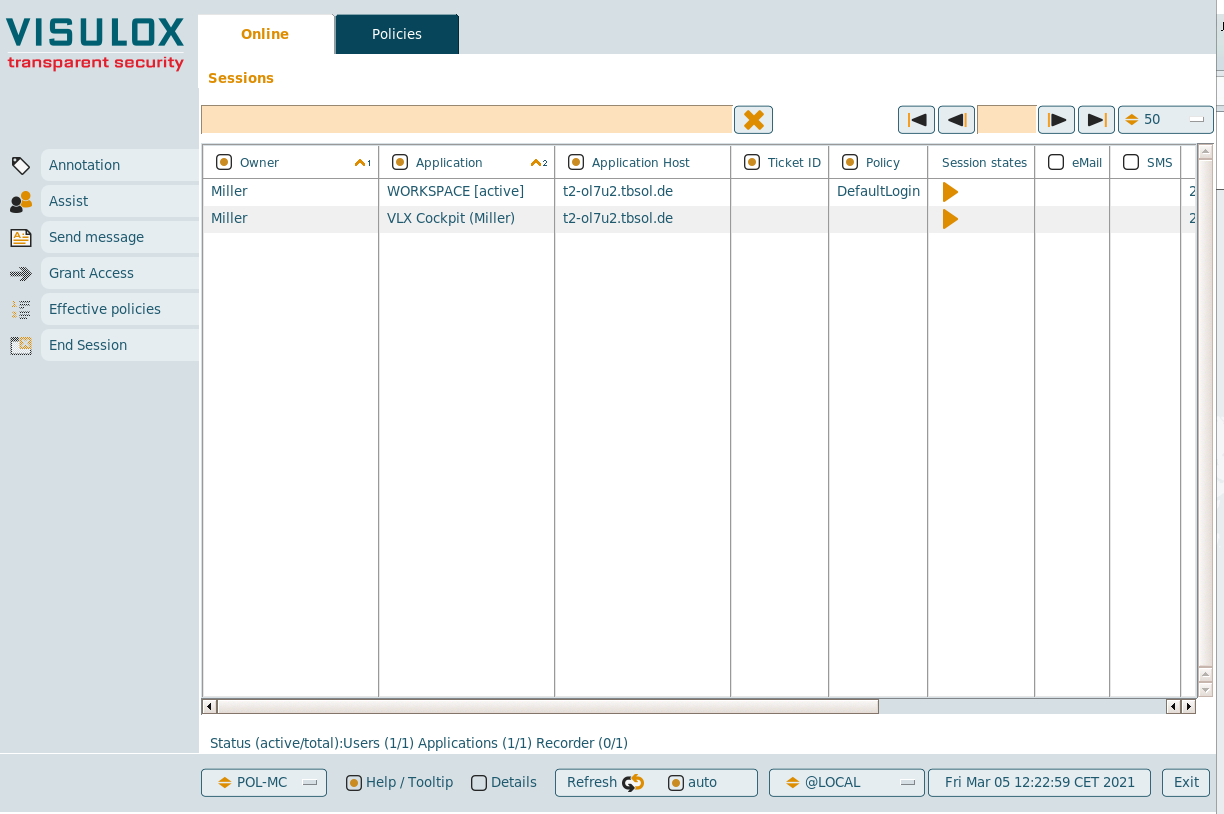
Register tabs, that are not configured are not displayed.
So, In this example only the "Online" and the "Policies" tab can be seen.
Buttons that are not enabled in this role profile are grayed out.
On the bottom status line, the name of the used role profile and the configured checkboxes and buttons are displayed: Refresh and Help / Tooltip (the detail checkbox is always available).
See also:
How to control the VISULOX Cockpit
How to control VISULOX Cockpit roles from the command line