
Example: Keyboard recording
General
With VISULOX keyboard recording it is possible to record the keystrokes entered in an application by a user. Keywords can be defined, that will trigger several options after the keyword has been detected. It is possible to hide the recorded keystrokes in the VISULOX Cockpit, which is very useful, if the user has to enter passwords or other security related information.

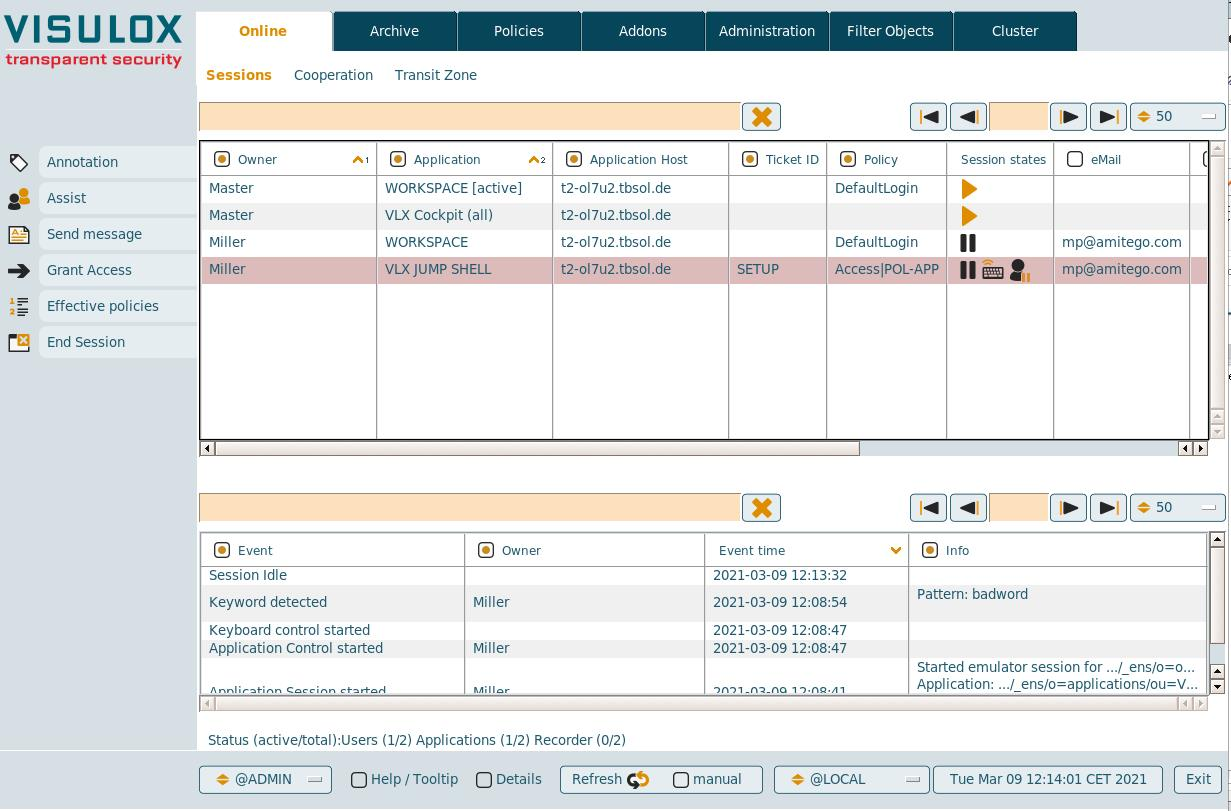
Keep in mind, that keyboard recording does not prevent entering certain commands. Keyboard recording detects keywords and provides some actions after the detection (nearly in real time).
Prerequisites
For this example setup two users have to be registered in VISULOX PORTAL with the following settings:
| User | Role | SMS | Application | Other | |
|---|---|---|---|---|---|
| Master | Supervisor | <supervisor>@company.com | - | VISULOX Cockpit | - |
| Miller | User | <user>@company.com | - | VLX Jump Shell | - |
Supervisor Master enables and configures keyboard recording.
User Miller logs into VISULOX PORTAL and starts an application to enter some commands.
Configuration of keyboard recording
Supervisor Master creates a new Application Policy in "VLX Cockpit":
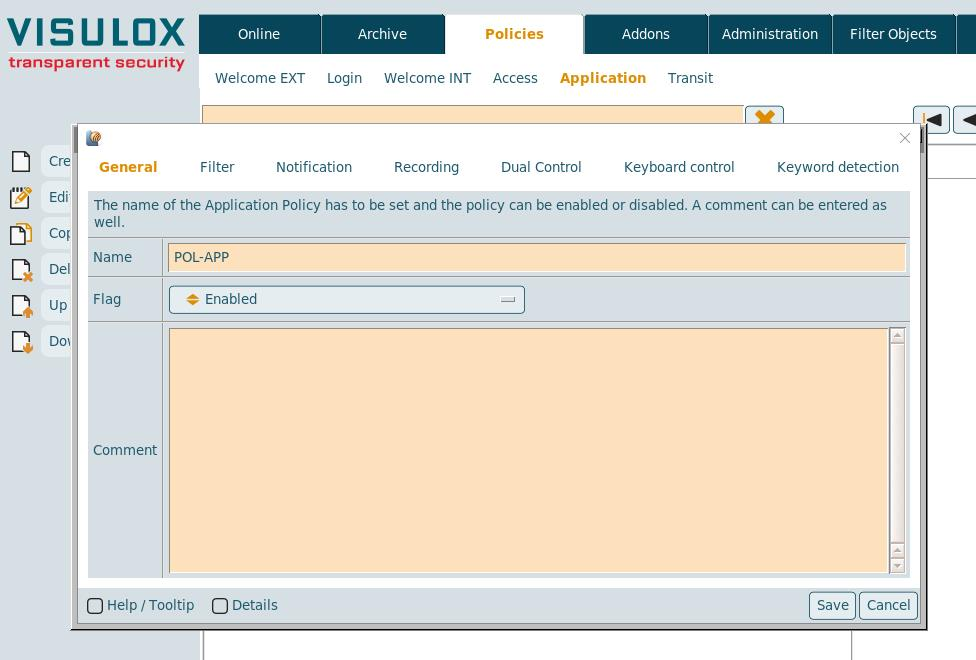
A unique name for the policy must be entered: "POL-APP".
To use the Application Policy "Enabled" has to be selected.
A comment for the policy can be entered as well.
Setting the filter:
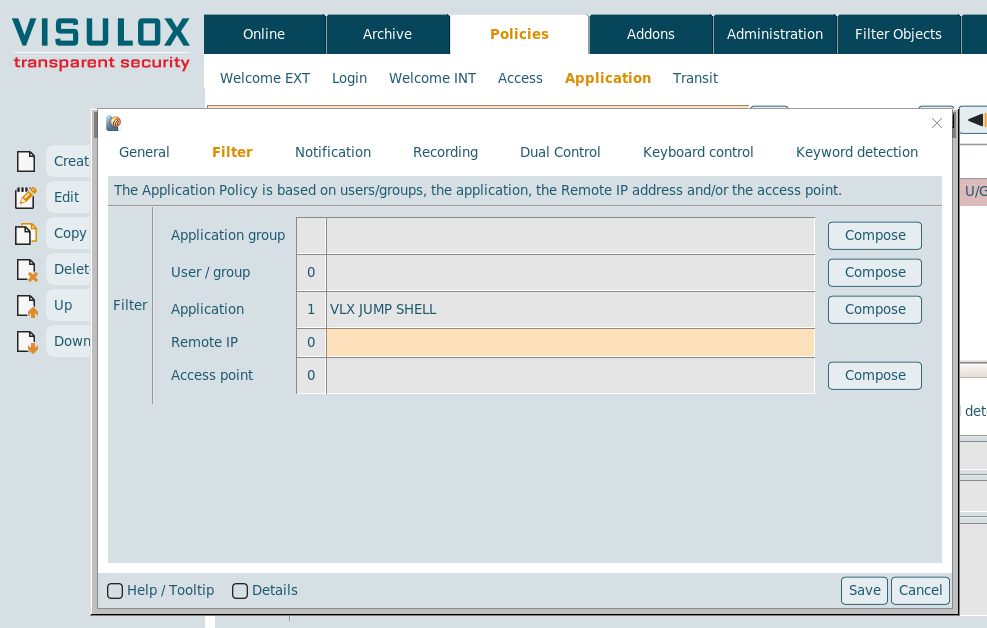
Only the "VLX Jump Shell" application will be used for keyboard recording in this example.
It is also possible to set a filter for the application group, the remote IP address or the access point (not used in this example).
Configuring keyboard control:
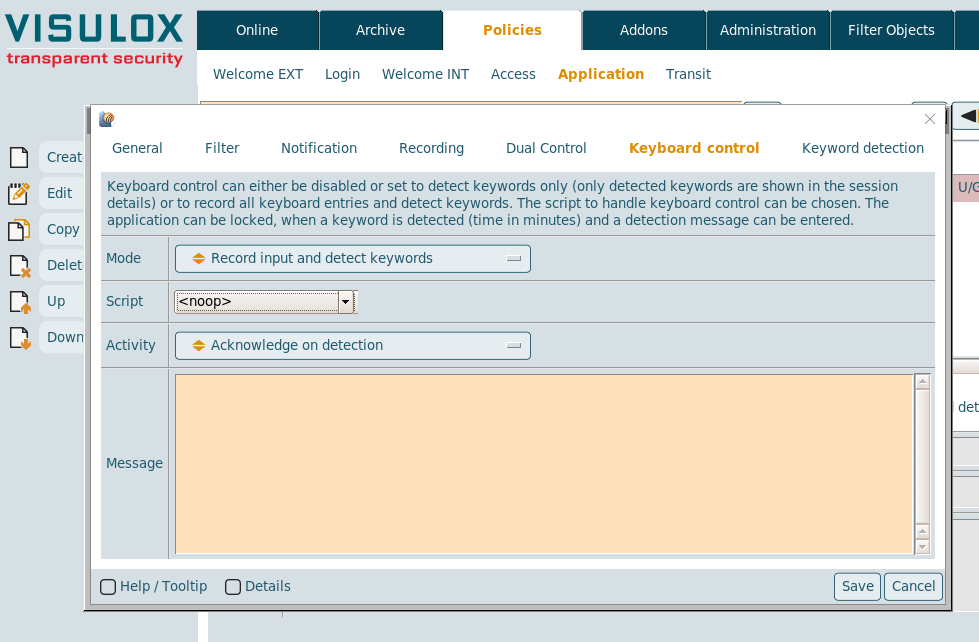
The method for keyboard recording has to be selected: "Record input and detect keywords".
A script can be selected, which is executed, when a keystroke is detected (not used in this example).
Activity on detection is set to "Acknowledge on detection".
And finally a detection message can be entered.
The Application Policy must be saved before a line item entry can be created.
There are different ways to use keyboard recording:
- Example 1: Method: "Record input and detect keywords" / Activity on detection: "Acknowledge on detection"
- Example 2: Method: "Detect keywords only" / Activity on detection: "Lock on detection"
Another possibilty for an action on detection is "Keyword detection muted" (not used in these examples).Creating a keyword detection rule for the policy:
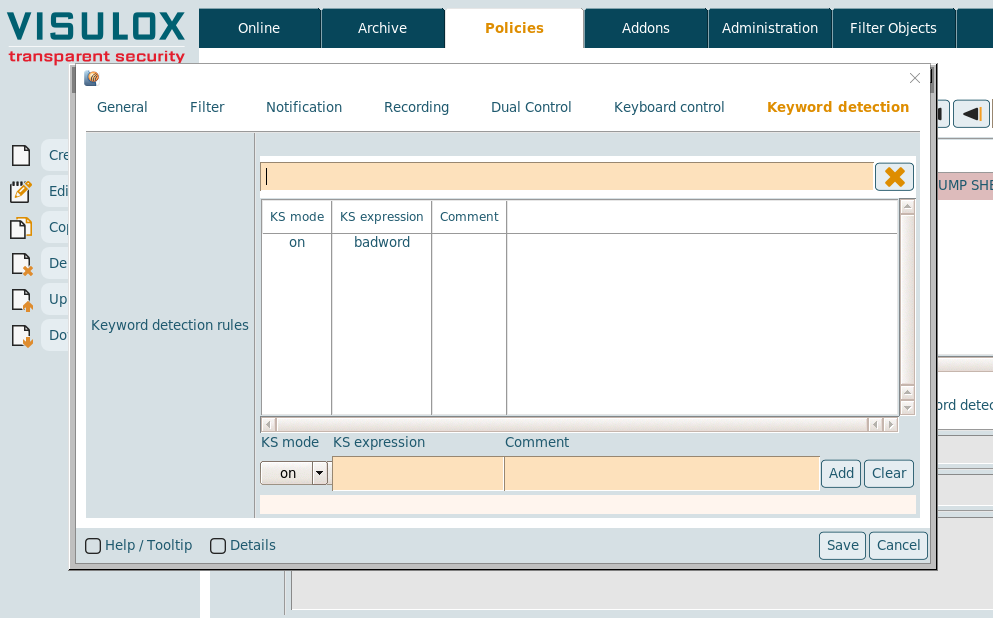
A keyword detection comment for the keyword can be entered.
The regexpression of the keyword has to be defined: "badword"
Example 1: Miller starts the application and enters the configured keyword
Method: "Record input and detect keywords" / Activity on detection: "Acknowledge on detection"
- User Miller starts the "VLX Jump Shell" application from his Workspace:
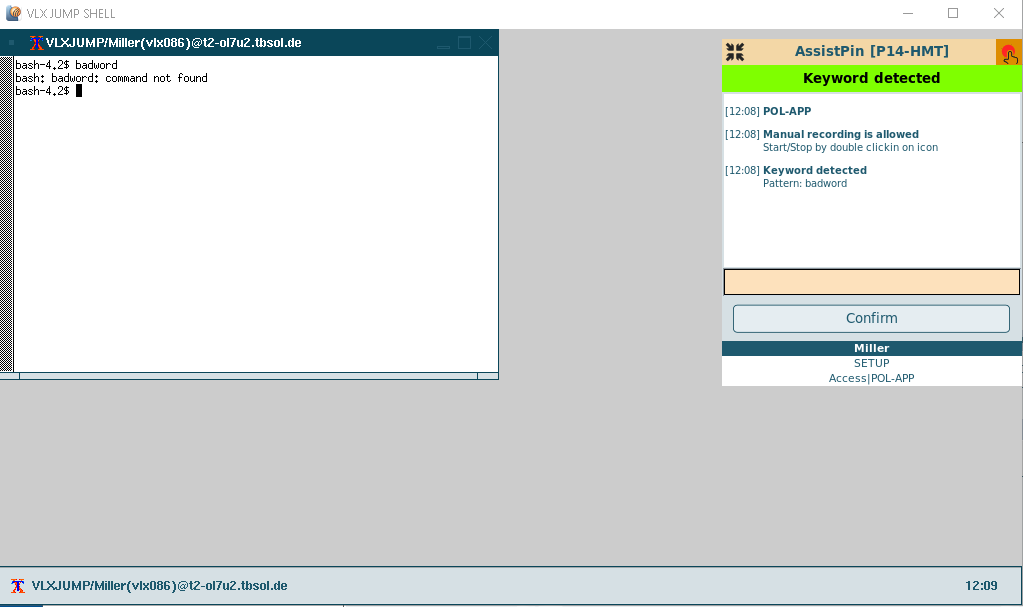
The keyword "badword" is detected and the application is locked.
Miller has to acknowledge the "Keyword detected" box to continue working.
With "Record input and detect keywords" all keystrokes from user Miller are displayed in the VISULOX Cockpit.
Example 2: Miller starts the application and enters the configured keyword
Method: "Detect keywords only" / Activity on detection: "Lock on detection"
User Miller starts the "VLX Jump Shell" application and enters "badword":
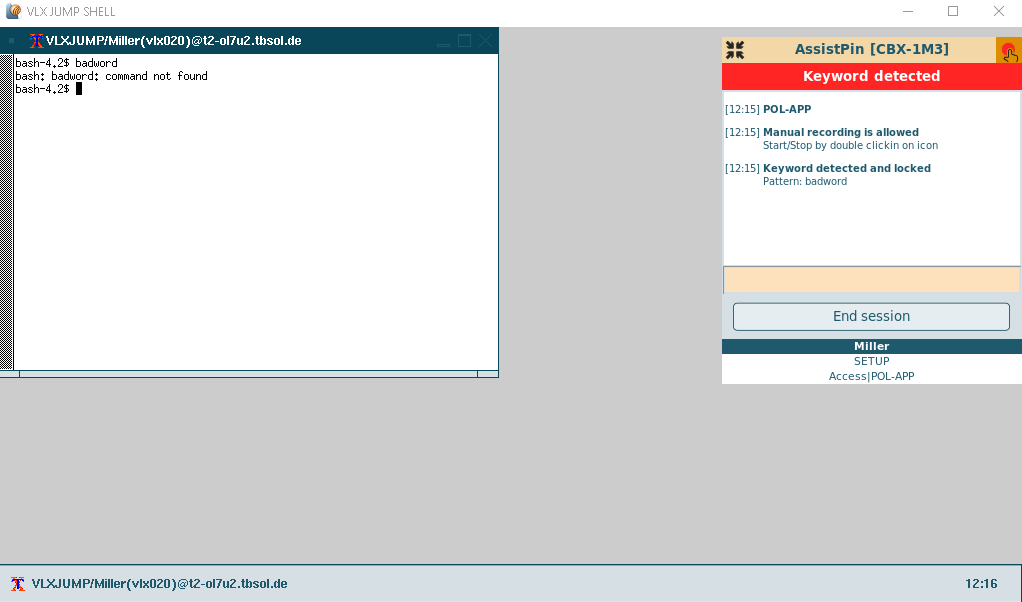
The keyword "badword" is detected and the application is locked.
If an denied Access Policy is configured with a request script, the "Send Request" button can be displayed next to the "End session" button.
With "Detect keywords only" only the entered keywords from user Miller are displayed in the Cockpit. Other keystrokes can not be seen.
Keyboard recording check list with additional tests
| Feature | Expected behaviour | Comment |
|---|---|---|
| Policy mode: disabled |
| |
| Filter settings |
| |
| Recording on/off | ||
| Keystroke detection |
| |
| Activity on detection |
| |
| Detection message |
| |
| Line items |
| |
| Events |
|